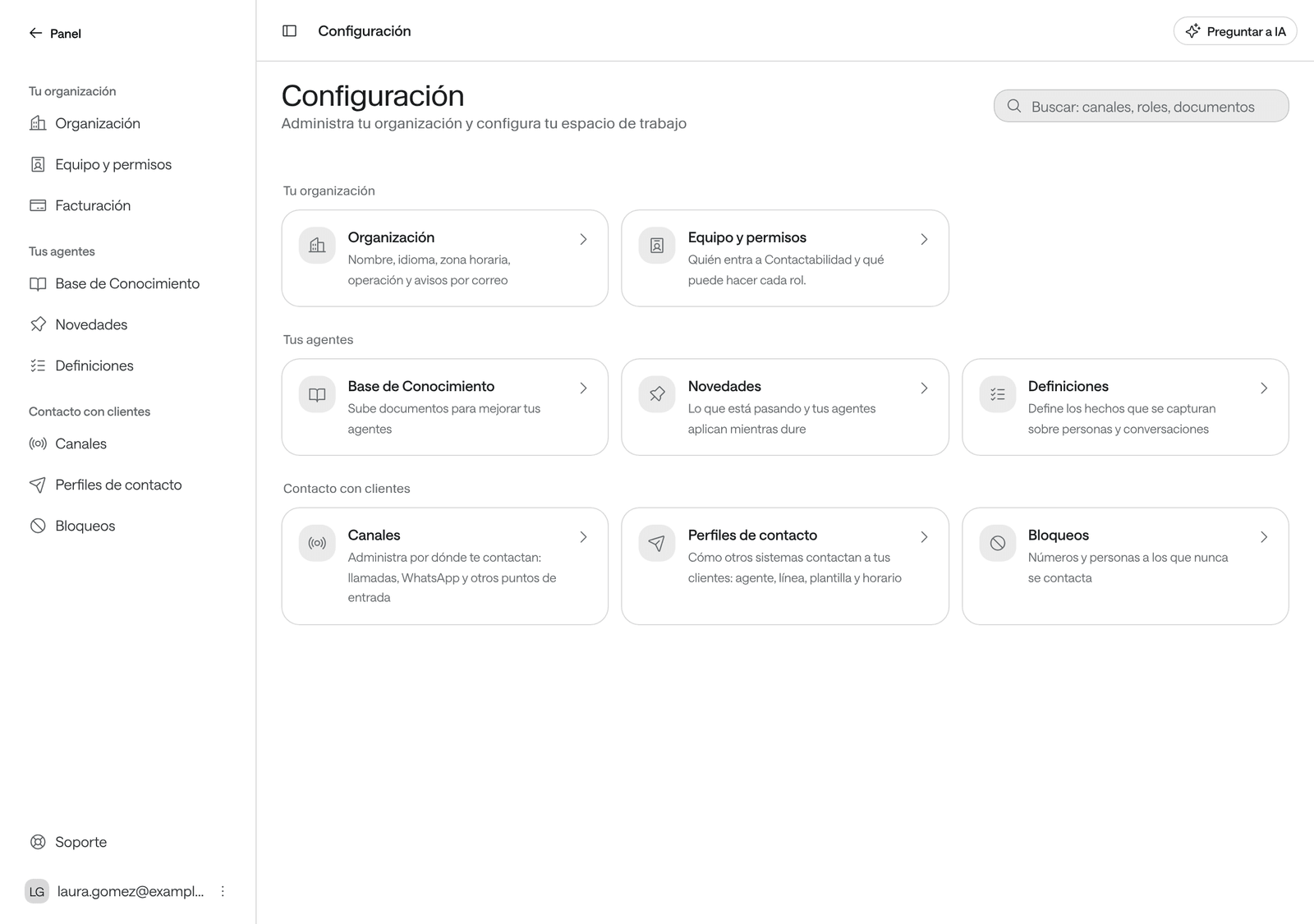
Settings holds what applies to your whole organization in Raíz, not to a single agent: its details, your team, the knowledge base, the channels and the block list. Come here when your organization starts using Raíz, when it changes its name or time zone, or when you’re looking for where something is set.
Before you start
- Only people with a role that can Set up the organization, such as Owner, see the Organization page.
- The other pages in Settings have their own permissions; each guide says which. Settings only shows you the ones your role can open.
Open the settings
-
In the menu, click Settings, at the bottom of the sidebar. It’s also in the menu of the organization’s name, at the top.
-
Click the page you’re looking for, or type in the search box, for example “hours” or “roles”.
-
To go back to the rest of the Dashboard, click Dashboard at the top of the sidebar.
What’s in Settings
| Block | Page | What for | Guide |
|---|---|---|---|
| Your organization | Organization | Name, language, time zone, simultaneous calls, notices and the daily report. | This page and Notices and the daily report |
| Your organization | Team and permissions | Who can sign in to Raíz and what each role can do. | Team and permissions |
| Your agents | Knowledge Base | The documents your agents consult. | Give your agents knowledge |
| Your agents | Bulletins | Temporary notices your agents apply while they last. | Bulletins, templates and campaigns |
| Your agents | Definitions | The data kept about people. | This page, further down |
| Reaching customers | Channels | Your numbers, the web chat and WhatsApp business hours. | Channels |
| Reaching customers | Contact profiles | How your other systems contact your patients. | Bulletins, templates and campaigns |
| Reaching customers | Block list | Numbers and people that are never contacted. | People and the block list |
Change the organization’s details
-
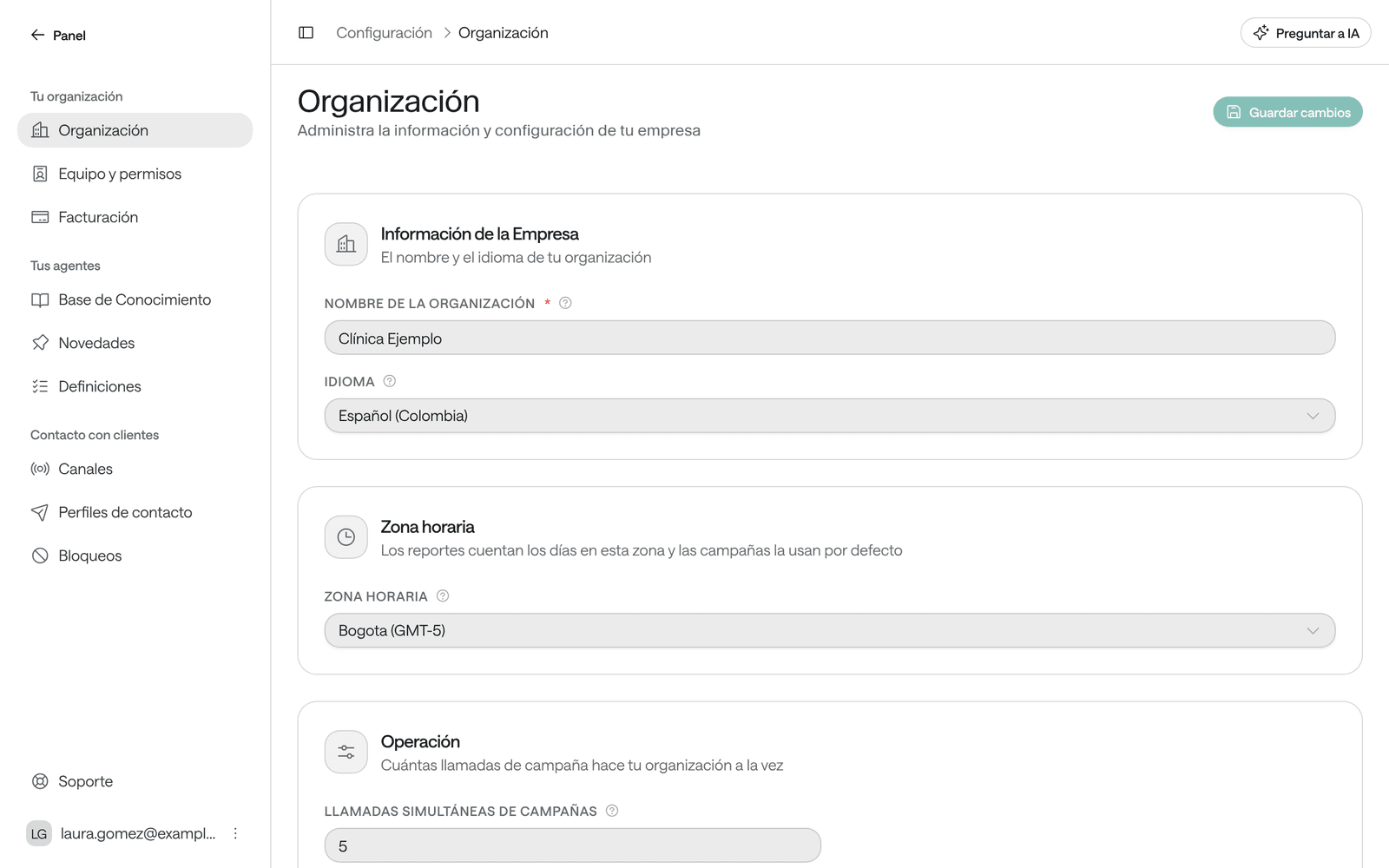
In Settings, click Organization.
-
Under Company Information, check the Organization Name and the Language.
-
Under Time zone, choose your organization’s. Time zones are grouped by region, such as Central and South America.
-
Under Operations, check the Simultaneous campaign calls.
-
Click Save Changes, at the top of the page. You’ll see “Changes saved”.
What each setting does
| Setting | What it does | Default or limits |
|---|---|---|
| Organization Name | How your organization appears in Raíz: at the top of the sidebar, in notice emails and in the daily report. | Required, up to 200 characters. |
| Language | Your agents’ default language. The daily report goes out in this language. Each agent also has its own language, in its settings. | Spanish, English, Portuguese, French, German or Italian. |
| Timezone | Reports count days in this zone, campaigns use it by default and the daily report goes out on its clock. Agents and WhatsApp numbers use it unless they choose another. | The one chosen when your organization was created. |
| Simultaneous campaign calls | How many campaign calls your organization places at once. A new call starts only when a slot frees up. | From 1 to 50. Default 5. |
| Organization ID | Under Technical Details: your organization’s identifier. It can’t be changed. Share it with Arbol’s team when they help you. | Read-only. |
When to change them:
- Timezone: if your reports count days at an hour that isn’t yours, or the daily report arrives at an odd time.
- Simultaneous campaign calls: raise them if your campaigns take too long to call the whole list; lower them if your team can’t keep up with what the calls generate.
Notices and the daily report
The same Organization page has the Email and WhatsApp notices and Daily report cards: which notices your team receives, when the report goes out and who receives them. They’re saved with the same Save Changes button. All the details are in Notices and the daily report.
Definitions
A definition describes a piece of data kept about people, such as “Insurer” or “City”. This page lists and creates people’s data. What agents capture in each conversation, and the yes-or-no questions that decide the success rate, are set up in each agent under Data it collects and Conversation reports (see Agent settings and Success rate).
-
In Settings, click Definitions. Use Search definitions… to find one.
-
To create one, click New definition. To change one, open it from the list.
-
Fill in the Name, as your team will see it, the Key, which appears in imports, exports and integrations, and, if you want, a Description.
-
Choose the Value type: Yes/No, Date, Number, Options or Text. With Options, add the Allowed values with Add option; it’s useful for statuses, categories or classifications.
-
If you want the AI to capture the data in every conversation, turn on AI capture and write the Instructions: what evidence it should find and when the data counts as valid.
-
Leave Active on: a draft definition accepts no data and agents don’t use it.
-
Click Create or Save.
When you open a definition, Agents using it says All or how many agents use it. Once data has been saved under a definition, its type can’t change: delete it and create another.
What’s set somewhere else
| You want to change | Where |
|---|---|
| The logo, the colors and the sign-in page | Account › Organization. See Set up the organization. |
| WhatsApp business hours and the after-hours notice | Settings › Channels › Hours. See Channels. |
| Numbers that must not be contacted | Settings › Block list. See People and the block list. |
| Who signs in to the Dashboard and with which role | Settings › Team and permissions. See Team and permissions. |
| Integrations with your systems | Account › Integrations. See See the integrations and The agent’s tools. |
| API keys to connect your systems | Account › API keys. See Create an API key. |
| Billing | Account. See Check billing. |
| The language and theme you see the Dashboard in | Your menu, at the bottom of the sidebar. See Sign in to the Dashboard. |
| One agent’s language, time zone or behavior | Its settings. See Agent settings. |
Common problems
I don't see Organization in Settings
Your role can’t set up the organization.
What to do: ask someone with the Owner role to make the change, or to check your role (see Team and permissions).
The Save Changes button is disabled
You haven’t changed anything yet, or an earlier change is still saving.
What to do: change a field and try again. If a field shows an error, fix it first.
Enter the organization's name
The name was left empty.
What to do: type your organization’s name and save.
Choose between 1 and 50 calls
The number of Simultaneous campaign calls is out of range.
What to do: type a whole number from 1 to 50.
I changed the name and the sign-in page still shows the old one
The name on this page is the one Raíz uses. The sign-in page and the other apps use the one in Account.
What to do: change it in Account too (see Set up the organization).
Reports or the daily report show the wrong hours
The organization’s time zone isn’t yours.
What to do: fix the Timezone on this page and save. If the wrong times are the ones an agent offers or a WhatsApp number’s hours, also check the agent’s zone under Language and time zone and the number’s under Channels › Hours.
For developers
These settings can also be read and changed through the API. See Raíz for developers.