The Dashboard is where your team works with Raíz: you see conversations, tune agents and review reports. You sign in with the same Arbol account you use in Agenda and in Account.
Before you start
- Someone in your organization must have invited you. The invitation arrives by email with a link.
- What you see depends on your role. If a section is missing, ask whoever manages your team to check your role (see Team and permissions).
Steps
-
Open raiz.getarbol.com in your browser. The first time, use the link in your invitation email.
-
Sign in with your Arbol account. The sign-in screen is Arbol’s, not the Dashboard’s.
-
If you belong to several organizations, choose your clinic’s.
-
You land on Overview, the Dashboard’s home page.
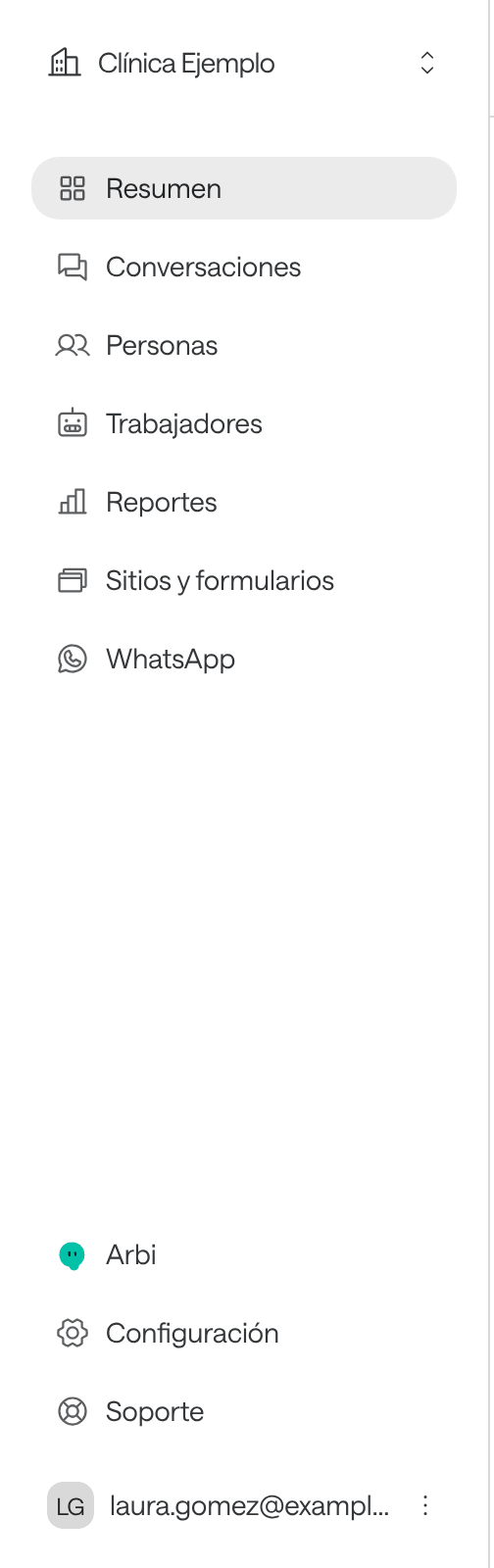
What’s in the menu
The sidebar shows only the sections your role can open.
| In the menu | What it’s for |
|---|---|
| Overview | What’s happening today: today’s conversations, those In progress, the Success rate, what’s left To review, your workers and recent conversations. |
| Conversations | Every call and chat, with its transcript, summary and outcome. See Follow conversations. |
| People | The patients and people who get in touch with you. See People and the block list. |
| Workers | Your agents. See Create an agent. |
| Reports | Questions about your operation, answered with figures. See Reports. |
| Sites and forms | Your website’s chat and forms. See Chat on your website. |
| The WhatsApp inbox, to write from the Dashboard. It shows only when your organization has a connected WhatsApp number. See Handle a WhatsApp conversation. | |
| Applications | The other Arbol apps your organization has, such as Agenda (listed as Calendar). They open in another tab. |
| Arbi | Arbol’s assistant: ask it about your conversations, agents and reports in your own words. |
| Settings | Your organization, your team, the knowledge base, bulletins, channels, contact profiles and the block list. |
| Support | How to reach the Arbol team. |
The Overview page
Overview opens with a greeting and what’s happening with your agents today:
- Today: today’s conversations, how many were by voice, WhatsApp and web chat, and how many there were yesterday.
- In progress: the conversations open right now.
- Success rate: how many evaluated conversations ended well.
- To review: the conversations the AI escalated to your team or whose evaluation failed.
- Your workers: each agent with its state (In a conversation, Idle, Paused or Needs setup), how many conversations it had and its success rate.
- Recent conversations: the latest ones, with a View all link.
You can filter the page by one worker and change the period (Today, Last 7 days, Last 14 days, Last 30 days, Last 90 days or a Custom range). The period changes the charts, Success rate, To review and Success evaluation, which splits the period into successful, failed and no conclusive outcome. If your organization has no agents yet, the page invites you to Create your first worker. How the rate is calculated: Understand and change the success rate.
Your account, language and theme
- Switch organization: click the organization’s name at the top of the sidebar and choose Switch organization.
- Language and theme: click your name at the bottom of the sidebar. There you choose the Language (English or Spanish) and the Theme (Light, Dark or System).
- Manage your account: in the same menu, opens your Arbol profile in another tab.
- Sign out: also in that menu.
Settings
Settings groups its pages in three blocks. At the top there’s a search box: type, for example, “hours” or “roles”.
| Block | Pages |
|---|---|
| Your organization | Organization (name, language, time zone, email notices and daily report), Team and permissions and Billing, which opens your billing in Account. |
| Your agents | Knowledge Base, Bulletins and Definitions. |
| Reaching customers | Channels, Contact profiles and Block list. |
To go back to the rest of the Dashboard, click Dashboard at the top of the sidebar.
Troubleshooting
“Your account isn’t in an organization yet”. You signed in with an email nobody invited. Open the link in your invitation email, or sign in with the email you were invited with. If you have no invitation, ask whoever manages your team.
“You do not have access to this section”. Your role doesn’t include that page. Open another from the menu or ask an administrator to check your role.
“You don’t have access to this organization”. Your role in that organization doesn’t open any section of the Dashboard. Switch organization or ask for a role.
“You have read-only access to this section.” You can see the page, but your role can’t change it. Buttons your role doesn’t allow don’t appear.
My role changed and I still see the same. Role changes apply the next time you sign in. Sign out and sign in again.
“We could not sign you in” or “Your session took too long to renew”. Click Try again. If it keeps happening, reload the tab.