A channel is where patients reach you: a number for calls, a WhatsApp number or your website’s chat. Each channel answers with the agent you assign to it. Come here to change that agent, check whether a channel works and, on WhatsApp, decide how much the AI handles, during which hours and what your patients see on your profile.
Before you start
- Anyone with access to Channels can see them. To change them you need a role that can Connect channels: phone, WhatsApp and web chat, such as Administration or Owner.
- Phone and WhatsApp numbers are connected by the Arbol team with you: further down, under Ask for a new number, you’ll find what to send them. You create your website’s chat yourself (see Chat on your website).
The three channels
What the patient experiences. They call your clinic’s number and the voice agent answers right away with its greeting, at any hour while the agent is active. They talk to it as they would to a person: they can interrupt it, ask it for a moment or type numbers on the keypad. The agent doesn’t transfer the call to your team. If your agent records, the call is recorded. The agent can also call them, from one of your clinic’s numbers or from the shared outbound line.
What your team sees. Every call is kept in Conversations with the Voice channel: the transcript, the recording, the summary and the number the agent answered or called from. An inbound call appears when it ends. How a call works inside: Voice and audio.
What the patient experiences. They write to your clinic’s WhatsApp and see the Business profile you set up. When the AI is handling them, they see their message marked as read and that someone is typing. They get the greeting you chose, can send audio, photos and documents, and sometimes get buttons or lists to reply with. Outside business hours they get a single notice. If the agent hands the conversation to your team, they get the message you chose for that moment and a person replies.
What your team sees. Every chat is kept in Conversations with the WhatsApp channel, as it happens, with its status: Open, AI paused or With the team. Your team replies from the Dashboard’s WhatsApp inbox or from the WhatsApp Business app (see Handle a WhatsApp conversation).
What the patient experiences. On your website they see a button that opens the chat, or they come in through a public link. They see a welcome screen, accept the consent, sometimes fill in a short form and talk with the agent. If they close or reload the page, the conversation carries on while the session lasts.
What your team sees. Every conversation is kept in Conversations with the Chat channel. The chat is created and adjusted in Sites and forms (see Chat on your website).
See your channels
In the menu, click Settings and then Channels.
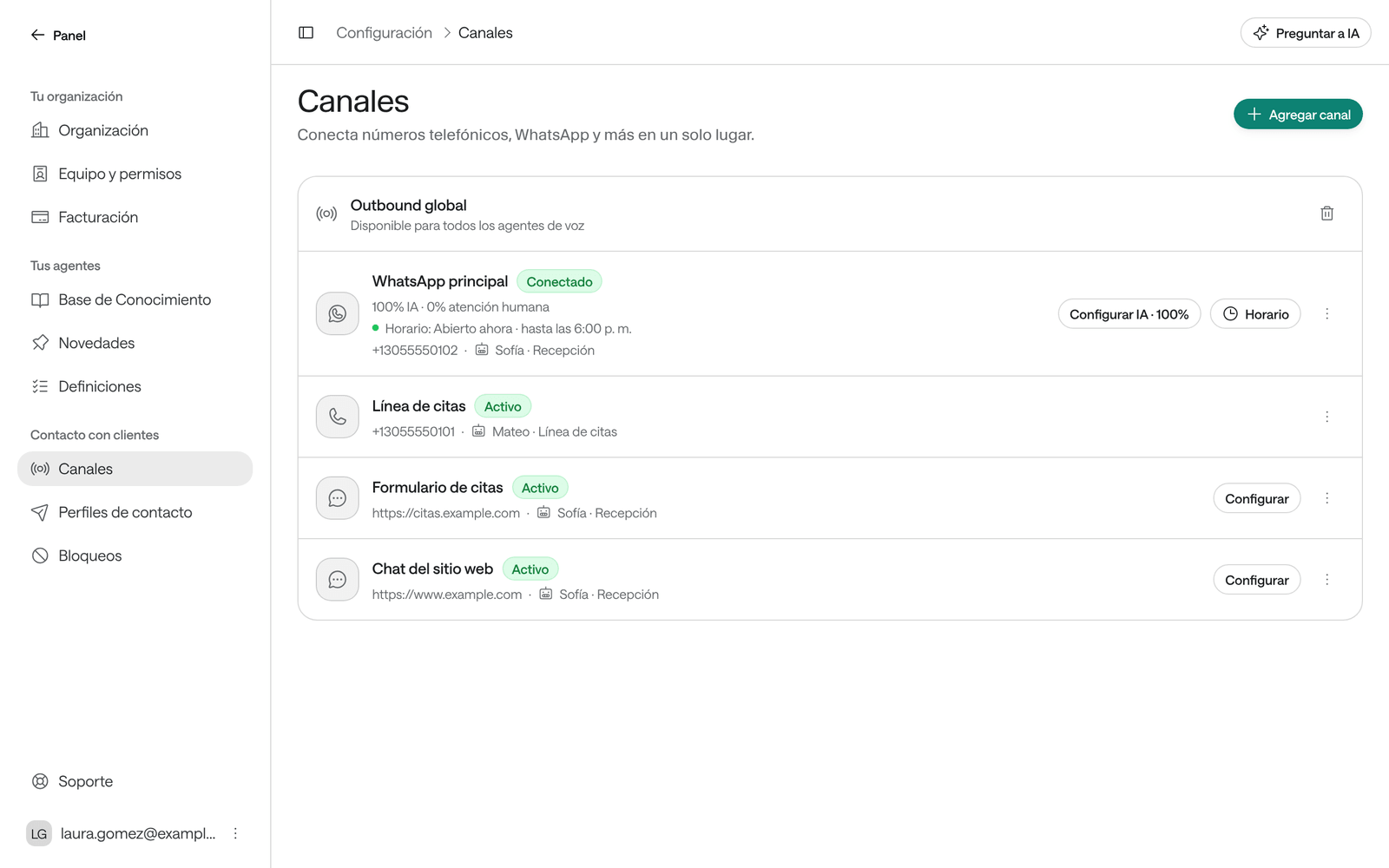
Each row shows:
- The channel’s name or number and its type: Calls, WhatsApp or Web widget.
- Its status: Active (or Connected on WhatsApp), Needs attention or Setup pending.
- The agent that answers on it, or No agent.
- On WhatsApp, how much the AI handles (for example, “100% AI · 0% human attendance”, or “AI disabled”) and whether it’s open or closed according to its hours.
If your organization has the shared outbound line, you’ll also see the Global outbound row, “Available to every voice agent”: with it, your voice agents can call even without a number of their own (see Voice and audio). Someone who can Set up the organization removes it with the trash icon.
Assign or change a channel’s agent
-
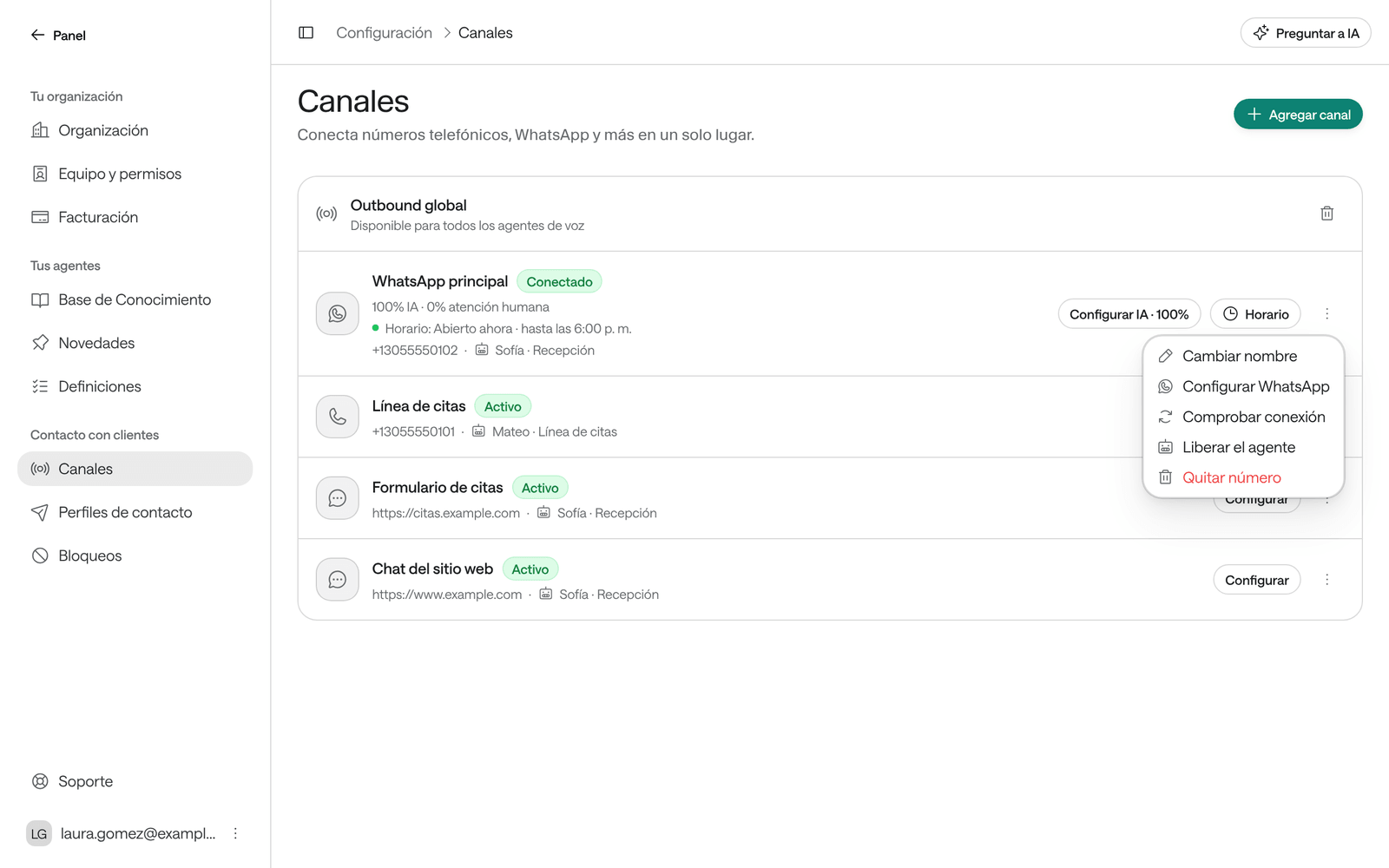
On the channel’s row, open the three-dot menu.
-
If the channel already has an agent, choose Release the agent. You’ll see the notice “Agent released”.
-
Open the menu again and choose Assign an agent.
-
Select the agent and click Assign an agent. You’ll see the notice “Agent assigned”.
The agent must match the channel: a voice agent for Calls, a messaging agent for WhatsApp and Web widget. If none appears, create one of the right kind (see Create an agent). An agent can handle several channels of its kind, but each channel has a single agent.
While a channel has No agent:
| Channel | What happens |
|---|---|
| Calls | No agent answers or calls from that number. |
| The AI doesn’t reply, and incoming messages aren’t kept in Conversations. Your team sees them in the WhatsApp inbox or the WhatsApp Business app. | |
| Web widget | It can’t be published. |
Decide how much the AI handles on WhatsApp
You can split a WhatsApp number’s new conversations between the AI and your team, for example to start gradually.
-
On the WhatsApp number’s row, click Configure AI, which shows the current percentage. If the AI is off, the button says Enable AI.
-
In Manage AI attendance, enter a percentage from 0 to 100 under New conversations handled by AI, or pick one of the quick values.
-
Click Save.
Conversations already open keep their assignment, and each new conversation stays with the AI or with your team until it closes. At 0%, messages are kept for your team to handle; you can still turn the AI on in a single conversation (see Handle a WhatsApp conversation).
Set WhatsApp business hours
Outside business hours the AI doesn’t reply, even when it’s on, and whoever writes gets a single notice. The hours belong to the number: they stay if you change the agent. Calls have no hours: an active voice agent answers at any time.
-
On the WhatsApp number’s row, click Hours.
-
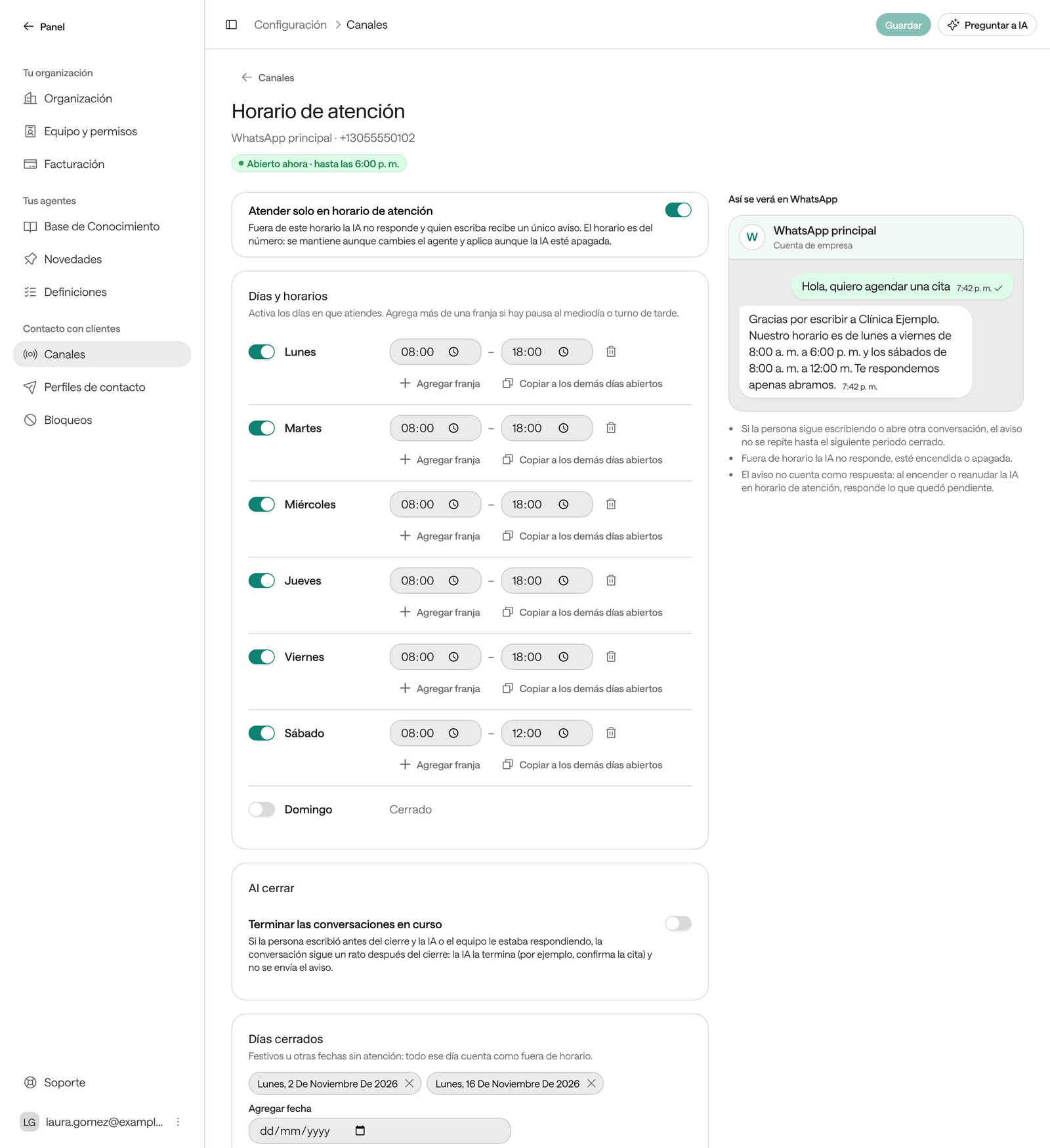
Turn on Attend only during business hours.
-
Under Days and hours, turn on the days you’re open and enter the opening and closing times. Use Add window if you close at midday, and Copy to the other open days to repeat a schedule.
-
Under Closed days, click Add a date for each holiday or day without service.
-
Under Time zone, keep Use the organization’s time zone or choose another.
-
Under Outside-hours notice, choose how to send it:
- WhatsApp template (recommended): a message WhatsApp has already approved, the safest choice to keep WhatsApp from restricting your number. If you don’t have one yet, click Create template; WhatsApp usually approves it within minutes, and then you use Refresh to see it in the list.
- Text message: you write your own notice, exactly as the person will read it.
-
If you like, under At closing turn on Finish conversations in progress and choose the Margin after closing, so the AI finishes what it was handling, such as confirming an appointment, without sending the notice.
-
Click Save.
The channel’s row then shows its status, for example “Open now · until 18:00” or “Closed · opens Monday, 8:00”. Each number gets the notice only once per closed period. When the AI is turned on or resumed during business hours, it answers what was left pending. Audio that arrives outside business hours is still transcribed, so your team can read it.
The WhatsApp business profile
It’s what your patients see when they tap your clinic’s name in WhatsApp. It’s read from and saved to WhatsApp directly.
-
On the WhatsApp number’s row, open the three-dot menu and choose Configure WhatsApp.
-
Under Business profile, fill in what you want to show:
Field What it is Limit Short line The line that appears under the name. Example: “Appointments and results, Monday to Saturday”. 139 characters Description What your clinic does, in a few lines. 512 characters Email A contact email. 128 characters Website 1 and Website 2 Addresses starting with https://orhttp://.256 characters each Address Your main location’s address. 256 characters 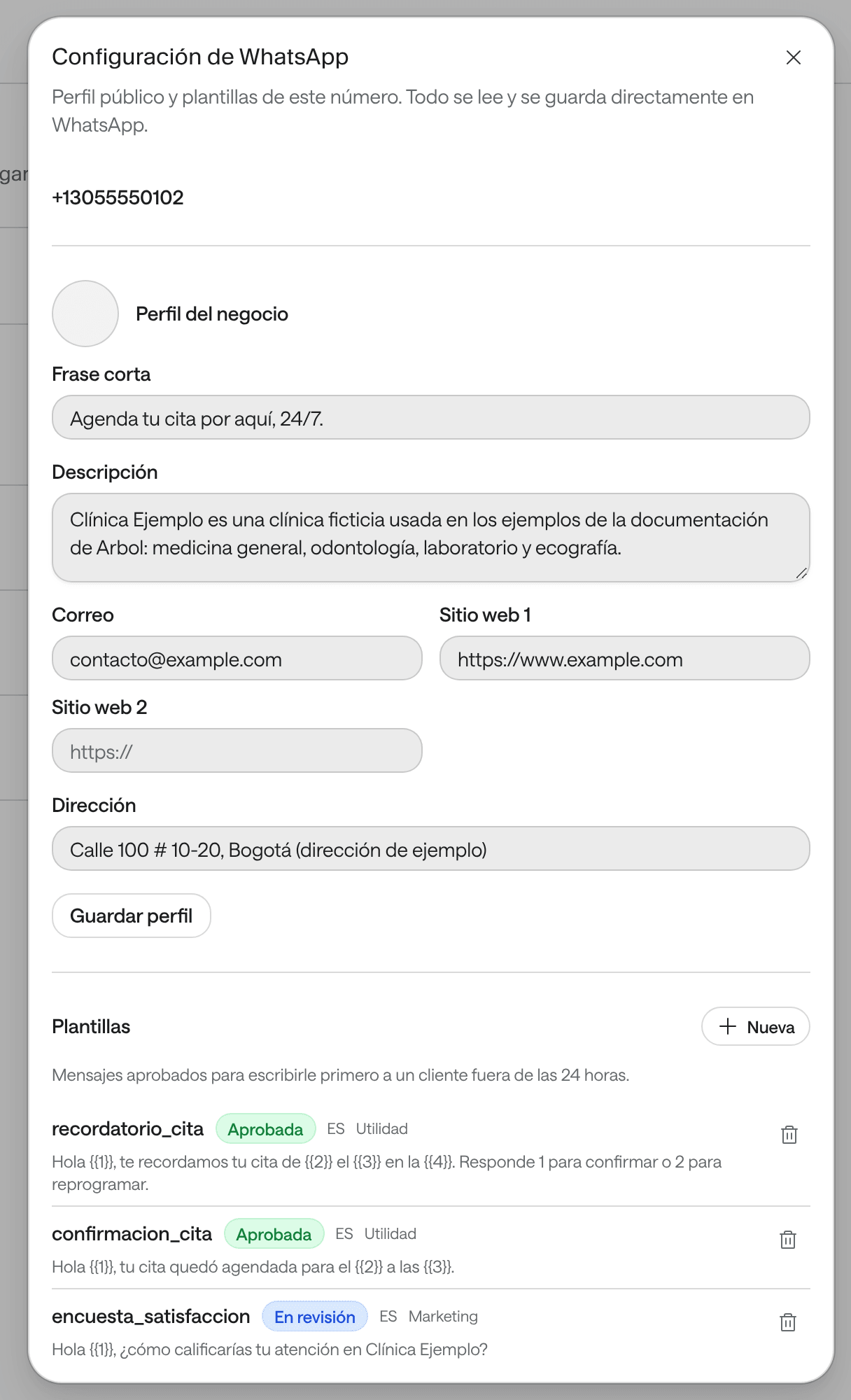
-
Click Save profile. You’ll see the notice “Profile updated”.
The profile photo shows in that window, but it can’t be changed from Raíz. If you leave Short line or Email empty, the value they already had is kept. The number’s Templates are in the same window (see Bulletins, templates and campaigns).
Other menu actions
- Rename: the name your team sees for the channel in the Dashboard. Your patients don’t see it.
- Check connection: checks whether the channel is connected and tells you the result: “The channel is connected.” or “The channel failed the check”. It doesn’t appear for the web chat.
- Remove Number: removes the channel from Raíz. Type its name to confirm. The number stops receiving and making calls in Raíz, or a WhatsApp number stops reaching Raíz; its conversations are kept. If you removed it by mistake, ask the Arbol team to connect it again.
- On a Web widget, the Configure button opens its editor in Sites and forms.
Ask for a new number
The Arbol team gets and connects phone and WhatsApp numbers with you. Ask them through Support, in the Dashboard menu, with this information:
- What it’s for: receiving calls, making calls or both.
- Which voice agent will answer it. Create it first if it doesn’t exist yet (see Create an agent).
- The country and city where you want the number, so your patients recognize it.
- A name for the line, such as “Appointments line”.
- Whether you want to use a number you already have with your phone carrier: say so, and the Arbol team checks with you whether it can be connected.
Depending on the country, the Arbol team may ask for details about your institution to register the number.
- The number your patients will use, and whether they use it today in the WhatsApp Business app.
- Which messaging agent will answer it. Create it first if it doesn’t exist yet.
- Who manages your clinic’s WhatsApp: that person will have to complete a few steps to connect it.
- Your business hours and the Business profile details, if you want the Arbol team to help you get them ready.
Don’t send passwords or verification codes through Support.
When the number is ready, it appears in Channels. A WhatsApp number may first appear as Setup pending, with the Continue setup button. If the Arbol team tells you to:
-
Click Continue setup and then Generate link.
-
Click Open link if you manage your clinic’s WhatsApp, or Copy link to send it to whoever manages it. Share it only with that person: the link can connect a number to your organization.
-
That person opens the link and follows the steps. When they’re done, the row changes to Connected. If it doesn’t, use Check connection.
The link expires on the date shown, and each new link replaces the previous one: if you generate another, the one you sent stops working.
Then assign it an agent if it doesn’t have one, set its hours and its profile, and run a test before you announce the number to your patients (see Test an agent).
Under Add channel, at the top of this page, Website widget creates your website’s chat. Use the other options in that menu only when the Arbol team tells you to.
Troubleshooting
A channel says “Needs attention”
It didn’t pass its last check.
What to do: use Check connection. If it stays the same, tell the Arbol team through Support.
A WhatsApp number says “Setup pending”
The number hasn’t finished connecting.
What to do: if the Arbol team already asked you to, use Continue setup as explained under Ask for a new number, on this page. If not, write to them through Support.
“This Agent cannot serve this channel.”
The agent’s kind doesn’t match the channel’s.
What to do: assign a voice agent to voice channels, and a messaging agent to WhatsApp and the web chat.
“Assign an Agent to this channel before enabling its traffic.”
The channel has no agent.
What to do: assign an agent and try again.
The Configure AI button is disabled
The number has no agent assigned.
What to do: use Assign an agent in its menu.
I don't see a WhatsApp number's messages in Conversations
If the number has no agent, or the AI is disabled on the number, Raíz doesn’t keep the messages that arrive.
What to do: assign it an agent and use Enable AI, with the percentage you want. Meanwhile, your team sees them in the WhatsApp inbox or the WhatsApp Business app.
“The template … is no longer approved on WhatsApp.”
WhatsApp stopped approving the outside-hours notice’s template. Meanwhile, if you have a text message written, that one is sent instead.
What to do: choose another template for the notice or switch to Text message.
“WhatsApp has not confirmed this number yet”
The number hasn’t finished connecting.
What to do: use Continue setup to open or share the link. If the link expired, generate a new one.