Do this when you want to know which insurers and clinical systems your agents work with, whether a connection is working, or what an agent can do with it.
An integration is an outside system Arbol’s agents work with: an insurer or EPS, to check a patient’s affiliation or authorizations; or a clinical system, to read schedules and book appointments. A connection is your organization’s account in that integration; there can be several, for example one per site. Each connection offers tools: what an agent can do with it, such as checking availability or booking an appointment.
Before you start
- You need a role that sees the integrations: Account’s Administration or Viewer, Administration in Raíz, Agenda or Ámbar, or to be the Owner.
Steps
-
In the menu, under Administration, click Integrations.
-
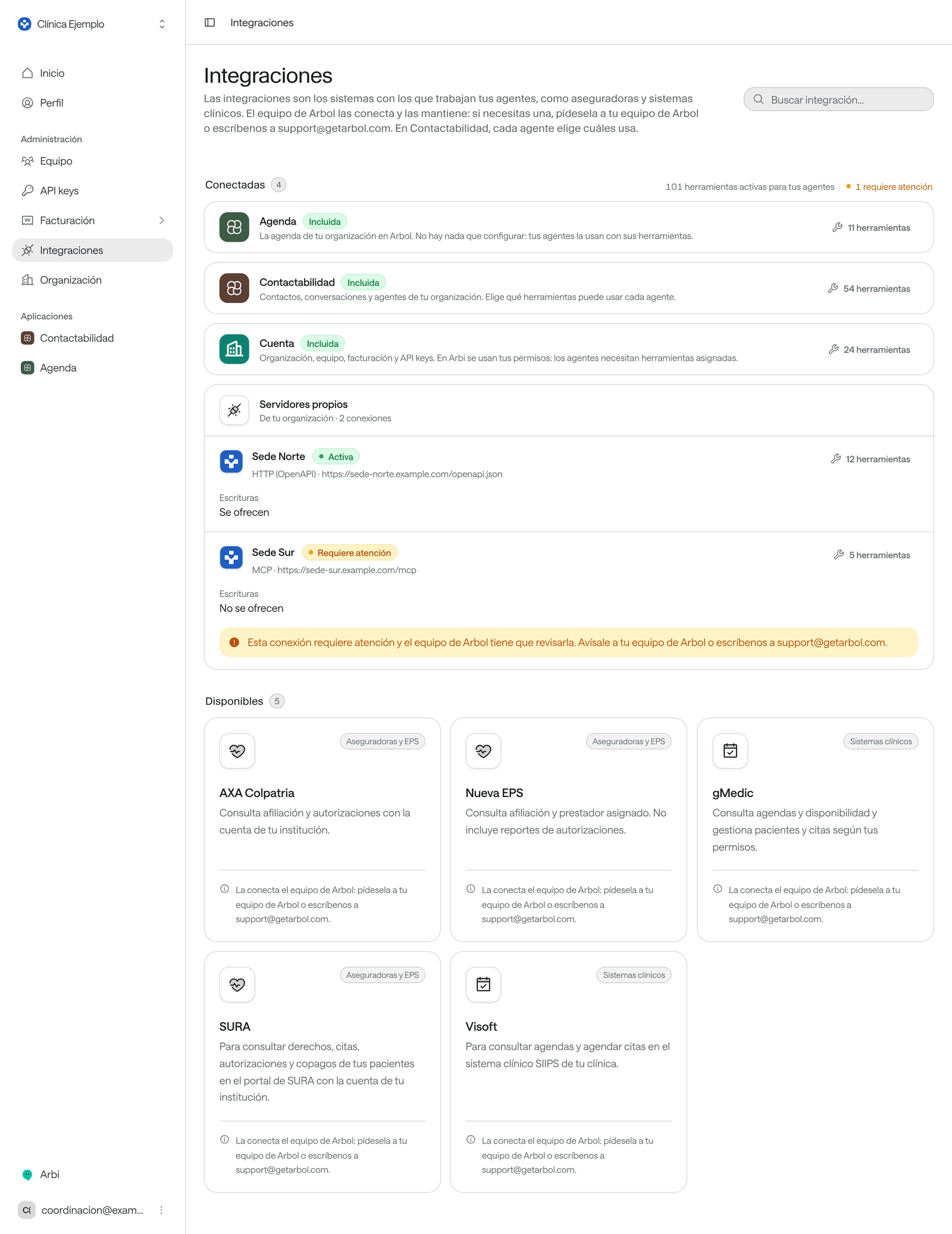
Connected lists your organization’s integrations, each with its connections. To the right of the heading you see how many active tools your agents have and how many connections need attention.
-
Each connection shows its name, its status and its tools button. A custom server also shows how it connects and its address. Usernames and the details of how Arbol signs in to each system aren’t shown: Arbol’s team handles them.
-
To see what a connection can do, click its tools button, such as 12 tools.
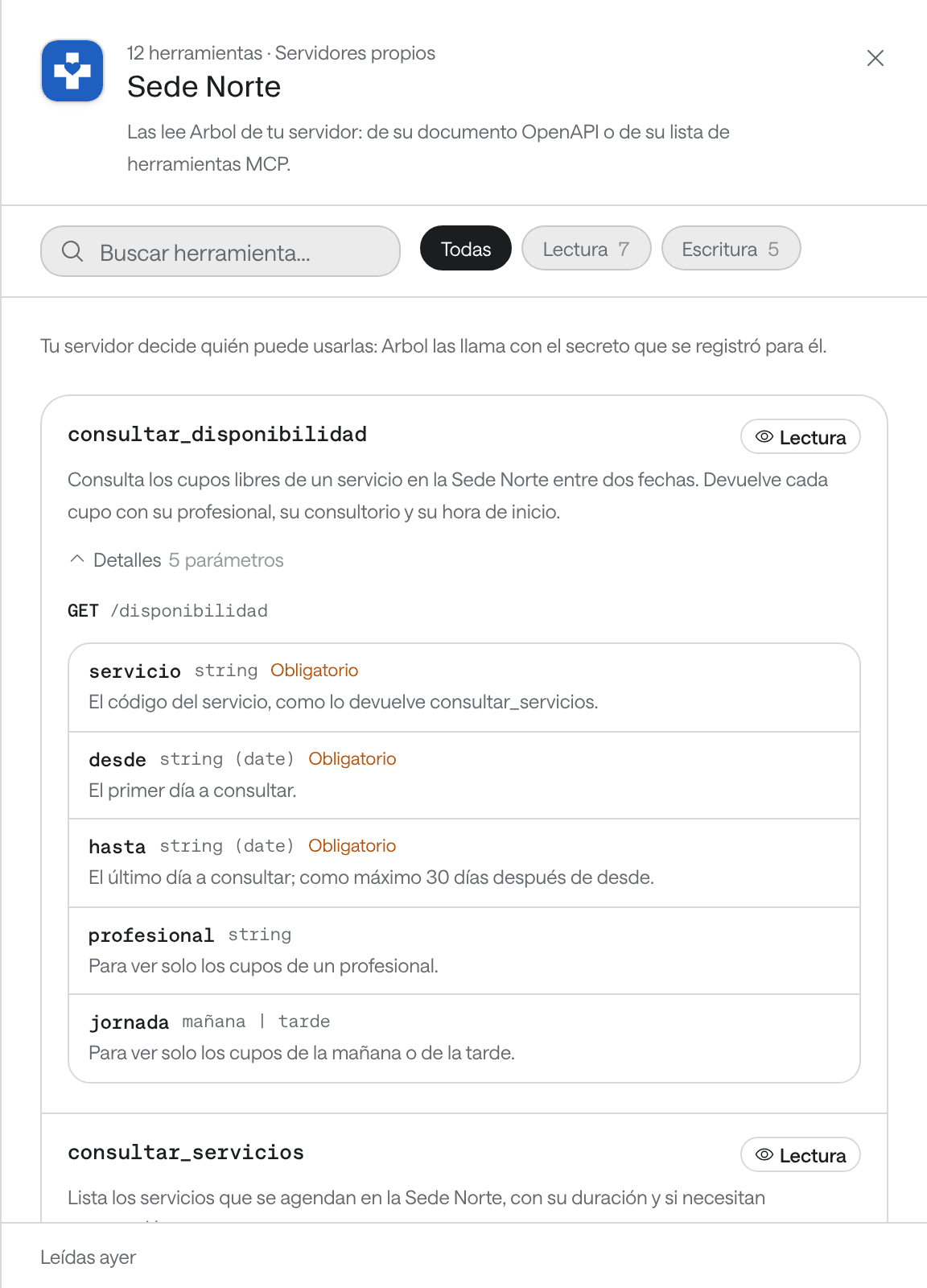
The panel lists each tool with its description and whether it’s Read (it looks something up) or Write (it changes something). You can filter by Read or Write, search with Search tools… and open Details to see what information it asks for.
-
Available lists the integrations your organization doesn’t have yet. Each card says what it’s for and that Arbol’s team connects it for your organization.
If the list is long, use Search integrations… at the top right.
A connection’s status
| Status | What it means |
|---|---|
| Active | It works. Agents that are assigned it can use it. |
| Disabled | It’s switched off for now. Agents stop using it. |
| Needs attention | It stopped working. The row says “This connection needs attention, and Arbol’s team has to review it. Tell your Arbol team or write to support@getarbol.com.” |
The integrations you can see
The cards group them like this:
- From Arbol: Agenda, Contactabilidad (Raíz) and Account, each marked Included. They’re Arbol’s applications: there’s nothing to configure, your agents use them through their tools. Agenda is your organization’s agenda; Contactabilidad, its contacts, conversations and agents; Account, the organization, team, billing and API keys. Colombia’s public registry lookups are here too, ADRES, Sisbén and Policía Colombia, which the Owner turns on with Connect: see Look up ADRES, Sisbén and Policía Colombia.
- Insurers: for example SURA, to check your patients’ coverage, appointments, authorizations and copays; Salud Total, with your organization’s IPS accounts for post-consultation and billing; AXA Colpatria, to look up affiliation and authorizations; or Nueva EPS, to look up affiliation and the assigned primary provider.
- Clinical systems: for example Visoft, to read schedules and book appointments in SIIPS, or gMedic, to read schedules and availability and manage patients and appointments.
- Your organization’s: Custom servers, your organization’s own systems whose tools your agents use. Arbol’s team registers them.
How your agents use them
Your organization having a connection doesn’t mean every agent uses it. In Raíz, each agent picks which connections and tools it uses. How that’s set up is in Raíz.
Common problems
- “Your role does not allow seeing your organization’s integrations.” Ask your Account administrator for a role that sees them.
- A connection says Needs attention. Write to your Arbol team with the connection’s name and your organization’s ID, which is under Organization.
- I need an integration that isn’t listed. Write to support@getarbol.com with the system you need.
For developers
In a connection’s tools panel, Scopes to use them shows the fewest permissions an API key needs to use all its tools, or only the read ones, and copies them with a button. Use them when you create the API key. The rest is in Authentication.