Sometimes you need an agent to stop answering: while you fix its instructions, on a holiday, when your team wants to attend in person or because you won’t use it anymore. Pick the smallest option that solves what you need: pausing is almost always enough.
Before you start
- To pause, activate or delete an agent you need a role that can Create and tune agents, such as Agent design, Administration or Owner.
- To change how much the AI handles on a number or take the agent off a channel you need a role that can Connect channels: phone, WhatsApp and web chat, such as Administration or Owner.
- To pause the AI in one conversation you need a role that can Handle conversations and reply on WhatsApp, such as Operations.
Which option to choose
| You want… | Do this | Can you undo it |
|---|---|---|
| The agent not to answer on any channel for a while | Deactivate the agent | Yes, with Activate |
| Your team to handle a WhatsApp number, without AI | Configure AI on that number and set it to 0% | Yes |
| To handle a single conversation yourself | Pause AI in that conversation | Yes, with Resume AI |
| Another agent to handle a channel | Release the agent and assign another | Yes |
| The agent to be gone | Delete agent | No |
Pause an agent on all its channels
-
In the menu, click Workers and open the agent.
-
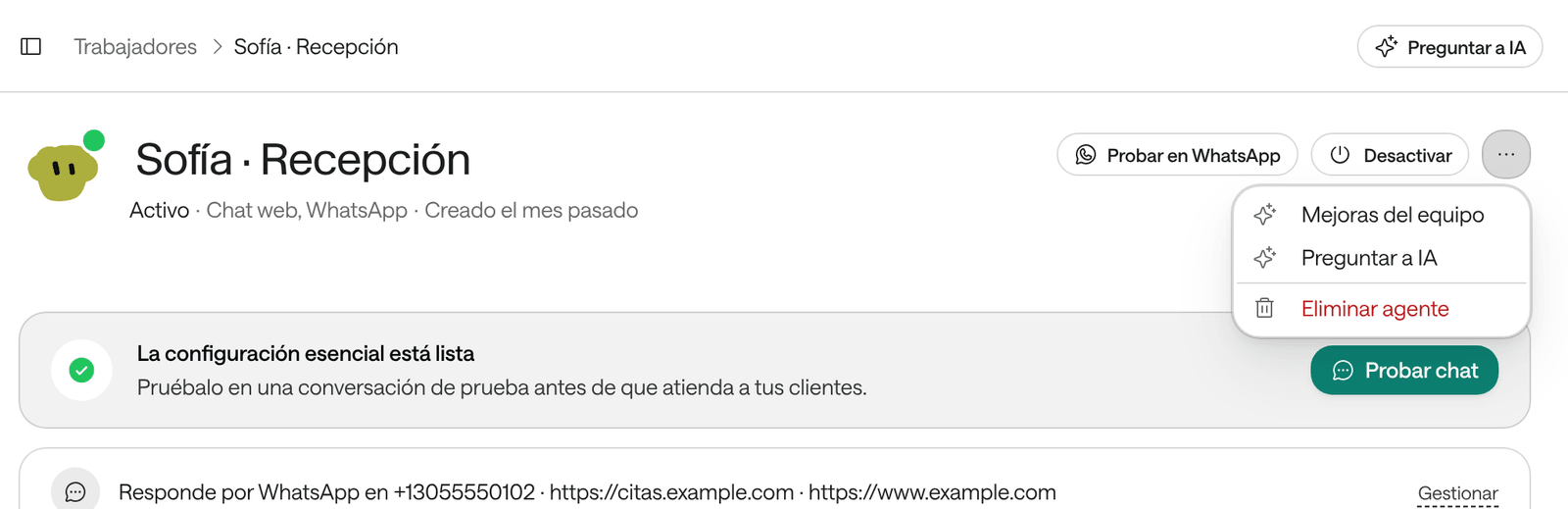
Top right, click Deactivate.
-
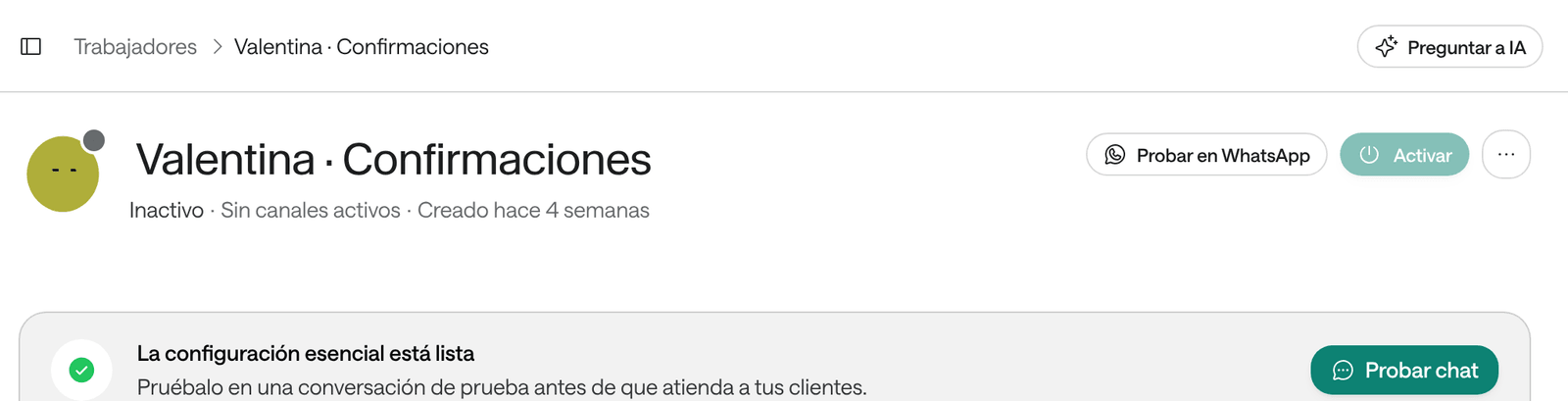
You’ll see “Agent paused” and, under the name, Inactive.
While paused, the agent doesn’t reply or place calls on any of its channels; messages that arrive are kept for your team. To bring it back, click Activate: you’ll see “Agent activated”.
Leave a WhatsApp number to your team
Useful when your team wants to handle everything by hand for a few hours or days, without pausing the agent on its other channels.
-
Go to Settings › Channels.
-
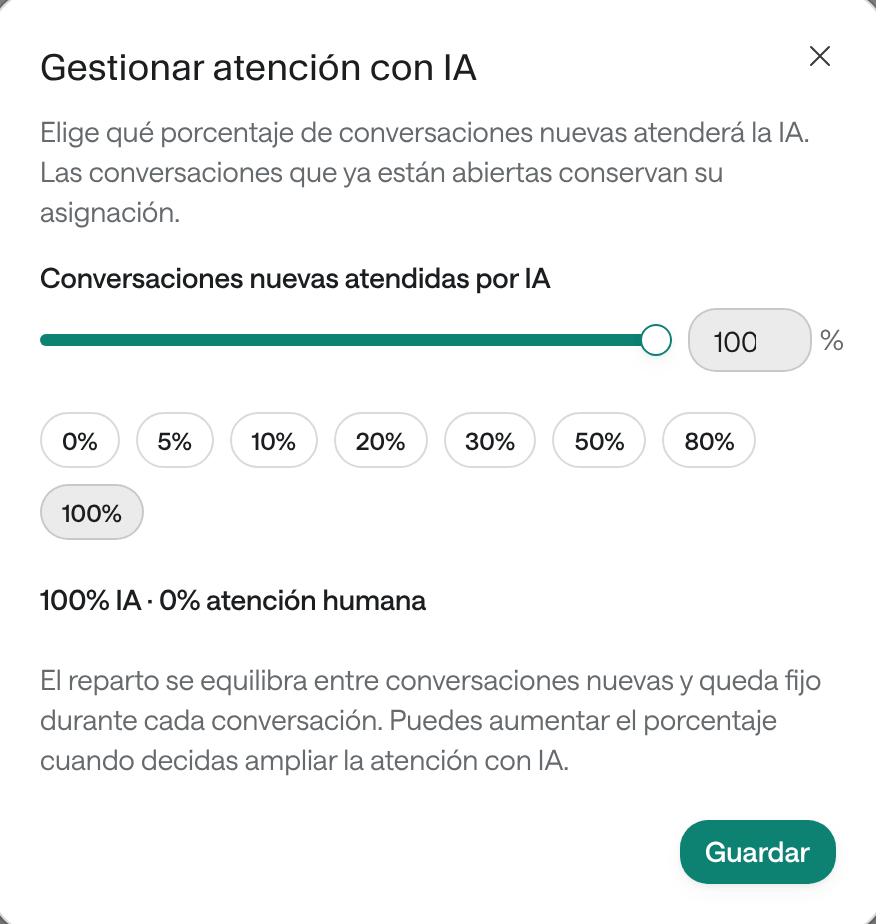
On the number’s row, click Configure AI · 100% (the number is the current percentage).
-
In New conversations handled by AI, pick 0%. With values in between, the AI handles that share of new conversations and your team the rest.
-
Click Save. You’ll see “AI attendance settings saved.”
Conversations that were already open keep whoever handles them. To go back, raise the percentage again.
Pause the AI in one conversation
Open the conversation in Conversations and click Pause AI. The AI stops replying to that person until the conversation closes or until you click Resume AI. Details in Handle a WhatsApp conversation.
Take the agent off a channel
-
Go to Settings › Channels.
-
On the channel’s row, open the three-dot menu and choose Release the agent.
-
For the channel to keep answering, use Assign an agent on the same row and pick another one.
Delete an agent
Deleting is for good. If in doubt, deactivate it.
-
First take it off its channels (Release the agent on each one) and stop its campaigns.
-
Open the agent and, top right, open the three-dot menu.
-
Choose Delete agent.
-
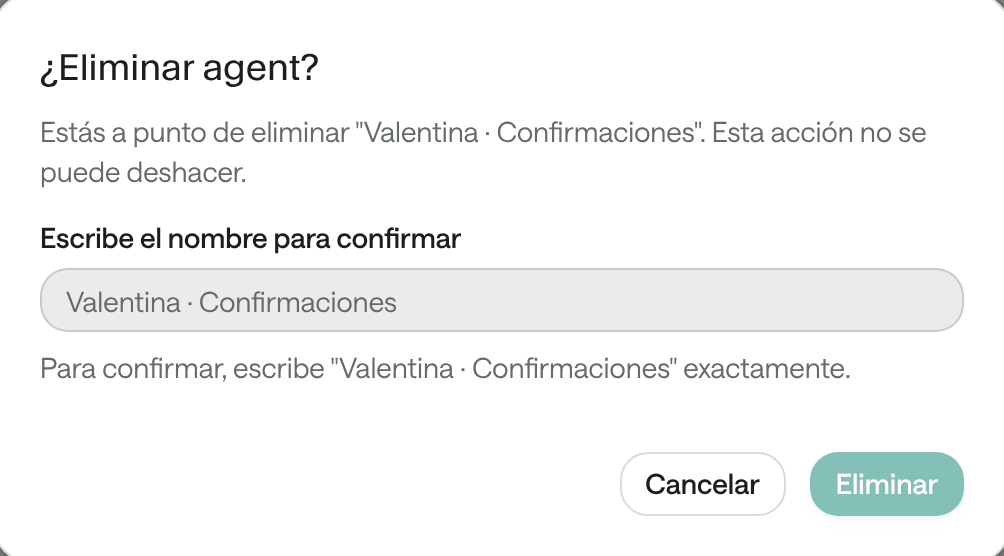
In Type the name to confirm, type the agent’s exact name.
-
Click Delete. You’ll see “Agent deleted” and land back on Workers.
Its past conversations stay in Conversations and in the reports.
Do’s and don’ts
Deleting to fix
Deleting the agent because it answered badly and creating another: you lose its configuration and start from scratch.
Pause, fix and test
Deactivate, adjust its instructions, test it and Activate again.
Pausing everything for one number
Deactivating the agent when you only want your team to handle one WhatsApp number: it also stops answering calls and the web chat.
Lower the AI on that number
Configure AI at 0% on that number and keep the agent active on the others.
Common problems
«This agent still has channels or active campaigns»
The full message is “This agent still has channels or active campaigns. Unassign them before deleting it.” Go to Settings › Channels, use Release the agent on every channel where it appears and stop its campaigns. Then try again.
«The name doesn't match»
The message reminds you of the name: “The name doesn’t match. Please type “…” exactly.” Type it as is, with capitals, accents and symbols, for example “Valentina · Confirmaciones”.
I don't see Deactivate or Delete agent
Your role can’t create or tune agents: those buttons don’t appear. Ask someone with Agent design, Administration or Owner.
I deactivated the agent and the test says it's paused
That’s expected: Try chat shows “The agent is paused and does not reply. Activate it to try it.” Activate it to test it, or test it before deactivating.