Read this page before you put a voice agent on your clinic’s phone, and whenever a call doesn’t go the way you expect. At the end you’ll find what messaging agents do with the audio, photos and documents that arrive on WhatsApp and on your website’s chat.
Before you start
- To change the voice and the call settings you need a role that can Create and tune agents, such as Agent design, Administration or Owner.
- To listen to recordings and read transcripts you need a role that can See conversations and listen to calls.
- To make a test call or call someone back you need a role that can Handle conversations and reply on WhatsApp, such as Operations or Owner.
How it handles a call
Answers
With its welcome message.Listens
Waits for the person to speak and lets them interrupt.Looks up
Your knowledge base and your systems.Acts and confirms
Says what it will do before doing it.Hangs up
When the person needs nothing else.Gets recorded
Transcript, recording and summary.
When it answers
- The agent answers and says its Welcome message, the greeting under Call experience › Greeting. Every call starts with it: that’s why a voice agent without a greeting isn’t ready.
- It knows the date and time in its time zone. When it offers or confirms an appointment, it says the calendar date as well as the time.
- It applies the bulletins in force when the call starts.
- It serves in a single language, the one you chose under Language and time zone: it speaks and understands that language. It doesn’t switch languages during the call.
During the conversation
- Turns. The agent answers when the person finishes speaking. If the person stays silent, it speaks to them again after a few seconds: 7 by default, or whatever Wait after a pause says.
- Interruptions. The person can interrupt it: the agent stops talking, listens and answers the new point. In the recording, each interruption is marked.
- Asking for a moment. If the person says they’re going to look for a document or need to think, the agent waits silently without hanging up.
- Numbers on the keypad. The person can type a long number, such as their ID, on the phone’s keypad. The agent receives it when they press # or stop typing for a few seconds.
- Lookups. When it searches your knowledge base or checks your systems, for example availability, it does so right away.
- Actions that change something. When it’s about to book, cancel or change something in your systems, the agent first finishes saying what it’s going to do, for example “I’m booking you for Tuesday the 12th at 9:00”, and only then does it. That way the person can correct it in time. Once the action starts, it isn’t interrupted until it’s done.
When it ends
- The agent hangs up only after the person has said they need nothing else, and never while there’s something they still need to hear, such as the date or place of their appointment.
- The person can hang up whenever they want.
- The call also ends when it reaches the Maximum duration (10 minutes by default) or, if you turned on End after silence, when the person says nothing for that long.
Handing the call to a person
A voice agent doesn’t transfer the call to your team or to another number. What you write under Tools and knowledge › Escalation and support tells it when a case needs your team, and its rules keep it from saying it transferred the call. Write in its instructions what it should offer in that case, for example the clinic’s WhatsApp or its walk-in hours, and review those calls in Conversations.
Choose and hear the voice
-
In the menu, click Workers and open the voice agent.
-
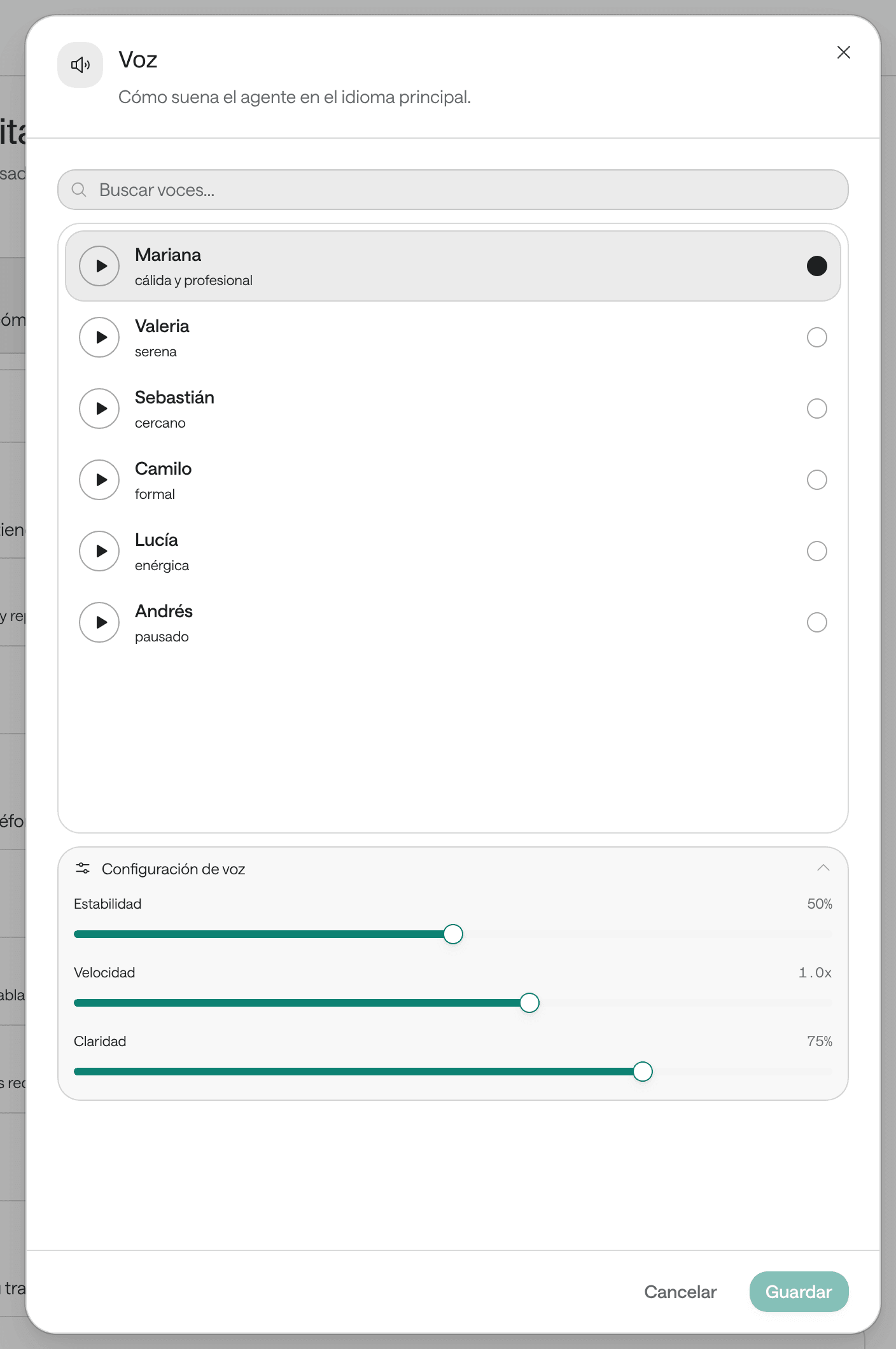
Under Call experience, click Voice. The voice it uses now shows first and selected. If that voice is no longer in the catalog, you’ll see it as Current voice.
-
Type in Search voices… or browse the list. Voices recorded in the agent’s language come first, then those that also speak it, and the rest at the end.
-
Click the play button next to a voice to hear its sample. It plays in the agent’s language when the voice has one. The sample is the original voice: it doesn’t reflect your Voice settings.
-
Select the voice you prefer.
-
If you like, open Voice settings (it appears once a voice is selected) and move the controls:
Control What it changes Range If you don’t touch it Stability How even the voice sounds. Higher is steadier; lower is more expressive and varied. 0% to 100% 50% Speed How fast it speaks. 0.7x to 1.2x 1.0x Clarity How closely it matches the voice’s original sample. 0% to 100% 80% -
Click Save.
Changes take a few moments to reach calls. Make a test call to hear it the way your patients will. If you change the agent’s language, check that its voice speaks the new language.
Tune the call’s pacing
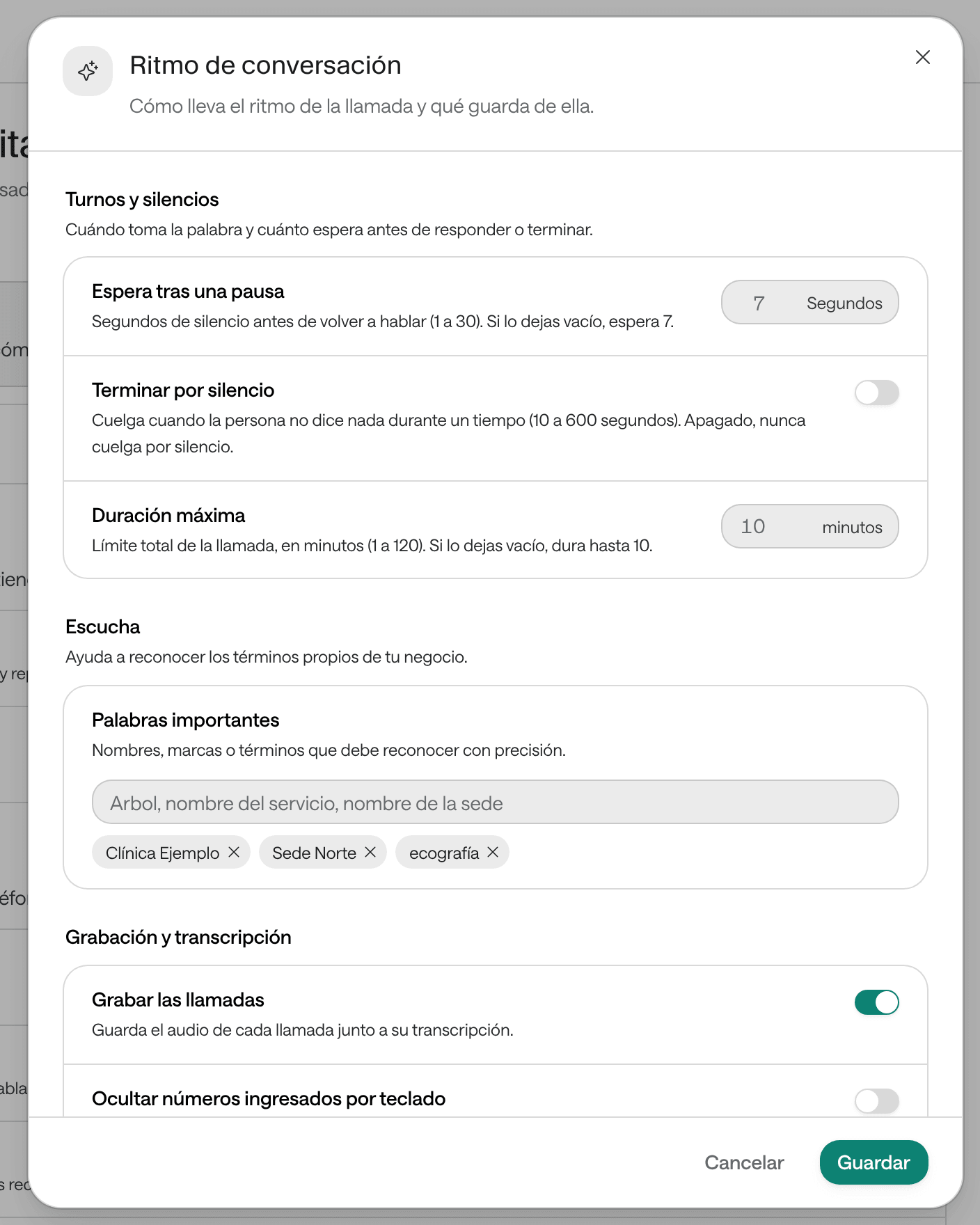
Under Call experience › Conversation pacing:
| Setting | What it does | Values |
|---|---|---|
| Listening › Important words | Names and terms it must recognize precisely: your clinic, your locations, your services, your professionals’ surnames. | Up to 50 words or phrases, up to 64 characters each. |
| Wait after a pause | Seconds of silence before it speaks to the person again. | From 1 to 30. Empty: 7. |
| End after silence | Hangs up when the person says nothing for that long (Hang up after). | From 10 to 600 seconds. Off by default: it never hangs up on silence. |
| Maximum duration | Total limit of each call. | From 1 to 120 minutes. Empty: 10. |
| Record calls | Keeps the audio of each call with its transcript. | On by default. |
| Hide numbers entered on the keypad | Numbers the person types on the keypad are stored as <REDACTED> in the transcript. The agent still receives them during the call. |
Off by default. Only affects new calls. |
Under Call experience › Intelligence you choose the Language model that thinks during the call. The default is Arbolito Agile, the quickest: on a call, every second of waiting shows. More capable models can take longer to answer.
For the rest of the agent’s settings, see Agent settings.
Outbound calls
A voice agent also places calls. These are the ways an outbound call starts:
| Who or what starts it | How | What for |
|---|---|---|
| You, from the agent’s page | Test call (see Test an agent) | Hearing the agent on a real call to your phone. |
| You, from a conversation | Actions › Call back on a call | Having the agent call that person again. |
| A campaign | From your systems or with the Arbol team; you follow its progress in Reports › Campaigns (see Bulletins, templates and campaigns) | Calling a list of people within the allowed hours. |
| Your other systems, such as Agenda | With a call-type Contact profile (see Bulletins, templates and campaigns) | For example, reminding someone of an appointment or confirming it. |
| Arbi, the assistant | You ask it and approve the call before it goes out | A one-off call. |
All of them are real calls: the agent’s tools really run. No agent calls a blocked number (see People and the block list).
Which number it calls from. The agent calls from one of its numbers. If it has several, you choose the Source number on a test call. If it has no number of its own and your organization has the shared outbound line (in Settings › Channels it shows as Global outbound, “Available to every voice agent”), the call goes out from that line, and the person sees that line’s number, not one of your clinic’s. The shared line is only for calling out.
Outbound calls appear in Conversations with Direction › Outbound. What happens when nobody answers: When the patient doesn’t answer.
Recordings and transcripts
Every call is kept in Conversations, with the Voice channel. An outbound call appears as soon as it starts; an inbound one, when it ends.
On the call’s page:
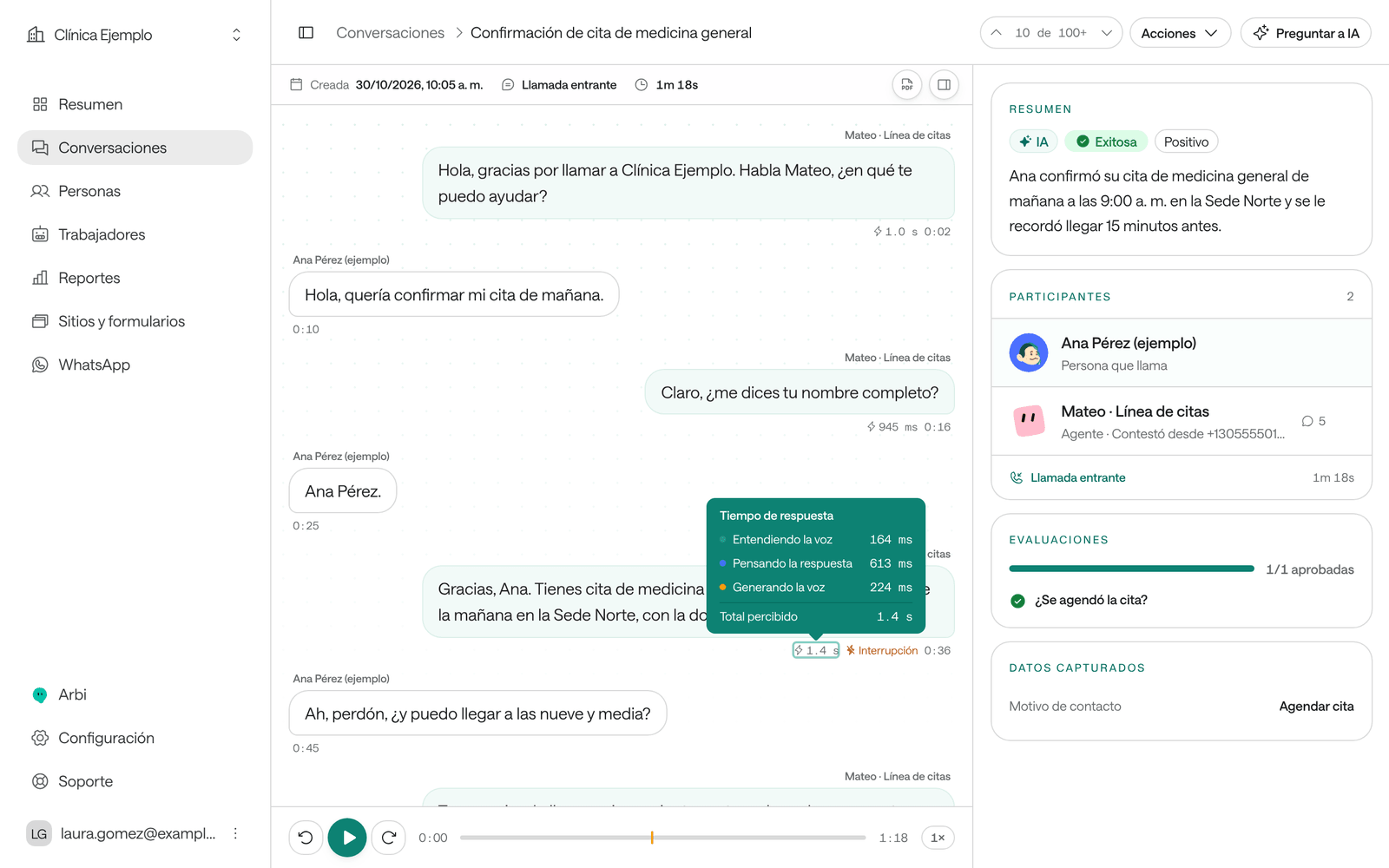
- The transcript: every turn, from the person and from the agent. Interrupted turns say Interruption, and the tools the agent used appear as cards with their result.
- The recording, if the agent records. The bar lets you play, go Back 10 seconds or Forward 10 seconds and change the Playback speed. The amber marks on the bar are interruptions. Click a turn’s time (Play from here) to hear it, and while it plays, the transcript highlights the turn.
- The response time of each agent turn: how long the person waited. Hover over it to see the detail: Understanding speech, Thinking of the answer, Generating speech and Perceived total. Turns over 3 seconds show in amber.
- The summary and the outcome, which Raíz generates when the call ends and can take a few minutes (see Follow conversations).
The recording appears a few moments after the call ends.
Who can listen to them
Only people in your organization with a role that can See conversations and listen to calls. A conversation’s PDF report includes the transcript, not the audio. Email notices include the title, the summary and the evaluations, never the transcript.
Stop recording
-
Open the agent and, under Call experience, click Conversation pacing.
-
Turn off Record calls.
-
Click Save.
From the next calls on, the audio isn’t kept. The transcript still is, and earlier recordings stay in their conversations.
Audio, photos and documents on WhatsApp
Messaging agents don’t speak: they reply in writing. But they understand what the person sends:
| What the person sends | What the agent does | What your team sees in the conversation |
|---|---|---|
| Voice note or audio | Raíz transcribes it and the agent answers what was said. | The audio, to play, with its transcript as text. |
| Photo (JPEG, PNG, WebP or GIF) | Reads it, text included: a medical order, an ID card, a photographed document. | The image, which opens with a click. |
| Reads it, even a scanned document. If it’s password-protected, it can’t open it: it asks the person for a photo or the same PDF without a password, never for the password. | The document, which opens with a click. | |
| Video or sticker | Doesn’t see it: it only knows it arrived. | The file. |
| Location | Receives the place’s name or address. | Shared location. |
| Contact card | Only knows a card was shared. | Contact card. |
Audio is transcribed even when the number is outside business hours, so your team can read it. A file over 25 MB isn’t kept, and audio over 10 MB is kept without a transcript.
The agent can also send files that your integrations generate, such as an appointment voucher, when the tool provides them: PDF, JPEG or PNG.
On your website’s chat
Under Sites and forms › Settings › Conversation you can turn on Voice messages (the visitor records audio, Raíz transcribes it and the agent answers what was said), Offer speech input and Offer spoken replies. Voice messages need the visitor to allow the microphone in their browser. See Chat on your website.
Troubleshooting
The agent speaks again while the person is still thinking or looking for something
After a few seconds of silence, the agent speaks again: by default, after 7.
What to do:
- Raise Wait after a pause, for example to 10 or 12 seconds.
- For long numbers, such as an ID, write in its instructions that it should ask the person to type it on the keypad and finish with #.
- If the agent answers before the person finishes a sentence, listen to the recording and send the conversation’s link to Support: that moment can’t be tuned from the Dashboard.
There are long silences before it answers
Open the call and look at the response time of the turns in amber.
What to do:
- If Thinking of the answer takes the longest, set the Language model back to Default (Arbolito Agile) under Intelligence.
- If the wait matches a tool, check on its card how long it took: your system is answering slowly. Tell whoever manages your integrations.
- Check that its instructions ask it to announce a lookup that takes a few seconds. The instructions Raíz writes when you create the agent already say so.
The voice sounds robotic, too fast or too slow
It depends on the voice, its controls and what the agent says.
What to do:
- Try other voices under Voice and pick one recorded in the agent’s language.
- Under Voice settings, adjust the Speed and try lowering the Stability a little for a more expressive voice.
- Check that its instructions ask it to speak in short sentences, without lists or links, and to say numbers and dates naturally.
- Make a test call after each change.
It doesn't understand the person or gets names wrong
It can be noise, a bad connection or words the agent doesn’t know.
What to do:
- Listen to the recording and compare it with the transcript to see what it understood.
- Add your clinic’s name, your locations, your services and your professionals’ surnames to Important words.
- Check that the agent’s Language is the one your callers speak.
- Ask it in its instructions to read back important details before using them and to ask people to type numbers on the keypad.
The call was cut off
In Conversations, the call’s status and duration tell you why it ended.
What to do:
- Timed out: it hung up because of End after silence. Turn it off or give it more time.
- If it lasted exactly the Maximum duration (10 minutes if you didn’t change it), raise it.
- If the agent said goodbye in the transcript, check whether the person said something that sounded like a goodbye. If it hung up too early, send the conversation’s link to Support.
- Errored: the call didn’t connect or the line failed. See When the patient doesn’t answer.
The agent doesn't answer calls
Check, in this order:
- In Workers, the agent is Active and doesn’t say Not published.
- In Settings › Channels, the number’s row shows the agent’s name and the Active status. If it says Needs attention, use Check connection and, if it stays the same, tell the Arbol team.
- Make a test call from the agent’s page. If the agent calls you fine but doesn’t answer inbound calls, tell the Arbol team through Support.
The recording isn't there
The agent wasn’t recording or the recording hasn’t arrived yet.
What to do:
- Check Record calls under Conversation pacing. It only applies to calls after the change.
- Wait a few minutes after the call and open it again.
- If the call was very long, its recording may not have been kept: the transcript is there.
The person asked to speak with someone on the team
On a call, the agent can’t transfer.
What to do: find those calls in Conversations, read the summary and contact the person. For next time, write in the instructions what the agent should offer when someone asks for a person.
The agent didn't understand a WhatsApp audio
The audio may have arrived without a transcript, for example because it was very long, or with a lot of noise.
What to do: open the conversation and listen to it. If needed, reply to the person yourself (see Handle a WhatsApp conversation).