This page brings together what you use to tell your agents about something temporary and to let your organization start conversations: bulletins, WhatsApp templates, contact profiles and campaigns.
Bulletins
A bulletin tells your agents about something happening for a while: a service that isn’t available, days with no appointments, a closure or a promotion. Your agents apply it on calls, WhatsApp and web chat from their next reply, and only while it’s in force. You don’t have to touch their instructions.
Before you start
- You need a role that can Create and tune agents, such as Agent design, Administration or Owner.
Post a bulletin
-
In the menu, click Settings and then Bulletins.
-
Click New bulletin.
-
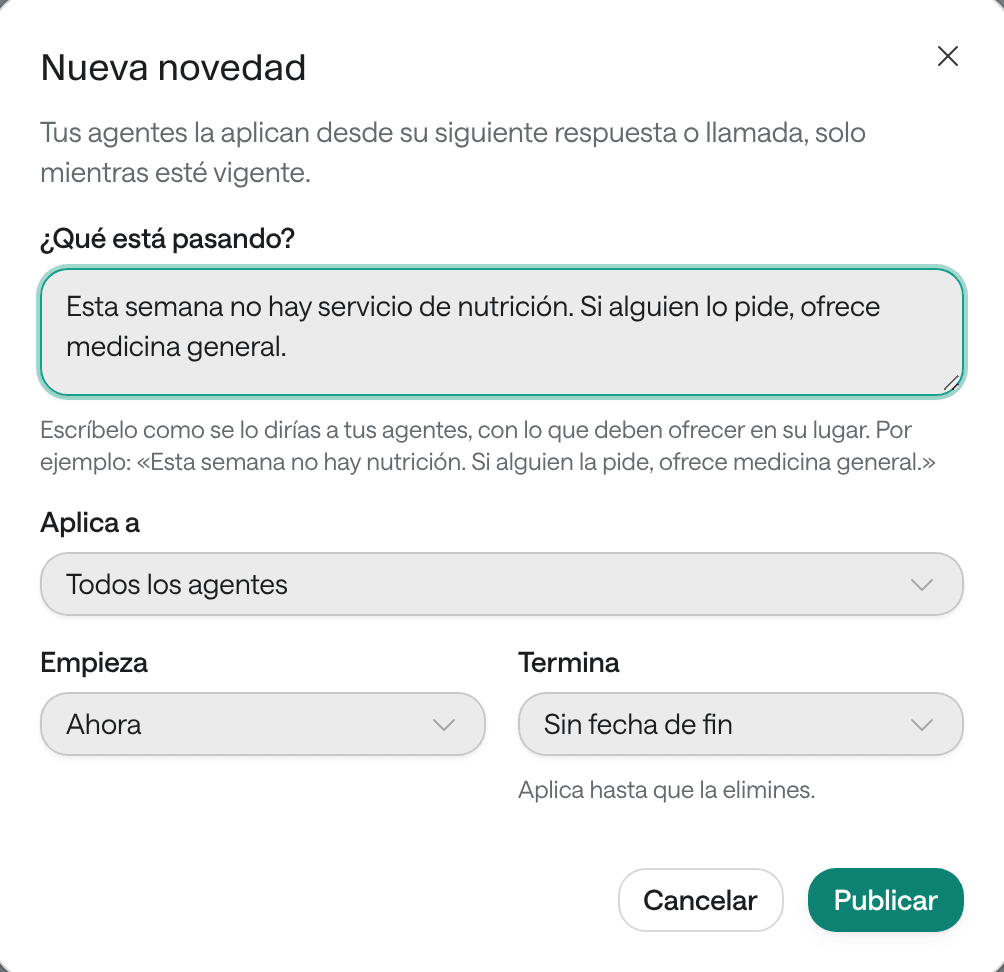
Under What is happening?, write it as you would tell your agents, with what they should offer instead. Example: “Monday the 12th is a public holiday and the clinic is closed. If someone asks for an appointment that day, offer Tuesday the 13th”.
-
Under Applies to, choose All agents or a specific one.
-
Under Starts, choose Now or Another day.
-
Under Ends, choose No end date, Today, at the end of the day, Tomorrow, at the end of the day, In 7 days or Another day.
-
Click Post.
The bulletin shows as In force or, if it starts another day, Scheduled. When it ends it moves to Ended (under Show), for reference. To change or remove it earlier, use Edit or Delete.
WhatsApp templates
WhatsApp only lets your organization start a conversation, or write to someone who hasn’t written to you in the last 24 hours, with a template WhatsApp has reviewed and approved. Templates are used by the outside-hours notice, contact profiles and systems that start conversations. Each WhatsApp number has its own templates.
Create a template
-
In Settings › Channels, open the WhatsApp number’s three-dot menu and choose Configure WhatsApp.
-
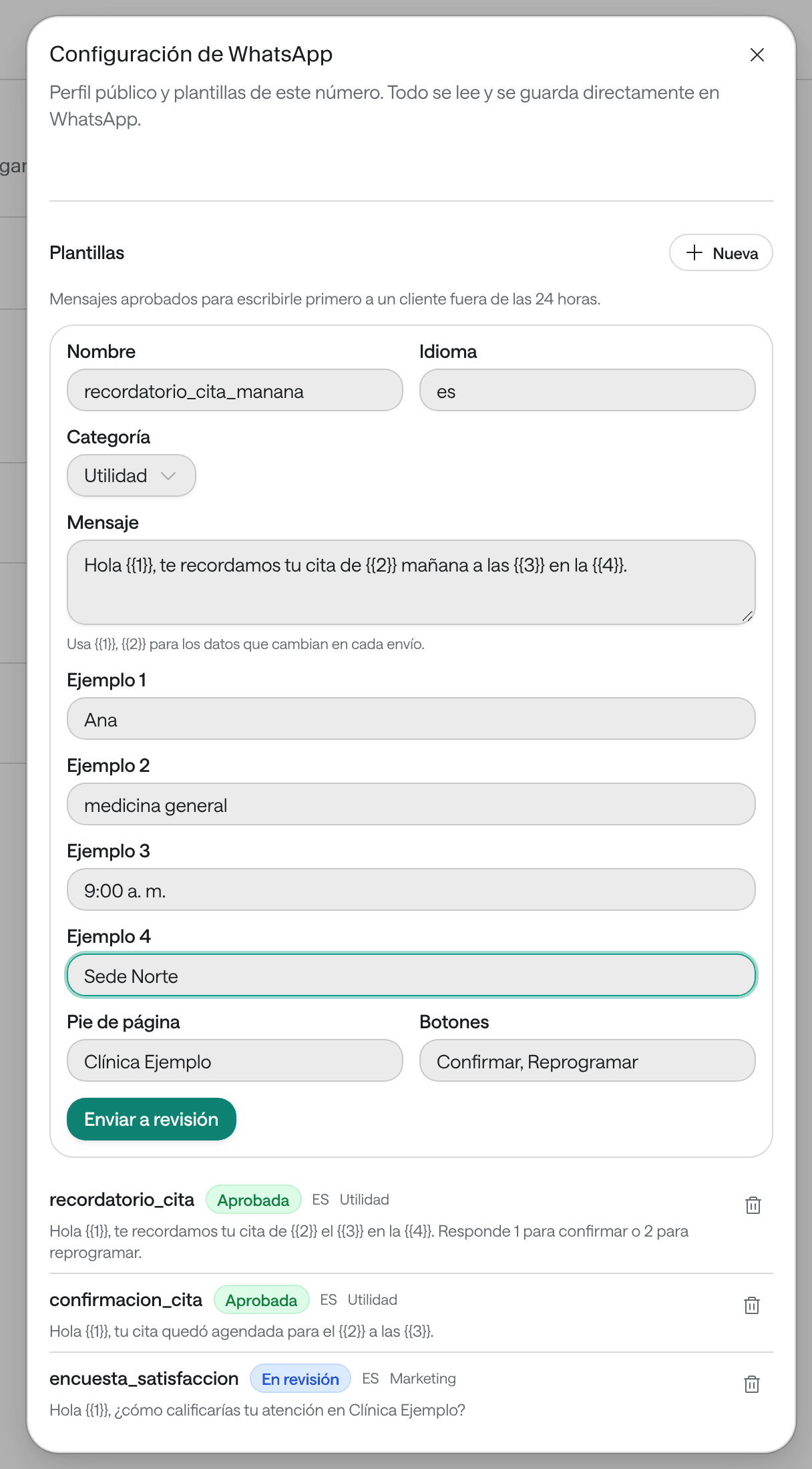
Under Templates, click New.
-
Fill in the Name, the Language (for example,
en_US) and the Category: Utility for notices such as reminders, or Marketing. -
Write the Message. For the values that change on every send, use numbered variables:
Hi {{1}}, this is a reminder for your appointment on {{2}}.Write an Example for each variable. -
If you like, add a Footer and Buttons, separated by commas, such as
Confirm, Cancel. -
Click Submit for review.
The template stays In review until WhatsApp reviews it, usually within minutes. Then it shows as Approved or Rejected. WhatsApp can also make it Paused or Disabled. To create or delete templates you need permission over templates; if you don’t see New, ask an administrator.
Contact profiles
A contact profile is a named way to contact someone: which agent calls or writes, from which line, with which template or message and during which hours. Your other systems, such as Agenda or Ámbar, start conversations with a profile’s id, for example to send an appointment reminder. Whatever you change in the profile applies to their next requests without touching those systems.
-
In Settings, click Contact profiles and then New profile.
-
Choose the Type: a call with a voice agent, or a WhatsApp conversation opened with an approved template. The type can’t be changed later.
-
Enter the Name, for example “Appointment reminder”, and choose the Agent.
-
Under Line, keep The agent’s line or choose another.
-
For a call, optionally write the First message and the Instructions for these calls, which are added to the agent’s own. For WhatsApp, choose the Template and fill in the Variable values.
-
If contact should only happen at certain hours, turn on Limit contact hours and add the time windows. Outside those hours no conversation starts.
-
Click Create.
To connect the profile to another system, open it, click Copy id and give the id to whoever sets up that system. Changes apply to the next conversations; those already started carry on as they began.
Call campaigns
A campaign has a voice agent call a list of people, during the hours you allow, and it can call again those who didn’t answer. Campaigns are created and launched from your systems, through the API, or with help from the Arbol team. Launching campaigns takes a role that can Launch campaigns, such as Owner.
In the Dashboard you follow their progress in Reports › Campaigns: each campaign with its status (Queued, Running, Completed, Failed or Cancelled) and its recipients Pending, In progress, Completed and Succeeded. A campaign’s calls appear in Conversations with the Campaign origin.
How many campaign calls your organization makes at once is set in Settings › Organization › Operations, from 1 to 50.
Troubleshooting
“There are already 30 current or scheduled bulletins.” End or delete one before adding another.
“The last day cannot be before the first one or already past.” Check the bulletin’s dates.
“Number the variables … without gaps.” Variables must go in order, starting at {{1}}, without skipping numbers.
“WhatsApp has not approved this template.” It’s in review, was rejected, or WhatsApp paused or disabled it. Choose another or create a new one.
“This template isn’t approved for sending from this line.” The profile will fail until it’s approved again or you choose another template.
“You have no active voice agents” or “You have no active messaging agents” when creating a profile. Create or activate an agent of the profile’s type.