A tool is something the agent can do in another system during a conversation: look up a professional’s open slots, book or cancel an appointment, check whether a patient is covered by their insurer, or register a new patient. Without tools, the agent talks and searches your knowledge base; with them, it actually gets things done. Read this page when you want to give an agent tools, understand what it did in a conversation, or ask Arbol for a new one.
How a tool is used in a conversation
The patient asks
“I need a general medicine appointment on Tuesday.”The agent looks it up
It uses a tool that finds open slots.It offers and waits
It shows the options and waits for the person to choose.It makes the change
It books with your scheduling system’s tool.It confirms what the system answered
It only says it’s booked if the system confirmed it.
Every time the agent uses a tool, a card is left in the conversation’s transcript, such as “Searched available slots” or “Booked the appointment”, with its result (see Follow conversations).
Two kinds of tools
In the Dashboard, each system’s tools are split into two groups:
| Group | What they do | Examples |
|---|---|---|
| Look up information | Read data without changing anything. | Find open slots, see a patient’s appointments, check their coverage or their authorizations. |
| Make changes | Create, change or cancel something in your system. | Book, reschedule or cancel an appointment, register a patient, update their details. |
Where tools come from
An agent can only use tools from the systems your organization has connected. You see them in Account, under Integrations (see See the integrations). There are two sources:
Arbol’s integrations
These are systems Arbol already knows how to work with. Arbol’s team connects them for your organization and keeps them running. Each connection (your organization’s account in that system, for example one per site) brings its own tools. Some examples:
| In Account | System | What an agent uses it for |
|---|---|---|
| From Arbol | Agenda | Your organization’s agenda in Arbol: find slots, book, reschedule or cancel appointments, and add people to the waiting list. Included if your organization has Agenda. |
| From Arbol | Contactabilidad and Account | Tools about your own contacts, conversations and agents, and about your organization in Arbol. An agent that serves patients rarely needs them. |
| Insurers | SURA | Check your patients’ coverage, appointments, authorizations and copays, and book or cancel appointments. |
| Insurers | AXA Colpatria | Check affiliation and authorizations. |
| Insurers | Nueva EPS | Check affiliation and the assigned primary provider. |
| Clinical systems | Visoft | Read schedules and availability, register patients, and book or cancel appointments in SIIPS. |
| Clinical systems | gMedic | Read schedules and availability, and manage patients and appointments. |
EPS is the Colombian health insurer a patient is affiliated with. The exact list of each connection’s tools is in Account, behind its tools button, and in Raíz, when you open the integration on an agent.
Your organization’s private tools
If your organization has a system of its own, such as its own scheduling system, health record or CRM, Arbol’s team can register it as a custom server. Its tools are private: only your organization’s agents use them. In Account they show under Your organization’s › Custom servers, and in Raíz you choose them like any other system’s.
- Each of your server’s tools is marked as a lookup or a change, and shows in the matching group in the Dashboard.
- Tools that Make changes are offered only after Arbol’s team confirms the server belongs to your organization. Until then, your agents only see its lookups. In Account, the server’s row shows Writes with Offered or Not offered.
- If your server adds or changes tools, Arbol’s team updates the list. Then, in Raíz, open the integration on each agent, review the changes and save.
- If one of your server’s tools makes changes in another connected system, such as Agenda, tell Arbol’s team: the agent treats it with the same care as that system’s changes.
Choose an agent’s tools
Before you start
- You need a role that can Create and tune agents, such as Agent design, Administration or Owner.
- The system has to be connected in your organization. If it isn’t, ask for it as explained in Ask for a new integration or tool, further down.
Steps
-
In the menu, click Workers and open the agent.
-
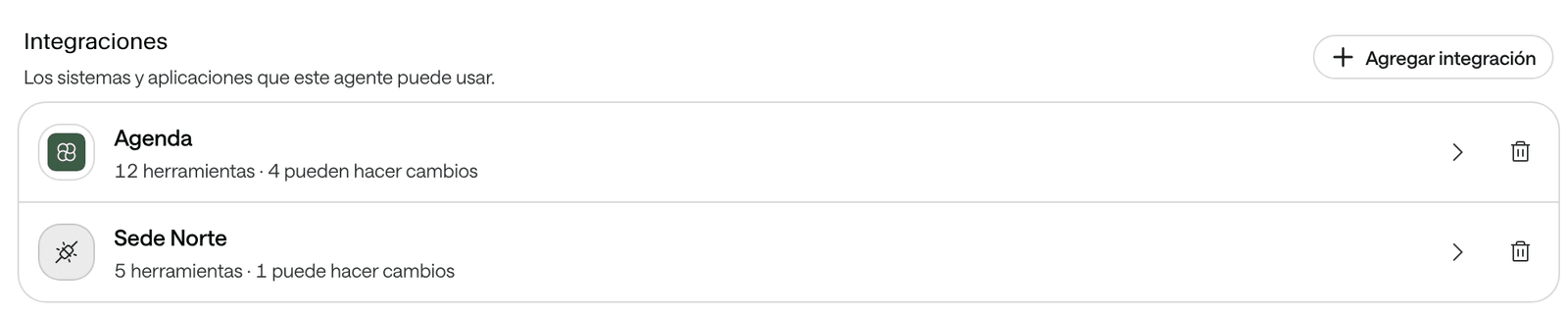
In the Work & quality block, click Tools and knowledge. Scroll down to Integrations.
-
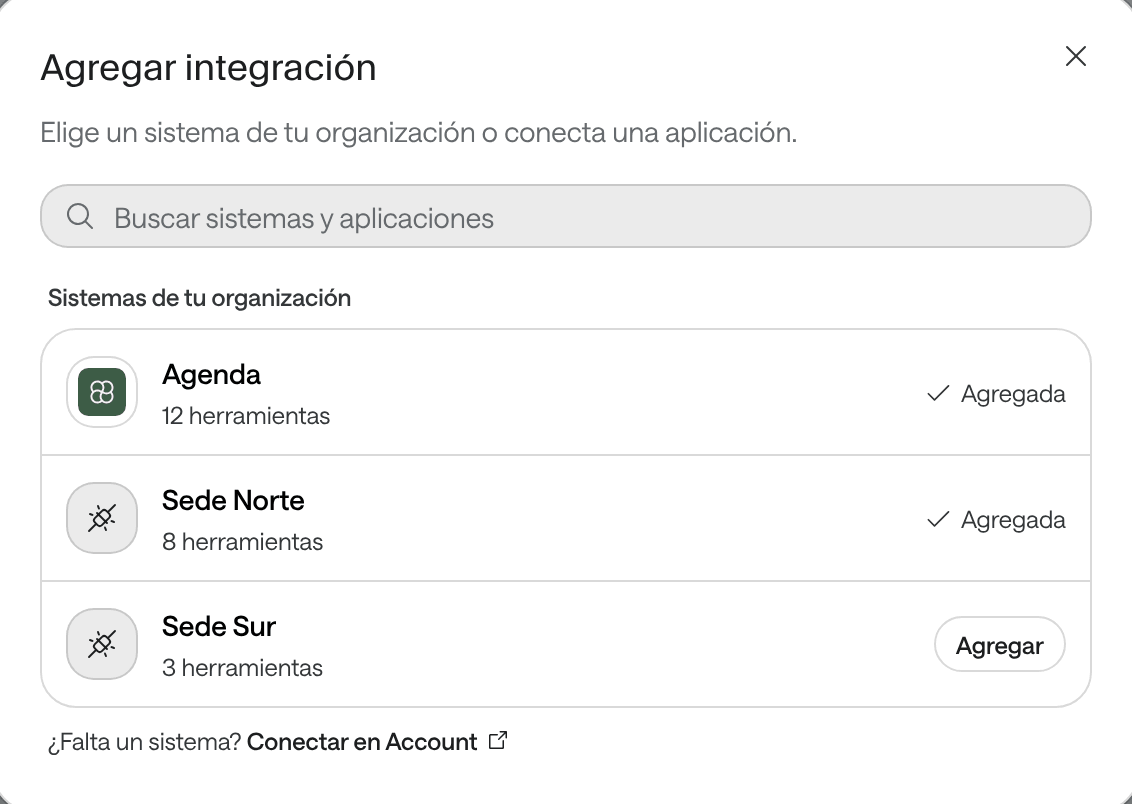
Click Add integration. Under Your organization’s systems, find the system and click Add. You’ll see “… added with all its tools”.
-
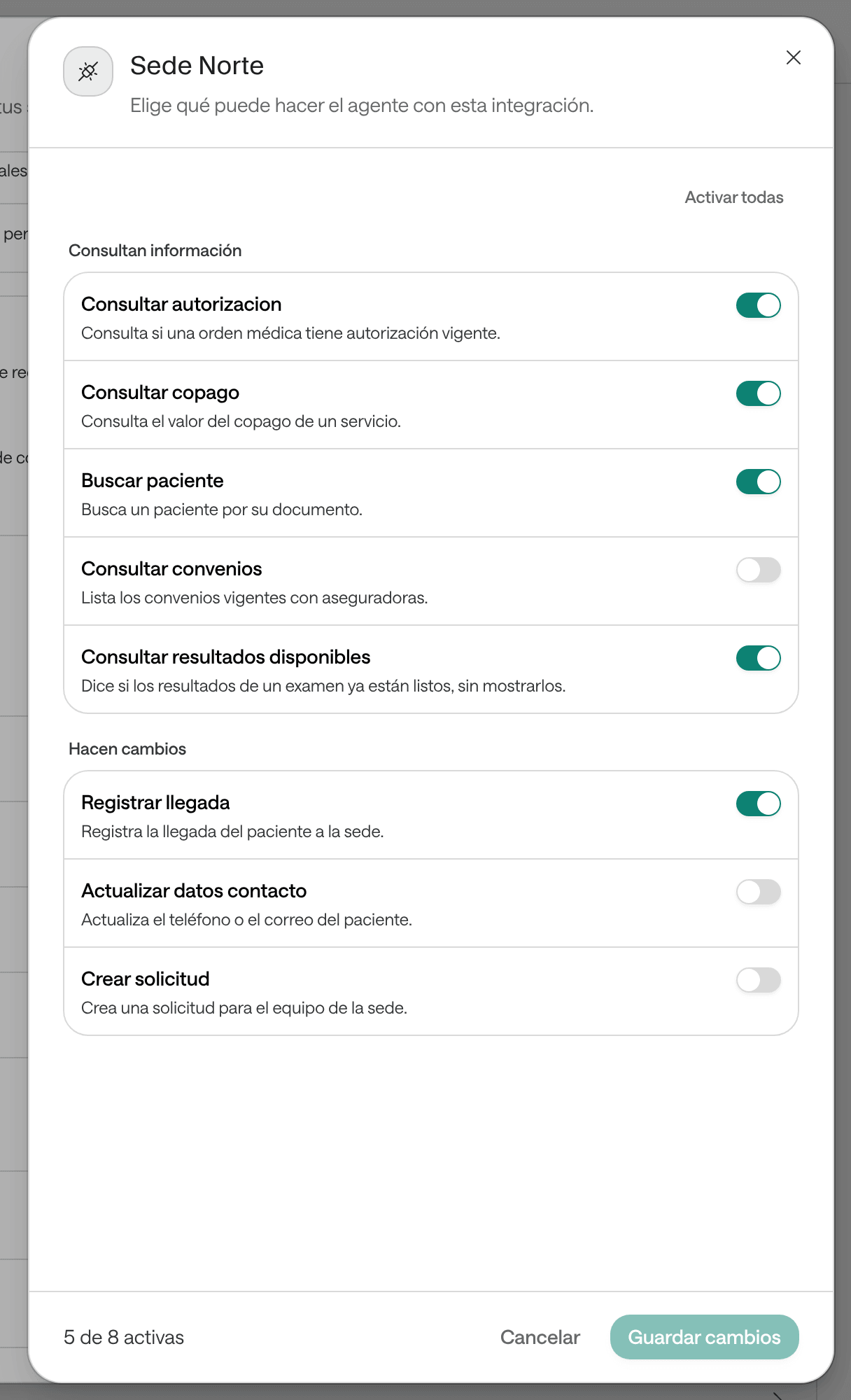
In the Integrations list, click the system you added to open its tools. They’re split into Look up information and Make changes.
-
Turn off the tools this agent doesn’t need, especially under Make changes. You can search with Search tools or use Turn all on and Turn all off. At the bottom you see how many are on, for example “5 of 8 on”.
-
Click Save changes. You’ll see “Tools saved”.
What you see when you’re done
Each system shows in Integrations with how many tools it has and how many can make changes, for example “8 tools · 2 can make changes”. On a voice agent, changes take a few moments to reach calls.
Remove a system
On the system’s row, click the X (Remove …) and confirm with Remove. The agent stops using its tools; you can add it again whenever you want.
Tell the agent when to use each tool
Giving it a tool isn’t enough: write in its instructions, or in a skill (see Agent settings), when to use it and what to confirm before a change. If you hover over a tool’s name in the panel, you see the exact name the agent knows it by; use it if you mention the tool in the instructions.
Avoid
Use the tools when you need them.
Better
To book: ask for the full name and ID number, look up the service’s open slots, offer up to three options and book only the one the person picks. When you’re done, repeat the date, the time and the site.
If you give the agent the same tool from several connections, for example Sede Norte and Sede Sur, the agent picks the connection by its name. Write in its instructions which site fits each case.
What the agent does before a change
Raíz gives the agent these rules on every channel, on top of the ones you write in its instructions:
- It acts only on what the person asked for and accepted. On WhatsApp, if the person writes again before receiving an offer from the agent (for example, some slots), the agent doesn’t make the change based on what they wrote: it first shows them the offer and waits for their answer.
- On calls, it announces the change before making it. Lookups happen right away. A change is made only after the agent says what it’s about to do, for example “I’m booking you for Tuesday at 9:00”, so the person can interrupt and correct it. Once it starts, the change isn’t interrupted.
- One change at a time. The agent makes a change, reads the system’s answer and only then decides on the next one.
- It never says something is done unless the system confirmed it. If a tool fails, it says so plainly and offers what it can do instead, such as handing the case to your team.
- If the system rejects a change, it may correct it once, and only if the system confirmed nothing changed. It never cancels or changes another record to fix it: a different action needs the person’s new authorization.
- If a change couldn’t be confirmed, for example because the system didn’t answer in time, the agent doesn’t repeat it. It tells the person it couldn’t confirm it and makes no other change in that conversation until someone on your team checks in your system whether it went through.
- If a tool is slow, on WhatsApp the person gets a single message like “One moment, please, while I check” and the agent keeps waiting for the answer.
- It never asks for passwords, card numbers or verification codes, nor for your systems’ internal codes: it finds those with its tools.
Instructions and skills don’t give the agent tools it hasn’t been assigned.
Ask for a new integration or tool
Arbol’s team connects integrations and registers custom servers. Ask when you need a system that isn’t in Add integration, or a tool your system doesn’t offer yet.
-
Decide who in your organization approves the agent working in that system, usually the Owner or whoever runs the area.
-
Write to your Arbol team or to support@getarbol.com with:
- The system: its name (an EPS, an insurer, a clinical system or a system of your own) and, if you have several sites or accounts, which ones.
- What the agent should do, in concrete words: what it looks up, what it changes and what it must never do.
- Which agents and channels will use it.
- Who approves it: the name and position of the person who authorizes it.
- If it’s your own system: who runs it in your organization or at your vendor, to coordinate the technical side, and whether the system needs to receive files patients send, such as a photo of a doctor’s order.
-
Wait for Arbol’s team to answer: they tell you what comes next and let you know when the system shows in Account, under Integrations › Connected.
-
Add it to the agent, choose its tools and test it with made-up data before it serves patients.
Example request:
Subject: New tool for the scheduling agent · Clínica Ejemplo

System: Clínica Ejemplo's own scheduling system. Our vendor runs it;
technical contact: Luis Gómez (example), sistemas@clinicaejemplo.com.

What the agent should do: look up open physiotherapy slots and book
the appointment when the patient picks a slot. It must not cancel or
move appointments.

Agents and channels: "Sofía, recepción", on WhatsApp.

Approved by: Ana Pérez (example), administrative director.What your team sees when a tool fails
In the conversation. Each tool card says how it ended. Click the card to see the Input (what the agent sent) and the Output (what the system answered). They may include patient data.
| On the card | What it means |
|---|---|
| Green check (Succeeded) | The system answered and the action was completed. |
| In progress | The system hasn’t answered yet. |
| Failed | The system rejected the action or didn’t answer. If it was an unconfirmed change, check in your system whether it went through. |
| Interrupted | The answer was cut off before it finished. Check in your system whether it went through. |
| Denied | Raíz didn’t allow the action at that moment, for example because an earlier change was unconfirmed or the person hadn’t seen the offer yet. |
On the agent. Under Tools and knowledge › Integrations, a system with a problem shows a notice: “It’s disabled: the agent can’t use it.”, “It isn’t responding. Check the connection in Account.”, “It no longer exists. Remove it from this agent.” or “Its tools changed. Open it to review them.”. While a system isn’t working, the agent keeps serving people without its tools.
In Account. Under Integrations, the connection shows as Needs attention (see See the integrations).
In the reports. Reports › Tools shows how many times each tool was used, how many failed and how long they took on average (see Reports).
By email. If you turned on the The AI could not answer notice, your team gets an email when a call or one of its functions fails, or when a WhatsApp reply ends in the fallback message (see Notices and the daily report).
Common problems
The system I need isn't in Add integration
Only systems that are connected and active in your organization and have tools show up. If the window says “Your organization hasn’t connected any systems yet.”, there aren’t any yet.
What to do: use Connect in Account to see in Account what’s connected and what’s available, and ask Arbol’s team for the system as explained in Ask for a new integration or tool, on this page.
The agent says it couldn't book
The tool failed, was denied, or the system didn’t have what the person asked for, such as open slots.
What to do:
- Open the conversation and click the tool’s card to read the Output.
- If it says Failed in several conversations, check Reports › Tools and the connection’s status in Account.
- If there were no slots, that isn’t a failure: check what the agent offers in that case in its instructions.
The agent said it couldn't confirm the change
The system didn’t answer in time and nobody knows whether the change went through. The agent doesn’t repeat it so it won’t be duplicated.
What to do:
- Look in your system for whether the appointment or the change was recorded.
- Write to or call the person to confirm how things stand.
- If the conversation is still open on WhatsApp, handle it yourself (see Handle a WhatsApp conversation).
An integration says It isn't responding or It's disabled
The connection with that system isn’t working or is turned off, and the agent can’t use it.
What to do: write to your Arbol team with the connection’s name and your organization’s ID, which is under Settings › Organization (see Organization settings).
A tool says Changed or No longer exists
Changed: the tool changed since you saved the agent, which keeps using the previous version. No longer exists: the system doesn’t offer it anymore, and it will be removed from the agent when you save.
What to do: open the integration, review the tools and click Save changes. If saving shows “One of the tools no longer exists in your organization’s integrations.”, review the selection and save again.
Saving says You do not have permission to do this
Your role can’t tune agents, or you’re giving it a Contactabilidad or Account tool your role isn’t allowed to use.
What to do: ask someone whose role allows it, such as the Owner, to make the change.
My custom server's tools don't show under Make changes
A custom server’s change tools are offered only once Arbol’s team confirms the server is your organization’s. In Account, its row shows Writes with Not offered.
What to do: ask Arbol’s team. Once they’re offered, open the integration on the agent, turn on the ones you need and save.
The agent made a change it shouldn't have
Tools that make changes act for real in your system.
What to do:
- Fix the change in your system and let the person know.
- If the agent shouldn’t make that kind of change, turn that tool off under Make changes and save.
- If it should, but more carefully, write in its instructions what it must confirm first, and test it again.
The agent doesn't use its tools in my website's chat
In the public chat, tools are off until you turn on Allow agent tools.
What to do: turn it on only if it’s appropriate for any visitor to take those actions (see Put the chat on your website).
For developers
Through the API, an agent’s tools are assigned from your organization’s integrations and connections. See Agents and Integrations.