Each person at your clinic signs in to the Dashboard with their own account and sees what their role allows: a receptionist handles conversations, a coordinator tunes the agents, a director checks the reports. Invite someone when they start using Raíz, and change their role when their job changes.
Before you start
- To see the team you need access to Team and permissions. To invite, change roles or remove access you need a role that can Invite people and assign roles, such as Administration or Owner.
- You can only assign roles whose permissions you also hold.
The roles
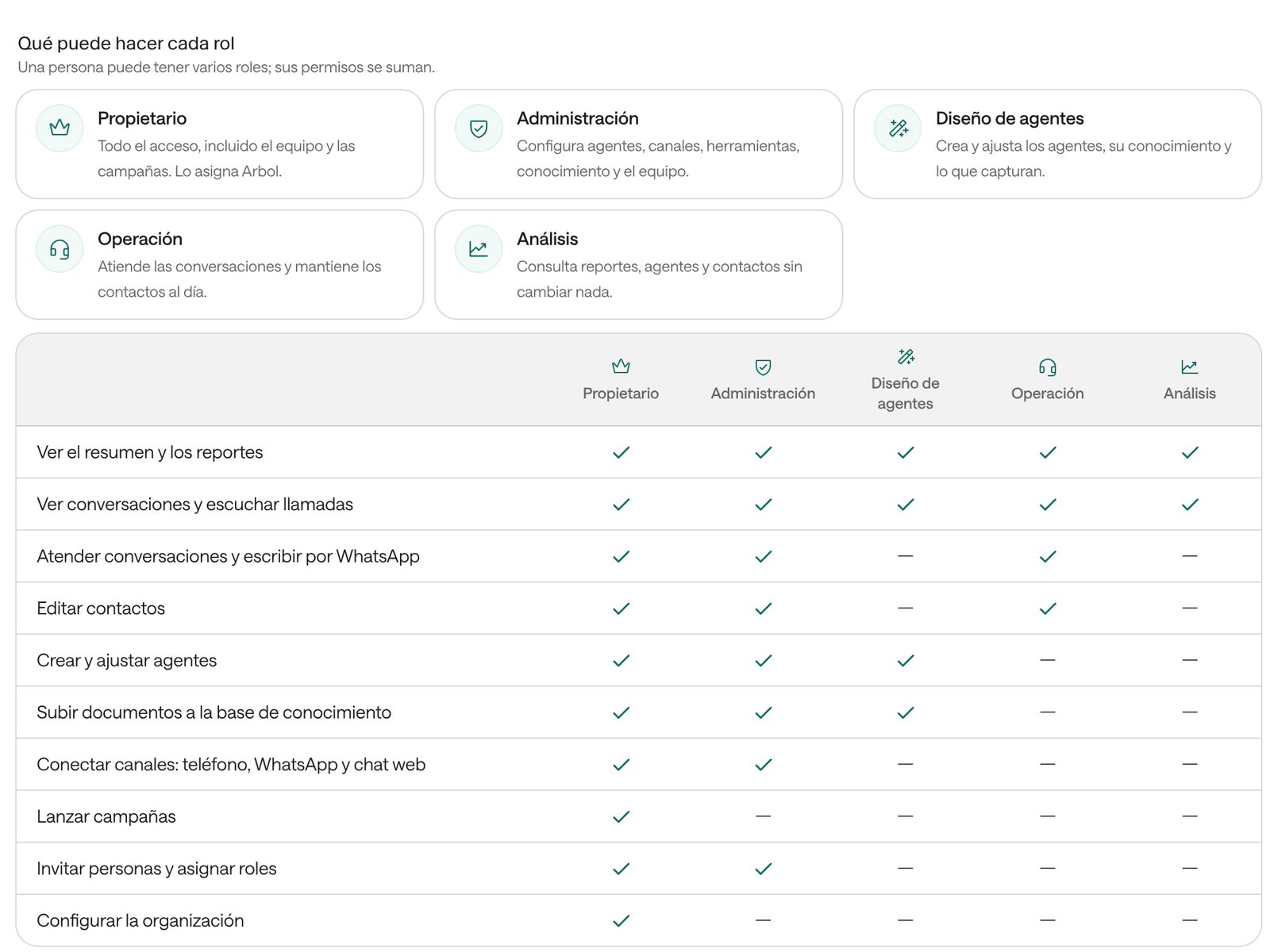
A person can hold several roles; their permissions add up.
| Role | What it’s for |
|---|---|
| Owner | Full access, including the team and campaigns. Arbol assigns it. |
| Administration | Sets up agents, channels, tools, knowledge and the team. |
| Agent design | Creates and tunes agents, their knowledge and what they capture. |
| Operations | Handles conversations and keeps contacts up to date. |
| Analysis | Reviews reports, agents and contacts without changing anything. |
In Team and permissions, the What each role can do table shows, for your organization’s roles, who can see the overview and reports, see conversations and listen to calls, handle conversations and reply on WhatsApp, edit contacts, create and tune agents, upload documents, connect channels, launch campaigns, invite people and set up the organization.
Invite someone
-
In the menu, click Settings and then Team and permissions.
-
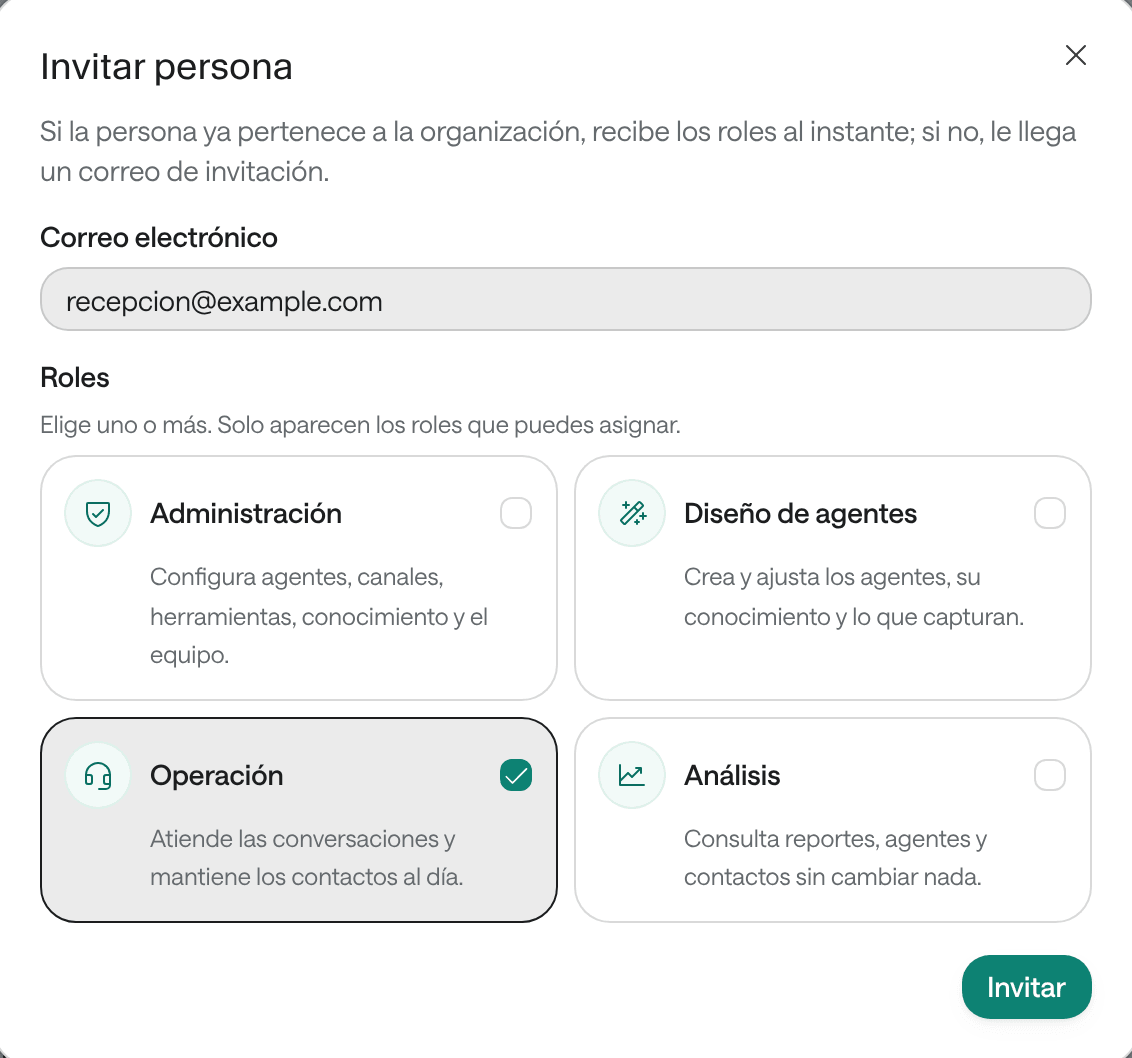
Click Invite someone.
-
Enter their Email.
-
Under Roles, choose one or more. Only roles you can assign are listed.
-
Click Invite.
If the person already belongs to your organization, for example because they use Agenda, they get the roles at once. If not, they receive an email invitation and appear under Pending invitations until they accept it. Invitations expire: the Expires column says when.
Change roles or remove access
-
Under Members, open the person’s menu.
-
Choose Change roles, check the new roles and click Save. The roles you choose replace the current ones.
-
Or choose Remove access so they can no longer sign in to your organization.
Under Pending invitations, Revoke invitation cancels an invitation that hasn’t been accepted.
Troubleshooting
“This person is already a member of the organization or has a pending invitation.” Look for them under Members or Pending invitations.
“This access cannot be changed here.” Owners and Arbol staff are managed separately, and you can only assign roles whose permissions you hold.
“You cannot change or remove your own access.” Ask another person who manages the team.
“Team management is not available for this organization yet.” Contact the Arbol team to turn it on.
The person says the invitation never arrived. Ask them to check their spam folder. If the invitation expired, revoke it and invite them again.