A person (a contact) is anyone who gets in touch with your clinic: a patient, a relative or whoever calls or writes. Raíz creates the person automatically when their first conversation arrives and recognizes them afterwards by their phone, email or ID document. In the Dashboard they’re under People.
Before you start
- To see people you need access to People. To create, import, correct or merge them you need a role that can Edit contacts, such as Operations or Owner.
- Use real patient data only in your organization’s Dashboard. To practice, use fictional data such as “Ana Pérez (example)”.
Find a person
-
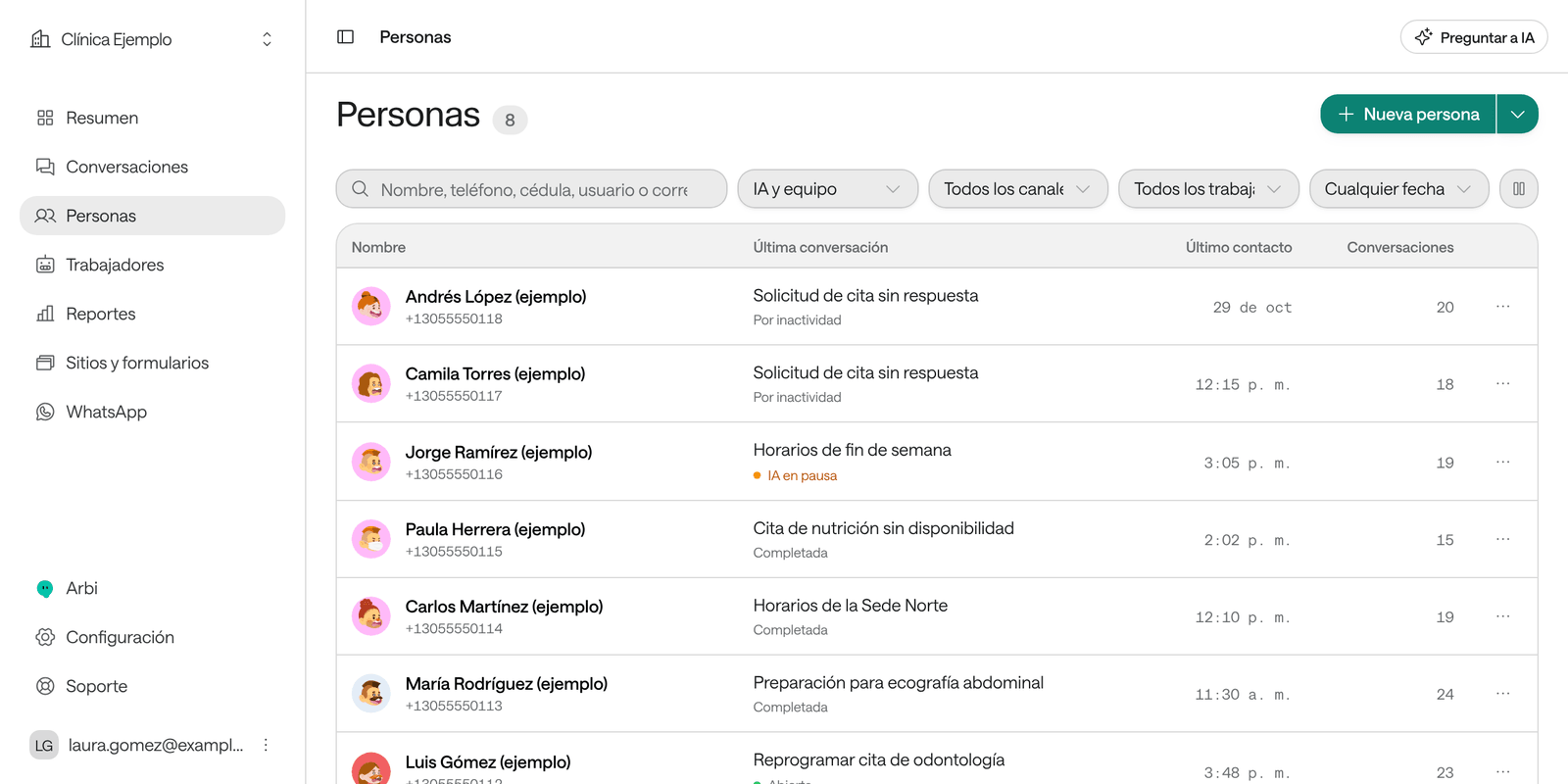
In the menu, click People.
-
In the search box, type a name, phone number, ID document, username or email.
-
Click the person to open their record.
The record shows their name, a summary, their phone numbers and emails, their ID documents, the Data captured about them and the Traceability: everything that happened with that person, in order, with a link to each conversation.
Create a person
-
In People, click New person.
-
Enter the First name, the Last name and a phone number with its country code.
-
Click Create person.
You fill in the email, address, ID documents and other details later on their record, with Actions › Edit details.
Import people from a file
-
In People, click the arrow next to New person and choose Import people.
-
Click Download a sample file and prepare your CSV file in the same format: a header row and one person per row.
-
Choose the Country of phone numbers written without a country code.
-
Click Choose file, select your CSV and click Start import.
You can close the window: the import carries on in the background. When it finishes you’ll see how many people were New, Updated and Rejected, and the Rows with problems with their reason. If a row carries a phone, email or document that already exists, it updates that person instead of creating another.
Each file can be up to 900 KB, in UTF-8. If your list is bigger, split it into several files.
Correct a person’s details
On the person’s record:
- Click the name or the summary to edit them.
- In their channels, Add channel adds a phone number or email, and Make primary chooses the one used first.
- Under Data, click a value to change it. The new value is kept in the history with your name.
- Actions › Edit details opens all their details: addresses, ID documents and contact points.
Merge two records of the same person
Sometimes the same person ends up twice, for example if they wrote from two numbers.
-
Open the record of the person you want to keep.
-
Click Actions and choose Merge with another person.
-
Search for the other person by name, phone or email and select them.
-
Check What will happen: their conversations and campaigns move to the main person, their phone numbers, emails and documents are added, and their data fills in whatever is missing.
-
Write Why they are the same person and click Merge people.
Block numbers
A block stops all your agents from contacting or replying to a number, for example when a person asks not to be called again. Calls, WhatsApp and web chat check this list before every contact.
-
In the menu, click Settings and then Block list.
-
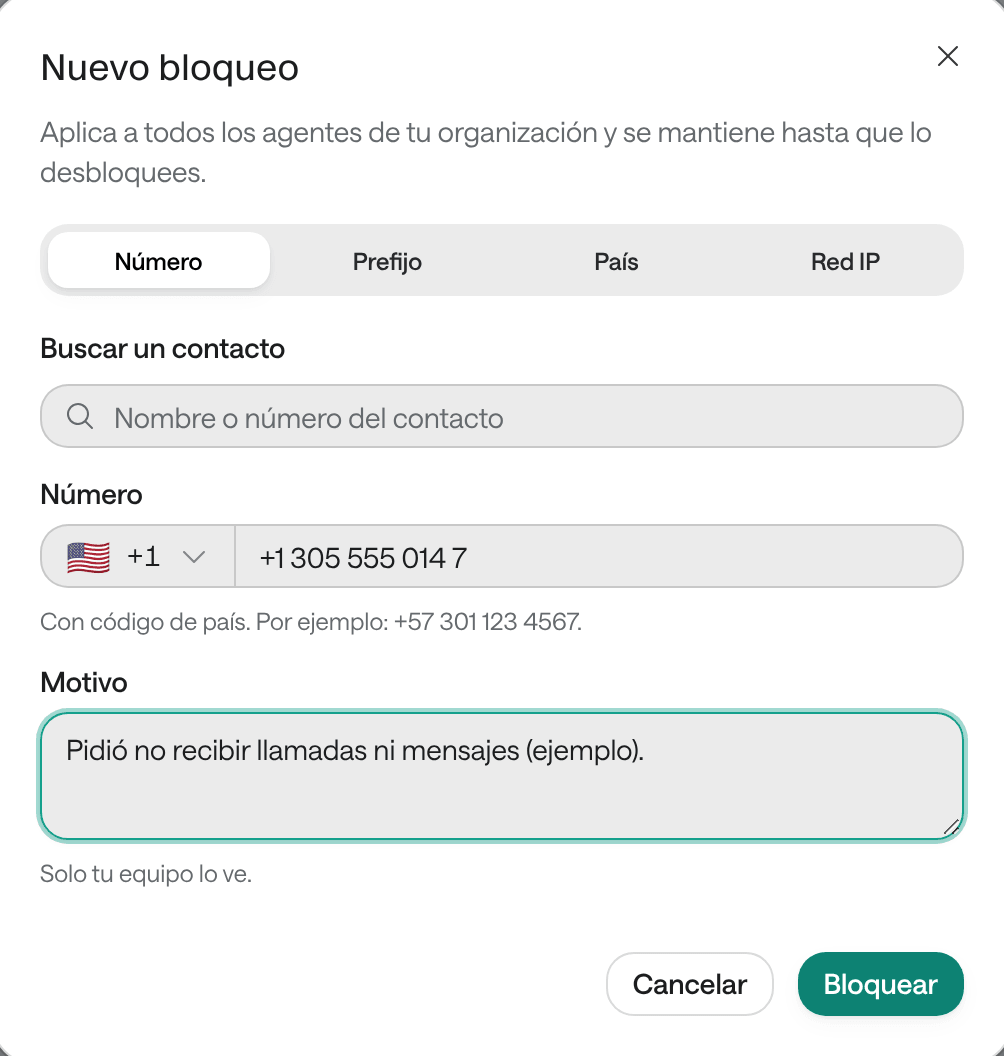
Click Block.
-
Under What to block, choose:
- Number: one specific number. You can look it up among your people with Find a contact.
- Prefix: every number that starts the same way, such as a country code.
- Country: numbers from that country and web chat visitors connecting from there.
- IP network: web chat only.
-
Write the Reason. Only your team sees it.
-
Click Block.
The block applies to every agent in your organization and doesn’t expire. To remove it, click Unblock next to the block. You can also block a number from a conversation, with Actions › Block number.
Troubleshooting
I don’t see New person or Block. Your role can’t edit people or the block list. Ask an administrator to check your role.
“That phone, email or address is already used by another contact.” That detail already belongs to another person. Look them up: they may be the same person and need merging.
“That document already belongs to another contact.” Same as above, with the ID document number.
The import rejected rows. Check each one’s reason under Rows with problems: the phone, email or document isn’t valid, or the row has no phone, email or document.
“The file needs a phone, whatsapp, email or document_number column.” The CSV must have at least one of those columns. Start from the sample file.
“A block rule of your organization forbids contacting this address.” The number is blocked. Check Settings › Block list before removing the block.