Agenda is your clinic’s or hospital’s appointment book in Arbol. In it you see each professional’s day, book, reschedule and cancel appointments, check patients in, keep the waiting list and look up each patient’s record. You open it at agenda.getarbol.com with your Arbol account.
Agenda’s screens are in Spanish. These guides name every button and field exactly as it appears on screen, in bold, with its meaning in English where it helps.
How it works
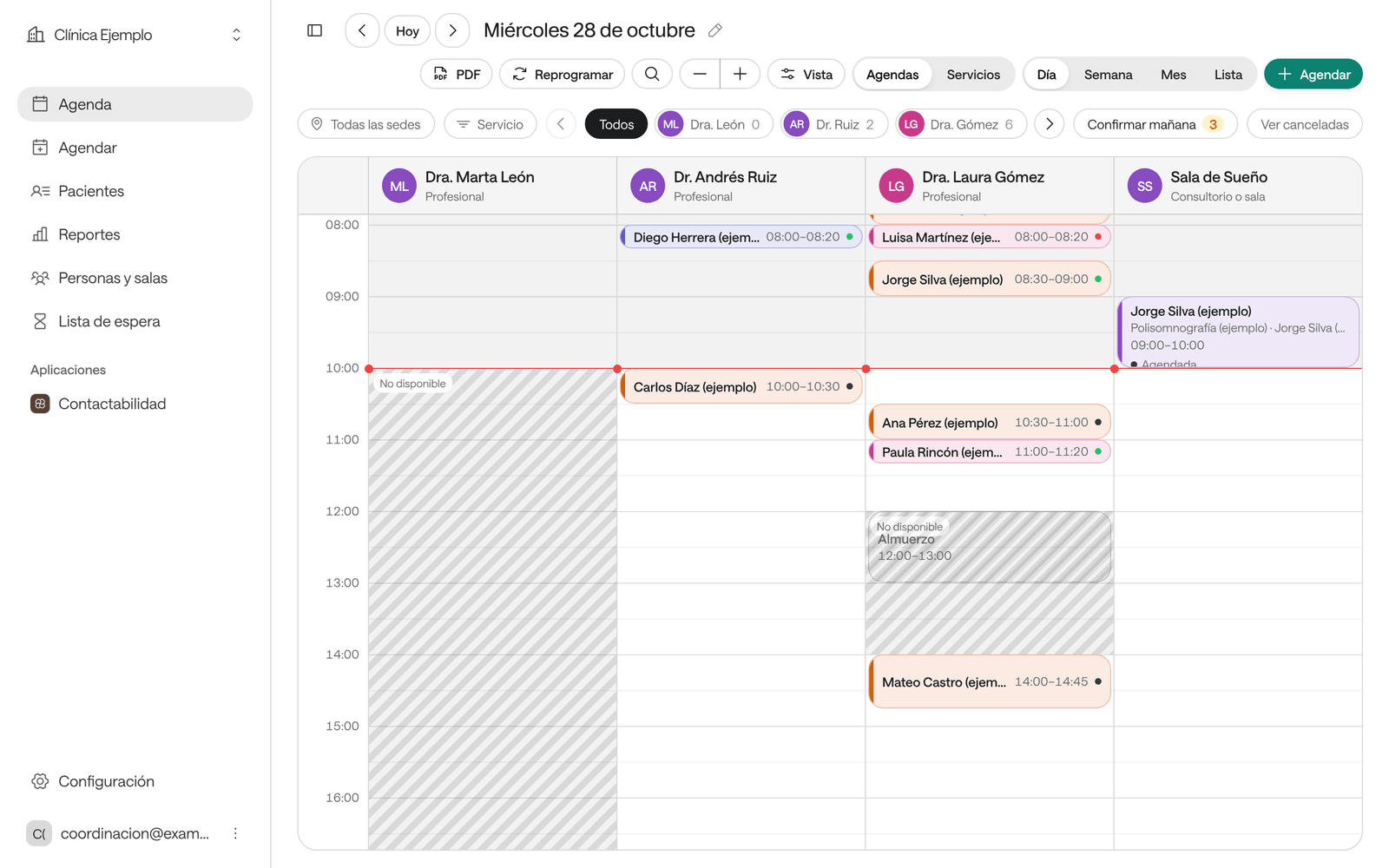
Agenda is built from a few ideas. You’ll see them under these names across the app:
| Idea | What it is |
|---|---|
| Agenda (an agenda) | The calendar of whoever provides care: a professional, or a room, office, piece of equipment or laboratory. Each one has its hours and how many appointments it can take at once. The Agenda screen shows them all together. |
| Servicio (service) | What the patient asks for: a consultation, a test, a procedure. It has a duration, a color on the agenda and, if needed, instructions for the patient and checks before booking. |
| Sede (site) | Where care is given. It only appears if your organization has two or more sites. |
| Horario (hours) | The days and time ranges each agenda works, with its special days, vacations and absences. |
| Cupo (slot) | A free time when a service can be booked. Agenda works slots out from the agenda’s hours, the service’s duration and the appointments already booked. |
| Cita (appointment) | A slot booked for a patient. Every appointment has a status. |
| Sobrecupo (overbooking) | An appointment added beyond what the agenda can take at that time, or outside its hours. It’s marked Sobrecupo. |
| Bloqueo (block) | A stretch of time when nobody can book on an agenda, such as a meeting. |
| Lista de espera (waiting list) | The people waiting for a time for a service, so you can call them as soon as one opens up. |
A slot isn’t held while you type the patient’s details: it’s secured when you confirm the appointment. If someone else takes it first, Agenda shows you the next ones.
Appointment statuses
| Status | What it means |
|---|---|
| Por confirmar | The appointment is pencilled in but still needs confirming. |
| Agendada | The appointment is booked. |
| Confirmada | The patient confirmed they’re coming. |
| Llegó | The patient has arrived at the clinic. |
| Atendida | The patient was seen. Its status can no longer change. |
| No asistió | The patient didn’t come. The appointment still takes up its time. |
| Cancelada | It was cancelled and its time is free again. It can no longer change. |
| Por revisar | Agenda isn’t sure of its status: open it and move it to Agendada or cancel it. |
How to move an appointment from one status to another is in Confirm, check in and mark as seen.
Who can do what
What you see and can do depends on your role in Agenda: Consulta (view only), Recepción (front desk), Profesional (professional) or Administración (administration). For example, with Consulta you see the agenda and the patients but can’t book. If you don’t see a button these guides mention, check Who can do what.
Choose what you want to do
Find your way around the agenda
Views, filters, search and keyboard shortcuts.
Book an appointment
Find the first free slot and save the appointment with the patient’s details.
Find or register a patient
Find a patient by name, document or phone, or register one.
Update a patient's record
Their details, the alert for the team, their notes and their files.
Open an appointment and edit its details
Everything about an appointment in one panel, and how to correct it.
Confirm, check in and mark as seen
Change an appointment’s status through the day.
Reminders and confirmations
What the patient gets before their appointment, how they confirm and what to do if they don’t answer.
Reschedule an appointment
Move an appointment to another time, or several at once.
Cancel an appointment
Cancel with a reason and free the time.
Use the waiting list
Note down who’s waiting for a time and book them when one opens up.
Block time
Close a stretch of an agenda so nobody books there.
Print the appointment slip and the agenda
The slip the patient takes away and the agenda as a PDF.
View reports
How many appointments there were, who didn’t come and how full the agendas are.
Your agenda as a professional
Your appointments, hours and services with the Profesional role.
Who can do what
Agenda’s four roles and how they’re assigned.
Set up Agenda
For Administración: professionals, rooms, hours, services and sites.
Common problems
No slots, someone changed the appointment meanwhile, a missing button.
FAQ
Short answers: moving appointments, absences, reminders, deleting an agenda.
For developers
If you’re connecting a system to Agenda or booking from your own application, read Agenda for developers.