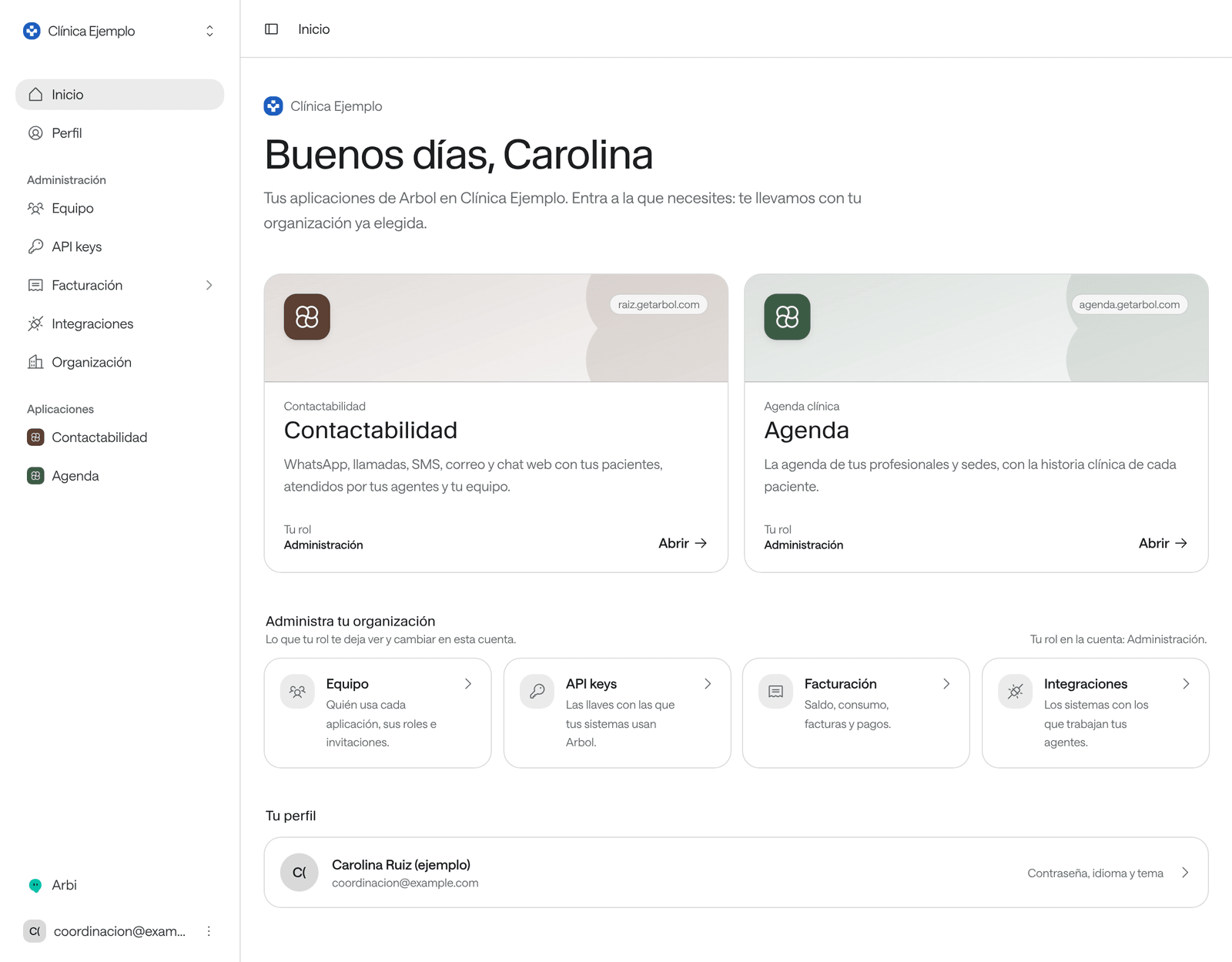
Account, at account.getarbol.com, is the application where your organization is administered on Arbol. From here, its administrators decide who uses each application —Raíz, Agenda, Ámbar and Account itself— and with which role, create the API keys your organization’s systems use, check billing and integrations, and set how the organization looks when your team signs in.
How it works
- Everyone gets in. Anyone in your organization who signs in enters Account, even without a role in it. They see Home, with the applications they use, and Profile, with their password, language and theme. At the bottom of the menu they have Arbi, Arbol’s assistant.
- The rest depends on your role. In the menu, the Administration group shows only the pages your role lets you see: Team, API keys, Billing, Integrations and Organization. If one is missing, your role doesn’t include it.
- One organization at a time. Everything you see belongs to the organization named at the top of the menu. To work in another one, click its name and choose Change organization.
- Access changes arrive on the next sign-in. When you change someone’s role, they see it the next time they sign in.
- The Applications group in the menu opens Raíz, Agenda or Ámbar in a new tab, with your organization already chosen, if you hold a role in them.
Who sees what in Account
| Who | What they see and do in Account |
|---|---|
| Account’s Administration role | Invites people to the account and manages API keys; sees billing and integrations; sets up the organization. |
| Account’s Billing role | Sees the balance, usage, invoices and payments, and updates the billing details. |
| Account’s Viewer role | Sees the team, API keys, billing and integrations, without changing anything. |
| Anyone with Administration in Raíz, Agenda or Ámbar | Administers their application’s team in Team; creates, rotates and deletes API keys; sees billing and integrations. Sees Organization without changing it. |
| The organization’s Owner | Administers every application’s team and the API keys, sees billing and updates its details, sees the integrations and sets up the organization. Arbol assigns this role. |
| Anyone else | Sees Home and Profile. |
To compare the roles permission by permission, open Team, choose the Account tab and expand What each role can do. Every application’s roles are explained in Roles and permissions.
Choose what you want to do
Set up the organization
The name, logo and colors your team signs in to Arbol with.
Invite someone
Give them access to Raíz, Agenda, Ámbar or Account with the role they need.
Change a role or remove access
When someone changes jobs or leaves the organization.
Create an API key
So a system of your organization can use Arbol, with just the permissions it needs.
See the integrations
The systems your agents work with and the status of each connection.
Check billing
Balance, usage, invoices, payments and billing details.
For developers
If you’re connecting a system to Arbol, ask your Account administrator for an API key with the permissions you need. How API keys and the other kinds of credential are used is in Authentication.