The knowledge base is the documents your agents consult during a conversation: services, opening hours, sites, test preparation, insurance agreements, frequently asked questions. Upload them when an agent must answer with information that doesn’t fit in its instructions, and update them when they change.
Before you start
- To upload documents you need a role that can Upload documents to the knowledge base, such as Agent design, Administration or Owner.
- To choose which documents an agent consults you need a role that can Create and tune agents.
- Files up to 8 MB: PDF, Word, Excel, CSV, HTML, Markdown or text.
Upload a document
-
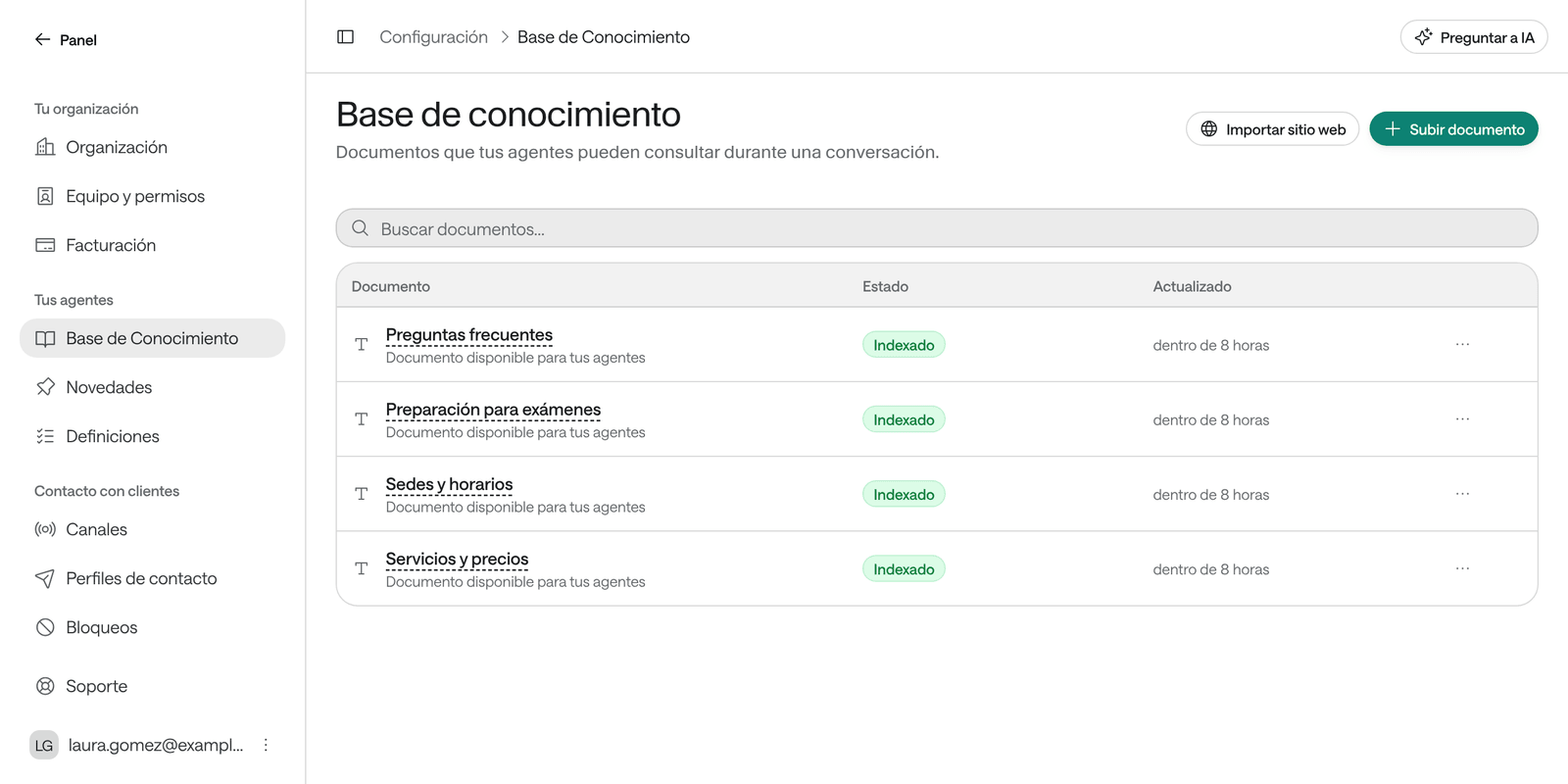
In the menu, click Settings and then Knowledge Base.
-
Click Upload document.
-
Choose File to upload a file, or Text to paste the content directly.
-
Enter the Name. Agents see this title next to every passage they consult, so use a clear one, such as “Preparing for lab tests”.
-
Select the file or paste the text under Content. If you like, add a Description for your team.
-
Click Upload.
Raíz keeps the original and prepares its content so agents can find answers. The status goes from Pending to Indexing… and then to Indexed: from then on it’s ready for the agents that consult it.
Import your website
-
In Knowledge Base, click Import website.
-
Enter a Name and the Website URL, starting with
https://. -
Choose the Maximum pages (1 to 50) and the Subpage depth (0 to 5).
-
Click Import website.
Only websites approved for your organization can be imported. If you see “This site is not approved for import”, ask the Arbol team to enable it.
Choose which documents an agent consults
An uploaded document isn’t used by any agent until you assign it.
-
In the menu, click Workers and open the agent.
-
Under Work & quality, click Tools and knowledge.
-
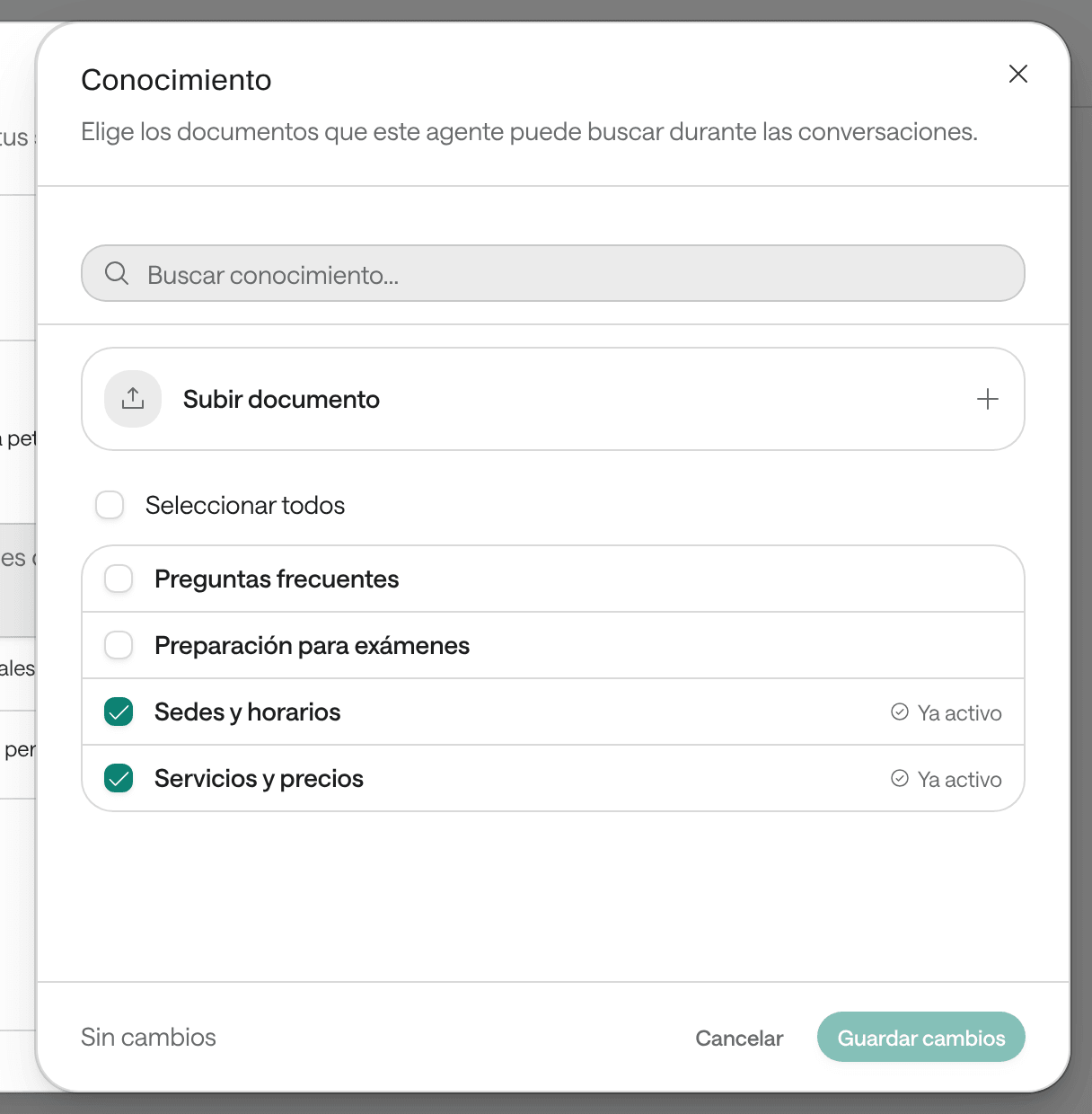
Under Knowledge, click Add document.
-
Check the documents the agent may search, or Select all.
-
Click Save changes.
To take a document away from an agent, click the trash icon next to the document in the same section.
Update, pause or delete a document
In Knowledge Base, open the document’s menu and choose:
- Edit: change the name or the content, or click Replace to upload a new file, which is indexed again. Turn off Available to agents to pause it: it keeps its content, but no agent consults it.
- Remove: deletes the document. Agents lose access to it.
Troubleshooting
The document ended up as Failed. Open the document to see why:
- “We found no text in this document”: it’s usually a scanned, image-only PDF. Upload a version with text or paste the content as Text.
- “The text is too long to index”: split it into smaller documents.
- “The stored file is no longer available”: replace it with a new one.
- “We could not index it; we will retry automatically”: wait a few minutes.
“The file exceeds the 8 MB limit.” Split the document or keep only the parts the agent needs.
“The site does not allow us to import it (robots.txt).” The website blocks importing. Copy the content you need into a Text document.
The agent doesn’t use the new information. Check that the document is Indexed, Available to agents and assigned to the agent.