The instructions tell the agent who it is, what it should achieve, how to speak and what it must not do. Review them after you create an agent and whenever something about your operation changes that the agent should know for good. For temporary notices, such as a day you’re closed, use bulletins instead.
Before you start
- You need a role that can Create and tune agents, such as Agent design, Administration or Owner.
- Have at hand what the agent should be able to do: why people contact you, what it can resolve on its own and what it must always pass to your team.
Write the instructions
-
In the menu, click Workers and open the agent.
-
In the Agent foundation block, click Identity & instructions.
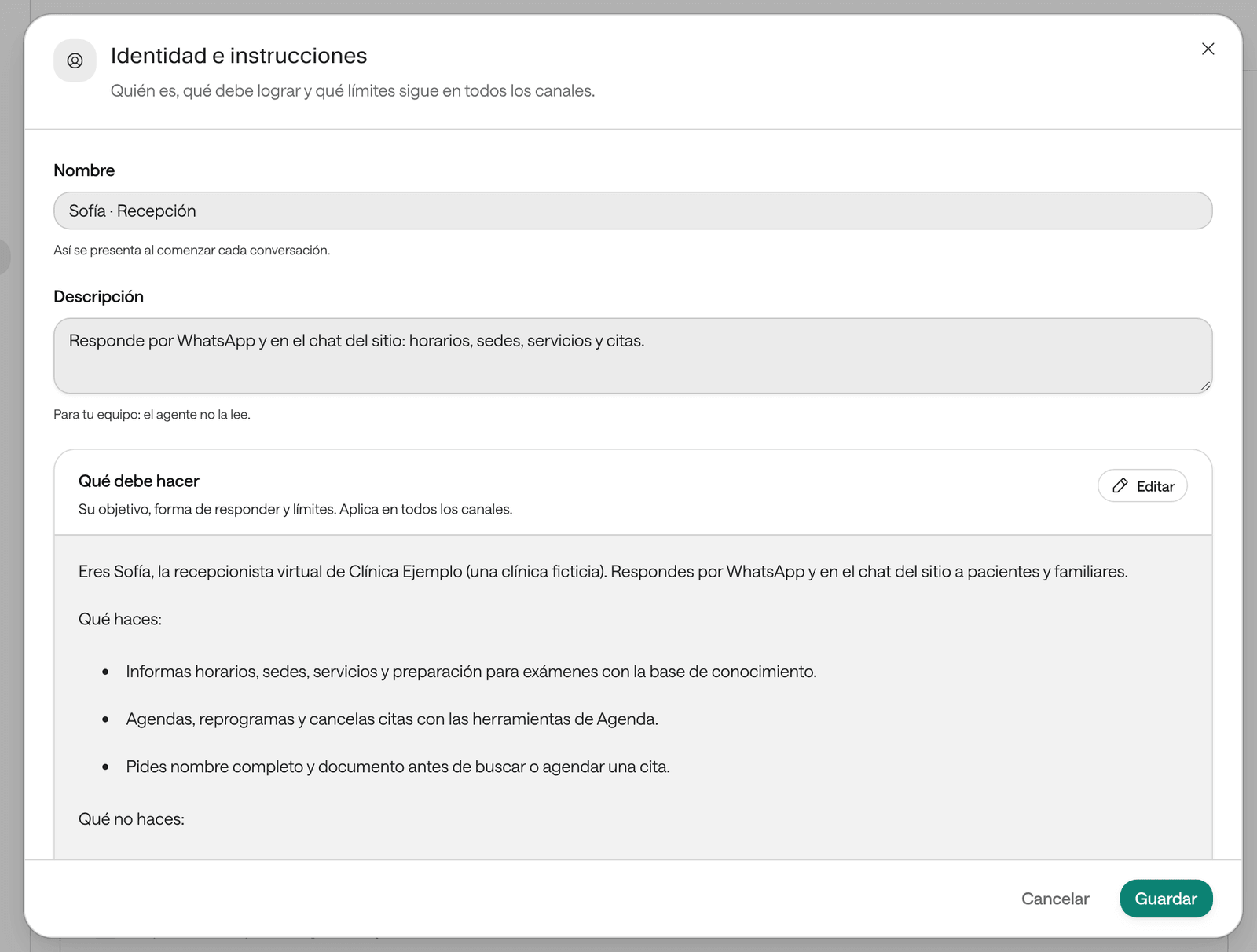
-
Check the Name. It’s how the agent introduces itself at the start of every conversation.
-
If you like, write a Description. It’s only for your team: the agent doesn’t read it.
-
Under What it should do, click Edit and write or adjust the instructions. They apply on all the agent’s channels.
- If the field is empty, you can start from an example: Front desk & scheduling, Sales & quotes or Support & follow-up. Choose one and adapt it to your clinic.
- Add an example adds a model sentence at the end: Role & goal, Tone, Limits or When to hand off.
- Preview shows the text as it will be read, and Back to saved undoes your changes.
-
Click Save. You’ll see the notice “Identity updated”.
What to write
Organize the instructions in short blocks, like the Dashboard’s examples:
- Role and goal: who it serves and what it should achieve.
- Tone: how it speaks. For example, “warm, clear and brief, no jargon”.
- What you do: what it resolves on its own, such as giving opening hours, explaining how to prepare for a test or booking.
- What you don’t do: its limits. For example, “Never invent prices, timelines or availability. If you don’t have it, say so and offer to confirm”.
- When you hand off to someone on the team: the cases that need a person.
Example for a fictional clinic:
You look after Example Clinic’s patients who write to book appointments or ask questions. Your goal is to understand what they need and book when it applies.
Tone: warm and clear, short sentences. Always confirm the name and ID document before booking.
What you don’t do: you don’t give medical advice or interpret results. If asked, explain that a professional must handle it and hand the case to the team.
To understand how the agent uses these instructions and see more examples, read What prompting is.
Choose the language and time zone
In Agent foundation › Language and time zone you choose the Language it serves in and the Time zone it uses to know the date and time. By default it uses your organization’s time zone. If you change a voice agent’s language, check that its voice speaks that language.
Write the greeting
The greeting is under Greeting, in the Call experience or Chat experience block.
Every call opens with the Welcome message: it’s the first thing the agent says when it answers or calls, and it’s required. For example: “Hi, this is Sofía from Example Clinic. How can I help you?”.
Under When someone writes you choose what a person gets when they open a conversation on WhatsApp:
- The AI answers its own way: the agent answers the first message following its own instructions.
- Send a fixed message: you write the Welcome message. It goes out as written when the person only says hello; if they already sent details or a question, the agent answers in a single message. You can use
*bold*and_italics_. - The AI greets following a brief: you write a brief and the AI writes the first message.
- The WhatsApp Business app sends it: if your WhatsApp Business app already greets on its own, paste that greeting here so the agent doesn’t send another one.
Turn on Always send the greeting for a notice everyone must receive.
Say when to hand the conversation to your team
-
In the Work & quality block, click Tools and knowledge.
-
Under Escalation and support › Escalate to a person, fill in When should it escalate? with concrete cases. For example: “Complaints, requests for special authorizations and any clinical question”.
-
Click Save escalation policy.
An explicit request to talk to a person is always honored, even if you don’t write it. On WhatsApp, when it escalates, the AI stops replying in that conversation and only someone on your team can turn it back on. What the person receives at that moment is chosen in Chat behavior › Message when handing over to the team (see Agent settings).
What you see when it’s done
The section’s row shows a summary of what you saved and, for a moment, a green check mark. Identity & instructions shows as Done.
Troubleshooting
“Discard unsaved changes?” You left the section without saving. Choose Keep editing and click Save, or Discard changes if you don’t want them.
“Someone else changed this while you were editing.” Someone else saved the same agent. Reload the page and make your change again.
“Too long: at most … characters.” Shorten the text. If the agent needs a lot of reference information, such as service or price lists, upload it to the knowledge base instead of putting it in the instructions.
“Every call opens with the greeting: write one.” A voice agent needs its Welcome message to answer calls.