Do this when you need to know how much balance is left, what was used this month, which invoices are open, or when your organization’s legal details change.
Before you start
- Account’s Administration, Billing and Viewer roles see billing, as do anyone with Administration in Raíz, Agenda or Ámbar and the Owner.
- To update the billing details you need Account’s Billing role or to be the Owner.
Steps
-
In the menu, under Administration, click Billing. If you come from Raíz, its Billing link brings you here, and Back to Contactabilidad appears at the top to return.
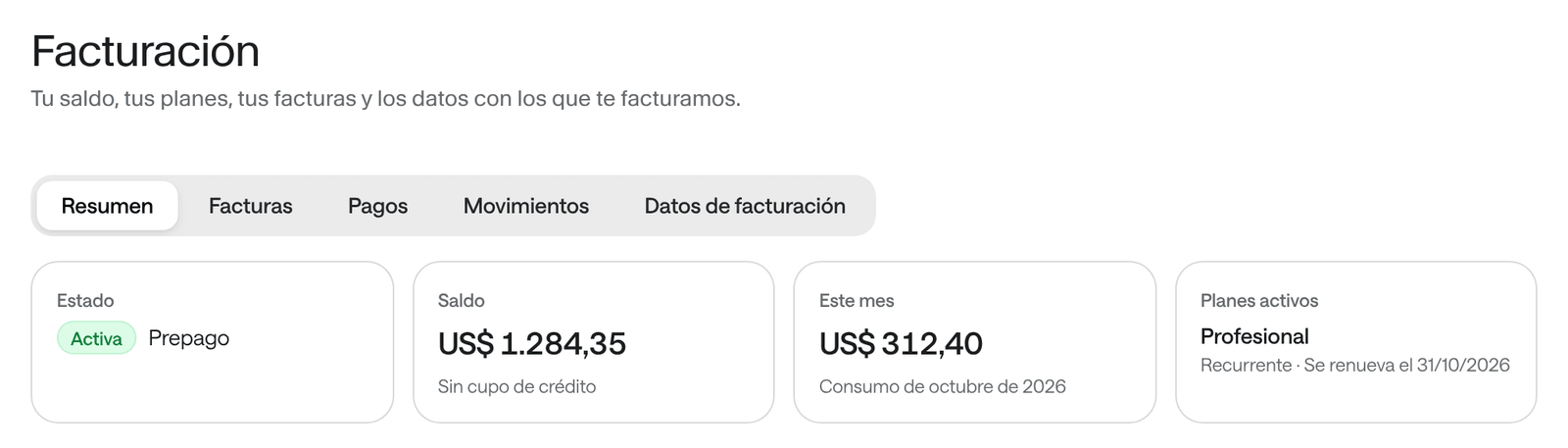
Example amounts, plans and bank details: these aren't Arbol's prices. -
Use the bar under the title to move between Summary, Invoices, Payments, Balance activity and Billing details.
The summary
| Card | What it shows |
|---|---|
| Status | Active, Trial, Past due, Suspended or Closed. If we’re missing details to invoice you, it says so here with a link to Complete them. |
| Balance | What’s left in your balance and your credit line. It warns you when the balance is low. |
| This month | What your organization has used so far this month. |
| Active plans | Each plan, whether it’s Recurring or a Pack, and when it renews or ends. |
Below, Included in your plans shows what’s left of what your plans include.
View and pay an invoice
-
In Billing, click Invoices. You see each invoice with its Number, Status, Period, the date it was Issued, the date it’s Due and its Total.
-
Click an invoice’s number to open it alongside.
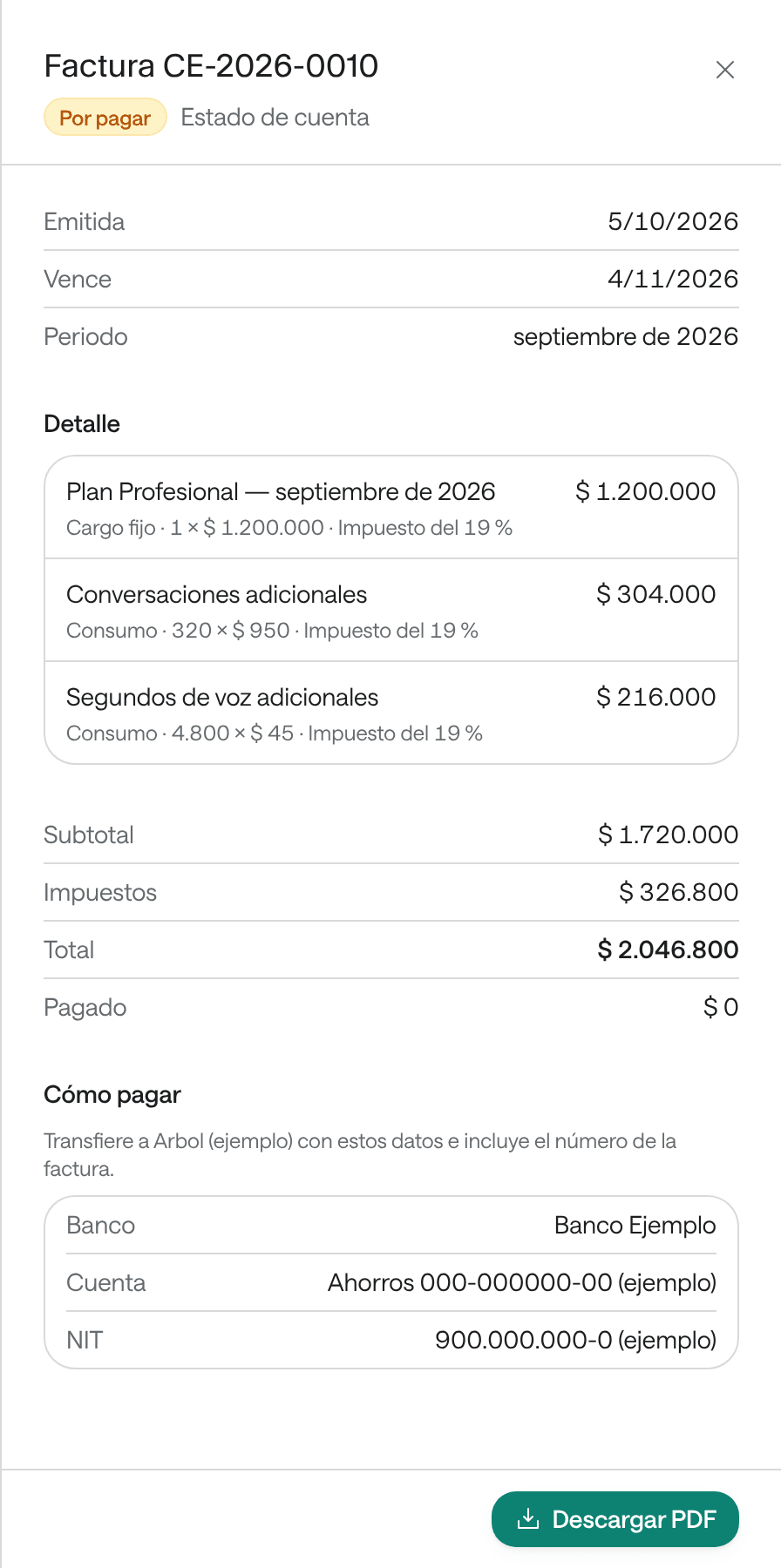
Example amounts, plans and bank details: these aren't Arbol's prices. -
Check the Details, the Subtotal, the Taxes and the Total.
-
To pay it, follow How to pay: make a transfer with those details and include the invoice number.
-
To keep a copy, click Download PDF.
An invoice can be Open, Paid, Draft, Void or Uncollectible.
Payments and balance activity
- Payments lists the payments you made and how they were applied: Date, Invoice, Reference, Amount and what was Withheld.
- Balance activity lists every charge and credit to your balance, such as usage, top-ups or payments, with the Balance after each one.
Update the billing details
These are the legal details every invoice carries.
-
In Billing, click Billing details.
-
Under Legal details, fill in the Legal name, the Invoice email, the Tax ID type (for example, NIT) and the Tax ID number.
-
Under Invoicing, choose the Billing day: the day of each month we issue your invoice.
-
Turn on Withholding agent if your company withholds taxes when paying its invoices.
-
Click Save changes.
You see the message “Your billing details are saved.” The Currency isn’t changed here: Arbol sets it according to your contract.
Common problems
- “Your role can see these details but not change them.” Ask someone with Account’s Billing role, or the Owner, for the change.
- You only hold the Billing role and Billing details shows “Your role doesn’t allow this.” Ask the Owner to update the details and tell your Arbol team.
- “We need your legal name, invoice email and tax ID to issue your invoices.” Fill in those three details under Billing details.
- The account shows as Suspended. The summary says why: an overdue invoice, the balance ran out, or Arbol suspended it. Write to your Arbol team.
- “Billing didn’t respond. Try again in a moment.” Wait a moment and open the page again.