Raíz can let your team know when a conversation needs a person and send it a daily summary of calls and conversations. Notices and the report arrive by email, with a PDF attached; the escalated-conversation notice can also arrive on WhatsApp. Everything is off until you turn it on.
Before you start
- You need a role that can Set up the organization, such as Owner.
- Have at hand the emails and WhatsApp numbers of the people who should receive them: up to 10 emails and 10 numbers for notices, and up to 10 emails for the daily report.
Turn on notices
-
In the menu, click Settings and then Organization.
-
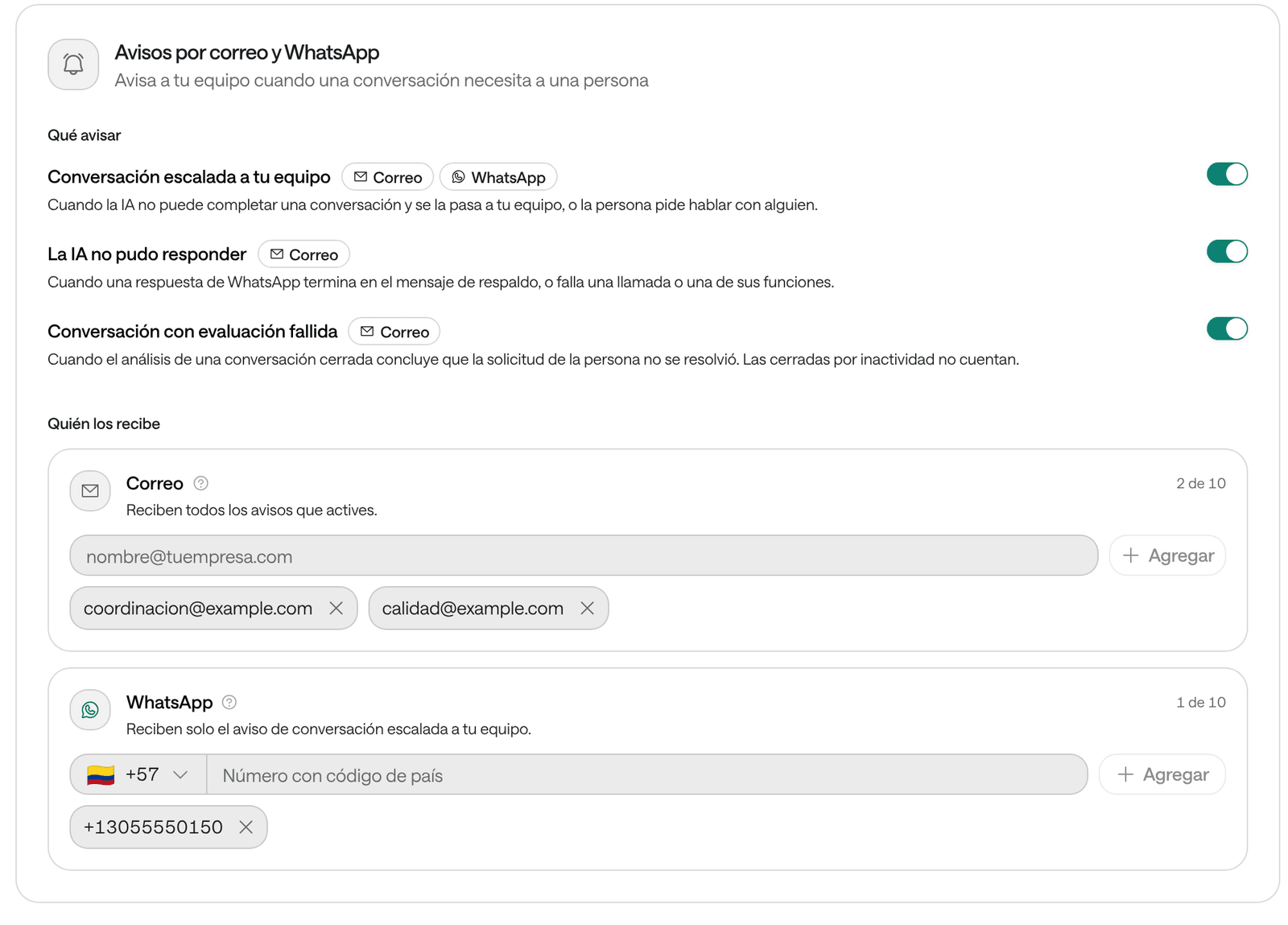
Find the Email and WhatsApp notices card.
-
Under What to send, turn on the ones you need:
- Conversation escalated to your team: when the AI can’t complete a conversation and hands it to your team, or the person asks to talk to someone.
- The AI could not answer: when a WhatsApp reply ends in the fallback message, or a call or one of its functions fails.
- Conversation evaluated as unsuccessful: when a closed conversation ends with a Failure outcome: the person’s request wasn’t resolved or, if the agent has Conversation reports, at least one answered no (see Success rate). Conversations closed for inactivity don’t count.
-
Under Who receives them:
- Under Email, type each email and click Add. They receive every notice you turn on.
- Under WhatsApp, type each number with its country code. They receive only the escalated-conversation notice.
-
Click Save Changes at the top of the page.
What each notice contains
By email. The subject says what happened and in which organization, for example “Conversation handed to the team · Example Clinic”. The possible subjects are:
| Notice | Subject for a chat | Subject for a call |
|---|---|---|
| Escalated conversation | Conversation handed to the team | Call handed to the team |
| The AI could not answer | The AI could not answer a conversation | AI failure during a call |
| Unsuccessful evaluation | Conversation evaluated as unsuccessful | Call evaluated as unsuccessful |
The email explains what happened and what to do, and carries the conversation’s subject, channel, date and time, the analysis result and its summary. For an escalated conversation it also includes what the agent wrote about the situation when it escalated. The email’s button opens the conversation in the Dashboard, and the full conversation report, with its transcript and evaluations, is attached as a PDF.
By WhatsApp. The escalated-conversation notice arrives from the WhatsApp number of Arbi, Arbol’s assistant, in Spanish. It names the agent, the organization and the reason, and has a button to open the conversation. It may carry the conversation report as a PDF, which only opens inside the chat.
When they arrive
- Escalated: while the conversation is still open, shortly after the AI hands it to your team. If someone on the team already replied before the notice goes out, it isn’t sent.
- The AI could not answer: shortly after the failure. No open slots for an appointment, or a service that isn’t offered, don’t count as failures. The same failure isn’t notified twice within the same hour.
- Unsuccessful evaluation: when the analysis of the closed conversation finishes.
If several things happen in a conversation at almost the same time, they arrive together in a single notice. Each notice email is written in the conversation’s language, Spanish or English.
Schedule the daily report
-
In Settings › Organization, find the Daily report card.
-
Turn on Send the report every day.
-
Choose the Sending time. The report covers the 24 hours before that time, in the organization’s time zone.
-
Under Report recipients, add the emails that receive it.
-
Click Save Changes at the top of the page.
To get it right away, for example to see what it looks like, click Send now: it sends the report for the last 24 hours to the saved recipients. Save your changes first.
What the daily report contains
The email, with the subject “Daily report · Example Clinic · date”, carries the period’s figures and is written in your organization’s language. The attached PDF has:
- A sentence on how the day went and five figures: calls, conversations, resolved, to review and those waiting for the team.
- Contacts per hour, on your organization’s clock, and how they ended.
- What needs your team: the conversations that Need a review and those Waiting for the team now, each with its summary.
- As an annex, the Call log and the Conversation log.
Each line names the person and the number they used, and links to the conversation in the Dashboard. A list shows up to 300 lines and says how many more there are. On a day without activity, the scheduled report isn’t sent; one you request with Send now always goes out.
Troubleshooting
No email arrives. Check that the notice or report is on, that the email is spelled right in the list and that you saved your changes. Look in the spam folder, and ask whoever manages your email to allow messages from raiz@email.getarbol.com.
“Add at least one recipient to send notices.” You turned on a notice with nobody to receive it.
“Failure and unsuccessful-evaluation notices go by email only: add at least one recipient.” Those two notices don’t go by WhatsApp. Add an email or turn them off.
A number didn’t get the WhatsApp notice. Each number receives at most 10 Raíz messages an hour; the rest are skipped. The email goes out anyway.
“The report you asked for a moment ago is still on its way.” Wait for it to arrive before asking for another.
“The report has no saved recipients.” Add at least one recipient and save your changes before using Send now.
The email says the PDF couldn’t be attached. The email goes out anyway; the details are in the Dashboard, through the email’s button.
I don’t see the Organization page. Your role can’t set up the organization. Ask an administrator to turn notices on or change them for you.