Do this when your organization starts on Arbol, or when its name or look changes. What you save here is what your team sees in every application and on the page where they sign in.
Before you start
- The organization’s Owner and anyone with Account’s Administration role can change these details. Others with access to Team see the page without being able to change it.
- If you’re adding a logo, have its address ready: a PNG, SVG or JPG image published on the internet, whose address starts with
https://. Ideally square.
Steps
-
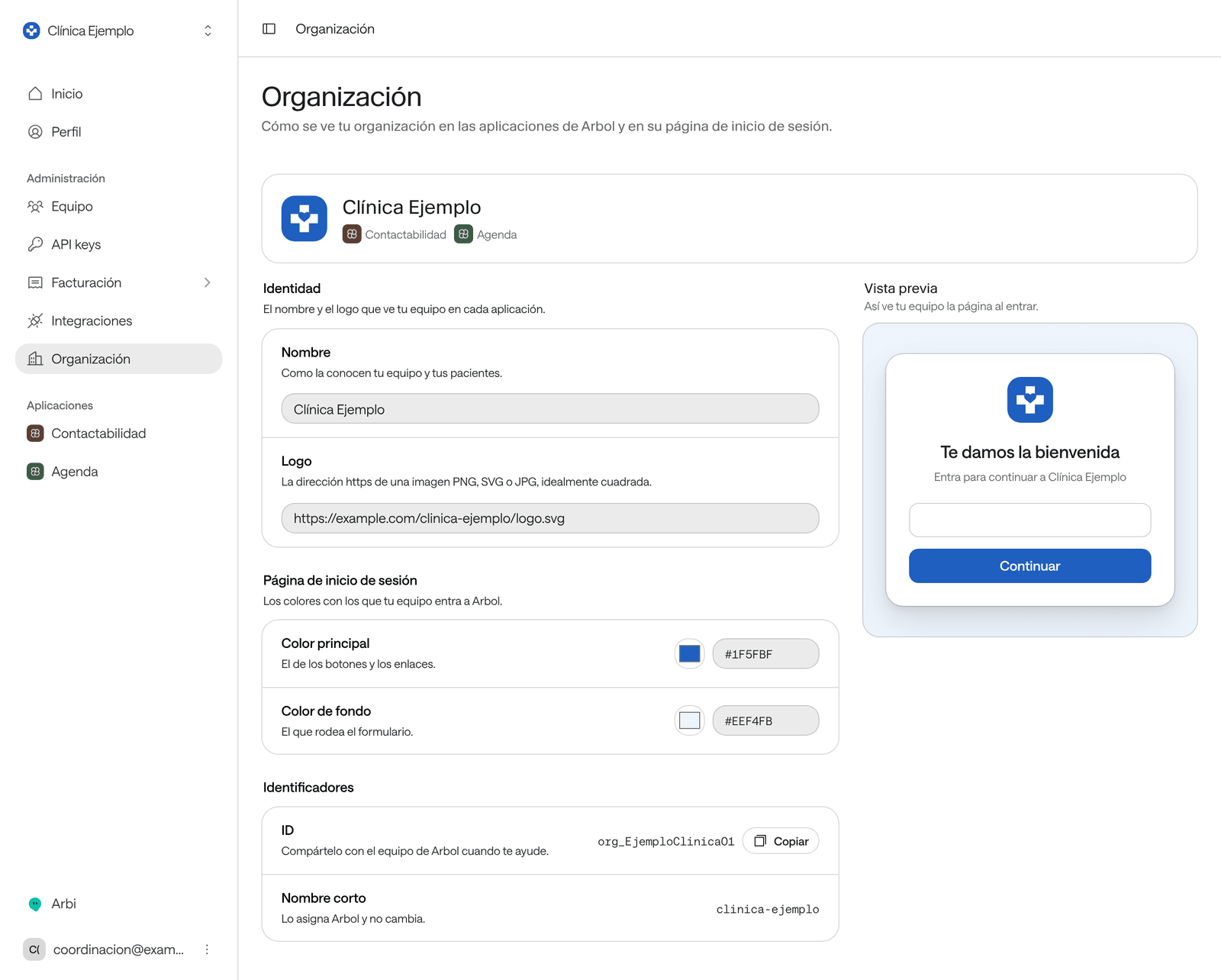
In the menu, under Administration, click Organization.
-
Under Identity, type the organization’s Name, as your team and patients know it.
-
In Logo, paste the image’s
https://address. -
Under Sign-in page, choose the Primary color, used for buttons and links, and the Background color, the one around the form. You can pick the color from the swatch or type its code, such as
#0d8273. -
Look at the Preview: this is how your team sees the page when signing in.
-
Click Save changes. If you change your mind before saving, click Discard changes.
What you see when you’re done
The message “Changes saved. Your team sees them the next time they sign in.” appears. The name and logo change at the top of the menu in Arbol’s applications, and the sign-in page uses your colors.
Your organization’s identifiers
At the end of the page, under Identifiers:
- ID: your organization’s identifier. Share it with Arbol’s team when they help you; the button beside it copies it.
- Short name: Arbol assigns it and it never changes.
Common problems
- The fields can’t be edited. The page says “You can see these details; the organization’s owner or the account’s administrators change them.” Ask one of those people for the change.
- “Type an address that starts with https://.” The logo must be a complete web address starting with
https://, not a file on your computer. - “Use a color such as #0d8273.” A color code is
#followed by six characters. - I’m looking for the time zone, the agents’ language or the notifications. They’re not here: they’re set up in Raíz.