Test an agent before you assign it a channel and every time you change its instructions. There are three ways: the test chat and the WhatsApp trial, for messaging agents, and the test call, for voice agents.
Before you start
- For Try chat and Test call you need a role that can Create and tune agents, such as Agent design, Administration or Owner: the card that offers them only shows with that permission. Try chat also needs Handle conversations and reply on WhatsApp. The What each role can do table, in Team and permissions, shows which of your organization’s roles have it.
- The agent must be Active and have instructions.
Test chat (messaging agents)
-
In the menu, click Workers and open the agent.
-
On the The essential configuration is ready card, click Try chat.
-
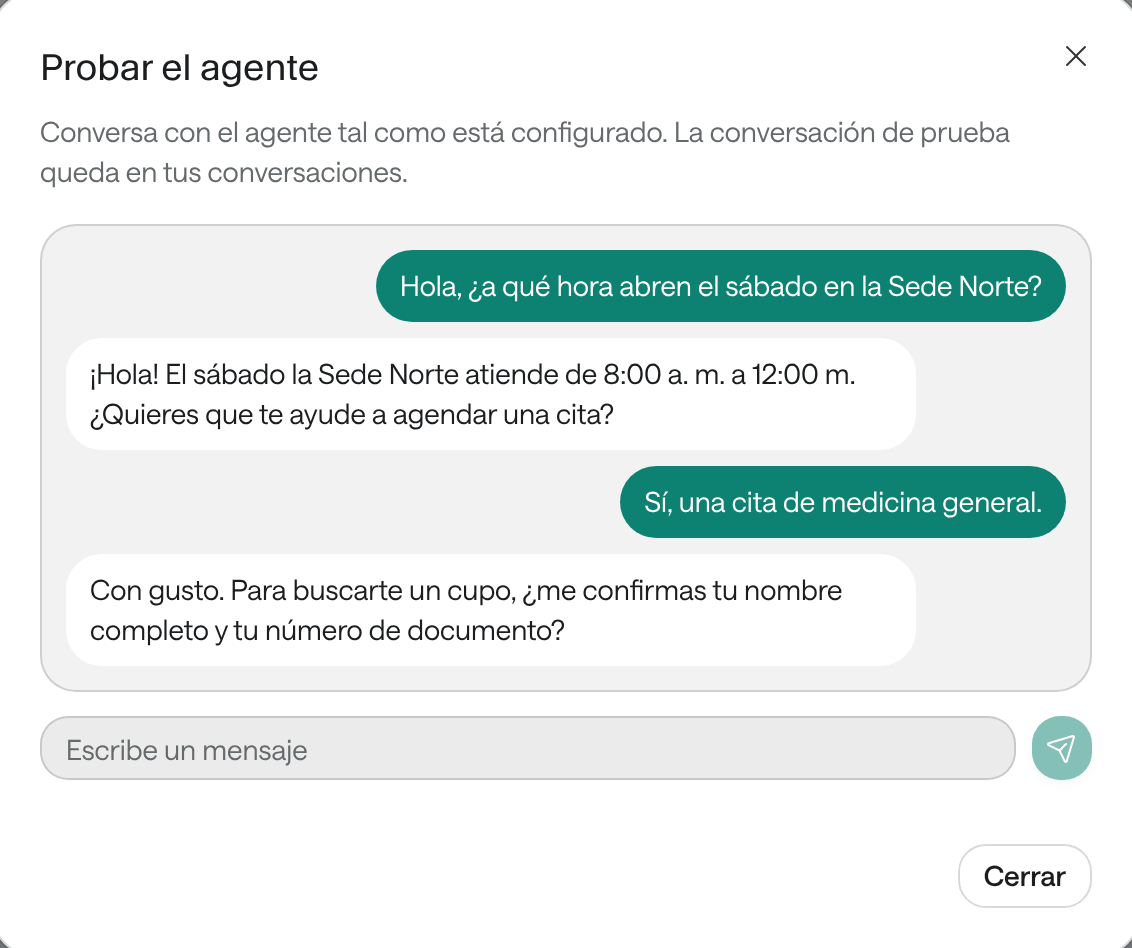
In Try the agent, click Start the test.
-
Write as a patient would and click Send message. If the agent uses a tool, you’ll see which one.
-
When you’re done, close the window.
WhatsApp trial (messaging agents)
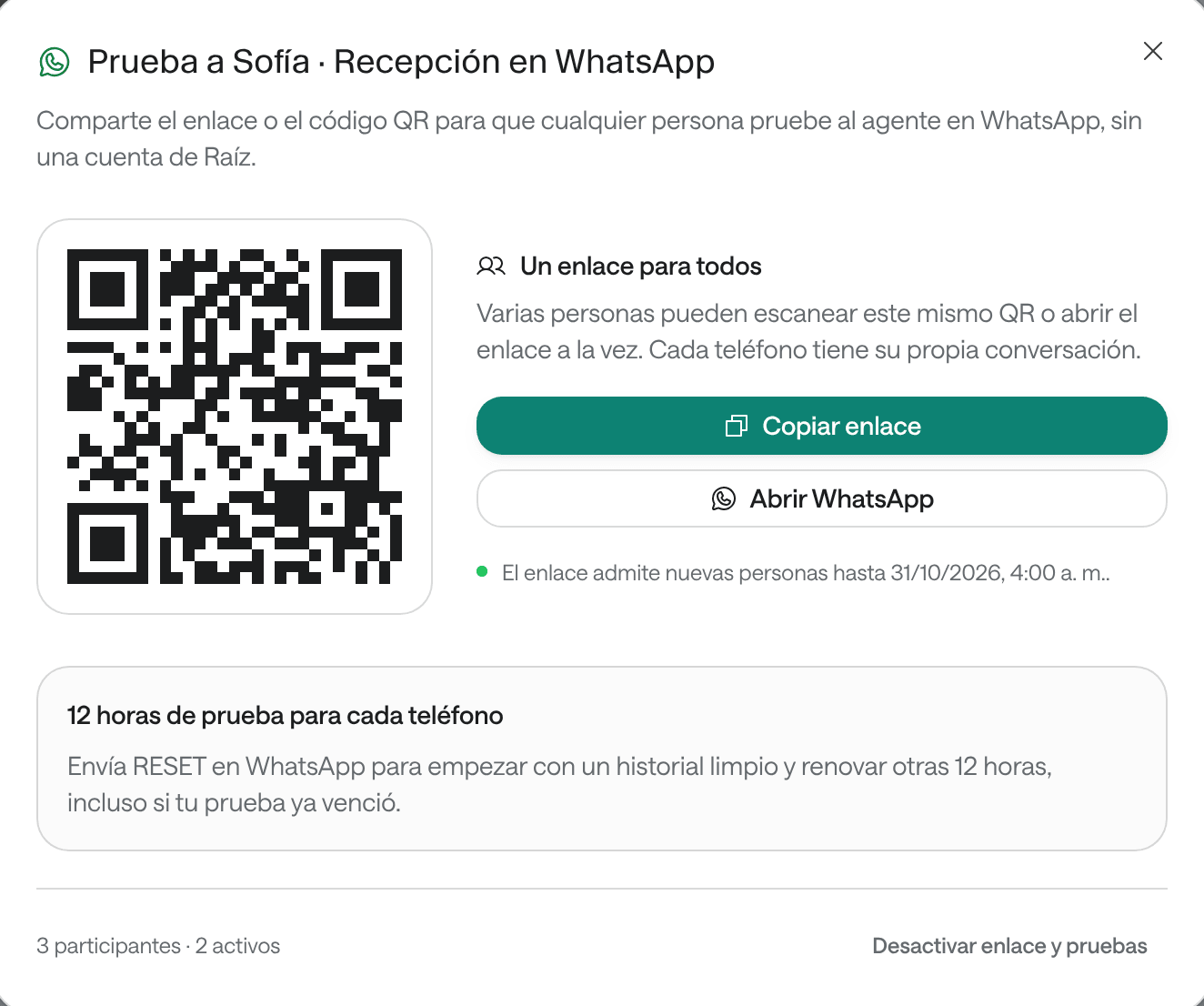
With a link or a QR code, anyone can try the agent from their own WhatsApp, without a Raíz account. It’s a way for your team to try it on the phone, as patients will see it.
-
On the agent’s page, click Try on WhatsApp. It’s also on the agent’s row in the Workers list.
-
Scan the code with your phone’s camera, or tap Open WhatsApp if you’re on the phone. For others to try it, click Copy link and share it.
-
Send the message already written: it carries this trial’s code.
-
Write to the agent on WhatsApp. You can close the Dashboard window: the trial carries on on your phone.
The window shows One link for everyone, how many people use it (for example “3 participants · 2 active”) and until when it accepts new people. Each phone gets 12 hours of trial and its own conversation. Several people can use the same link at once. To start over, send RESET on WhatsApp: it clears your trial’s history and renews the 12 hours. If you try several agents, each has its own code: the last one you send decides which one you talk to.
To stop all trials, click Deactivate link and trials. To share it again, use Renew link.
Test call (voice agents)
-
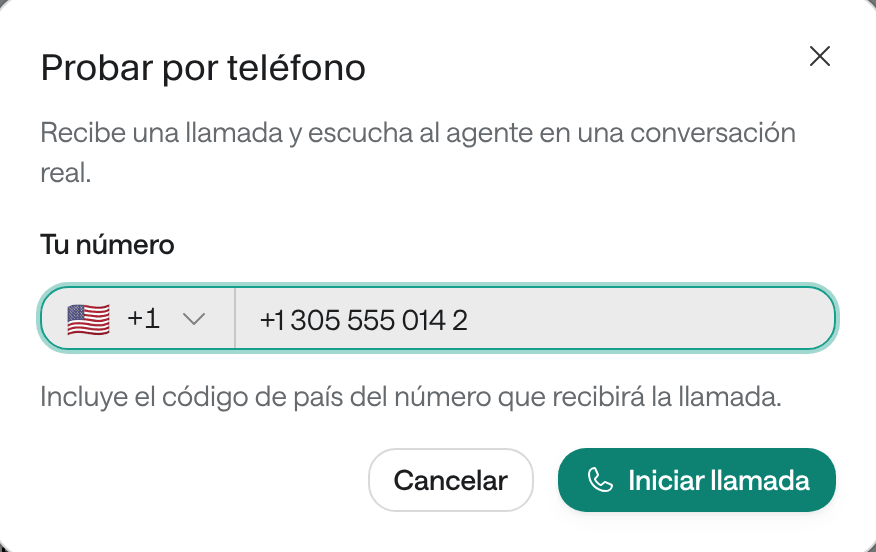
On the agent’s page, click Test call.
-
Under Your number, enter the number that will receive the call, with its country code.
-
If the agent has several numbers to call from, choose the Source number.
-
Click Start call and answer your phone.
-
Afterwards, click View conversation to read the transcript.
What to check in a test
- That it greets as you expect and introduces itself with the right name.
- That it answers common questions with the information in your knowledge base.
- That it doesn’t make up prices, hours or availability.
- That it hands the conversation to your team in the cases you defined.
- In the test conversation, under Conversations, check which tools it used and what data it captured.
If something isn’t right, adjust the instructions and test again.
Troubleshooting
The Try chat button doesn’t show. It shows once the essential configuration is ready: write the agent’s instructions. Also, the card only shows to someone who can Create and tune agents; with a role such as Operations you won’t see it.
“The agent is paused and does not reply.” Click Activate on the agent’s page and test again.
“The agent has not replied yet.” It can take a while when it uses tools. Wait a few seconds.
“Activate the agent to test it” (test call). Test calls only work with an active agent.
“The agent is still getting ready.” A voice agent needs instructions and must finish publishing. Try again in a few minutes.
“An outbound number is missing.” The agent has no number to call from. Check its channels in Channels or ask the Arbol team for help.
“The WhatsApp number for trials isn’t set up on the platform yet.” The WhatsApp trial isn’t available for now. Use the test chat and contact Support.