Create an agent when you want the AI to handle a new kind of call or chat, such as appointment requests on WhatsApp or reminders by phone. In the Dashboard menu, agents are called Workers. This guide goes from deciding what the agent will do to having it answer on a channel.
The whole path
Create
Kind, name, language and goal.Instructions
Who it is, what it does and what it doesn’t.Knowledge
The documents it consults.Test
A test chat, call or WhatsApp.Channel
A number or your website’s chat.Improve
Review conversations and adjust.
Before you start
- You need a role that can Create and tune agents, such as Agent design, Administration or Owner.
- To give it a channel later you need a role that can Connect channels: phone, WhatsApp and web chat, such as Administration or Owner.
Decide the agent’s job
An agent does one specific job well. Before you create it, answer three questions:
- Where will people reach it? Calls are handled by a voice agent. WhatsApp and your website’s chat are handled by a messaging agent.
- What should it resolve? For example: give hours and locations, book appointments, confirm appointments or collect details so your team can call back.
- What must it never do? For example: give clinical advice, promise prices or handle complaints. It will hand those to your team.
Examples for a clinic:
| Job | Kind of agent | Channel |
|---|---|---|
| Answer the appointments line after hours | Answers the phone (voice) | A number for calls |
| Call to confirm the next day’s appointments | Answers the phone (voice) | A number for calls or the shared outbound line |
| Answer questions and book on WhatsApp | Replies to messages (messaging) | A WhatsApp number |
| Handle your website’s chat | Replies to messages (messaging) | Your site’s chat |
One messaging agent can handle WhatsApp and your website’s chat at the same time, and a voice agent can have several numbers. Each channel, however, answers with a single agent.
Create the agent
-
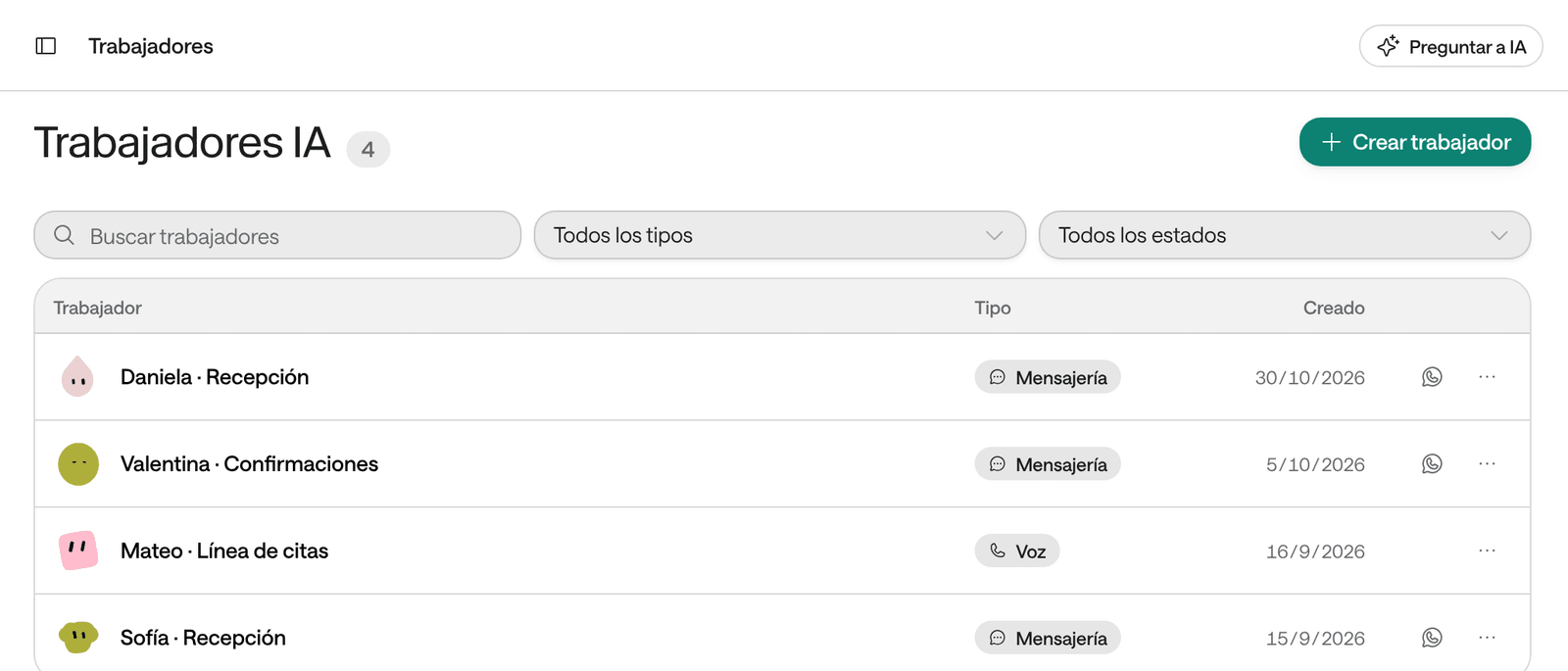
In the menu, click Workers and then Create Worker.
-
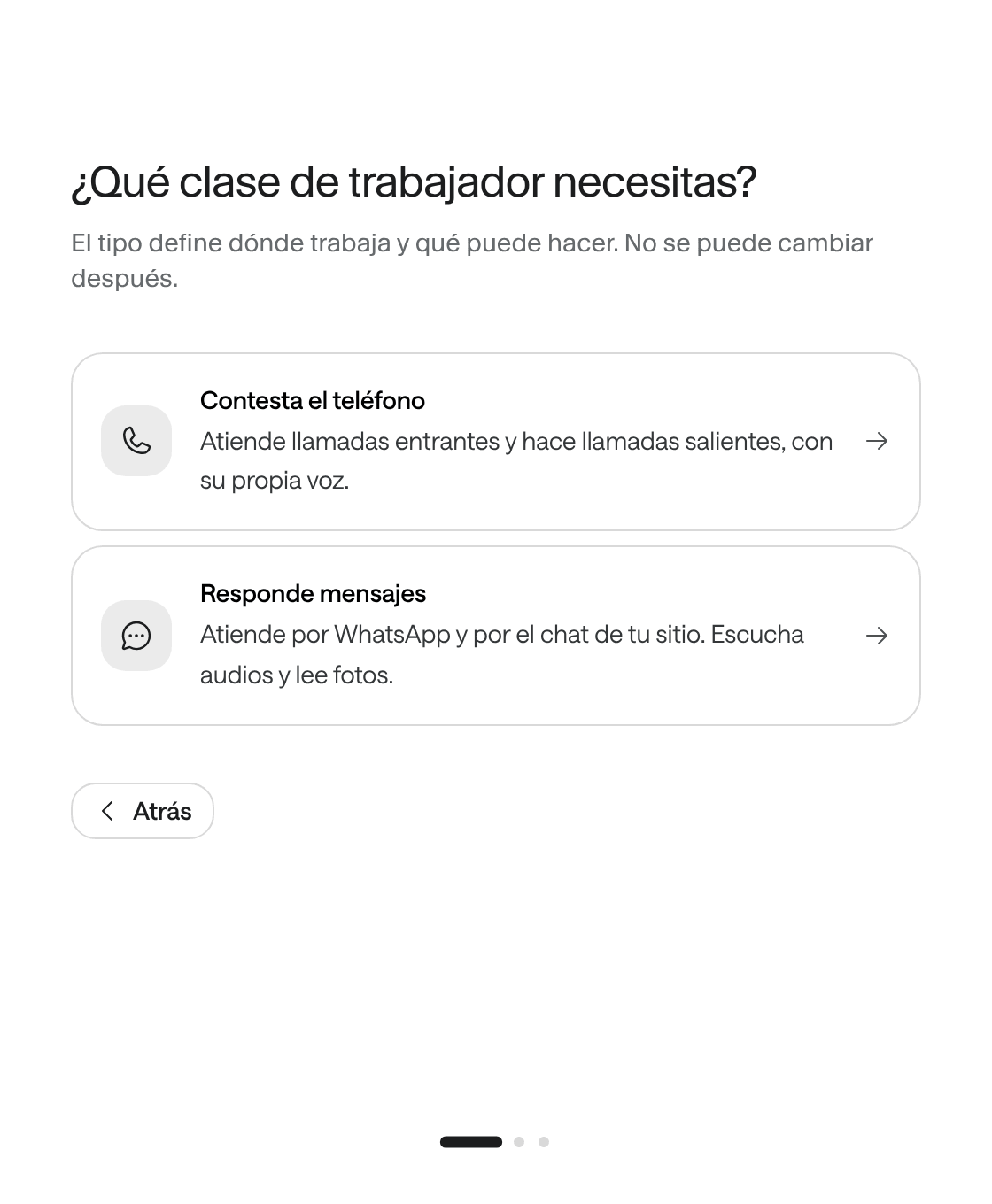
In What kind of worker do you need?, choose an option:
- Answers the phone: takes inbound calls and makes outbound ones, with its own voice.
- Replies to messages: answers on WhatsApp and your site’s chat. Listens to audio and reads photos.
-
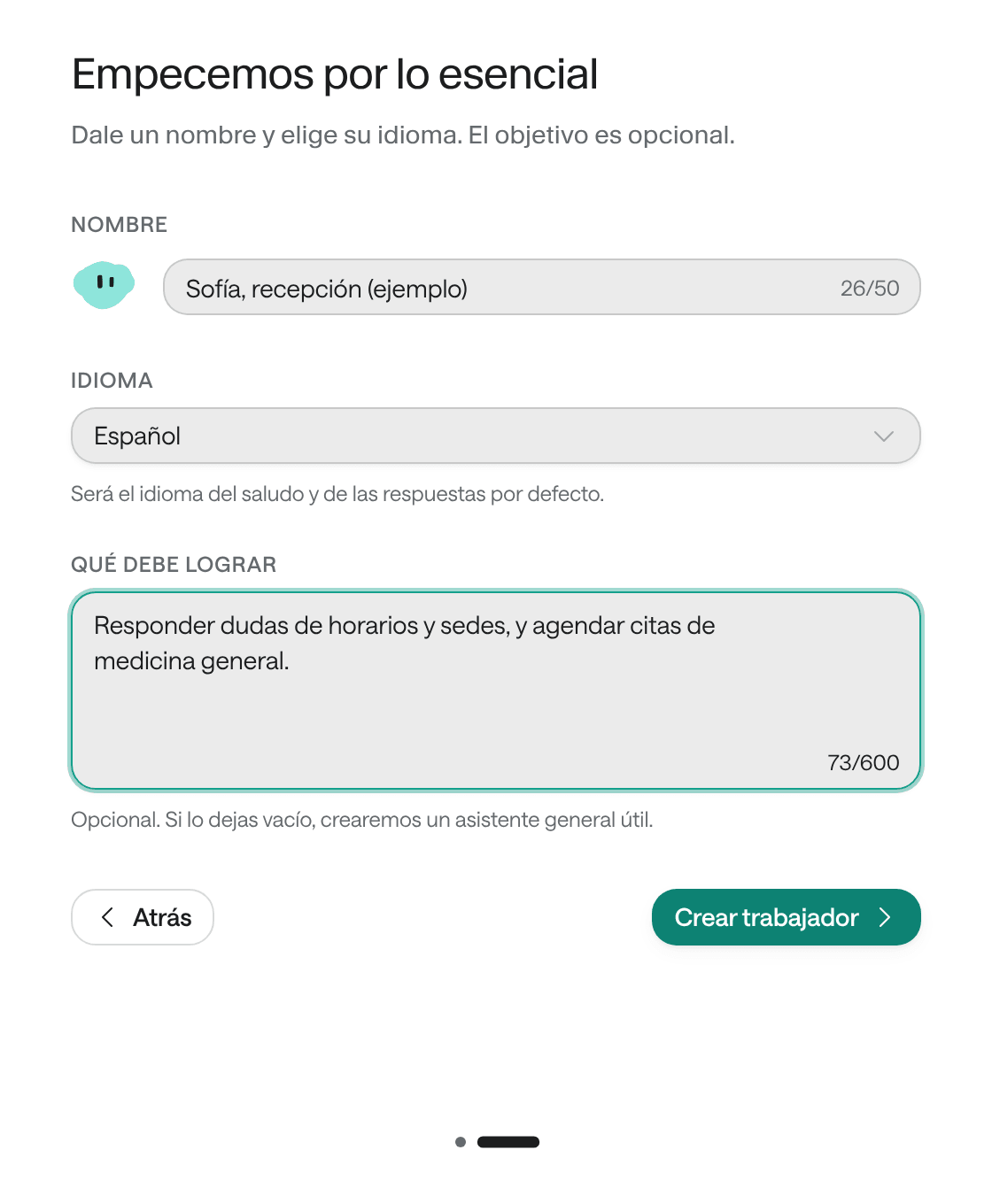
In Start with the essentials, fill in:
- Name (up to 50 characters): how the agent introduces itself. As you type it, the agent’s face appears next to it, the same one you’ll see in the list and on its page.
- Language: the language of its greeting and replies. You can choose Spanish, English, Portuguese, French, German, Italian, Chinese, Japanese, Korean or Arabic.
- What should it achieve? (optional, up to 600 characters): its goal in one or two sentences. If you leave it blank, Raíz creates a general assistant.
Example: Name “Sofía, front desk”, language Spanish and under What should it achieve?: “Answer questions about Example Clinic’s services, locations and hours and book general medicine appointments”.
-
Continue according to the kind:
- Messaging agent: click Create worker and go on to step 6.
- Voice agent: click Choose a voice.
-
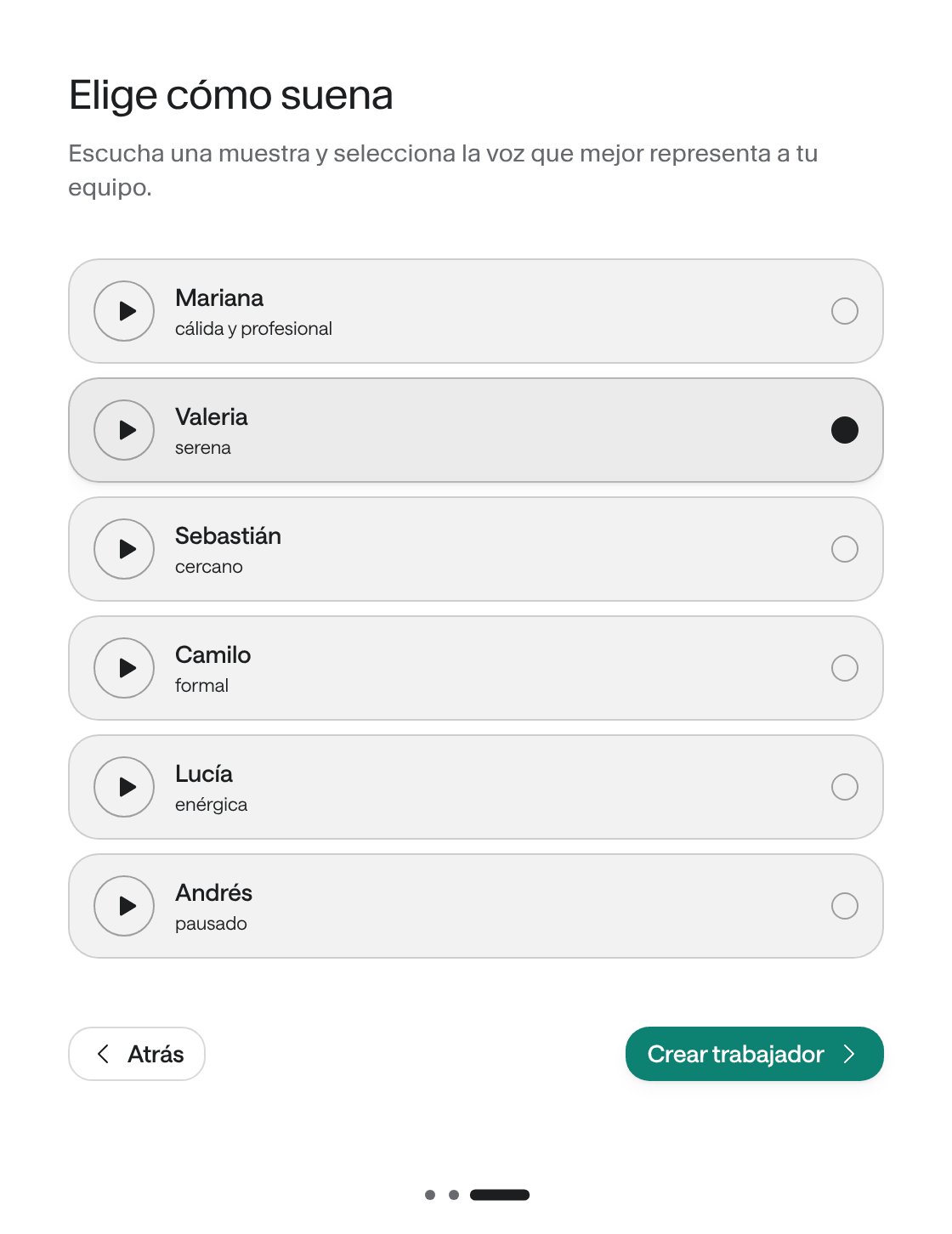
Voice agents only: in Choose how it sounds, click Play sample next to each voice to hear it. Voices recorded in the agent’s language come first, and the sample plays in that language when the voice has one. Select a voice and click Create worker. The button turns on once you choose a voice.
-
Wait a few seconds. Under We’re shaping… you see the instructions and the First message Raíz wrote, and then Saving configuration. When it’s done, you’ll see the notice “… is ready” and the agent’s page opens.
You can go back with Back without losing what you wrote. If you change the language after choosing a voice, you’ll have to choose the voice again, because each voice is offered for a language. The X at the top closes the wizard without creating anything.
What Raíz writes for you
Raíz doesn’t leave the agent empty: it puts together initial instructions from your choices. Your goal is kept word for word as the Primary goal, surrounded by these blocks:
| Block | What it says |
|---|---|
| Personality | Who it is (the name you gave it) and that it never takes on another persona. |
| Environment | Whether it’s on a live call or in a written conversation. |
| Communication | Voice: speak without lists or links, say numbers and dates naturally, read back anything spelled out, ask for a repeat when it didn’t understand and announce a lookup that takes a few seconds. Messaging: brief messages, and confirm names, documents and phone numbers. |
| How to work | Greet, understand before proposing, ask only for the details needed, confirm what was agreed and offer more help. |
| Tone | One or two sentences per turn and one question at a time. |
| Guardrails | Never invent information, confirm identity before sharing sensitive details, hand off to a person after being blocked twice and don’t give advice it isn’t authorized to give. |
It also writes the greeting. For a voice agent it’s the Welcome message, for example “Hi, this is Sofía, front desk, how can I help you today?”. For a messaging agent, the WhatsApp greeting starts as The AI answers its own way, and you can change it later.
The instructions are written in Spanish for a Spanish-language agent and in English for any other language. Review them and adapt them to your clinic: they’re a starting point and don’t know your services or your rules (see Write the instructions).
The agent’s page
Each agent has its own page. Open it from Workers by clicking its name.
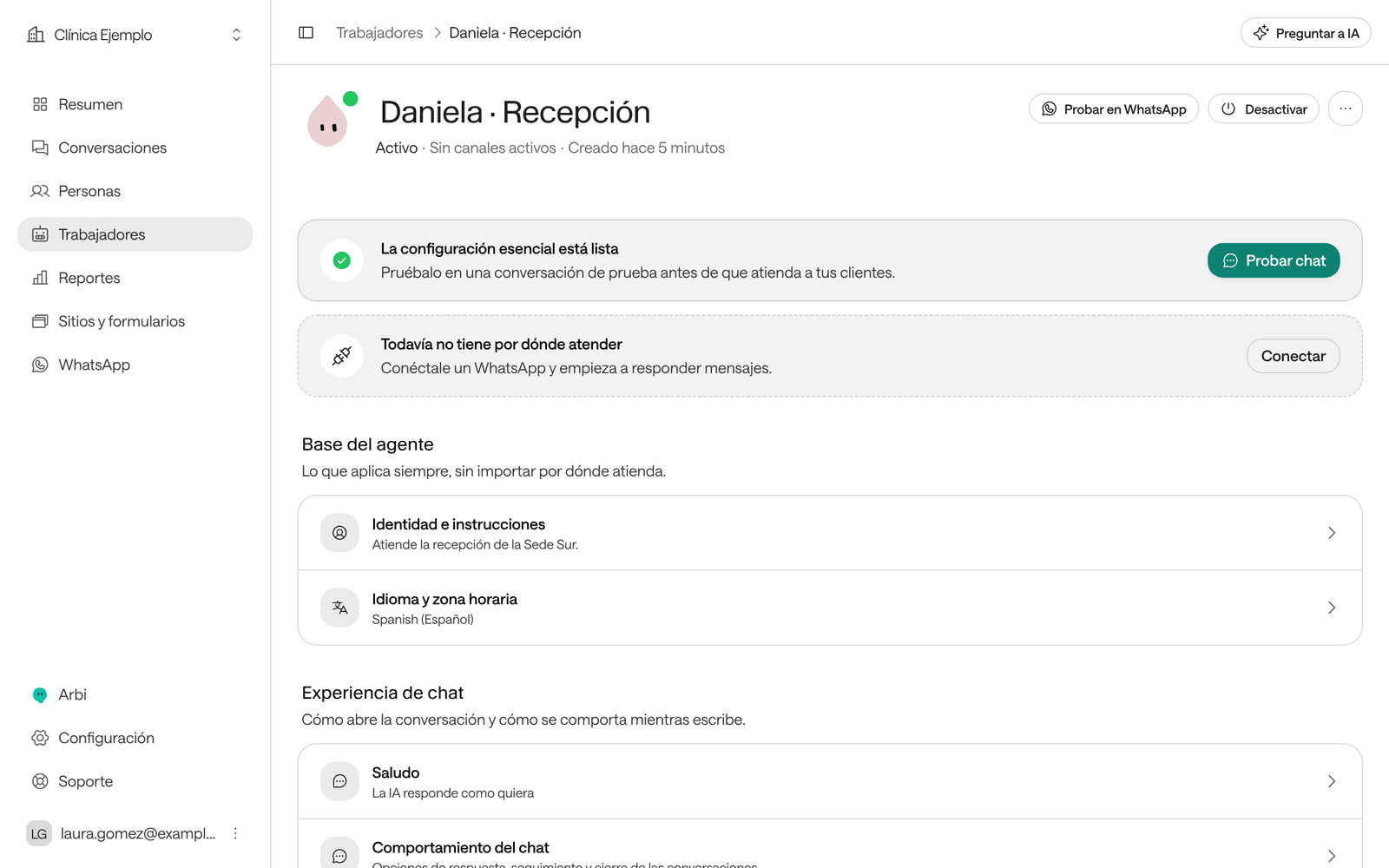
The header
- The agent’s name and face. Click the name to change it.
- Its status: Active or Inactive (paused).
- Its channels: Calls, WhatsApp, Web chat, or No active channels.
- Created and the date.
- The buttons at the top right: Test call (voice) or Try on WhatsApp (messaging), Deactivate or Activate, and the three-dot menu with Team improvements (messaging), Ask AI, which opens Arbi, and Delete agent.
On a voice agent, if its latest changes didn’t reach calls, you’ll also see the Publication failed notice with the reason (see troubleshooting at the end).
The two cards at the top
These cards only show to someone who can Create and tune agents.
The essentials. If the agent is missing something it can’t work without, you’ll see Finish the essentials, with how many steps are ready and the next one, for example “1 of 2 ready · Next: set the greeting”, and the Continue button. When everything is in place, the card says The essential configuration is ready and offers Test call or Try chat.
Where it answers. If it has no channel, you’ll see It has nowhere to answer yet and the Connect button, which takes you to Settings › Channels. Once it has one, the card says where it answers, for example “Answers at +57 555 0101” or “Replies in your site’s chat”, with the Manage link.
The settings blocks
Below, the settings are arranged in three blocks. Each agent sees only what belongs to its kind:
| Block | Voice agent | Messaging agent |
|---|---|---|
| Agent foundation | Identity & instructions, Language and time zone | The same |
| Call experience / Chat experience | Voice, Greeting, Conversation pacing, Intelligence | Greeting, Chat behavior, Intelligence |
| Work & quality | Tools and knowledge, Data it collects, Conversation reports | Skills and the same as the voice agent |
Each row shows a summary of what it has, for example Custom voice or Default voice, the model or “3 documents · 2 tools”, and a label:
| Label | What it means |
|---|---|
| Done | It’s set up. |
| Pending | It’s missing and the agent needs it to answer. This can only happen in Identity & instructions (when there are no instructions) and, on a voice agent, in Greeting (when there’s no Welcome message). |
| Optional | It works with the defaults. Adjust it if you need to: for example, a voice agent with no chosen voice uses the default voice. |
Click a row to open its section. When you save, the row briefly shows a green check and its new summary.
Finish getting it ready
- Review and adjust the instructions: Write the instructions. To understand how the agent uses them, read What prompting is.
- Give it the documents it needs: Give it knowledge.
- Tune its behavior, its tools and what it collects: Agent settings. For a voice agent, also read Voice and audio.
- Test it: Test an agent.
- Assign it a channel: Channels or Chat on your website.
Before it serves patients
Go through this list before you assign it a channel:
- Identity & instructions is Done and the instructions talk about your clinic: services, locations, hours, limits and when to hand the case to your team.
- Language and time zone match your operation, so it says the date and time correctly.
- The greeting is the one you want. For voice, you heard the Welcome message on a test call.
- For voice, you chose and listened to the voice, and decided whether calls are recorded.
- It has the documents it needs assigned, and all of them say Indexed.
- It has only the tools it needs. You reviewed the ones that Make changes, such as booking or cancelling, one by one.
- You tested it with real and difficult questions, using fictional data, and reviewed those conversations in Conversations.
- Your team knows who handles what the agent hands over and gets the notices (see Notices and the daily report).
- On WhatsApp, the number has its business hours and an up-to-date business profile (see Channels).
- The agent is Active.
Pause, activate or delete an agent
On the agent’s page, at the top right:
| Action | What it does | What happens to conversations |
|---|---|---|
| Deactivate | Pauses the agent on all its channels: it stops answering and calling. You’ll see the notice “Agent paused” and the status Inactive. | Earlier conversations are kept. On WhatsApp, incoming messages are saved, but the AI doesn’t answer them: your team can handle them (see Handle a WhatsApp conversation). This agent no longer answers calls to its numbers, and your site’s chat stops taking visitors. |
| Activate | Brings it back online. You’ll see the notice “Agent activated”. | The agent answers on its channels again. |
| Delete agent (three-dot menu) | Deletes it for good. Type its name to confirm and click Delete. | Its conversations are kept in Conversations. |
Activate only works when the agent has somewhere to answer: a connected channel or, for a voice agent, your organization’s shared outbound line (see Voice and audio). Otherwise the button looks disabled and, when you hover over it, says “Connect and enable at least one channel before bringing the agent online”.
To delete an agent, first remove its channels in Channels (Release the agent) and wait for its active campaigns to finish. If you only want it to stop answering for a while, deactivate it instead of deleting it. Every option, step by step: Pause, turn off or delete an agent.
Troubleshooting
I don't see the Create Worker button
Your role can’t create agents.
What to do: ask whoever manages your team for a role that can Create and tune agents (see Team and permissions).
It says “We couldn't create the worker. Please try again.”
Raíz couldn’t save the agent. The wizard goes back to the previous step with your entries.
What to do: read the message below the notice, fix what it says and click Create worker again.
I chose the wrong kind
The kind can’t be changed.
What to do: create a new agent of the right kind and delete the other one.
The Activate button is disabled
The agent has nowhere to answer.
What to do: hover over the button to see why, and assign it a channel in Channels.
“This agent still has channels or active campaigns”
An agent can’t be deleted while a channel or an active campaign uses it.
What to do: in Channels, use Release the agent on each of its channels, wait for its campaigns to finish and try again.
A voice agent says “Not published” or “Publication failed”
Its latest changes didn’t reach calls. The message says why:
- “Add instructions to the Agent”: write its instructions.
- “The chosen voice is no longer available”: choose another voice and save.
- “The voice service did not respond”: Raíz retries on its own; wait a few minutes.
- “The voice service refused the Agent’s configuration” or “The Agent’s voice settings are not valid”: review the voice, the greeting, the instructions and the Conversation pacing, and save again.
What to do: fix what it says and save. If the message asks you to contact support, use Support in the menu.
The section I need isn't there
Each kind of agent sees only its own sections: a voice agent has no Chat behavior, and a messaging agent has no Voice or Conversation pacing.
What to do: check the agent’s kind in the Type column of Workers.