The web chat is a button on your website that opens a conversation with one of your messaging agents. It can also be a form, or a form followed by a chat. Create it when you want visitors to your site to get answers or ask for an appointment without calling.
Before you start
- You need a role that can Connect channels: phone, WhatsApp and web chat, such as Administration or Owner.
- You need an active messaging agent (see Create an agent).
- To install it on your page, you need whoever manages your website. If they’re not at hand, you can share the chat with a public link.
What the visitor experiences
Opens the chat
With the launcher button or the public link.Gets welcomed
Welcome, suggested questions and consent.Fills in the form
If you ask for one: a few details first.Talks
With your agent, in writing or with audio.
Before starting, the visitor goes through a bot check. If they close or reload the page, the conversation carries on while the session lasts. When the session expires, they can read their history and start another.
Create the chat
-
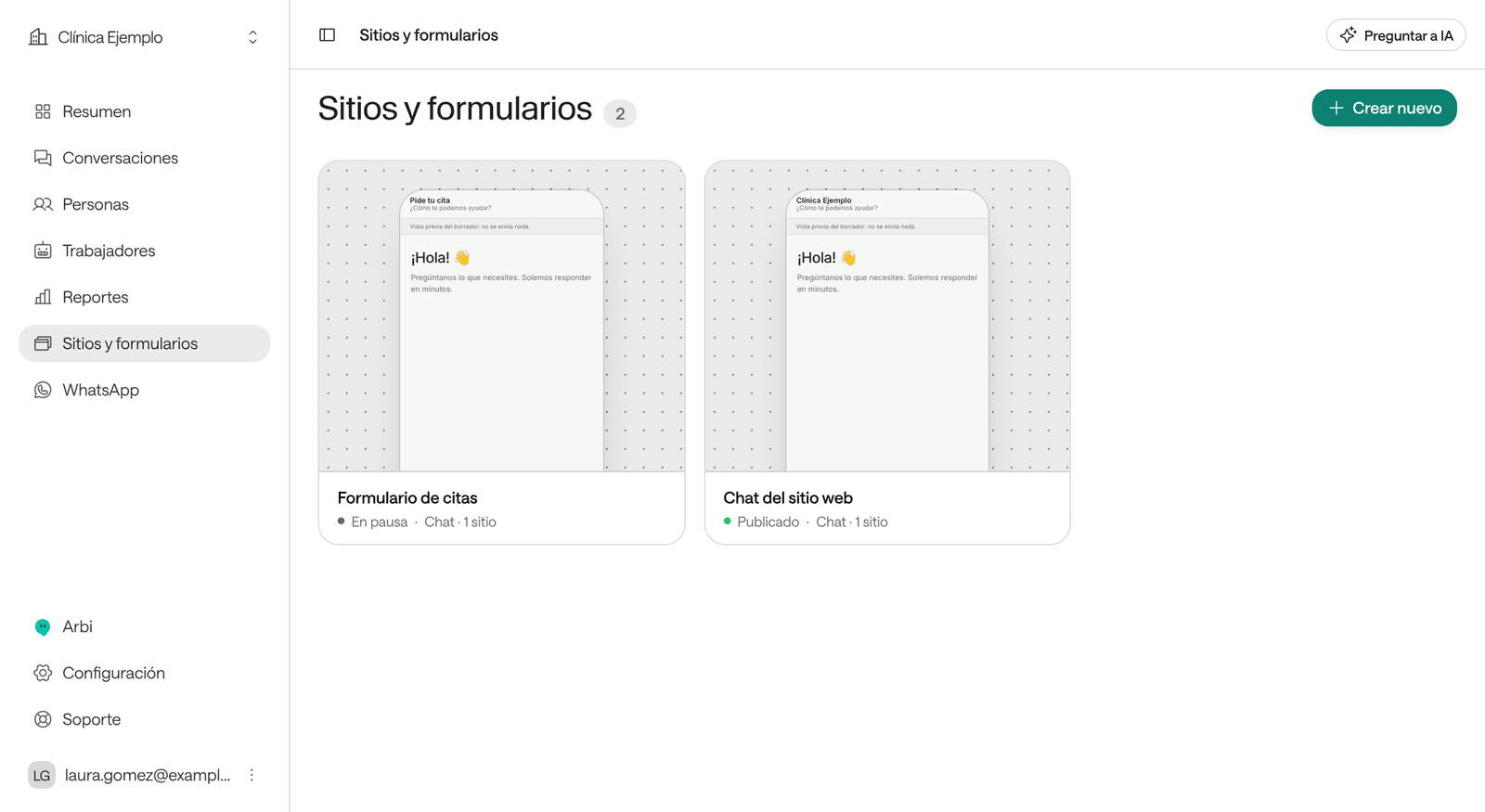
In the menu, click Sites and forms and then Create new.
-
In What do you want to create? you have two paths:
- Describe what you need and let Arbi, the assistant, build it. For example: “A chat for our website that answers frequently asked questions from our knowledge base, in blue and white”. Arbi asks you to confirm before creating it and before publishing it.
- Click Create manually to build it yourself. The next steps follow this path.
-
In New site or form, enter the Widget name: visitors see it in the chat header.
-
Under Experience, choose:
- Chat: a conversation with the agent from the first question.
- Form, then chat: a few details first, then the conversation.
- Form: it only collects information; nobody converses.
-
Choose the messaging agent that answers and click Create. The chat is created, unpublished.
Adjust it
The editor shows a Desktop or Phone preview on the right. At the top you can switch between Arbi, to ask for changes in your own words, and Settings, to make them yourself. Settings has six sections:
| Section | What you adjust |
|---|---|
| General | The agent that answers, whether it’s Published, the Default language and, if you like, Additional agents so the visitor chooses who to talk to on the home screen. |
| Appearance | Palettes and colors, typography, shape, logo (PNG, JPEG or WebP up to 256 KB) and the Launcher: its text, its icon, its Position and how it opens On mobile. |
| Welcome and form | The experience, the Home screen (Welcome title, Welcome text and up to six Suggested questions), the details you ask for and the Consent, with the Privacy policy URL. |
| Conversation | What the visitor can send and how they see the replies. |
| Access and limits | Which websites it can appear on and how much it can be used. |
| Installation | The code for your page and the public link. |
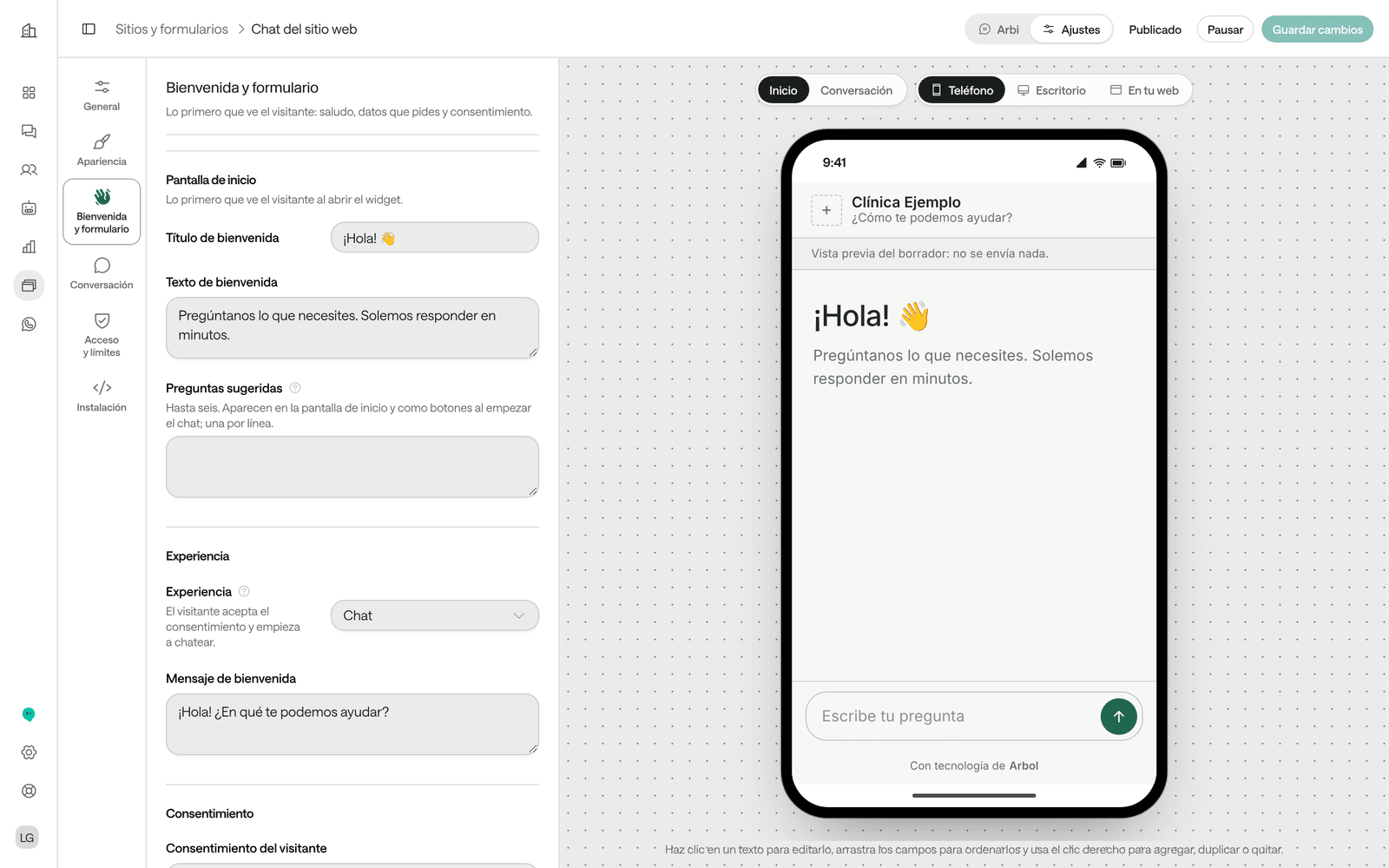
Click Save changes when you’re done. The preview shows the last saved version, and whatever you write in it starts a real conversation with the agent.
The form
Under Welcome and form › Form data, click Add field for each detail you want to ask for. Each field has a label, a type (Text, Long text, Email, Phone, Number, Date, Option list, Single choice, Checkbox or Web address), whether it’s Required and its width. Drag them to change the order.
- What the visitor writes reaches the agent as context for the conversation. It doesn’t verify their identity: don’t have the agent share sensitive information because it received a name or an ID number in the form.
- With Ask for the first message, the visitor writes their question in the form and the conversation starts with it.
- In the Form experience, after sending they see your Thank-you message and a receipt.
Example: to request appointments, a form with Name, ID number, Service (option list) and Preferred date, followed by a chat.
What the visitor can send
Under Conversation:
| Setting | What it does |
|---|---|
| Allow file attachments | One file of up to 512 KB per message, in the formats you tick: PNG, JPEG, PDF or text. |
| Voice messages | The visitor records audio; Raíz transcribes it and the agent answers what was said. It needs the browser’s microphone permission. |
| Offer speech input | The visitor can dictate their message instead of typing it. |
| Offer spoken replies | The visitor can hear the agent’s replies read aloud. |
| Show replies as they arrive | The reply appears word by word, instead of waiting for the full text. |
| Customize copy by language | The chat’s texts in another language. Whatever you leave empty uses the main text. |
The limits
Under Access and limits › Usage limits:
| Limit | What it is | If you don’t change it |
|---|---|---|
| Session duration (minutes) | How long a conversation can last from its start, from 5 to 60. | 30 |
| Messages per session | How many messages a visitor can send in one conversation, from 1 to 100. | 30 |
| Sessions per day | New conversations the chat accepts per day. | 100 |
| Messages per day | Messages the chat processes per day across all its conversations. | 1000 |
Days are counted from 00:00 in universal time (UTC). Your organization’s block list also applies (see People and the block list).
Say where it appears
-
Open Access and limits.
-
Under Allowed websites, enter your site’s address, one per line, with
https://and no paths. Example:https://www.exampleclinic.com. -
If you want to share the chat as a page of its own, for example in a campaign or on your social media profile, turn on Allow a public chat link.
-
Click Save changes.
Publish and install it
-
Click Publish. You’ll see the notice “Live: it now takes visitors”.
-
Open Installation. Under Installation code you’ll see two lines like these, with your chat’s identifier and address already filled in:
<raiz-chat channel-id="(your chat's identifier)"></raiz-chat>
<script src="(the chat's address)/loader.js" async></script>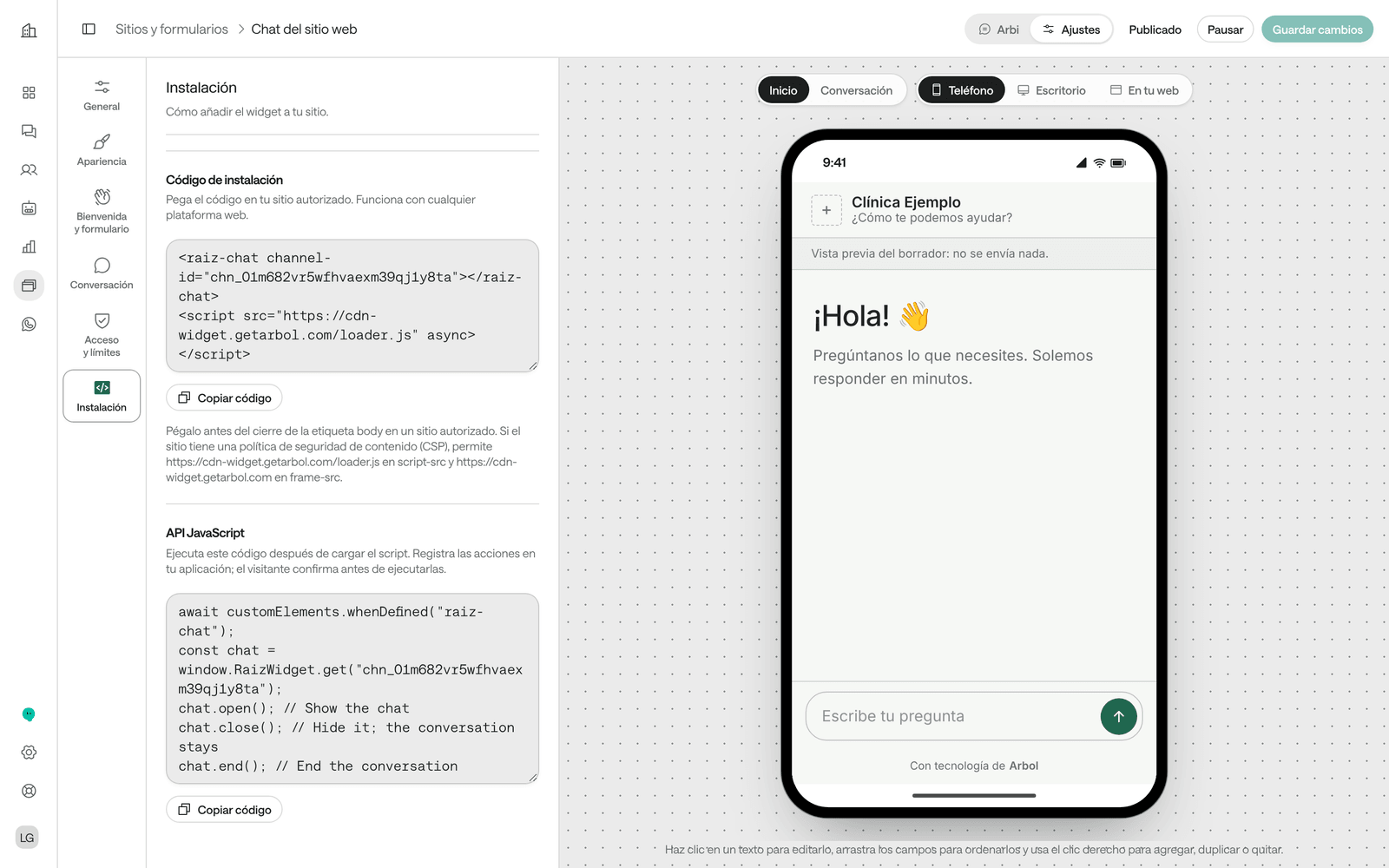
-
Click Copy code and send it to whoever manages your website. They must paste it before the closing
bodytag on each page of an allowed website. It works with any web platform. -
If you turned on the public link, under Public link use Copy link or Open public chat. You can also copy it with Copy the link on the chat’s card.
Installation also has the JavaScript API: code so whoever develops your site can open or close the chat from their own buttons.
What you see when it’s done
The chat’s card in Sites and forms says Live and where it appears: the public link and the allowed websites.
You find what comes in under Conversations, filtering by Channel › Chat:
- Each chat conversation, with its transcript, summary and outcome, like any other (see Follow conversations).
- Each submission of a Form is kept as an already closed conversation.
- If the form asks for a name, email or phone, Raíz creates a person in People with those details. It doesn’t merge them on its own with a person who already exists: if it’s the same person, you can merge them (see People and the block list).
A chat conversation closes after 30 minutes without messages, unless you change the agent’s Close after inactivity (see Agent settings).
To stop taking visitors, open the chat and click Pause. Open conversations are closed.
Troubleshooting
The chat’s card tells you what’s missing:
- No agent: assign an agent under General to publish it.
- Agent paused: its agent is paused; activate it in Workers.
- No link or site: turn on the public link or add the website it goes on.
- Paused: click Publish.
“Create an active messaging agent first to connect it to the widget.”
You have no active messaging agents.
What to do: create one or activate one (see Create an agent).
The chat doesn't appear on my page
One of the three conditions for it to appear is missing.
What to do: check that the chat is Live, that your site’s exact address is under Allowed websites and that the code is pasted on that page. If your site has a Content Security Policy, whoever manages it must allow the chat: the instructions are under Installation.
I changed something and the open conversations closed
Changing the agents, access, form, consent, attachments or per-session limits closes open sessions. Design changes and other text changes don’t.
What to do: make those changes at a quiet time on your site.
A visitor says the chat won't let them write anymore
They reached a limit: their session’s messages, the session’s duration or the daily limits.
What to do: check Usage limits under Access and limits and raise them if needed. If the session expired, the visitor can start another.