Every call and chat your agents have is kept in Conversations, with its transcript, summary and outcome. Come here to check how an agent handled someone, find what a person talked about or see what needs your team.
Before you start
- You need a role that can See conversations and listen to calls.
- Conversations contain patient data. Share their content only with people who need to know it.
Find a conversation
-
In the menu, click Conversations.
-
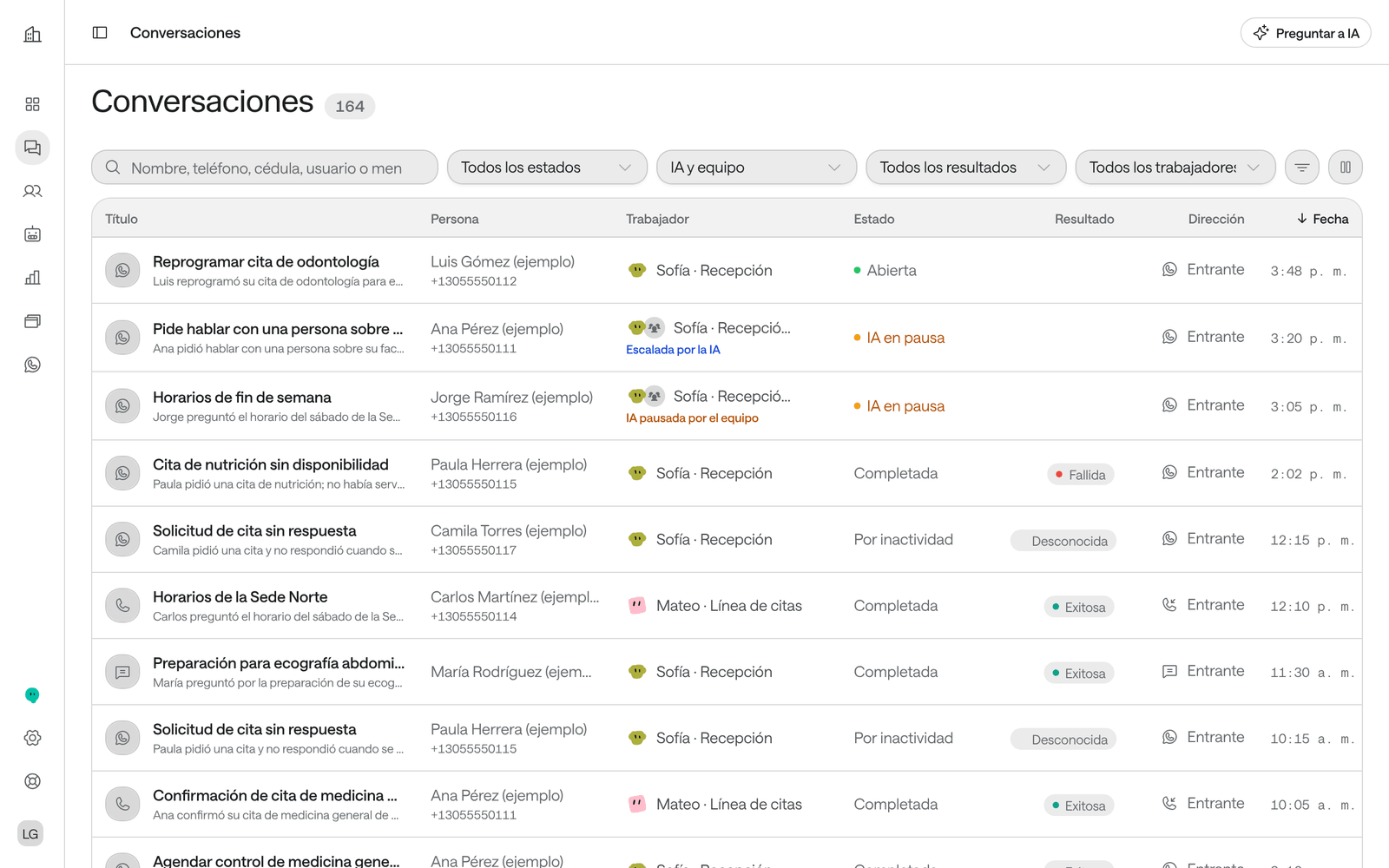
In the search box, type a name, phone number, ID document, username or a phrase from a message.
-
If needed, filter by Status (Open or Completed), Handled by (AI, Team or Escalated by the AI), Outcome (Success, Failure or Unknown) or Worker. More filters has Channel, Direction, Origin, Call Date and Person. To see only test conversations, choose Origin › Trial.
-
Click the conversation to open it.
With Columns you choose which columns you see, such as Mood, Duration or Audio.
What the status says
| Status | What it means |
|---|---|
| Open | The AI is handling the conversation. |
| AI paused | The AI replied before, but your team handles it now: someone paused it or the agent escalated. |
| With the team | Only your team has replied; the AI isn’t involved. |
| Completed, Timed out, Handed off, Closed by hand, Errored | The conversation is closed, and why. |
The Handled by filter separates the conversations handled by the AI, those handled by your Team and those Escalated by the AI.
Read a conversation
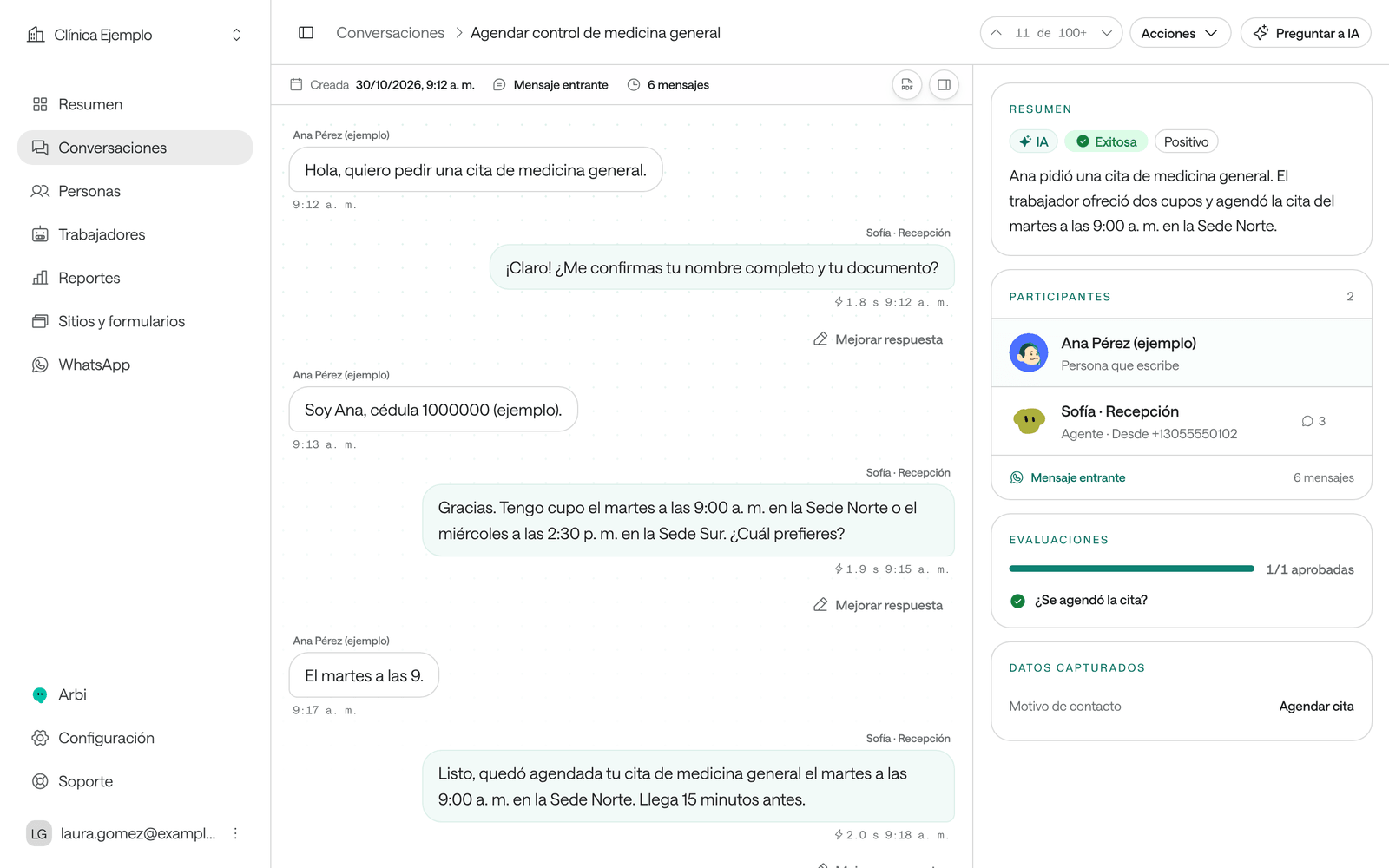
A conversation’s page has:
- The transcript: every message, with who wrote it (the agent, the person or your Team). The tools the agent used appear as cards, for example “Booked the appointment” or “Searched the knowledge base”, with their result. Images, documents and voice notes open with a click.
- The recording of calls, if the agent records: play it, skip forward or back 10 seconds and change the speed. Everything about the player, interruptions and response times is in Listen to calls and audio.
- The side panel, which you can hide or show:
- Summary: generated when the conversation closes, and it can take a few minutes.
- Evaluations: the yes-or-no questions you set up in the agent, with how many passed.
- Captured data: what the AI extracted, such as the preferred date.
- Tools: how many times it used each one and how many failed.
- In this conversation and Contact details: who took part and how to reach the person, with Open person to go to their record.
- Recent activity: other conversations with the same person.
To move to the previous or next conversation, use the arrows at the top or the K and J keys.
Outcome and mood
When it closes, Raíz analyzes the conversation:
- Outcome: Success, Failure or Unknown. If the agent has no Conversation reports, it’s a success when what the person asked for was resolved; if it has them, they decide. While the analysis hasn’t finished, the conversation has no outcome yet. See Understand and change the success rate.
- Mood: Positive, Neutral or Negative.
Conversations your team handled alone, without the AI, have no automatic summary or evaluations.
Correct a captured value
You need a role that can correct captured data, such as Operations.
-
Under Captured data, click the value.
-
Type or choose the correct value and click Save.
The correction is saved with your name and the date; it doesn’t erase what was there before.
Other actions
Under the Actions button at the top:
- Change person: links the conversation to another person, or to a new one with Create new person. Use it when the conversation ended up with the wrong person or shows Person to confirm.
- Call back (calls): the voice agent calls the person again and the new conversation opens.
- Block number: no agent replies to or contacts that number again. It only appears if your role can manage the block list, and never on test conversations. See Manage people and the block list.
Change person and Call back need a role that can Handle conversations and reply on WhatsApp. If you don’t see a button, your role doesn’t allow it.
Download the PDF report
Click the PDF icon at the top right of the transcript (Download PDF). The conversation report includes the summary, outcome, captured data, evaluations and transcript; it doesn’t include the audio. In the PDF, the outcome reads Resolved, Not resolved or Undetermined (on screen: Success, Failure or Unknown). It’s marked Confidential document: store and share it like any document with patient data.
Troubleshooting
I can’t find a conversation. Make sure you have no filters on (Clear) and search by the person’s full phone number.
“The summary isn’t available yet.” The analysis can take a few minutes after the conversation closes. Come back later.
“No evaluation results yet.” The analysis may still be running, or the agent has no evaluations set up. See Agent settings.
I don’t see a way to listen to the call. The agent wasn’t recording. It’s turned on under Conversation pacing › Record calls.
“We couldn’t load the attachment.” Click Reload attachment. If the format has no preview, use Open original file.