Listen to a call when a patient says the agent answered badly, when you want to check how your voice agent sounds or when you need to know exactly what was said. Raíz keeps the audio with its transcript, so you can jump straight to the moment you’re interested in.
Before you start
- You need a role that can See conversations and listen to calls, such as Operations, Analysis or Owner.
- There’s audio only if the agent had Record calls on when the call happened (see Voice and audio). It’s on for new agents.
Find the calls
-
In the menu, click Conversations.
-
Click More filters, then Channel, and choose Voice.
-
If you like, add the Audio column from Columns: it marks the conversations that have a recording.
-
Click the call to open it.
Listen to a call
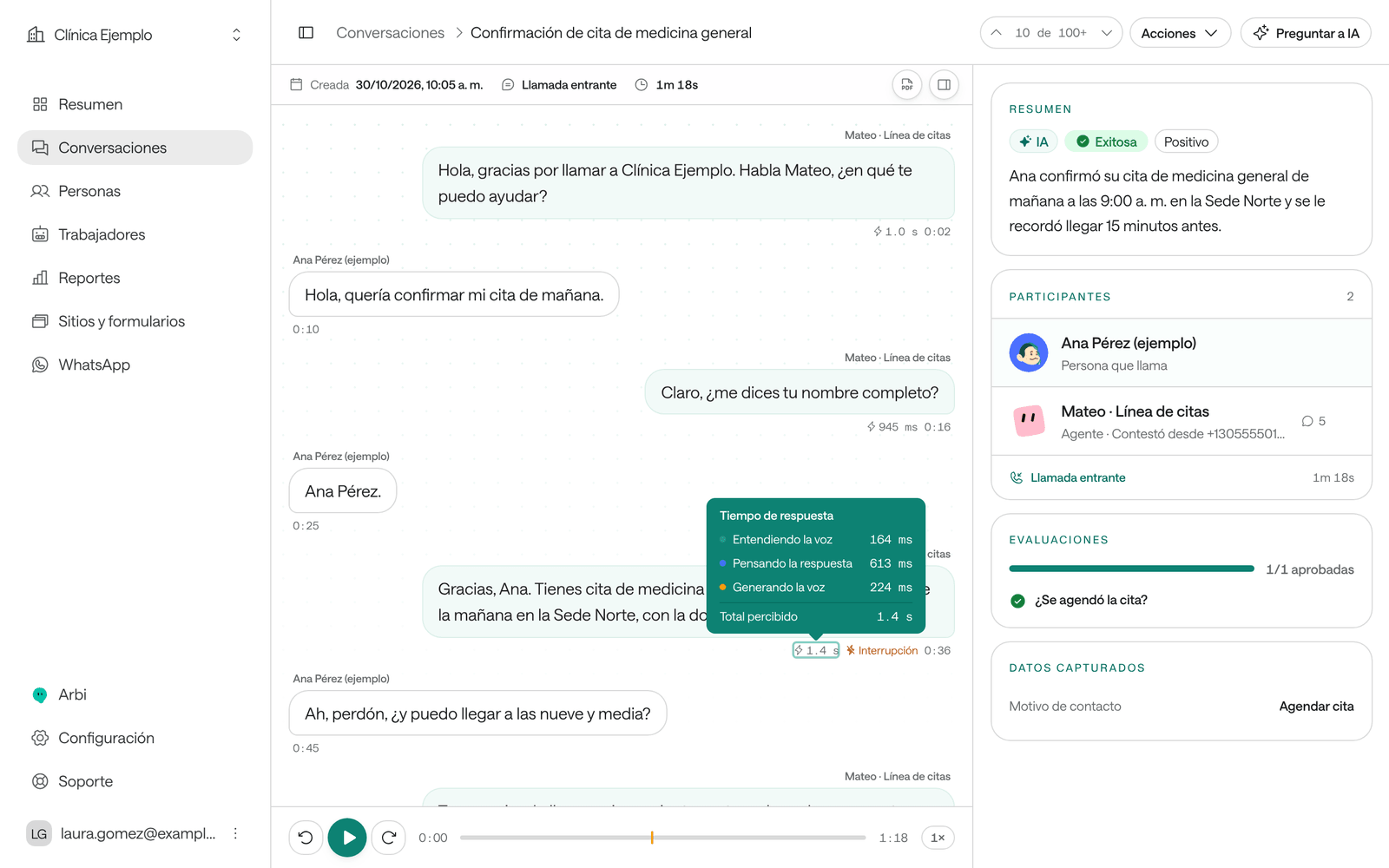
The bar at the bottom plays the recording:
| Control | What it’s for |
|---|---|
| Play | Starts or pauses the audio. |
| Back 10 seconds and Forward 10 seconds | Move a little without losing the thread. |
| Playback speed | Listen at 1×, 1.5× or 2×. |
| Play from here | In the transcript, click a turn’s time for the audio to start at that moment. |
While it plays, the transcript follows the audio. The amber marks on the bar are Interruption: moments when the person talked over the agent. The interrupted turn says so in the transcript too.
How long the agent took to answer
Under each agent turn you see its response time. Hovering it shows Response time with its parts:
- Understanding speech: turning what the person said into text.
- Thinking of the answer: deciding what to reply.
- Generating speech: turning the answer into audio.
- Perceived total: what the person waited.
Turns that take 3 seconds or more show in amber. If they repeat, check whether the agent uses many tools at that moment or whether its instructions are very long (see Agent settings).
Listen to WhatsApp voice notes
When someone sends audio on WhatsApp, the conversation shows a Voice note or Audio bubble with its play button and, below, what the person said as text. The agent answers that text.
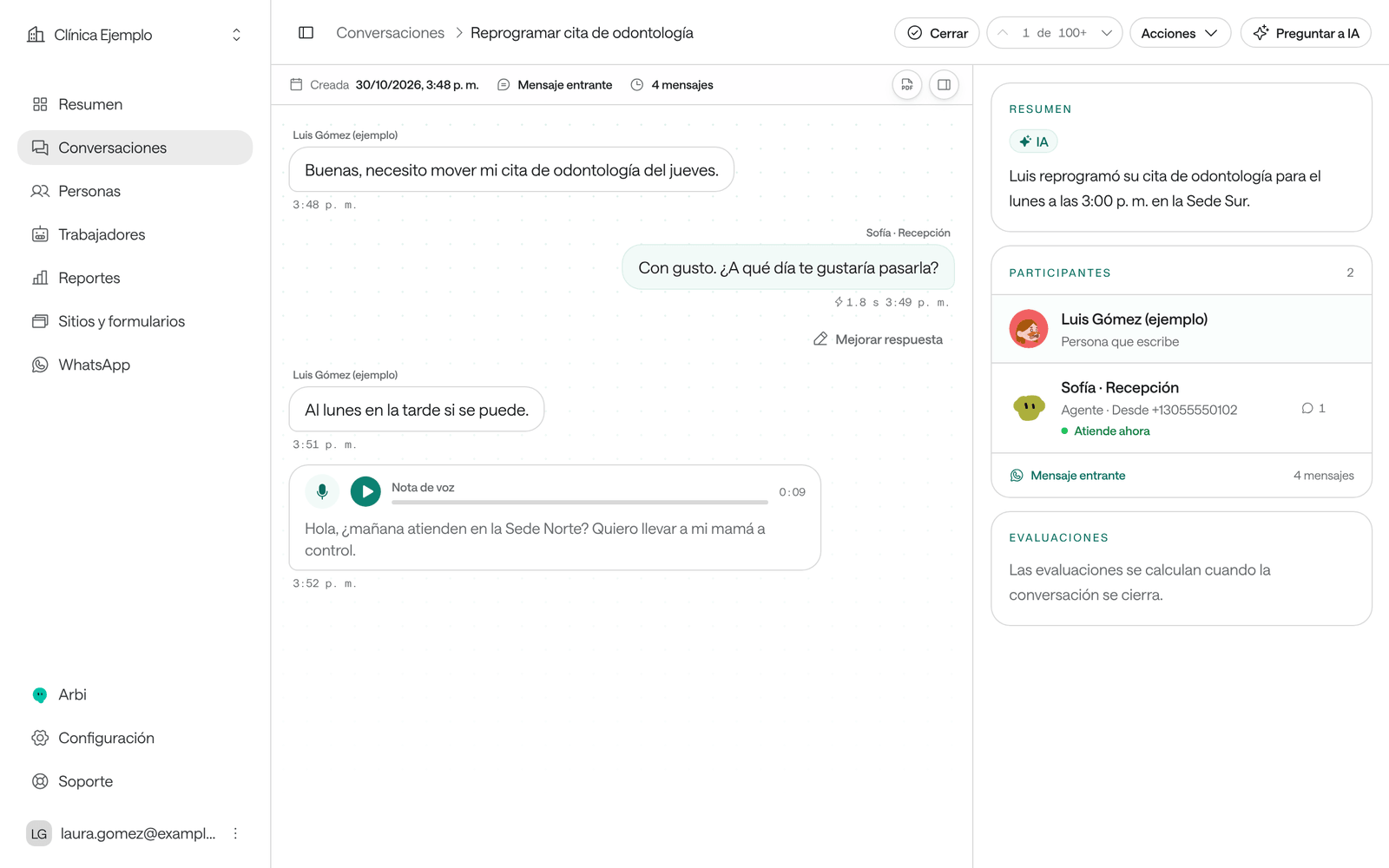
If the bubble says “We couldn’t load the attachment”, click Reload attachment.
Audio in your website’s chat
Your site’s chat can take audio too. In Sites and forms, open the chat, go to Settings › Conversation and choose:
- Voice messages: the visitor records audio; Raíz transcribes it and the agent answers what they said. It needs the browser’s microphone permission.
- Offer speech input: the browser turns what the visitor says into text and they review it before sending.
- Offer spoken replies: the browser reads the agent’s replies aloud.
More in Put the chat on your website.
What you can’t do
- Download a call’s audio: you listen to it in the Dashboard. Download PDF produces the conversation report with its transcript, without audio.
- Send audio in WhatsApp templates or campaigns: templates are text.
- Listen to a call that wasn’t recorded: if Record calls was off, only the transcript remains.
Do’s and don’ts
Turning recording off to «save»
Without a recording you can’t review a complaint or know whether the agent misheard or the person said something else.
Record and hide what's sensitive
Keep Record calls on and turn on Hide numbers entered on the keypad if people key in documents or codes.
Common problems
The playback bar doesn't appear
The call has no recording: Record calls was off or the call never connected. The Audio column tells you which ones have a recording.
The agent is slow to answer on calls
Look at Response time on the slow turns. If Thinking of the answer weighs the most, shorten the instructions or choose a faster model in Intelligence. If it’s Understanding speech or the wait before speaking, check Conversation pacing (see Voice and audio).
The transcript misspells my clinic's names
Add them in Conversation pacing › Important words: the agent will recognize them better in the next calls.