This page is the reference for everything you can tune on an agent from the Dashboard: how it introduces itself, how it sounds or writes, what it can do and what it records from each conversation. Use it when you want to change something specific or know what a setting does before you touch it. Each agent only shows the sections for its kind: a voice agent has no Chat experience and a messaging agent has no Voice.
Before you start
- You need a role that can Create and tune agents, such as Agent design, Administration or Owner. With other roles the sections are read-only (“You have read-only access to this section.”) and Save doesn’t appear.
- Data it collects and Conversation reports also need permission to define the data that’s captured. If you can’t save them, ask whoever manages your team.
- Open the agent: in the menu, click Workers and then its name.
How a change is saved
-
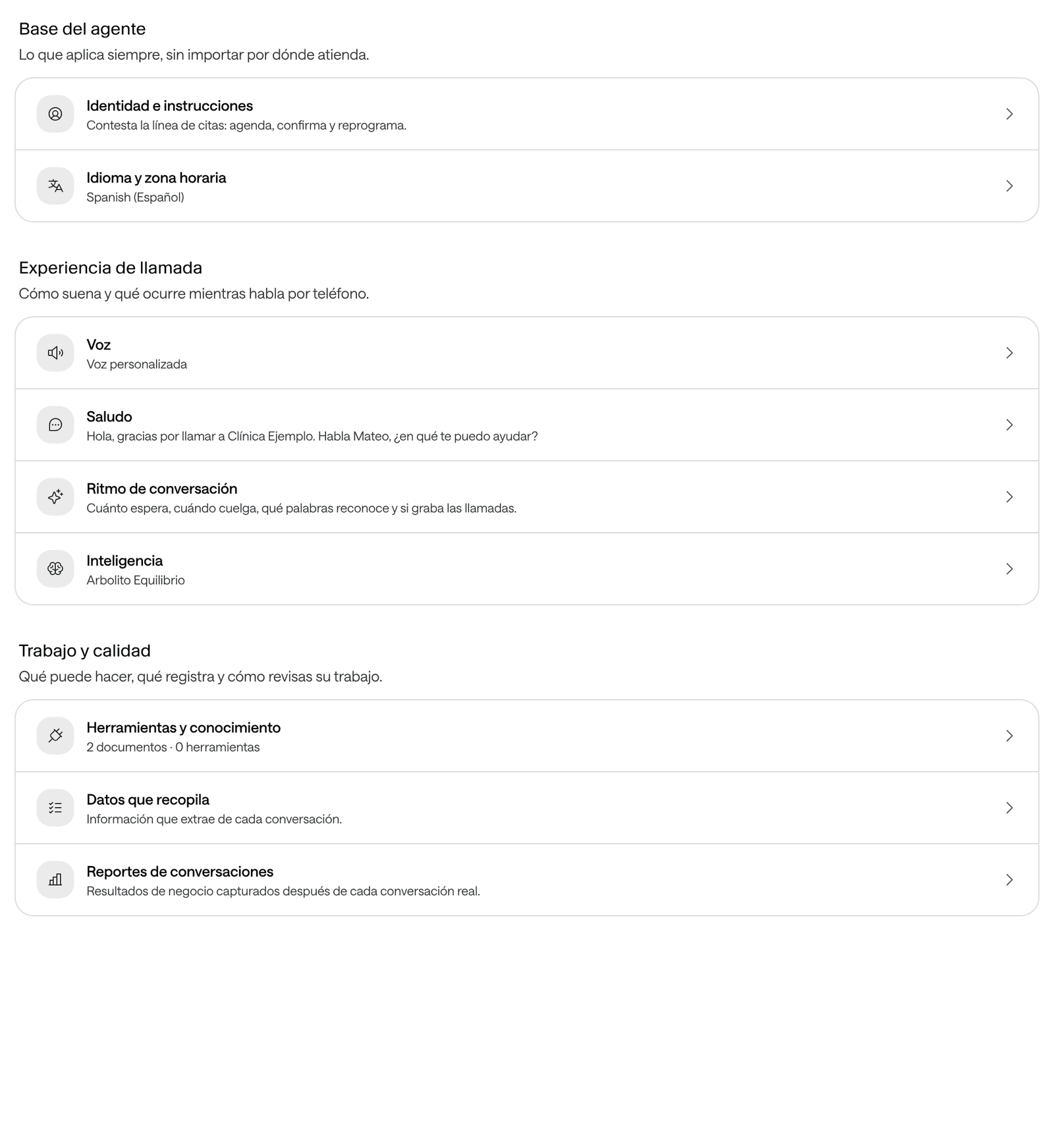
On the agent’s page, click the row of the section you want to change.
-
Change what you need.
-
Click Save. If you leave without saving, the Dashboard asks Discard unsaved changes?.
Changes apply from the agent’s next reply or call. On a voice agent, they take a few moments to reach calls.
Each row says what state its section is in:
- Done: it’s set up.
- Pending: the agent needs it to serve people. There are only two: Identity & instructions on every agent, and Greeting on voice agents.
- Optional: it uses the defaults, which are fine to start with.
The sections at a glance
| Block | Voice agent | Messaging agent |
|---|---|---|
| Agent foundation | Identity & instructions, Language and time zone | Identity & instructions, Language and time zone |
| Call experience | Voice, Greeting, Conversation pacing, Intelligence | — |
| Chat experience | — | Greeting, Chat behavior, Intelligence |
| Work & quality | Tools and knowledge, Data it collects, Conversation reports | Skills, Tools and knowledge, Data it collects, Conversation reports |
Agent foundation
What always applies, regardless of where it answers.
Identity & instructions
| Setting | What it does | Default |
|---|---|---|
| Name | How the agent introduces itself at the start of every conversation. Required, up to 120 characters. | The one you chose when you created it. |
| Description | A note for your team. The agent doesn’t read it. | Empty. |
| What it should do | Its instructions: its goal, how it answers and its limits, on every channel. Up to 100,000 characters. | The ones Raíz wrote when you created it. |
Change them whenever something permanent changes in how you work. How to write them: Write the instructions and Writing good prompts.
Language and time zone
| Setting | What it does | Default |
|---|---|---|
| Language | The language it serves in. On a voice agent, also the one it speaks and understands: if you change it, check that the voice speaks it. | The one you chose when you created it. |
| Time zone | The one it uses to know the current date and time, for example to offer “tomorrow at 9”. | Use the organization’s time zone (see Organization settings). |
Change the time zone only if the agent serves a site in another country or another time zone.
Call experience (voice agents)
How it sounds and what happens while it’s on the phone.
Voice
Search for a voice by name, listen to it with the play button and select it. The one it uses now shows first and selected; if it’s no longer in the catalog, it shows as Current voice. An agent with no voice chosen uses the default voice. The sample plays the original voice, without your settings: to hear the result make a test call.
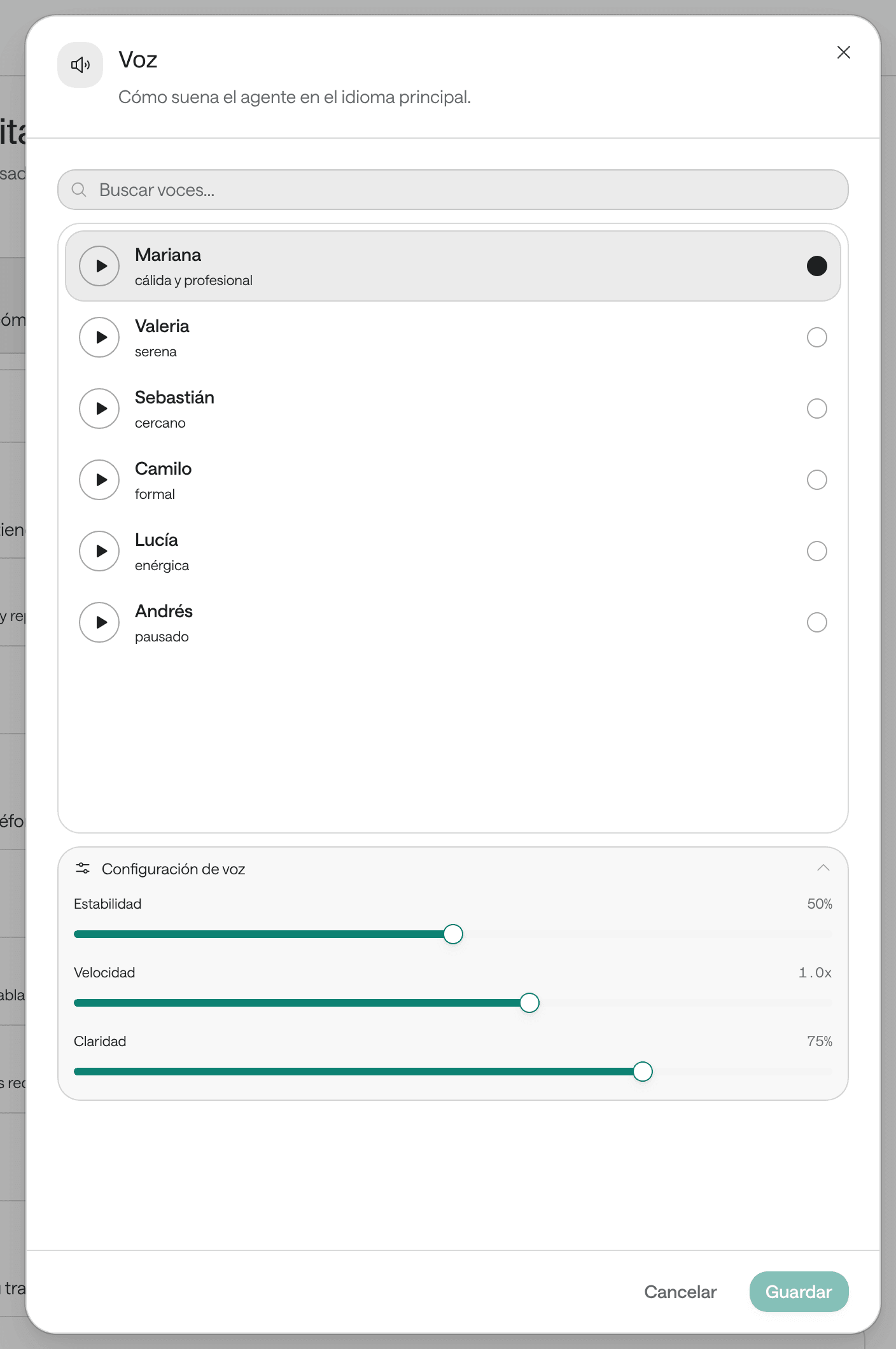
Under Voice settings:
| Setting | What it does | Default |
|---|---|---|
| Stability | Higher, the voice sounds steadier; lower, more expressive. | 50% |
| Speed | How fast it speaks, from 0.7x to 1.2x. | 1.0x |
| Clarity | How closely it stays true to the original voice. | 80% |
Change the speed if your patients ask it to repeat itself or calls feel slow. How a voice agent handles a call, from start to finish: Voice and audio.
Greeting
Welcome message: the first thing the agent says when it answers or places a call. It’s required, up to 2,000 characters. Example: “Hi, this is Sofía from Clínica Ejemplo. How can I help you?”.
Conversation pacing
| Setting | What it does | Default |
|---|---|---|
| Listening › Important words | Names or terms it should recognize precisely, such as your clinic’s name, your sites or your services. Up to 50. | None. |
| Wait after a pause | Seconds of silence before it speaks to the person again, from 1 to 30. | 7 seconds. |
| End after silence | Hangs up if the person says nothing for the time you choose in Hang up after, from 10 to 600 seconds. | Off: it never hangs up on silence. |
| Maximum duration | Total limit of the call, from 1 to 120 minutes. | 10 minutes. |
| Record calls | Keeps the audio of each call with its transcript. | On. |
| Hide numbers entered on the keypad | Numbers the person types on the keypad are hidden in the transcript. Only affects new calls. | Off. |
Raise the Maximum duration if your calls, such as a confirmation with several steps, get cut off before they finish. Turn on Hide numbers entered on the keypad if you ask for sensitive details on the keypad. What happens when the person doesn’t speak: When the patient doesn’t answer.
Intelligence
Language model: the one that processes what the person says and decides what to answer and which tools to use. By default, Default (Arbolito Agile). See the options in The models.
Chat experience (messaging agents)
How it opens the conversation and how it behaves while writing.
Greeting
Under When someone writes you choose what a person receives when they open a conversation on WhatsApp:
| Option | What happens |
|---|---|
| The AI answers its own way | The agent answers the first message with its own instructions. This is the default. |
| Send a fixed message | Your Welcome message (up to 1,000 characters) goes out as written when the person only says hello or asks for something without further details. If they already sent details, files or a question, the agent answers in one message and introduces itself as your greeting does. |
| The WhatsApp Business app sends it | If your WhatsApp Business already greets on its own, paste that greeting in Greeting the app sends: the agent never sends another and answers what the person wrote. |
| The AI greets following a brief | You write a Brief for the first message (up to 2,000 characters) and the AI writes the first message. |
With Send a fixed message you can turn on Always send the greeting, for notices everyone must receive. Examples and tips: Write the instructions.
Chat behavior
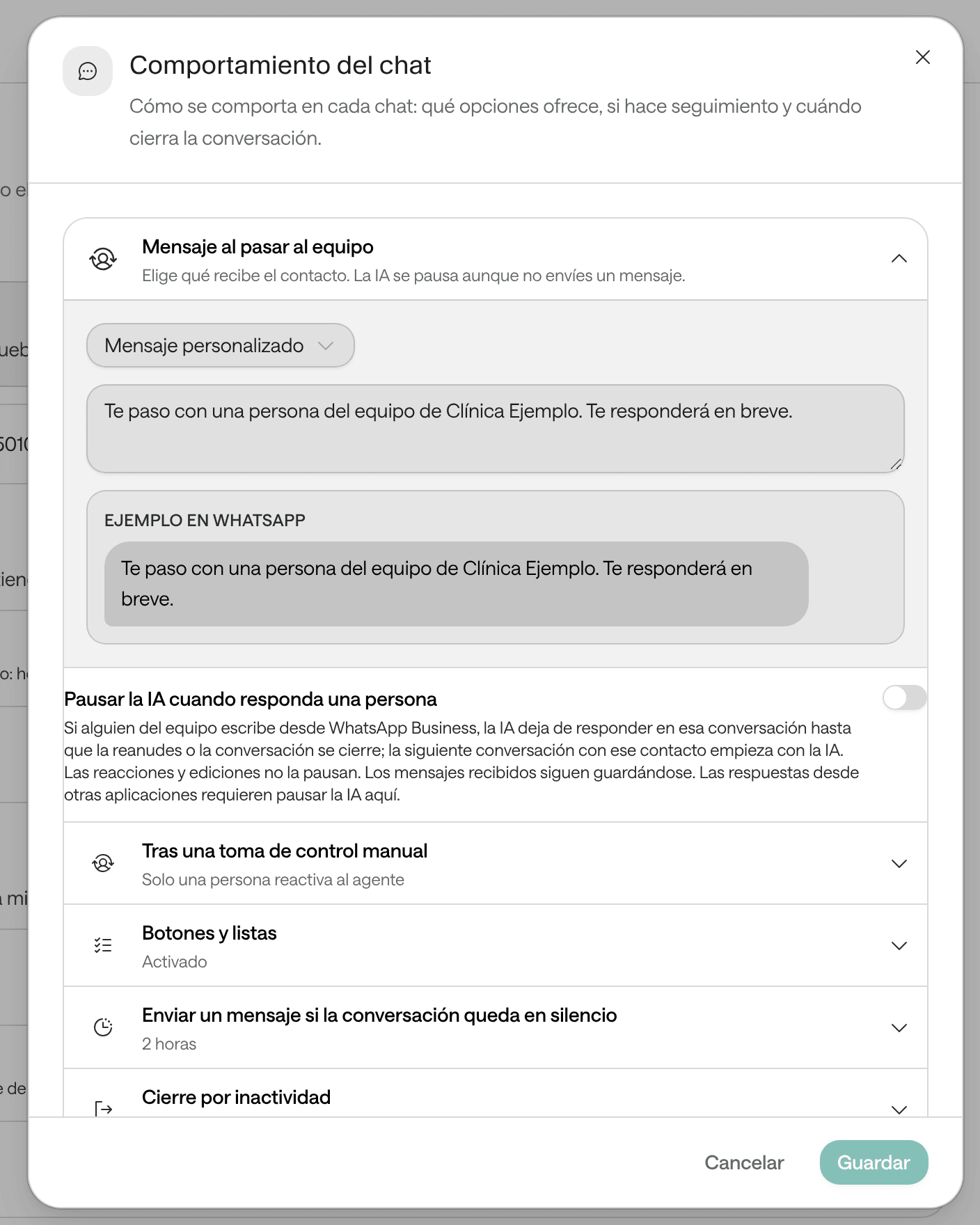
| Setting | What it does | Default | Options |
|---|---|---|---|
| Message when handing over to the team | What the person receives when the agent hands the conversation to your team. AI pauses even when nothing is sent. | Default message: “The case is pending review by the team.” (in Spanish for a Spanish agent). | Custom message (up to 1,000 characters) or No message. |
| Pause AI when a person replies | If someone on your team writes from the WhatsApp Business app, AI stops replying in that conversation until you resume it or it closes. Reactions and edits don’t pause it. | Off. | On or off. |
| After a manual takeover | If someone on the team took over the conversation and the person writes without getting an answer, the agent answers again after this time. If the agent escalated, it always waits for a person to turn it back on. | Only a person turns the agent back on. | 5, 15 or 30 minutes, or 1 hour. |
| Buttons & lists › Offer reply options | The agent can offer options to tap: buttons and lists on WhatsApp, quick replies on the web. | On. | On or off. |
| Send a follow-up if the conversation goes quiet | A single reminder when the agent asked something and the person stopped replying. WhatsApp only, inside its 24-hour window. | Don’t follow up. | 15 or 30 minutes, or 1, 2 or 4 hours, with your Follow-up message (up to 1,000 characters). Left empty, the agent sends a short message in its language. |
| Close after inactivity | How long without messages closes the conversation. If the person writes later, a new one opens. | Default (24 hours on WhatsApp, 30 minutes on the web). | 1, 2, 4, 6, 12 or 24 hours. |
When to change them:
- Turn on the follow-up if many people leave conversations halfway, and choose a Close after inactivity longer than the follow-up: if the conversation closes first, the follow-up never goes out. See When the patient doesn’t answer.
- Turn on Pause AI when a person replies if your team also answers from the WhatsApp Business app. See Handle a WhatsApp conversation.
- Turn off Offer reply options only if your patients prefer to type freely.
Intelligence
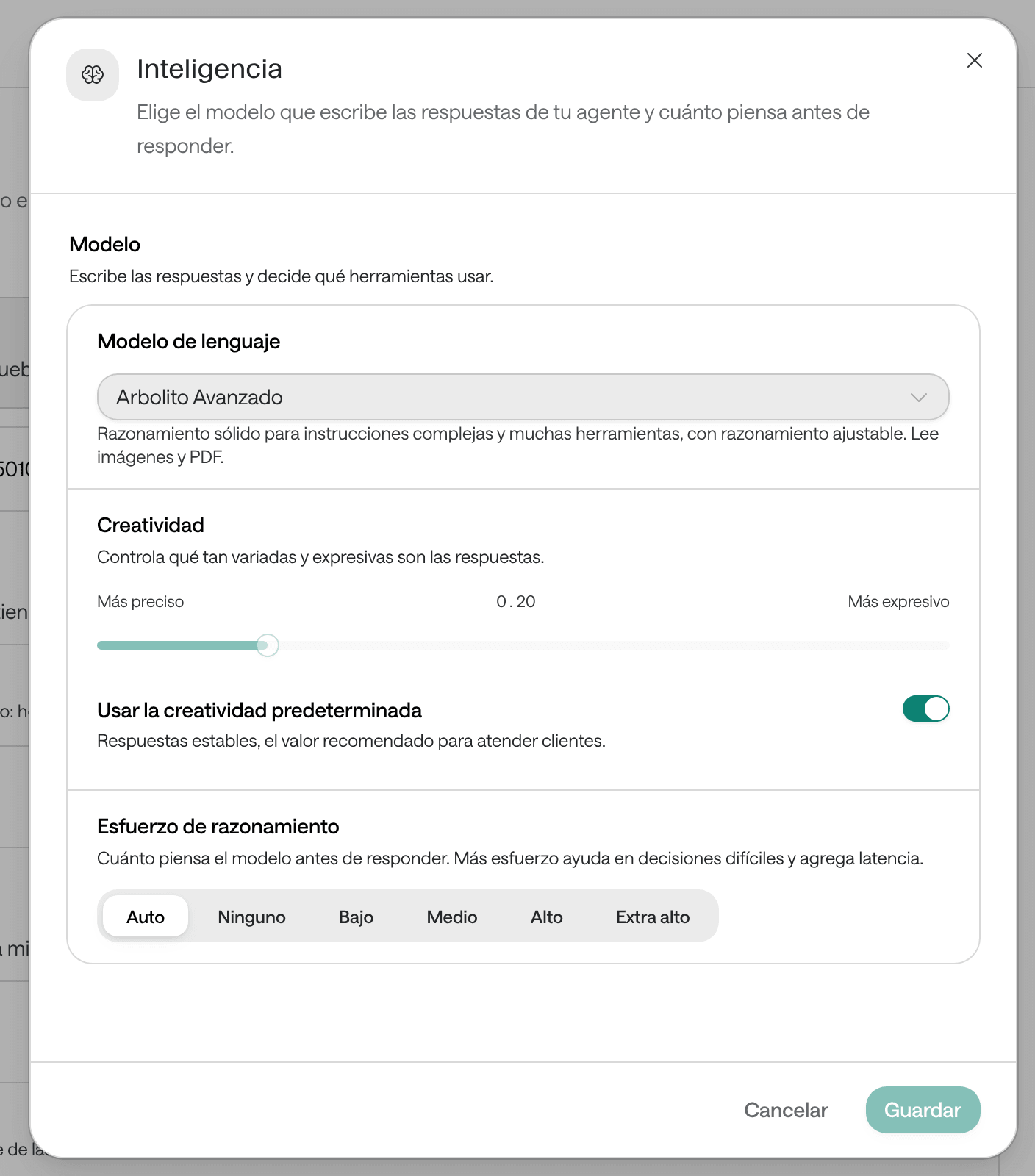
| Setting | What it does | Default |
|---|---|---|
| Language model | The model that writes the replies and decides which tools to use. See The models. | Default (Arbolito Agile) |
| Creativity | How varied the answers are, from More precise to More expressive. To move it, turn off Use the default creativity. On Arbolito Advanced and Arbolito Top it changes nothing: those models use their own. | Use the default creativity on (0.20): steady answers, the recommended value for serving patients. |
| Reasoning effort | How much the model thinks before answering: Auto, None, Low, Medium, High or Extra high. More effort helps with hard decisions and takes longer. Only on Arbolito Advanced and Arbolito Top; on the others it says “This model does not expose reasoning levels.”. | Auto |
The models
Both kinds of agent choose from the same models. All of them read images and PDFs.
| Model | What it’s for |
|---|---|
| Arbolito Agile | Quickest and least expensive, for direct conversations. It’s the default. |
| Arbolito Balanced | More deliberate answers at moderate cost, for questions with several steps. |
| Arbolito Advanced | Strong reasoning for complex instructions and many tools, with adjustable reasoning. |
| Arbolito Top | The most capable, for the hardest cases, with the highest reasoning levels. |
If you have no reason to change it, keep the default. Try a more capable model when the agent has long instructions, many tools or makes mistakes in multi-step tasks, and test it before it serves patients: a more capable model can also take longer to answer.
Work & quality
What it can do, what it records, and how you review its work.
Skills (messaging agents)
A skill is a procedure the agent reads only when the conversation needs it, for example “check-availability”. It takes task-specific steps out of the main instructions. Skills are used on WhatsApp and in web chat.
- Click Add skill.
- Fill in the Name (short, lowercase, with hyphens), When to use it and the Instructions: the procedure, the checks and how to answer.
- If you want, add References with Add reference: a Reference path, such as
references/guide.md, and its Content. Mention that path in the skill’s instructions. - Leave Active on and click Save. You’ll see “Skills saved”.
An agent takes up to 32 skills, each with up to 16 references. A skill can only use tools the agent has already been assigned.
Tools and knowledge
This section holds:
- Escalation and support › Escalate to a person: in When should it escalate? you write the cases that need your team, with concrete criteria, and click Save escalation policy. An explicit request to speak to a person is always respected. On WhatsApp, after escalating, AI stops replying and only someone on the team can turn it back on. See Write the instructions.
- Escalation and support › Consult a supporting AI (messaging agents, on WhatsApp): with Enable support for blockers, before escalating the agent checks the reason and may consult a second AI once, which uses no tools and doesn’t take over the conversation. You can choose the Supporting model, write What should it review before escalating? and, optionally, Another Agent’s specialty. It has an extra cost per consultation, with its own limits: ask Arbol’s team to set it up with you. Off by default.
- Knowledge: the documents the agent searches to answer. See Give your agents knowledge.
- Integrations: your organization’s systems where the agent can look things up or make changes, and which of each one’s tools it uses. See The agent’s tools.
Data it collects
The information the AI extracts from each conversation, such as the preferred date or the insurer. What it captures shows under Captured data in each conversation and in the person’s Data.
- Click Add field. You can start from one of the templates offered.
- Write What to capture, for example “Preferred date”.
- Click Show advanced settings and fill in:
- Type of value: Text, Number, Date, Yes or no or List of options. With List of options, write at least two Allowed values, separated by commas.
- Extraction instructions for the AI: exactly how to get the value from the conversation, for example “Extract the date the person prefers. Leave it empty if it wasn’t mentioned”.
- Internal name: created automatically; change it with Edit internal name only if another system needs a specific name.
- Click Save. You’ll see “Field saved”.
When you delete a field, it stops being captured in future conversations.
Conversation reports
What you want to know at the end of each real conversation, such as “Did the person schedule a follow-up?”.
- Click Add report. You can start from a template, such as “Whether the reason for the contact was clear”.
- Write What do you want to know?.
- Under Show advanced settings, write the Detailed instructions for the AI, for example “Answer YES if the person confirmed a follow-up appointment, otherwise NO”.
- Click Save. You’ll see “Report saved”.
The answers show under Evaluations in each conversation and in Reports. If the agent has at least one yes-or-no report, those reports decide whether each conversation is a Success or a Failure: see Understand and change the success rate.
What isn’t set on the agent
| You want to change | Where |
|---|---|
| The number or chat where it answers | Channels and Put the chat on your website |
| WhatsApp business hours | Channels |
| A temporary notice, such as a holiday | Bulletins |
| Whether web chat visitors can use its tools | Put the chat on your website |
| Pause, activate or delete the agent | Create an agent |
Settings Arbol’s team sets up
Some settings aren’t in the Dashboard. If you need them, ask Arbol’s team:
- A fixed message for when the person only says thanks or goodbye after a finished task, on WhatsApp.
- A monthly usage limit for the agent. If it reaches it, it stops replying on WhatsApp and conversations go to your team, with a notice for the person, until the next month or until the limit is raised.
- Answering a share of new WhatsApp conversations with another model, to compare it before switching.
- Requiring changes to the instructions, skills or model to pass a test against past conversations first (see Improve an agent’s replies).
- Having the agent search its knowledge automatically before every reply.
- Having the agent check again on its own a task your system left in progress, and answer the person when it finishes.
Common problems
I don't see Save, or it's disabled
If your role can only view the settings, Save doesn’t appear and the section says “You have read-only access to this section.”. If it’s disabled, you haven’t changed anything in that section yet or a field has an error.
What to do: if you need to change it, ask an administrator for a role that can Create and tune agents.
Someone else changed this while you were editing
Someone else saved the same agent while you were editing it.
What to do: reload the page and make your change again.
Too long: at most … characters
The text is over that field’s limit.
What to do: shorten it. If it’s reference information, such as lists of services or prices, upload it to the knowledge base.
Use a whole number between … and …
A Conversation pacing setting is out of range.
What to do: type a number within the range the message gives, or leave it empty to use the default.
A voice agent says Not published or Publication failed
Its latest changes didn’t reach calls.
What to do: read the message. If it says “The chosen voice is no longer available.”, choose another voice and save. If instructions are missing, write them. If the voice service didn’t respond, Raíz tries again on its own. If it asks you to contact support, use Support in the menu.
Reasoning effort is disabled
The chosen model has no reasoning levels.
What to do: if you need them, choose Arbolito Advanced or Arbolito Top and test it before it serves patients.
The follow-up never goes out
Close after inactivity is shorter than the follow-up, or another of the follow-up’s conditions isn’t met.
What to do: check the conditions in When the patient doesn’t answer.
An integration says It's disabled, It isn't responding or It no longer exists
The agent can’t use that system.
What to do: if it no longer exists, remove it from the agent; otherwise, tell Arbol’s team. See The agent’s tools.
For developers
All of these settings, and the ones Arbol’s team sets up, can also be read and changed through the API. See Agents.