Agenda only offers slots within each agenda’s hours. Set them up when you create a professional or a room, when their hours change, when they work differently on a particular day, or when they go on vacation.
Before you start
- You need the Administración role. Other roles see the hours as Solo lectura (read only).
- The agenda must already exist (see Add professionals, rooms and equipment).
Enter the weekly hours
-
In the menu, click Personas y salas and open the professional’s, room’s or equipment’s agenda. It opens on Horario (hours).
-
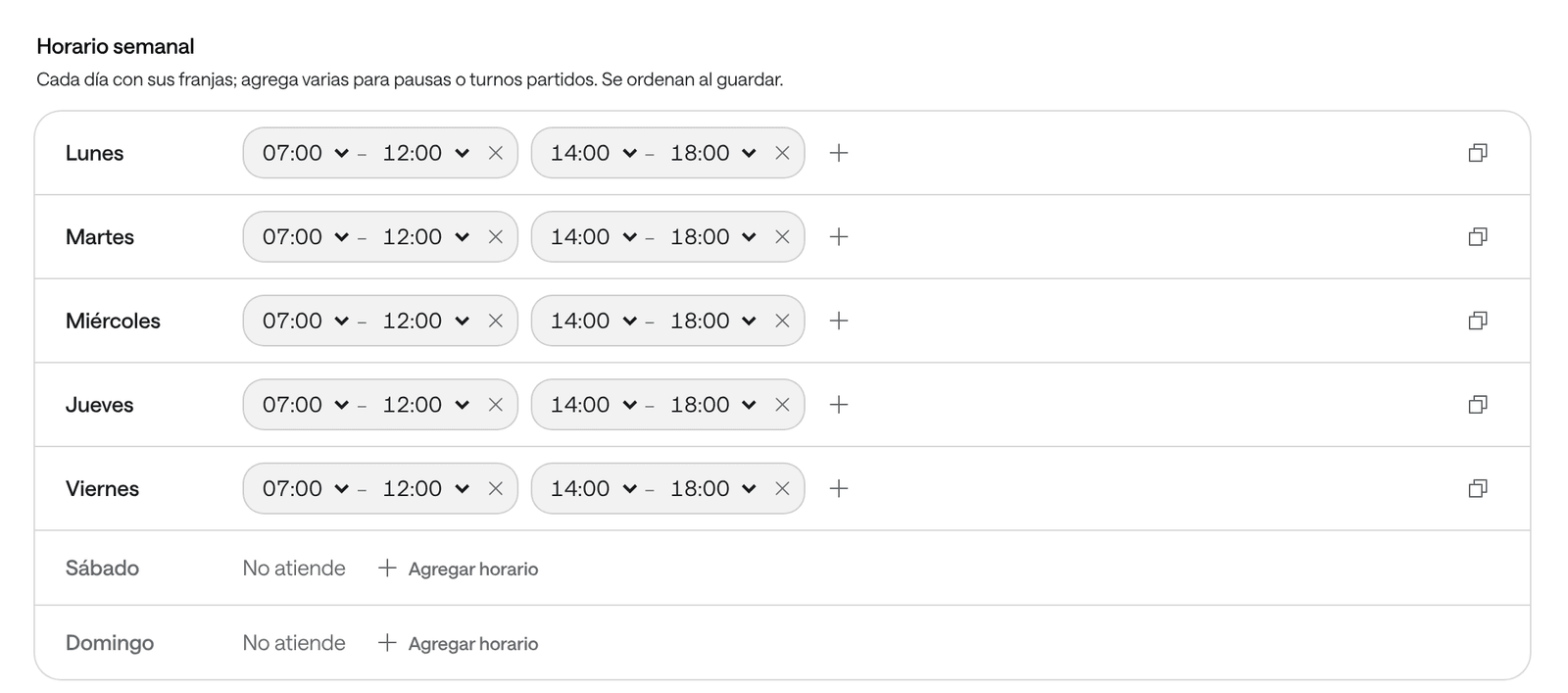
Under Horario semanal (weekly hours), beside each day, click Agregar horario (add hours) and pick the start and end times.
-
For a break or a split shift, add another time range to the same day with the + button, for example 7:00 to 12:00 and 14:00 to 18:00. Days without time ranges say No atiende (doesn’t work).
-
To repeat one day’s hours on other days, click Copiar a otros días (copy to other days) beside that day, tick the days (or Lunes a viernes, Monday to Friday) and click Copiar (copy).
-
At the bottom, click Guardar horario (save hours).
What you see when you’re done
At the bottom it says El horario se guardó. La agenda ya lo usa. (the hours were saved; the agenda is already using them). From then on, Agendar offers slots in those hours, and the agenda shows what’s outside them striped, labelled No disponible (unavailable).
Change the hours for a particular day
Use it when they work differently on one day: an extra Saturday, a shorter day, a day they only come in the afternoon.
-
In Horario, under Días con horario especial (days with special hours), click Agregar día (add day).
-
Pick the Fecha (date) and adjust its time ranges.
-
Click Guardar horario.
On that day only those time ranges count, instead of the weekly hours.
If an agenda has no weekly hours and only works on certain days, for example a specialist who comes twice a month, this section is called Fechas de atención (working dates): the agenda only works on those days and time ranges.
Record a vacation or an absence
An absence blocks the agenda for all its services. To close just one service for a few days, use Cierres de este servicio (this service’s closures) (see Create and set up services).
-
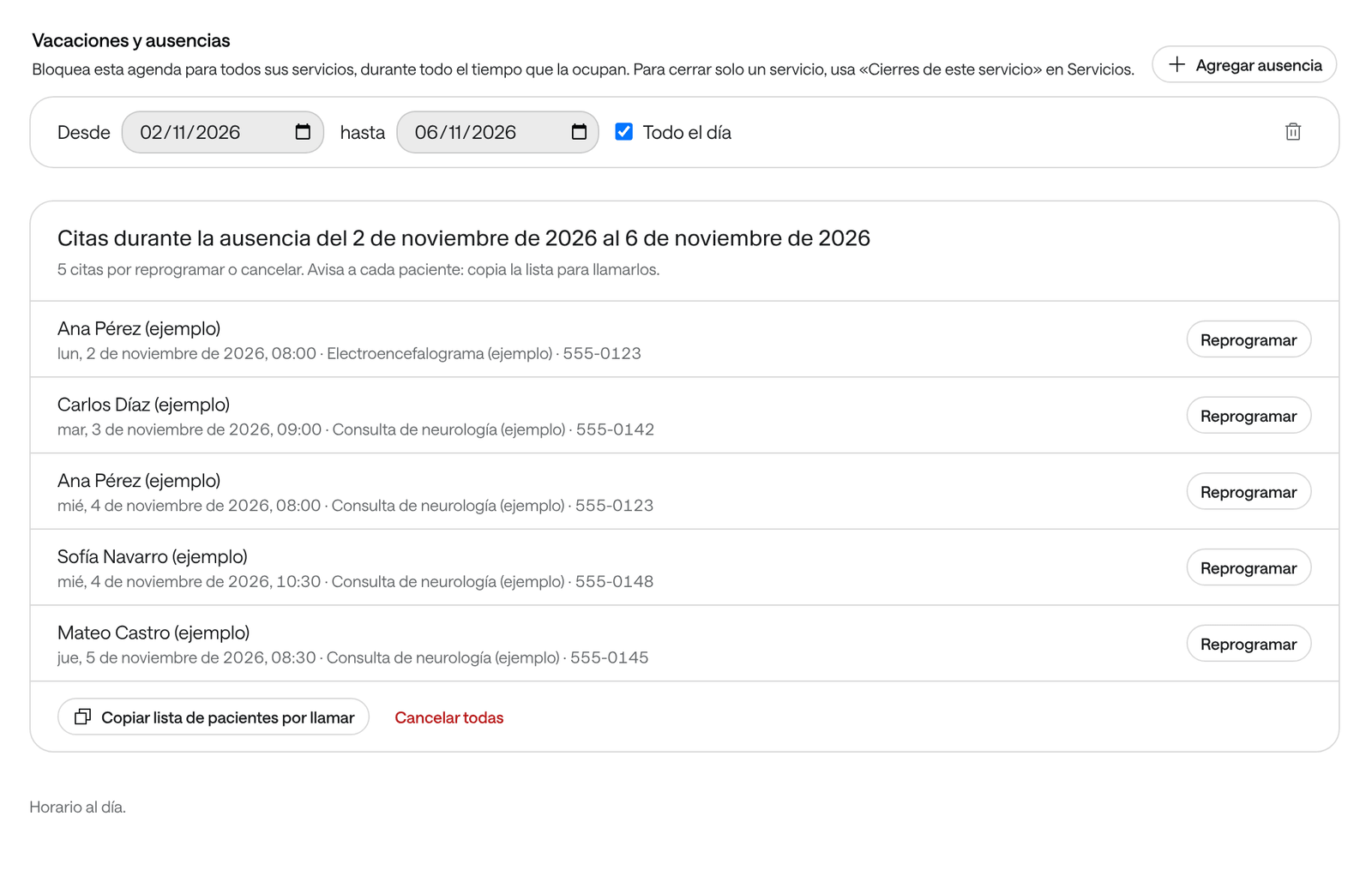
In Horario, under Vacaciones y ausencias (vacations and absences), click Agregar ausencia (add absence).
-
Pick the dates Desde (from) and hasta (to).
-
Leave Todo el día (all day) ticked, or untick it and pick the Horas de la ausencia (absence hours).
-
Click Guardar horario.
During the absence, the agenda offers no slots. Blocks the team makes from the agenda also show in this list, marked Bloqueo.
Deal with the appointments during an absence
An absence doesn’t cancel appointments already booked. If there are any, Citas durante la ausencia (appointments during the absence) appears below, with how many are left to reschedule or cancel. Recepción and Profesional see this list too.
-
Click Copiar lista de pacientes por llamar (copy the list of patients to call) and paste it wherever you’ll call or message from.
-
To move an appointment, click Reprogramar (reschedule) on its row. The appointment’s panel opens: click Reprogramar again and pick the new time.
-
To cancel the rest, click Cancelar todas (cancel all), or Cancelar la cita (cancel the appointment) if only one is left, and confirm in ¿Cancelar las N citas? (cancel the N appointments?). They’re cancelled with the reason Ausencia del profesional (professional absent), or Sala o equipo no disponible (room or equipment unavailable).
A patient only gets a notice if your organization has the cancellation notice turned on and the appointment has their email. Call the others.
Common problems
It says «La franja … no permite ninguna cita de los servicios asignados» (the time range … doesn’t fit any appointment of the assigned services). The time range is shorter than that agenda’s services, or doesn’t match how often their appointments start. Widen the time range or review the services.
It says «Elige la fecha de cada día especial» (pick the date of each special day) or «La ausencia del … termina antes de empezar» (the absence of … ends before it starts). Check that row’s dates and times.
The service still has no slots after you enter the hours. Check that the agenda has that service under Servicios, and that the service is provided Cuando la agenda atiende (when the agenda works) or has its own days and hours.
You don’t see past dates. They’re hidden to keep the list short. Click Mostrar 3 fechas pasadas (show 3 past dates, or whatever number it says) to see them.