Everyone signs in to Agenda with a role. The role decides what they see and can do: if you don’t see a button these guides mention, your role most likely doesn’t include it. To find out yours, click your account button at the bottom of the menu (it has your initials and your email): it says Tu acceso: (your access) and your role.
The four roles
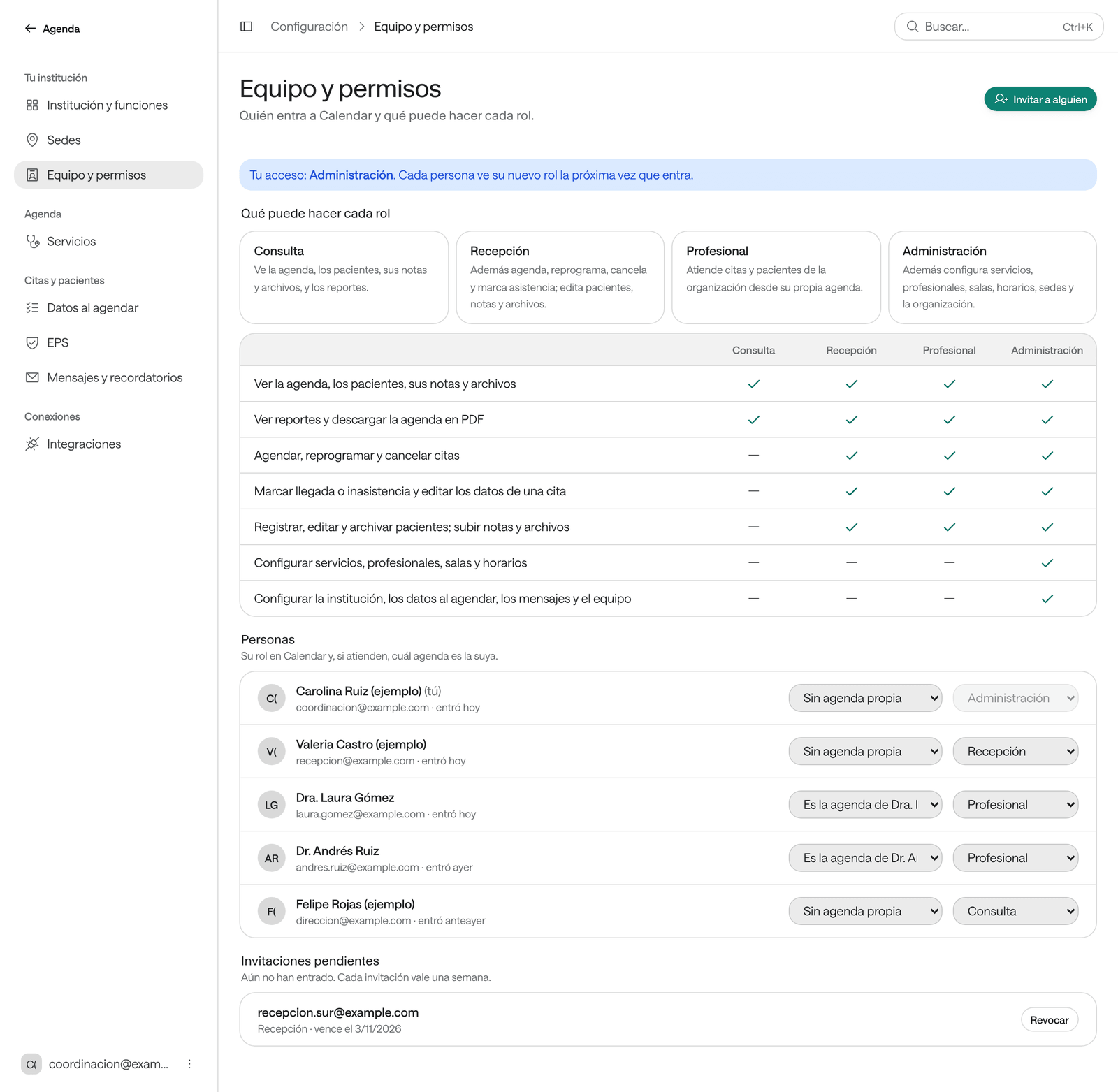
| Role | For whom | What it can do |
|---|---|---|
| Consulta (view only) | People who only need to look. | Sees the agenda, the patients, their notes and files, and the reports. |
| Recepción (front desk) | People who book: front desk, call center, coordination. | Also books, reschedules, cancels and records attendance; edits patients, notes and files. |
| Profesional (professional) | People who see patients. | The same as Recepción, with their own agenda: on signing in they see their appointments first and have Mi agenda. |
| Administración (administration) | People who set up Agenda. | Also sets up services, professionals, rooms, hours, sites and the organization, and manages the team. |
Permission by permission:
| Consulta | Recepción | Profesional | Administración | |
|---|---|---|---|---|
| See the agenda, the patients, their notes and files | Yes | Yes | Yes | Yes |
| See reports and download the agenda as a PDF | Yes | Yes | Yes | Yes |
| Book, reschedule and cancel appointments | — | Yes | Yes | Yes |
| Check patients in or mark no-shows, and edit an appointment’s details | — | Yes | Yes | Yes |
| Register, edit and archive patients; add notes and files | — | Yes | Yes | Yes |
| Block time and manage the waiting list | — | Yes | Yes | Yes |
| Set up services, professionals, rooms and hours | — | — | — | Yes |
| Set up the organization, the booking details, the messages and the team | — | — | — | Yes |
What a role doesn’t allow doesn’t appear: with Consulta you don’t see Agendar, and only Administración sees Configuración. If you open a link to another role’s page, Agenda says No tienes acceso a esta página (you don’t have access to this page) and what your role is.
Invite someone
Do this when someone starts using Agenda at your organization.
Before you start
- You need the Administración role.
Steps
-
In the menu, click Configuración and then Equipo y permisos (team and permissions). It’s also in your account menu.
-
Click Invitar a alguien (invite someone).
-
Type their Correo (email) and pick their role.
-
If you pick Profesional, choose their agenda in Es la agenda de… (is the agenda of…). When they sign in, they’ll see that agenda first.
-
Click Enviar invitación (send invitation).
The person gets an email to sign in with the role you chose. Until they sign in, they appear under Invitaciones pendientes (pending invitations); each invitation lasts a week. If you made a mistake, click Revocar (revoke) and send another.
Change someone’s role or assign their agenda
-
In Configuración › Equipo y permisos, find the person under Personas (people).
-
In Rol (role), pick their new role.
-
If they see patients, pick their agenda in Es la agenda de…. You can only pick it once the person has signed in to Agenda at least once.
Each person sees their new role the next time they sign in to Agenda.
Whoever manages your organization in Arbol can also manage the team from Account.
Common problems
You can’t change your own role. Your Administración role is changed by someone else who has it.
It says «Es la única persona con Administración» (the only person with Administración). Agenda always needs someone with Administración. Give that role to someone else first.
It says «Esta persona ya pertenece a la organización» (this person already belongs to the organization). No need to invite them: change their role in the Personas list.
It says «La gestión del equipo no está configurada» (team management isn’t set up). Meanwhile you see the role each person signed in with last time. Roles are assigned by whoever manages your organization in Arbol.
Someone says they don’t see what they should. Check their role in Equipo y permisos and ask them to sign out and back in.