Block time when a professional, room or piece of equipment won’t be available for a while: a meeting, lunch, training, maintenance. While it’s blocked, nobody can book there. For whole days or vacations, someone with Administración records an absence in the hours instead (see Set up hours, special days and absences).
Before you start
- You need the Recepción, Profesional or Administración role.
Steps
-
On the Agenda, in the Día or Semana view, click the free space where the block starts, in that agenda’s column.
-
In the Agendar una cita window, click Bloquear este horario en vez de agendar (block this time instead of booking).
-
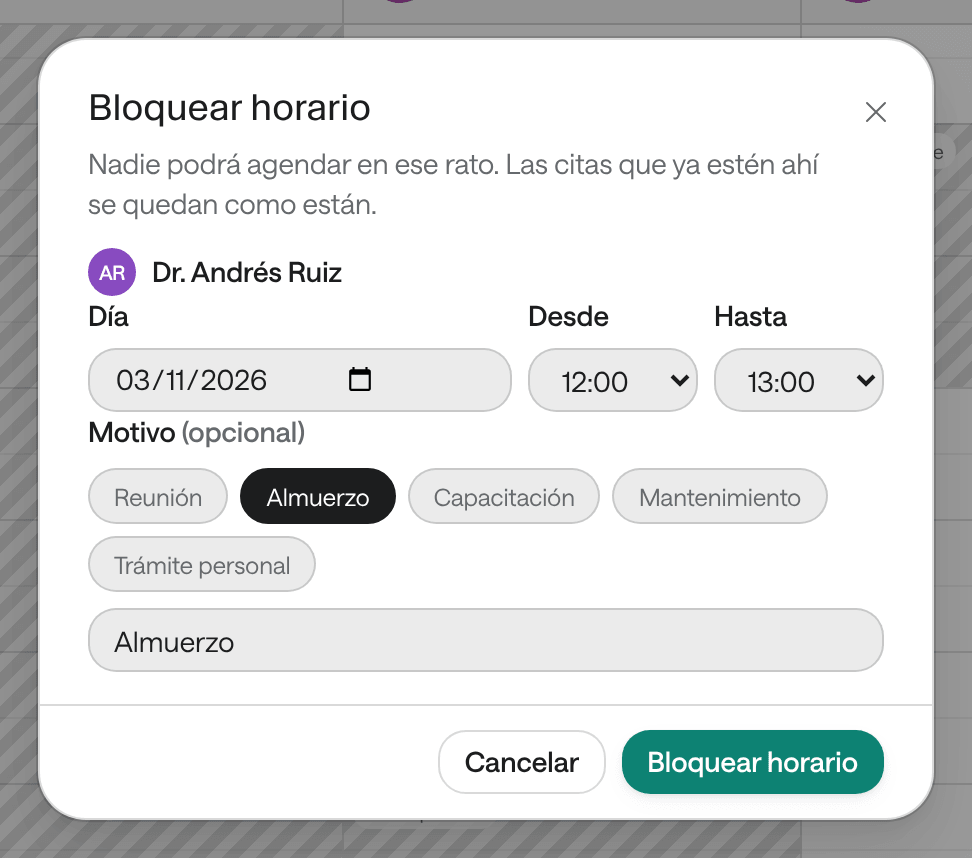
Check the Agenda and the Día, and pick the times Desde (from) and Hasta (to).
-
If you like, pick a reason: Reunión (meeting), Almuerzo (lunch), Capacitación (training), Mantenimiento (maintenance) or Trámite personal (personal errand), or type another one in U otro motivo.
-
Click Bloquear horario (block time).
What you see when you’re done
The agenda says Horario bloqueado. (time blocked) and the block shows striped in the column, with its reason. That stretch no longer offers slots.
A block doesn’t cancel the appointments already in that stretch. If there are any, the window warns you before saving: Ya hay 2 citas en ese rato (there are already 2 appointments in that stretch). Reschedule them if needed (see Reschedule an appointment).
Release a blocked time
-
On the Agenda, click the block.
-
Click Liberar horario (release time).
The agenda says El horario quedó libre para agendar. (the time is free to book again).
Common problems
You don’t see Bloquear este horario en vez de agendar. It only appears when you click a time on the agenda, not when you open Agendar from the menu. The Consulta role can’t block time.
It says «La hora final tiene que ser después de la inicial» (the end time must be after the start time). Check Desde and Hasta.