Agenda tells the patient about their appointment by email, by WhatsApp or with a phone call, depending on what your organization has turned on, and lets them confirm or cancel. Read this page to know what the patient gets and when, how you see it on each appointment and what to do when they don’t answer.
Before you start
- Any role can see an appointment’s messages. To send a reminder or change an appointment’s status you need Recepción, Profesional or Administración.
- Automatic messages only go out if your organization uses Mensajes y recordatorios (messages and reminders) and has chosen what to send. If your appointments show no messages, ask someone with Administración to check Set up messages and reminders.
How it works
The appointment is booked
If your organization has it on, the confirmation goes out.The reminder goes out
By email, WhatsApp or call, at the time your organization chose.The patient confirms or cancels
With the buttons in their email, or they reply and you record it.The agenda updates
The appointment becomes Confirmada, or Cancelada with its time freed.Your team fills the slot
With someone from the waiting list. Agenda doesn’t offer it by itself.
Agenda checks every few minutes which messages are due, so each one goes out within a few minutes of its time. Messages follow the appointment:
- If you reschedule it, the remaining reminders move to the new time.
- If you cancel it, or mark it No asistió (no-show) or Atendida (seen), the remaining ones don’t go out.
- If the patient has already confirmed, they still get the remaining reminders.
What the patient gets and when
| Message | When it goes out | Channels it can use |
|---|---|---|
| Confirmación (confirmation) | As soon as the appointment is booked: in the agenda, by the WhatsApp assistant or from another connected system. | Email and WhatsApp |
| Recordatorio (reminder) | Before the appointment, at the times your organization chose: by email, up to three; by WhatsApp and by call, 2 days, 1 day or 2 hours before. | Email, WhatsApp and call |
| Aviso de cambio de horario (time change notice) | When the clinic moves the appointment to another time and leaves Avisar al paciente (notify the patient) on. | Email and WhatsApp |
| Aviso de cancelación (cancellation notice) | When the clinic cancels the appointment. It doesn’t go out if the patient cancelled from their email. | Email and WhatsApp |
If a reminder’s time has already passed when the appointment is booked, that reminder doesn’t go out. For example, an appointment booked for an hour from now doesn’t get the 2-hours-before reminder.
What each channel needs:
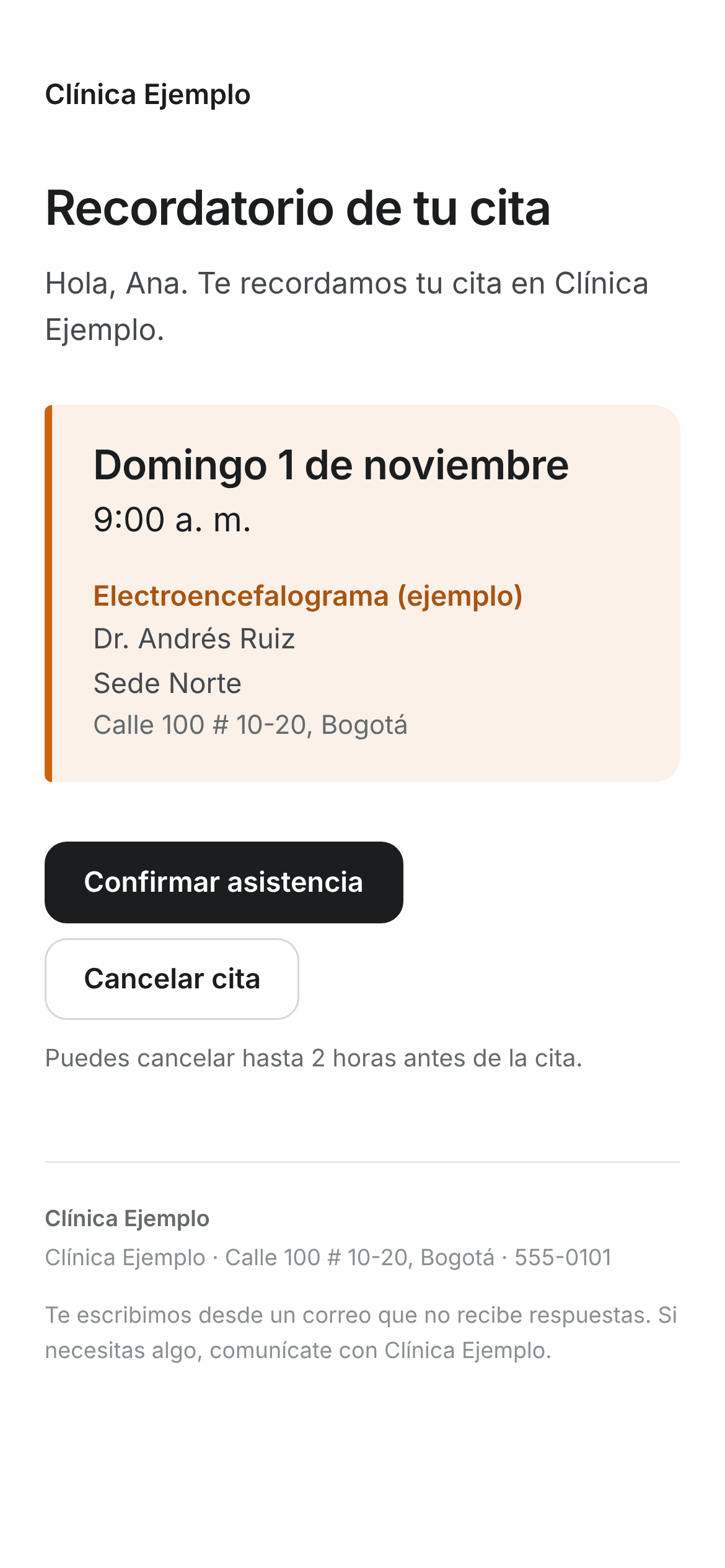
- Email: the appointment must have the patient’s email. It goes out with your organization’s name and logo, from an address that doesn’t receive replies: if the patient answers the email, nobody reads it. It carries the day, the time, the service, the professional, the site and its address, the service’s instructions and, if your organization has them on, the Confirmar asistencia (confirm attendance) and Cancelar la cita (cancel the appointment) buttons. The confirmation has the appointment slip attached when the service asks for one.
- WhatsApp: the appointment must have the patient’s phone with the country code in front, for example +57. It goes out from your organization’s WhatsApp number, with the approved text your organization chose, and it can only carry the patient’s name, the date, the time, the service, the professional and the site. It never carries the notes, the authorization or the ID document.
- Call: it also needs the phone with the country code. An Arbol voice agent calls with the appointment’s details; what it says is set up in Raíz (Contactabilidad).
How the patient confirms or cancels
From their email
If your organization turned on the patient buttons, the emails (except the cancellation notice) carry Confirmar asistencia and Cancelar la cita, each one while the appointment still allows it.
-
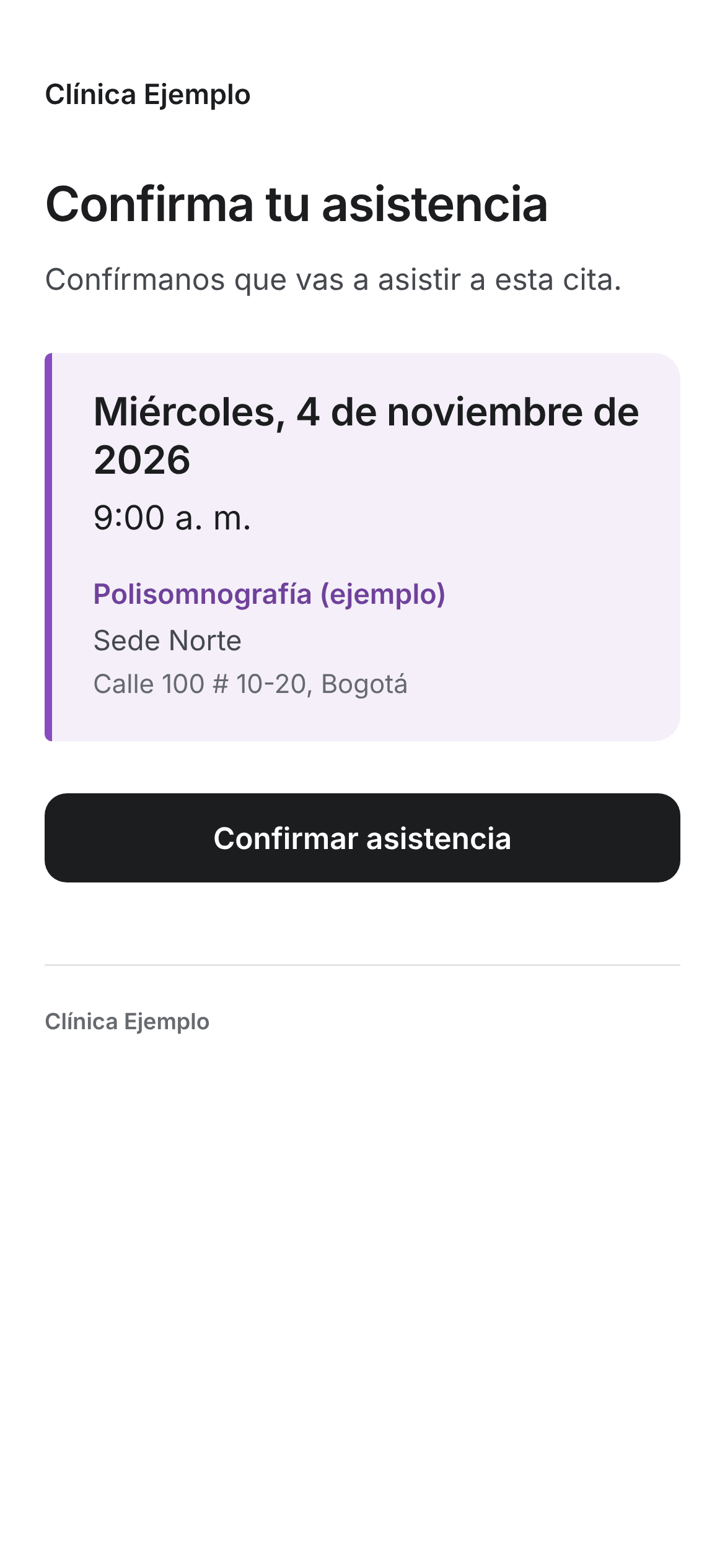
The patient clicks the button in their email. A page with their appointment opens.
-
On that page, they click Confirmar asistencia or Cancelar la cita again. Only then does the appointment change: opening the link changes nothing.
If they confirm, the appointment becomes Confirmada (confirmed). If they cancel, it becomes Cancelada (cancelled) with the reason Cancelada por el paciente (cancelled by the patient), its time is freed right away and no cancellation notice is sent. Either way, the appointment’s history shows it as done by Paciente (patient), and the whole team’s agenda updates by itself.
What the patient can’t do from their email:
- Confirm an appointment that isn’t Agendada (booked) or Por confirmar (to be confirmed). If it was already Confirmada, the page tells them their attendance is already confirmed.
- Cancel after the deadline your organization chose, for example 2 hours before. The page says Ya no se puede cancelar por este medio (it can no longer be cancelled this way) and asks them to contact the clinic.
- Use the link after the appointment’s time: links expire then.
By WhatsApp or during the call
If the patient replies to the WhatsApp reminder, their reply stays in the conversation in Raíz (Contactabilidad), where your team sees it and, if that number has an agent, the agent answers.
Agenda doesn’t change the appointment because of what the patient writes on WhatsApp or says during the call. If they confirm, mark it yourself with Confirmar (see Confirm, check in and mark as seen). If your organization has an Arbol agent that books, that agent can reschedule or cancel the appointment when the patient asks; it can’t confirm attendance, which your team records.
What you see on the appointment
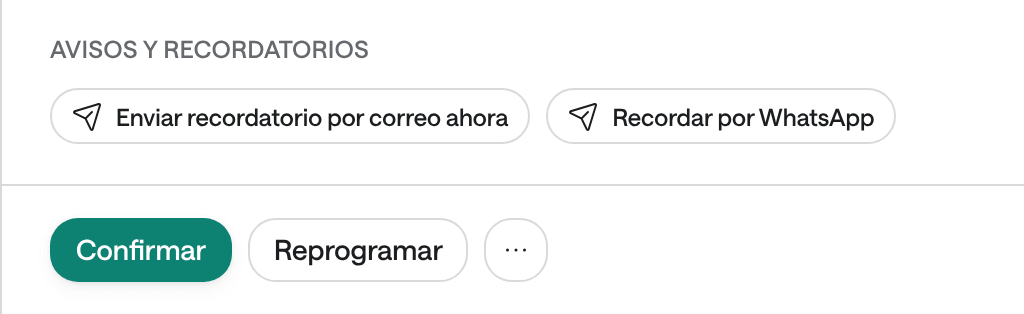
Open the appointment: in the panel, the Avisos y recordatorios (notices and reminders) section shows each message, its channel, when it goes or went out, and its status. Hover over the status to read what it means.
Each row says what it is and its channel, for example Confirmación · Correo, Recordatorio 1 día antes · WhatsApp (reminder 1 day before) or Recordatorio enviado a mano · WhatsApp (reminder sent by hand), and its status:
| Status | What it means |
|---|---|
| Programado (scheduled) | It hasn’t gone out yet. Underneath it says when it goes out, or Sale en unos minutos (goes out in a few minutes). |
| Enviando (sending) | It’s going out. If it stays like this, the result wasn’t confirmed and Agenda doesn’t resend it by itself. |
| Aceptado (accepted) | It went out. It doesn’t confirm the patient read it or answered the call. |
| Rechazado (rejected) | It didn’t go out: the send wasn’t accepted or valid contact details are missing, such as a phone without the country code. |
| Por revisar (to review) | It’s unknown whether it went out. Agenda doesn’t send it again, so the patient doesn’t get it twice. |
| No se envió (not sent) | It was cancelled before going out: the appointment changed or your organization turned it off. |
Email reminders show up as soon as the appointment is booked; WhatsApp and call reminders, once the appointment is seven days away or less.
The appointment’s status shows at the top of the panel and in its color in the agenda. What reminders change:
| Appointment status | What it means here |
|---|---|
| Por confirmar or Agendada | The patient still has to confirm. They get the reminders and can confirm from their email. |
| Confirmada | The patient confirmed, from their email or with you. They still get the remaining reminders. |
| Cancelada | No more reminders. If the patient cancelled it, the reason is Cancelada por el paciente. |
Remind the patient yourself
The appointment has two buttons labelled Recordar por WhatsApp (remind by WhatsApp), and they do different things:
| Where it is | What it does |
|---|---|
| Under Paciente, next to the phone | Opens WhatsApp on your computer or phone with a reminder already written: the service, the day, the time, with whom, the service’s instructions and a question asking them to confirm. You send it from your own WhatsApp. Copiar recordatorio (copy reminder) copies it to paste anywhere. It works even if your organization doesn’t use Mensajes y recordatorios. |
| Under Avisos y recordatorios | Agenda sends it right away from your organization’s WhatsApp number, with the reminder template. It shows in the list as Recordatorio enviado a mano · WhatsApp. It goes out only once per appointment and time. |
Avisos y recordatorios also has Enviar recordatorio por correo ahora (send email reminder now): it schedules an email reminder that goes out in a few minutes. This one can be sent again.
-
Open the appointment and scroll down to Avisos y recordatorios.
-
Click Recordar por WhatsApp or Enviar recordatorio por correo ahora.
-
Check the new row: Recordatorio enviado a mano, with its status.
The buttons under Avisos y recordatorios show when your organization uses Mensajes y recordatorios, the appointment is in the future and is Por confirmar, Agendada or Confirmada, and it has the patient’s email (for email) or phone (for WhatsApp).
When the patient doesn’t answer
Agenda never cancels an unconfirmed appointment on its own: it stays in the agenda, holding its time, until your team does something.
-
Check that the reminder went out: open the appointment and look at Avisos y recordatorios. If it says Rechazado or Por revisar, fix the missing detail (see below) or contact them yourself.
-
The day before, in the Agenda, click Confirmar mañana (confirm tomorrow). You see tomorrow’s appointments that are still Agendada or Por confirmar (see Confirm, check in and mark as seen).
-
Message them with the WhatsApp button, which opens the reminder already written, or call them.
-
If they confirm, click Confirmar on their row.
-
If they can’t come, reschedule the appointment or cancel it. When you cancel it, its time is freed: offer it to someone on the waiting list.
-
If you can’t reach them, leave the appointment as it is or follow what your organization decided for these cases. If they don’t arrive on the day, mark it No asistió.
Common problems
The patient says the reminder never arrived
It may not have gone out, or it went out and they didn’t see it.
What to do:
- Open the appointment and look at Avisos y recordatorios. If there’s no row for the channel you expected, check that the appointment has the patient’s email or phone, and that your organization has that reminder on.
- If the email is missing, add it with ⋯ › Editar datos de la cita (edit appointment details): email reminders whose time hasn’t come yet get scheduled.
- If it says Aceptado, it went out: ask the patient to check their spam folder or their WhatsApp.
- Remind them yourself with Recordar por WhatsApp, next to their phone.
The WhatsApp reminder says Rechazado
It’s almost always the phone: automatic WhatsApp reminders and calls need the number with the country code in front, for example +57. It also shows Rechazado if the patient’s number is blocked in Raíz or your organization’s WhatsApp number isn’t ready to send.
What to do: fix the phone on the appointment with ⋯ › Editar datos de la cita, with the country code, and send it again with Recordar por WhatsApp under Avisos y recordatorios. If the phone is right, tell whoever manages Agenda at your organization.
A message says Por revisar or is stuck on Enviando
Agenda doesn’t know whether it went out, so it doesn’t resend it: if it already arrived, the patient would get it twice.
What to do: for WhatsApp or a call, look for the patient’s conversation in Raíz to see whether it went out. If you can’t tell, contact them yourself.
I don't see the Avisos y recordatorios section on the appointment
The section shows when the appointment has a message or one can be sent. It doesn’t show if your organization doesn’t use Mensajes y recordatorios and the appointment has no messages, or if the appointment is past, closed, or has neither email nor phone.
What to do: use Recordar por WhatsApp next to the patient’s phone. If your organization wants automatic reminders, ask someone with Administración.
It says «Solo se pueden recordar citas futuras y abiertas con un número o correo válido»
Only future, open appointments with a valid number or email can be reminded: the appointment is past or closed, or its phone lacks the country code.
What to do: check the appointment’s date and status. If it’s the phone, fix it with ⋯ › Editar datos de la cita and try again.
It says «Contactabilidad no tiene lo elegido: revisa que el número esté activo y la plantilla aprobada, con los mismos datos»
Your organization hasn’t chosen the WhatsApp reminder’s number and template yet, or what was chosen is no longer available.
What to do: ask someone with Administración to check it in Mensajes y recordatorios › WhatsApp y llamadas. In the meantime, use Recordar por WhatsApp next to the phone.
I clicked Recordar por WhatsApp again and no new one went out
The WhatsApp reminder from Avisos y recordatorios goes out only once per appointment and time, however many times you click. If you reschedule the appointment, you can send another one for the new time.
What to do: if you need to message them again, use Recordar por WhatsApp next to their phone.
The patient confirmed on WhatsApp and the appointment is still Agendada
Agenda doesn’t read WhatsApp replies or what the patient says during a call.
What to do: open the appointment and click Confirmar.
I rescheduled the appointment and no new email reminder arrived
An email reminder that already went out isn’t repeated for the new time. The ones that hadn’t gone out do move, and WhatsApp and call reminders are scheduled again.
What to do: if you want them to get another one, click Enviar recordatorio por correo ahora. When rescheduling, leave Avisar al paciente on so they get the notice with the new time.
The patient cancelled from their email and got no cancellation notice
That’s how it works: whoever cancels from their email already knows, so they get no notice. Their time is free.
What to do: nothing about the notice. Check the waiting list to fill the time.
When cancelling it says «Avísale al paciente: no recibe ningún aviso automático», but my organization sends WhatsApp notices
That sentence (“let the patient know: they get no automatic notice”) only looks at the email notice. If your organization sends the cancellation notice by WhatsApp, the patient still gets it when they have a phone with the country code.
What to do: after cancelling, open the appointment and look for Aviso de cancelación · WhatsApp under Avisos y recordatorios. If it isn’t there, let them know yourself.