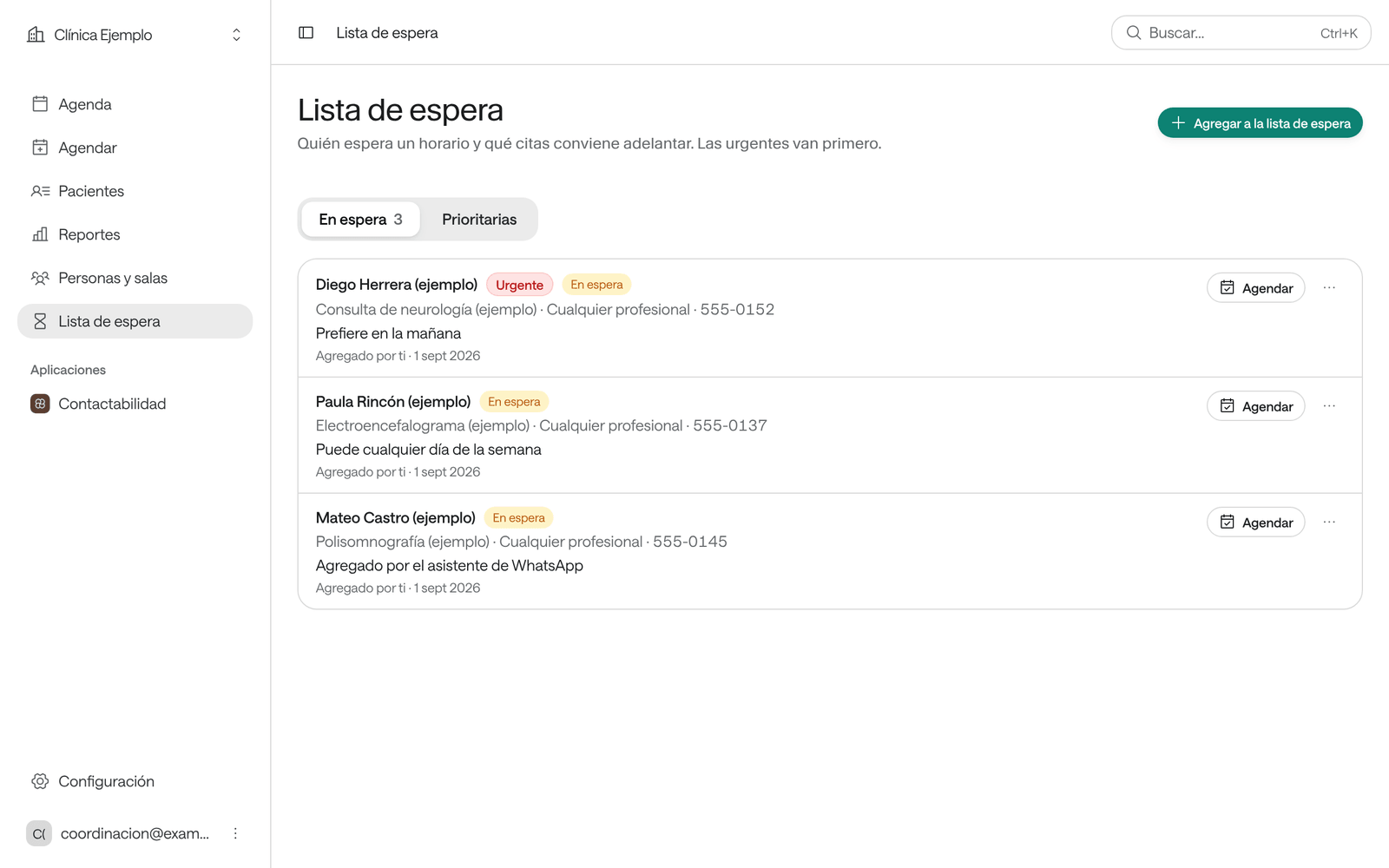
Use the waiting list when a patient needs a service and there’s no time that suits them. You note them down with what they need and when they can come, and as soon as a time opens up you call them and book them. Urgent ones go first.
Before you start
- Your organization must use the waiting list. If you don’t see Lista de espera (waiting list) in the menu, someone with Administración can turn it on in Configuración › Institución y funciones.
- Every role sees the list. To add people and change their status you need Recepción, Profesional or Administración.
Add someone to the list
-
In the menu, click Lista de espera.
-
Click Agregar a la lista de espera (add to the waiting list).
-
In Nombre del paciente (patient’s name), search for the patient by name and pick them. If it’s someone new, type their name and, if you have them, their Documento and Teléfono.
-
In Servicio, pick what they need. If they want a particular professional, pick them in Profesional (opcional); if not, leave it on Cualquiera que lo ofrezca (anyone who offers it).
-
If it matters, write when they can come: Desde (opcional) (from), Hasta (opcional) (until) and Horario que prefiere (opcional) (preferred times), for example «Martes y jueves en la mañana» (Tuesday and Thursday mornings).
-
If it’s urgent, turn on Urgente: it goes first in the list. Add a Nota (opcional) (note) if needed.
-
Click Agregar a la lista (add to the list).
What you see when you’re done
The person shows under En espera (waiting) with the service, the professional, when they’d like to come and who added them. The number beside En espera says how many people are waiting.
Book someone from the list
-
When a time opens up, find who needs it in the list. Urgent ones are at the top.
-
Call them: in ⋯, choose Llamar (call). Once you’ve spoken to them or left a message, choose Marcar contactado (mark as contacted) in the same menu.
-
Click Agendar (book) on their row. Agendar opens with their service, their professional and the date they can come from already filled in.
-
Pick the slot, check their details and click Confirmar cita (see Book an appointment).
When the appointment is saved, the person leaves the waiting list and shows as Cita agendada (appointment booked), with Ver su cita (see their appointment).
The list’s statuses
| Status | What it means | How it gets there |
|---|---|---|
| En espera (waiting) | Waiting for a time. | When added, or with Volver a en espera (back to waiting). |
| Contactado (contacted) | You’ve called or messaged them. | Marcar contactado |
| Cita agendada (appointment booked) | They have an appointment. | When booked from the list, or with Marcar cita agendada. |
| Quitado de la lista (removed) | No longer waiting. | Quitar de la lista (remove from the list) |
| Vencida (expired) | No longer current. | — |
Those with an appointment or removed are kept at the bottom, under Cerradas (closed).
People added by the WhatsApp assistant
If your organization has an Arbol WhatsApp assistant, it can add patients to the list: they say Agregado por el asistente de WhatsApp (added by the WhatsApp assistant) and have Ver en contactabilidad to read the conversation. While there are people the assistant added that nobody has picked up, the menu shows how many beside Lista de espera.
Some say why they’re waiting:
- Coordinar con el médico (coordinate with the doctor): their payer is set so that only the team books. Talk to the professional and book them yourself.
- Cita prioritaria (priority appointment): they already have an appointment but asked for an earlier one.
Priority
The Prioritarias (priority) tab brings two lists together:
- Citas prioritarias (priority appointments): patients who already have an appointment, marked Urgente when booked or with Marcar como prioritaria. Click Adelantar (bring forward) to look for an earlier time and move it. Under ⋯ are Ver en la agenda (see on the agenda) and Quitar prioridad (remove priority).
- En espera con prioridad (waiting with priority): people waiting who are marked Urgente. Call them first.
Common problems
You don’t see the Agendar button on a row. The person has no registered patient, already has an appointment or was removed from the list, or your role is Consulta. Book them from Agendar and then choose Marcar cita agendada on their row.
It says «Alguien cambió esta entrada; ya ves la lista al día» (someone changed this entry; the list is now up to date). Someone else changed it at the same time. Check its status and make your change again if needed.
It says «La fecha final no puede ir antes de la inicial» (the end date can’t be before the start date). Check Desde and Hasta.