Every appointment has a panel with everything you need: who’s coming and how to reach them, who pays, what was booked and with whom, where the appointment came from and what happened to it. Open it when a patient calls to ask about their appointment or when something needs correcting.
Before you start
- Every Agenda role can open and read an appointment.
- To edit it you need the Recepción, Profesional or Administración role. With Consulta, the panel says Solo lectura (read only).
Open an appointment
Click the appointment on the Agenda, in the Citas tab of the patient’s record, or in a professional’s list of appointments. The panel opens on the right.
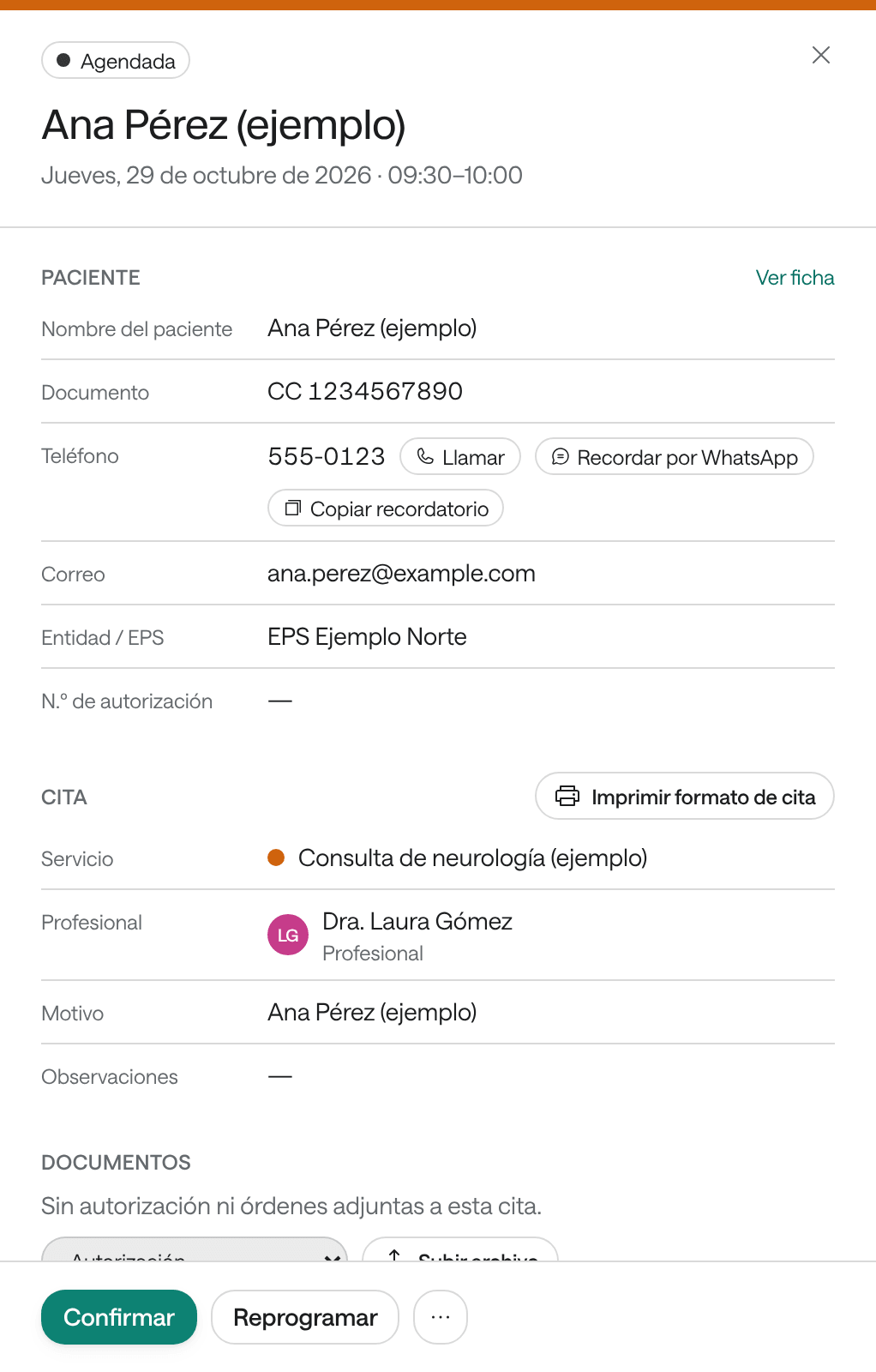
From top to bottom, the panel shows:
- The status of the appointment, Urgente if it’s a priority and Sobrecupo if it was added beyond capacity. Below, the patient, the day and the time.
- The patient’s alert, in amber, if their record has one.
- Paciente (patient): name, document, phone (with Llamar to call and Recordar por WhatsApp to remind by WhatsApp), email, payer and authorization. Ver ficha opens the patient’s record.
- Cita (appointment): the service, the professional, the room or equipment, the reason, your organization’s own fields and the notes. Imprimir formato de cita (print appointment slip) is here.
- Documentos (documents): the authorization or order attached to the appointment, if your organization uses them.
- Origen e historial (origin and history): how and when it was booked (on the agenda, by the WhatsApp agent…), with Ver la conversación (see the conversation) if it came from one, and every later change: reschedules, status changes with their reason and corrected details, with who did it.
- Avisos y recordatorios (notices and reminders): the emails and messages sent or due to be sent to the patient, with their outcome.
At the bottom are the buttons for what comes next: the next status (for example Confirmar), Reprogramar (reschedule) and ⋯ with the rest.
Every appointment has its own link: you can copy the browser’s address and send it to a colleague on your team so they can open it.
Correct an appointment’s details
-
In the appointment’s panel, click ⋯ and choose Editar datos de la cita (edit appointment details).
-
Correct what’s needed: the phone, the email, the Entidad / EPS, the N.º de autorización, the reason, the Observaciones or your organization’s own fields.
-
Click Guardar datos (save details).
The change shows in Origen e historial as Datos de la cita actualizados (appointment details updated). To change the time, the professional or the service, reschedule the appointment.
Mark an appointment as a priority
Use it when a patient already has an appointment but it should be brought forward if a time opens up.
- In the appointment’s panel, click ⋯ and choose Marcar como prioritaria (mark as priority).
The appointment is marked Urgente and shows in Lista de espera › Prioritarias. To remove it, choose Quitar prioridad (remove priority) in the same menu.
Remind the patient of their appointment
- Recordar por WhatsApp, beside the phone number, opens WhatsApp on your computer or phone with a reminder already written: the service, the day, the time, with whom and a question asking them to confirm. Copiar recordatorio (copy reminder) copies it so you can paste it anywhere.
- In Avisos y recordatorios, if your organization uses Mensajes y recordatorios and the appointment is in the future, Enviar recordatorio por correo ahora (send email reminder now) emails it (if the appointment has their email) and Recordar por WhatsApp sends it from your organization’s WhatsApp (if it has their phone).
The patient also gets the automatic notices your organization has turned on.
More actions in the ⋯ menu
- Agendar otra cita (book another appointment): opens Agendar with the same patient, service and professional.
- Agregar sobrecupo a esta hora (add overbooking at this time): adds another patient at the same time (see Book an appointment).
- Status changes, such as Marcar no asistió (mark as no-show) and Cancelar cita (cancel appointment) (see Confirm, check in and mark as seen and Cancel an appointment).
Common problems
It says «La disponibilidad o el registro cambió. Actualiza y vuelve a intentarlo» (availability or the record changed; refresh and try again). Someone else changed the appointment while you had it open. Close the panel, open the appointment again, check what changed and make your change again.
You don’t see Editar datos de la cita. The appointment is cancelled or seen, and can no longer be edited. Or your role is Consulta.