Reports answer each week’s or month’s questions: how many appointments there were, who didn’t come and why, how full the agendas are. Use them to prepare a team meeting or review a service.
Before you start
- Your organization must use reports. If you don’t see Reportes (reports) in the menu, someone with Administración can turn them on in Configuración › Institución y funciones.
- Every Agenda role sees the reports.
Steps
-
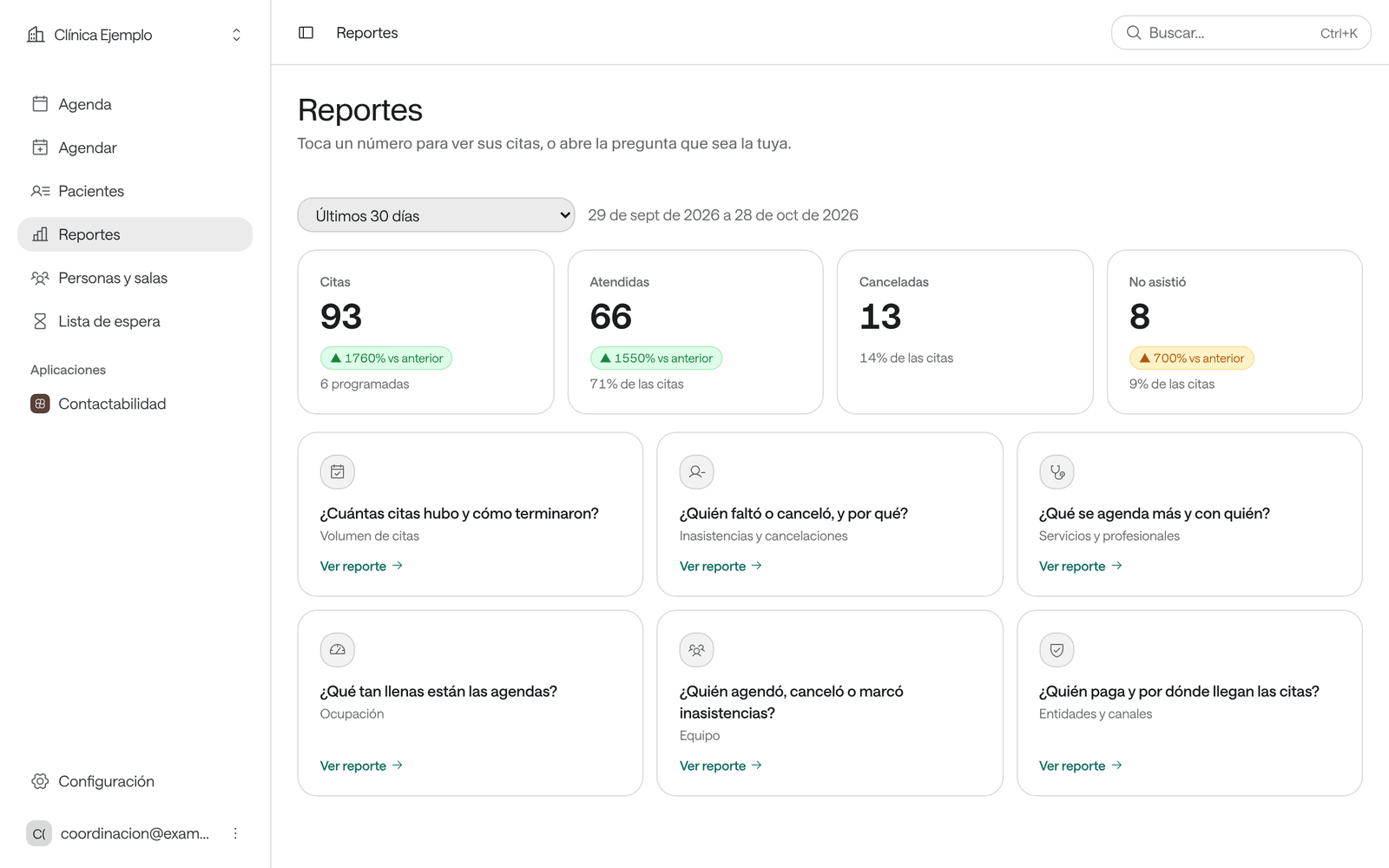
In the menu, click Reportes.
-
Pick the Periodo (period): Últimos 7 días (last 7 days), Últimos 30 días, Este mes (this month), Mes anterior (last month), Próximos 7 días (next 7 days), among others.
-
Look at the numbers at the top: Citas (appointments), Atendidas (seen), Canceladas (cancelled) and No asistió (no-show), with the difference from the previous period. Click a number to see those appointments in their report: Citas and Atendidas open Volumen de citas (appointment volume); Canceladas and No asistió, Inasistencias y cancelaciones (no-shows and cancellations). Atendidas also counts appointments in Llegó (arrived).
-
Open the report that answers your question with Ver reporte (view report).
The reports
| Report | The question it answers |
|---|---|
| Volumen de citas | How many appointments were there and how did they end? |
| Inasistencias y cancelaciones | Who didn’t come or cancelled, and why? |
| Ocupación | How full are the agendas? |
| Entidades y canales | Who pays, and how do appointments come in? |
| Servicios y profesionales | What gets booked most, and with whom? |
| Equipo | Who booked, cancelled or marked no-shows? |
Inside each report you can filter by Profesional o sala (professional or room), by Servicio and, if your organization has several sites, by site. Below is the list of appointments the report counts; click one to open it.
Export
- Exportar resumen (export summary) downloads the report’s numbers as a CSV file, which opens in any spreadsheet.
- Exportar citas (export appointments) downloads the report’s list of appointments, with its filters.
The file contains patient data: store it and share it only with people allowed to see it.
Common problems
A report says «Nada con estos filtros» (nothing with these filters). Try another agenda, service or site, or a longer period.
You don’t see Reportes in the menu. Your organization doesn’t have them turned on.