Do this when the patient is no longer coming or the clinic can’t see them. When you cancel, the time is free straight away for booking someone else. If the patient only wants another day, reschedule the appointment instead.
Before you start
- You need the Recepción, Profesional or Administración role.
- A cancelled appointment can’t be reopened. If you cancel by mistake, you’ll have to book it again, if the time is still free.
Steps
-
Open the appointment: click it on the Agenda or in the patient’s record.
-
In the panel, click ⋯ and choose Cancelar cita (cancel appointment).
-
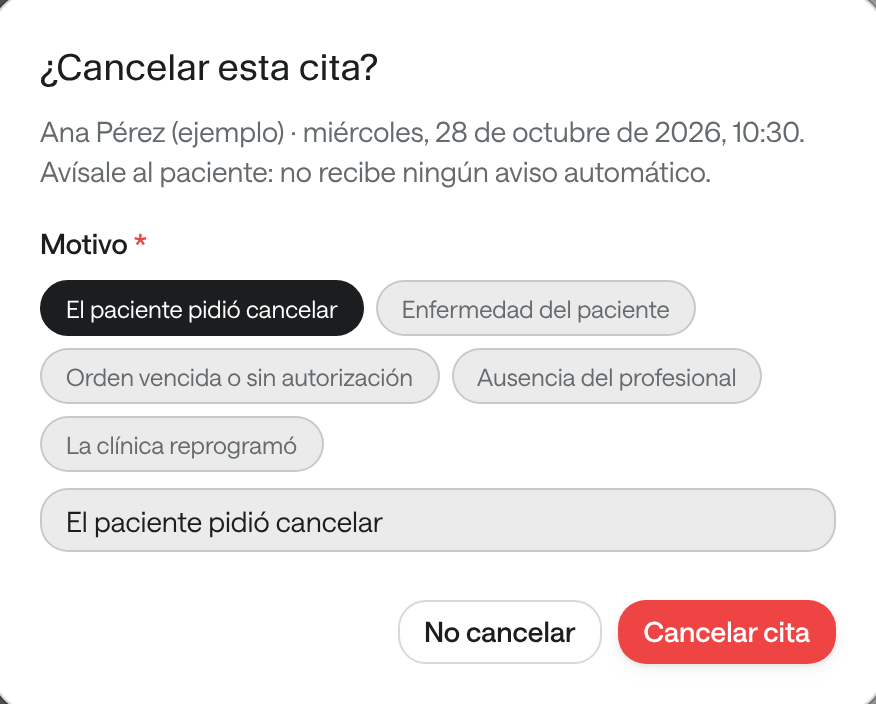
Pick the reason: El paciente pidió cancelar (the patient asked to cancel), Enfermedad del paciente (patient illness), Orden vencida o sin autorización (expired order or no authorization), Ausencia del profesional (professional absent) or La clínica reprogramó (the clinic rescheduled). If it’s something else, type it in U otro motivo (or another reason). The reason is required and stays in the patient’s history.
-
Read what it says about notifying the patient:
- El paciente recibirá un correo avisándole. (the patient will get an email): your organization has the cancellation notice turned on and the appointment has their email.
- Avísale al paciente: no recibe ningún aviso automático. (tell the patient: they get no automatic notice): call or message them yourself.
-
Click Cancelar cita. If you change your mind, click No cancelar (don’t cancel).
What you see when you’re done
The appointment is Cancelada and its time is free on the agenda. Cancelled appointments are hidden on the agenda; to see them, click Ver canceladas (show cancelled) above the agenda. In the patient’s record it stays in the Historial, with its reason.
To give the same patient another appointment, open the cancelled one and click Agendar de nuevo (book again).
Cancel the appointments during an absence
When someone with Administración records a professional’s absence, their agenda’s page shows Citas durante la ausencia (appointments during the absence) with the affected appointments. From there you can reschedule each one, Copiar lista de pacientes por llamar (copy the list of patients to call) and cancel them all with Cancelar todas (cancel all), or Cancelar la cita (cancel the appointment) if only one is left. See Set up hours, special days and absences.
Common problems
You don’t see Cancelar cita in the menu. The appointment is already Atendida or Cancelada, or your role is Consulta.
It says «Escribe el motivo para cerrar la cita» (write the reason to close the appointment). Pick one of the reasons or type another.
The patient cancelled from their email. If your organization allows it, the patient can cancel from the button in their confirmation email. The appointment is cancelled with the reason Cancelada por el paciente (cancelled by the patient) and the time is freed.