A service is what the patient asks for: a neurology consultation, an electroencephalogram, a sleep study. To be bookable it needs at least one agenda that provides it. Create one when your organization starts offering something new.
Before you start
- You need the Administración role.
- Have the agendas that will provide it already created (see Add professionals, rooms and equipment), or create them from the service itself.
Create a service
-
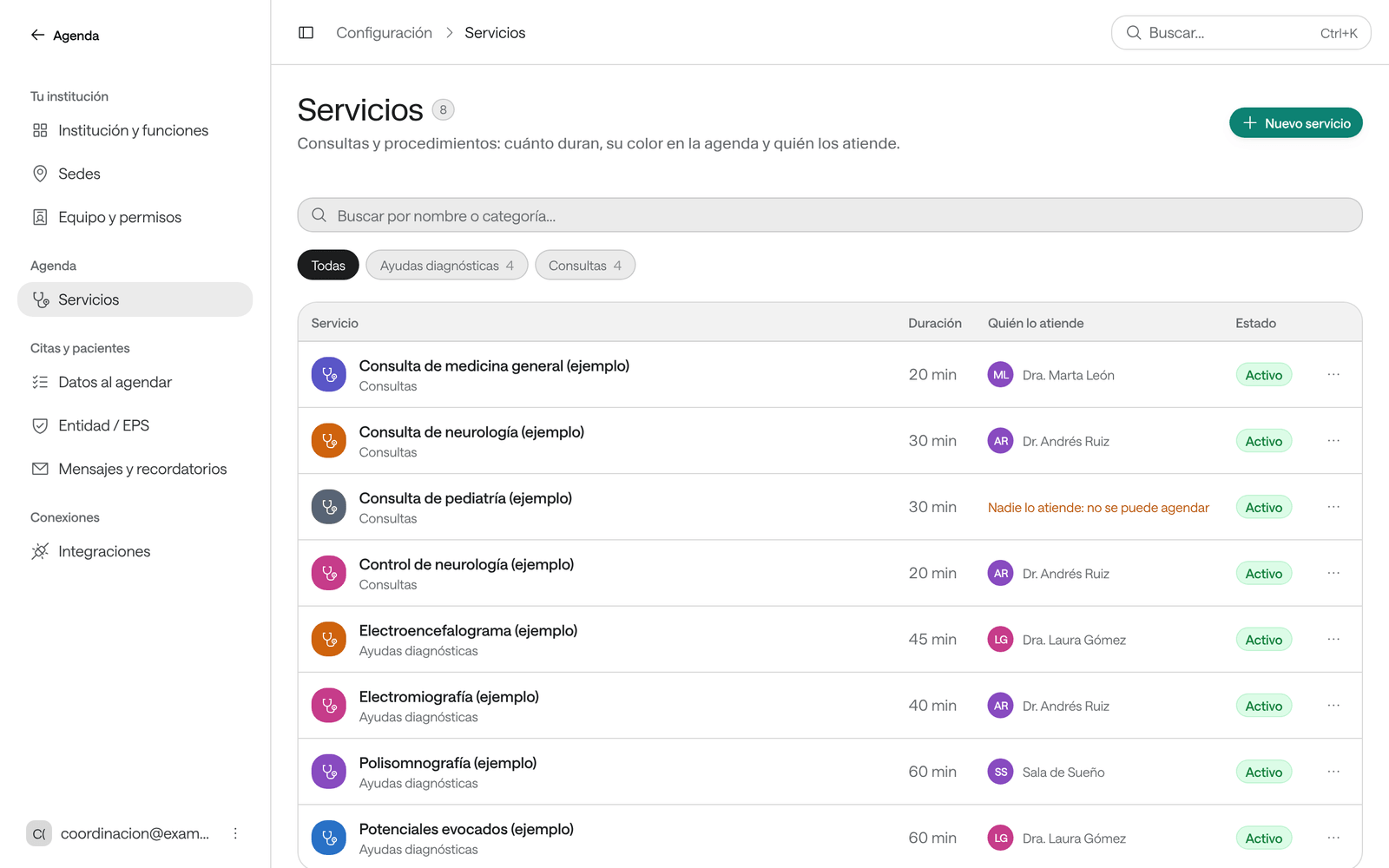
In Configuración, click Servicios (services) and then Nuevo servicio (new service).
-
Type the Nombre (name) and, if you like, the Categoría (category), which groups services when booking (for example «Consultas» or «Ayudas diagnósticas»).
-
In Duración habitual (usual duration), type how long an appointment for this service lasts.
-
Fill in what this service needs:
- Indicaciones para el paciente (instructions for the patient): for example «Venir en ayunas de 8 horas. Traer la orden médica» (come fasting for 8 hours; bring the medical order). They’re read out when booking and go in the emails, the appointment slip and the WhatsApp message the front desk sends.
- Edad de los pacientes (patients’ age): the minimum and maximum age, in completed years. Empty: any age.
- Control sugerido (suggested follow-up): when the patient usually comes back, for example En 1 mes (in 1 month). Agendar de nuevo (book again) offers it first.
- Se atiende por orden de llegada (seen in order of arrival): the time is only a reference, and the emails, the appointment slip and the agenda PDF say so.
- Formato de cita para imprimir (printable appointment slip): when booking, the front desk prints it in one click, and it’s attached to the confirmation email.
- Nota para quien agenda (note for whoever books): what the front desk should check before booking. The patient doesn’t see it.
-
Leave Estado (status) on Activo: se puede agendar (active: can be booked) and click Guardar servicio (save service).
The service’s page opens. It can’t be booked yet: nobody provides it.
Choose who provides the service
-
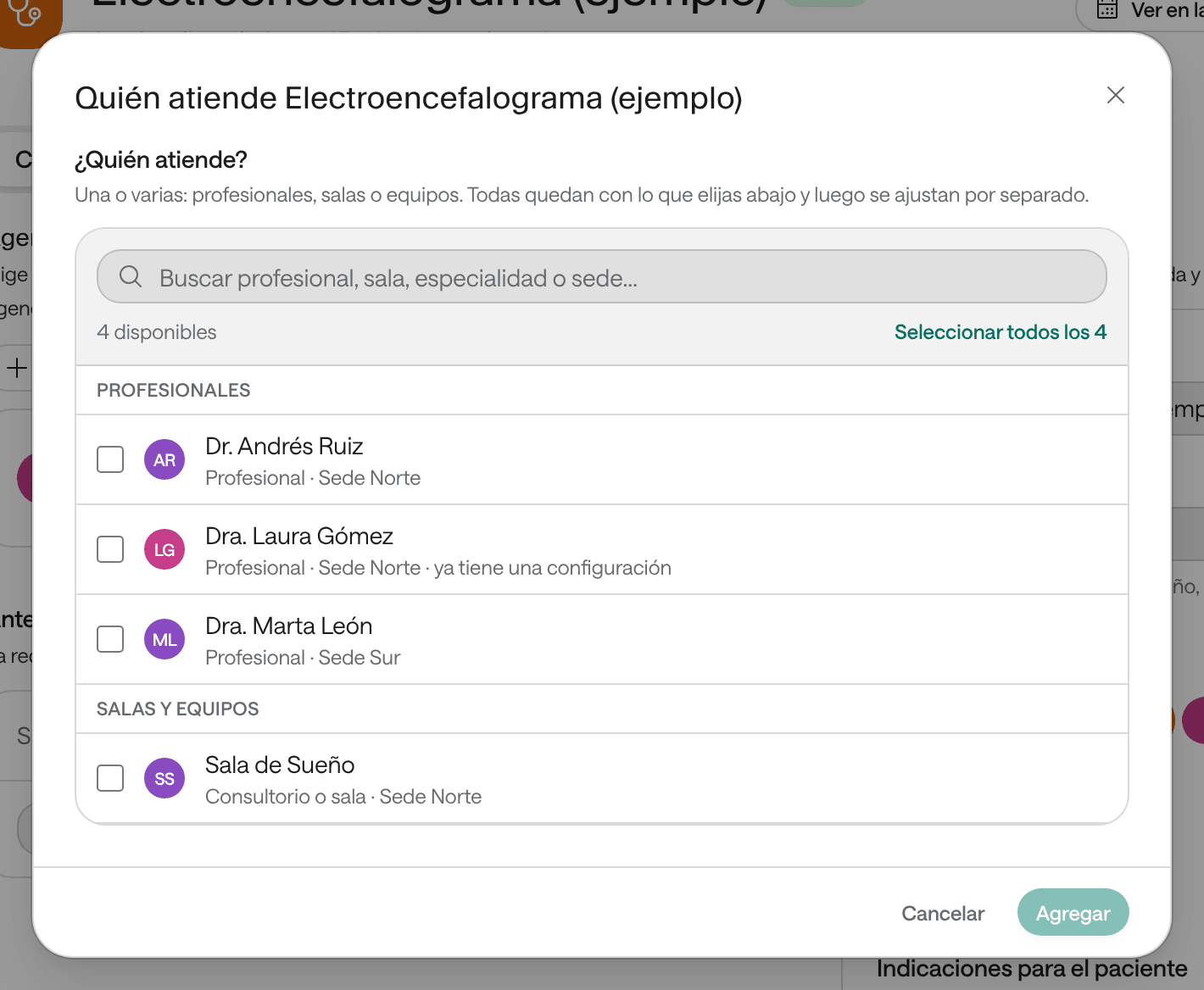
On the service’s page, under Agendas de este servicio (this service’s agendas), click Agregar agenda (add agenda) and choose Usar una agenda existente (use an existing agenda). If the person, room or equipment doesn’t exist yet, choose Crear persona, sala o equipo (create person, room or equipment).
-
Pick the agendas that provide it.
-
Under ¿Cómo es la cita? (what is the appointment like?), choose:
- Cita (appointment): one after another, like a consultation. Check the Duración de la cita (appointment duration).
- Estudio largo (long study): the patient arrives in a short window, which is what shows on the agenda, and the room or equipment stays busy for many hours more. Type the Tiempo de llegada (arrival window) and the Duración del estudio (study duration).
- En grupo (group): several patients at the same time. Type the Duración de la sesión (session duration) and how many patients in Pacientes por horario (patients per time).
-
Under ¿Cuándo se atiende? (when is it provided?), choose Cuando la agenda atiende (when the agenda works, in the professional’s or room’s hours) or Días y horas propios (its own days and hours, only on certain days, for example Thursday afternoons).
-
If needed, adjust ¿Cuántas de este servicio a la vez? (how many of this service at once?) and, under Más opciones (more options), Cada cuánto empieza una cita (how often an appointment starts), Antelación mínima (min) (minimum notice, in minutes), how many days ahead in Se agenda hasta (días) (bookable up to, in days), and Cierres de este servicio (this service’s closures).
-
If your organization uses rooms and equipment and the service needs one, choose under ¿Necesita además una sala o un equipo? (does it also need a room or equipment?): Sí, siempre la misma (yes, always the same one) or Sí, cualquiera libre (yes, any free one).
-
Check Así queda (how it looks), with the next dates as whoever books will see them, and click Agregar (add).
What you see when you’re done
The service shows in Agendar with its agendas’ slots, and on the service’s page, under Citas, you see the appointments booked for it. To have it among the first when booking, in the list of services click ⋯ and choose Destacar (feature).
Change a service’s color or icon
The color is the bar each of the service’s appointments carries on the agenda; the icon identifies it in lists.
-
In Configuración › Servicios, open the service and go to Configuración.
-
Under Datos del servicio (service details), pick the Color en la agenda (color on the agenda) and the Ícono (icon).
-
Click Guardar cambios (save changes). Agenda says «El servicio se guardó.» (the service was saved).
Offer a long study in several lengths
If a study can last different times, for example 6 h or 12 h, on the service’s page click Días y horas (days and hours) on the agenda’s row. Under Otras duraciones (other lengths), click Agregar duración (add length) and enter how long it lasts; each length can have its own arrival times. Save. When booking, whoever books picks the Duración del estudio (study length).
Add checks before booking
Use them for what the front desk must check on each appointment, such as «La orden médica está vigente» (the medical order is valid).
-
On the service’s page, under Antes de agendar (before booking), type the check in Nueva verificación (new check) and click Agregar.
-
At the bottom, click Guardar cambios (save changes).
When booking, the front desk must tick each one before confirming the appointment.
Close a service for a few days
If a service isn’t provided for a few days but the professional still provides the rest, for example because a piece of equipment is being serviced, edit that agenda under Agendas de este servicio and, under Más opciones › Cierres de este servicio, click Cerrar fechas (close dates). Pick the Primer día (first day) and the Último día (last day) and, if it’s only for a while, untick Todo el día (all day) and pick the times Desde and Hasta. Then save. To close the whole agenda, record an absence (see Set up hours, special days and absences).
Deactivate a service
In the list of services, click ⋯ and choose Desactivar (deactivate). An inactive service no longer appears when booking; its appointments are kept. To offer it again, choose Activar (activate).
Remove a service from an agenda
Use it when a professional, room or piece of equipment stops providing a service but keeps providing the others.
-
Open the agenda’s page, go to Servicios and, on the service’s row, click ⋯ › Quitar de esta agenda… (remove from this agenda). Also from the service: under Agendas de este servicio, ⋯ › Quitar esta agenda del servicio… (remove this agenda from the service).
-
If it has upcoming appointments, choose Pasarlas a otra agenda (the same service on another agenda, or another service of this agenda) or Cancelarlas. With Si no caben a esa hora, a la primera hora libre del día (if they don’t fit at that time, the first free time that day), the ones that don’t fit at their time move to the first free time that same day.
-
Leave Avisar a los pacientes on and click Quitar de esta agenda.
Agenda says, for example, «Se quitó «Electroencefalograma (ejemplo)» de Dra. Laura Gómez (ejemplo).» (it was removed from…).
Delete a service
Delete a service that’s a duplicate or no longer provided. To stop offering it for a while, deactivate it instead.
-
In the list of services, click ⋯ › Eliminar… (delete), or on the service’s page, ⋯ › Eliminar servicio… (delete service).
-
Eliminar «…» opens. If it has upcoming appointments, choose:
- Pasarlas a otro servicio (move them to another service): pick the service that receives them in Pasarlas a; the ones offered on the same agendas come first. For the ones that don’t fit, choose Dejarlas en este servicio (leave them in this service: it isn’t deleted until you reschedule or cancel them), Pasarlas como sobrecupo (move them as overbookings: same time and agenda, as an overbooking of the other service) or Cancelarlas.
- Cancelarlas (cancel them): pick the reason (El servicio ya no se presta, Servicio duplicado or Se agendó en el servicio equivocado) or write another, and decide whether to Avisar a los pacientes.
-
If it’s a duplicate, turn on Unir también el historial (merge the history too): past appointments also move under the other service and the reports add everything up as one.
-
Click Eliminar servicio.
Agenda says, for example, «Se eliminó «Consulta general (duplicada)». 8 citas pasaron a «Consulta general».» (it was deleted; 8 appointments moved to…).
Common problems
The list says «Nadie lo atiende: no se puede agendar» (nobody provides it: can’t be booked). Add an agenda to it under Agendas de este servicio.
It says the agenda has no hours and the service won’t show slots. The chosen agenda has no hours. Give it hours (see Set up hours, special days and absences) or choose Días y horas propios for the service.
The service doesn’t appear when booking. Check that it’s Activo, that it has an active agenda with hours and, if there are sites, that the agenda works at the chosen site.