An appointment’s status says where it stands: whether the patient confirmed, has arrived, was seen or didn’t come. Change it as the day goes on, so the whole team sees the same thing on the agenda.
Before you start
- You need the Recepción, Profesional or Administración role.
Move an appointment to its next status
-
Open the appointment: click it on the Agenda.
-
At the bottom of the panel, the main button is that appointment’s next step:
- Por confirmar (to be confirmed): Confirmar (confirm), also on the appointment’s day.
- Agendada (booked): Confirmar before the day; Registrar llegada (check in) on the appointment’s day.
- Confirmada (confirmed): Registrar llegada, even before the day.
- Llegó (arrived): Marcar atendida (mark as seen).
-
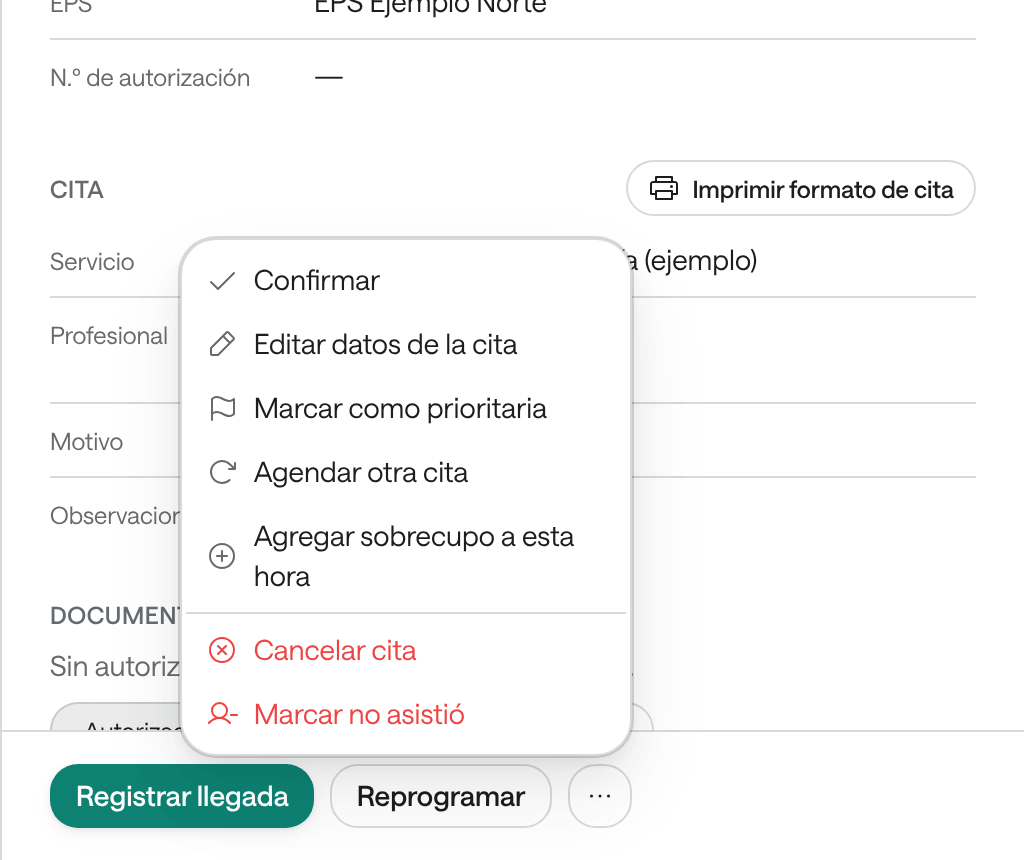
Click the button. If you need another status, click ⋯: the others are there, such as Confirmar or Marcar no asistió (mark as no-show).
-
If you chose Marcar atendida, Agenda asks ¿Marcar la cita como atendida? (mark the appointment as seen?), because its status can’t change afterwards. Click Marcar atendida.
What you see when you’re done
The appointment changes its label and color on the agenda, for the whole team, and the change is kept in its history with who made it.
| Status | The button that leads there | From there you can move to |
|---|---|---|
| Por confirmar (to be confirmed) | None: you can’t go back to this status | Confirmada, Agendada or Cancelada |
| Agendada (booked) | Pasar a agendada | Confirmada, Llegó, No asistió or Cancelada |
| Confirmada (confirmed) | Confirmar | Llegó, No asistió or Cancelada |
| Llegó (arrived) | Registrar llegada | Atendida or Cancelada |
| Atendida (seen) | Marcar atendida | None: the appointment is closed |
| No asistió (no-show) | Marcar no asistió | Llegó or Atendida, if it was marked by mistake |
| Cancelada (cancelled) | Cancelar cita | None: the appointment is closed |
Mark that the patient didn’t come
-
Open the appointment, click ⋯ and choose Marcar no asistió.
-
Pick the reason: No llegó (didn’t arrive), Llegó tarde (arrived late) or No consiguió transporte (couldn’t get transport), or type another one. The reason is required and stays in the patient’s history.
-
Click Marcar no asistió.
An appointment marked No asistió still takes up its time on the agenda. If you marked it by mistake, open it and click Registrar llegada.
Confirm tomorrow’s appointments
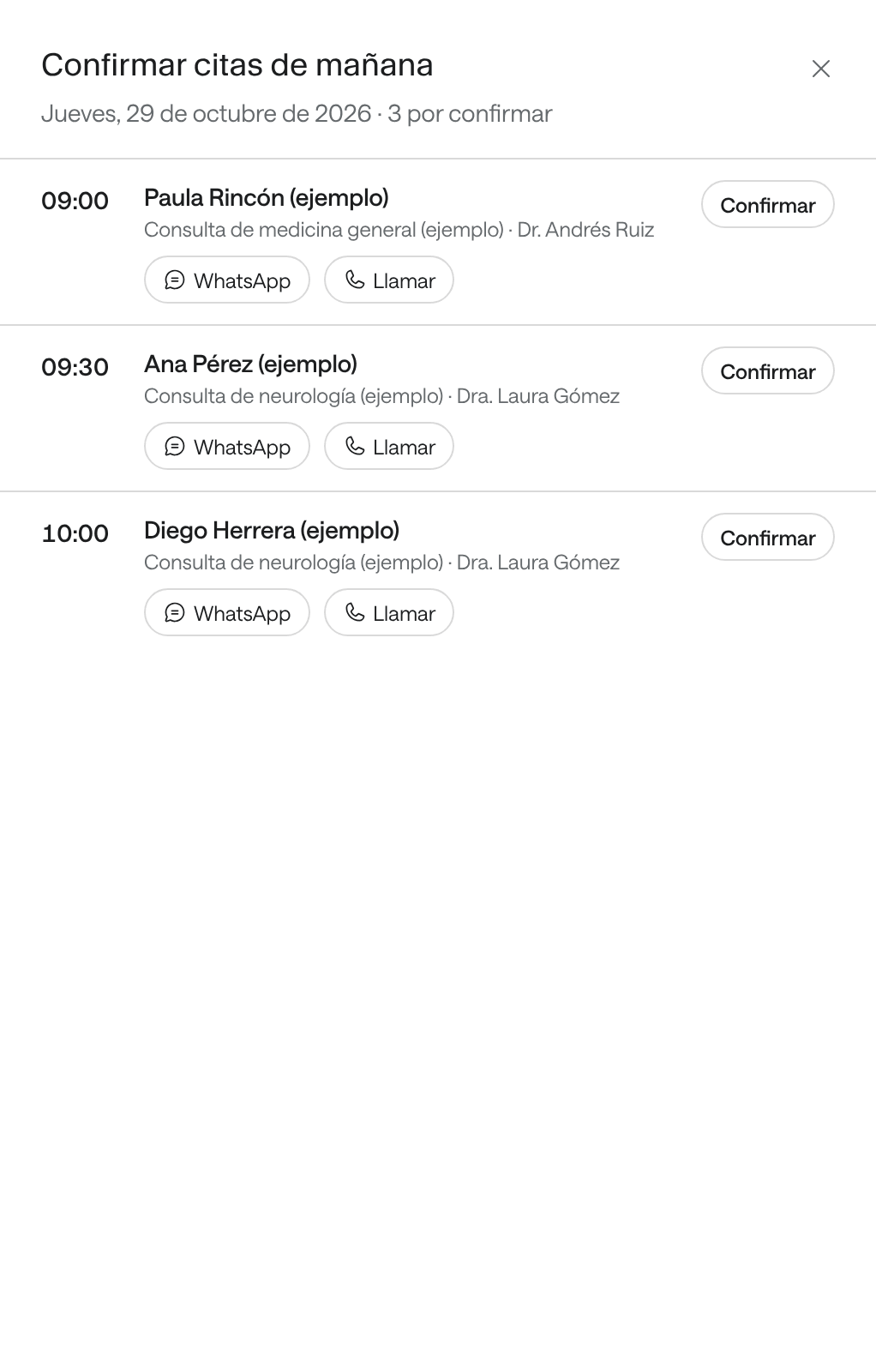
When tomorrow has unconfirmed appointments, the agenda shows the Confirmar mañana (confirm tomorrow) button with how many there are.
-
On the Agenda, click Confirmar mañana.
-
For each patient, use the WhatsApp button, which opens a reminder already written, or the call button.
-
When the patient confirms, click Confirmar on their row.
The window says how many are left por confirmar (to confirm). It only lists Agendada and Por confirmar appointments of the agendas you’re viewing.
If your organization has it turned on, the patient can also confirm or cancel from the button in their email. Then the appointment changes by itself and the history shows it as done by the patient.
Common problems
You don’t see the status buttons. The appointment is closed (Atendida or Cancelada) and says Esta cita está cerrada. (this appointment is closed). Or your role is Consulta: the panel says Solo lectura.
You marked it as seen by mistake. A seen appointment can no longer change status. Write what happened in a note on the patient’s record.
It says «La disponibilidad o el registro cambió. Actualiza y vuelve a intentarlo». Someone else changed the appointment at the same time. Open it again and check its status before changing it.