Do this when the patient asks to change their appointment or when the clinic needs to move it, for example because the professional is away. The appointment keeps its patient and details; only its time changes.
Before you start
- You need the Recepción, Profesional or Administración role.
- An Atendida (seen) or Cancelada (cancelled) appointment can’t be rescheduled. To give that patient another appointment, use Agendar de nuevo (book again) (see Book an appointment).
Steps
-
Open the appointment: click it on the Agenda or in the patient’s record.
-
In the panel, click Reprogramar (reschedule).
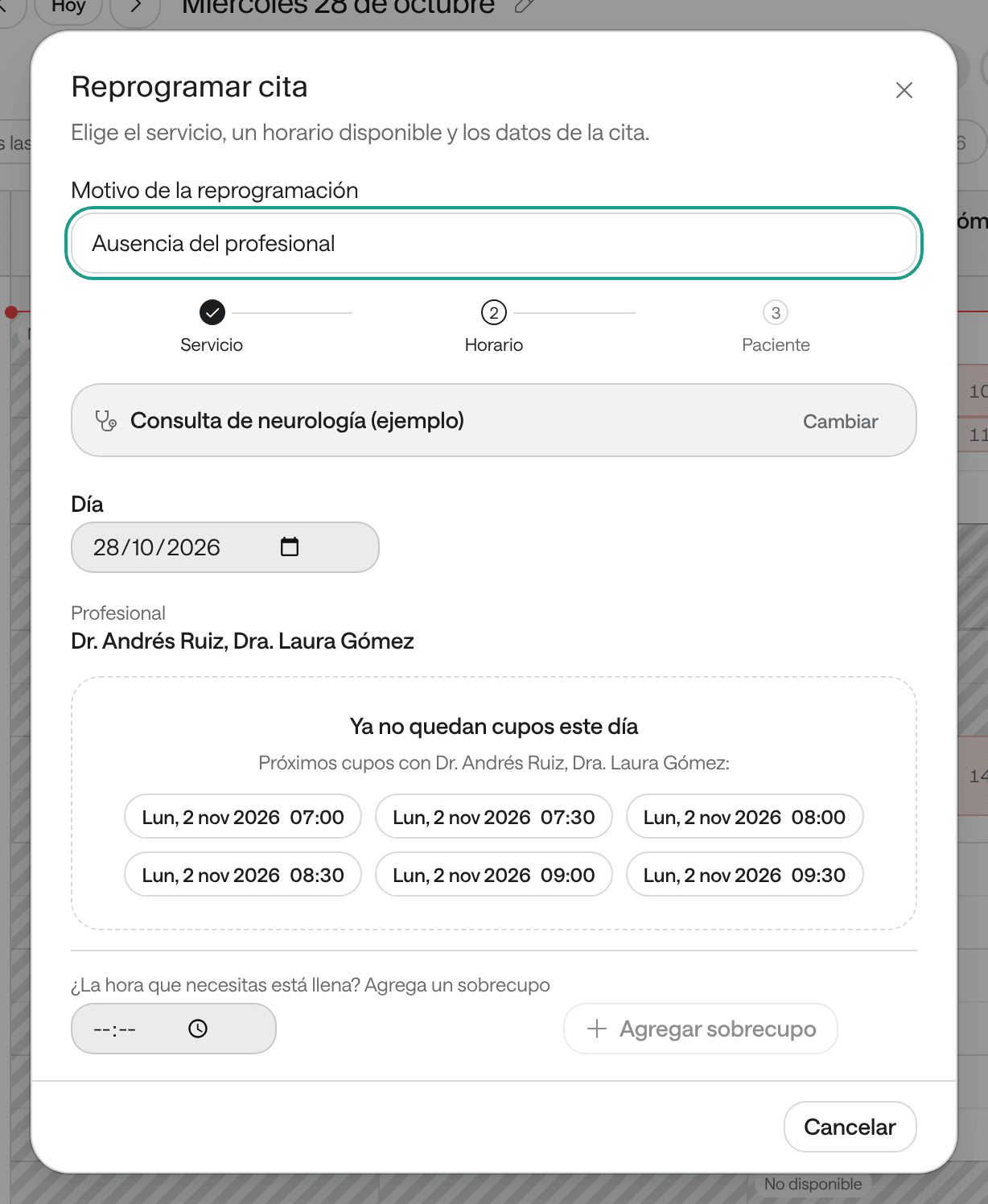
Reprogramar cita opens, on the appointment’s day.
-
In Motivo de la reprogramación (reason for rescheduling), write why it’s moving, for example «El paciente pidió otro día» (the patient asked for another day). It’s optional and stays in the history.
-
In Día (day), pick the new day. If more than one professional provides the service, you can change it with Cambiar profesional (change professional).
-
Click the new time. If that day has no slots, Agenda offers the Próximos cupos (next slots).
-
Check Avisar al paciente (notify the patient). When it’s on, the patient gets whatever rescheduling notice your organization has turned on, by email or WhatsApp. Turn it off if you already told them another way.
-
Click Confirmar nuevo horario (confirm new time).
What you see when you’re done
The appointment shows at its new time and the old one is free. Origen e historial shows Reprogramada (rescheduled), with the previous time, the reason and who moved it. Reminders follow the new time.
Change an appointment’s service
If the wrong service was booked, you can change it while rescheduling: in Reprogramar cita, beside the service’s name, click Cambiar (change), pick the right service and then the time, which can be the same. Agenda warns Cambia el servicio: de… (the service changes from…) before you confirm.
Bring a priority appointment forward
Lista de espera › Prioritarias lists the appointments marked as urgent. Click Adelantar (bring forward) to open Reprogramar cita from today and look for an earlier time. See Use the waiting list.
Reschedule several appointments at once
Use it when a professional won’t be in for a day or a week and their appointments need to move to another agenda or other dates.
-
In the Agenda toolbar, click Reprogramar, the button with two arrows in a circle. On a phone only the arrows show.
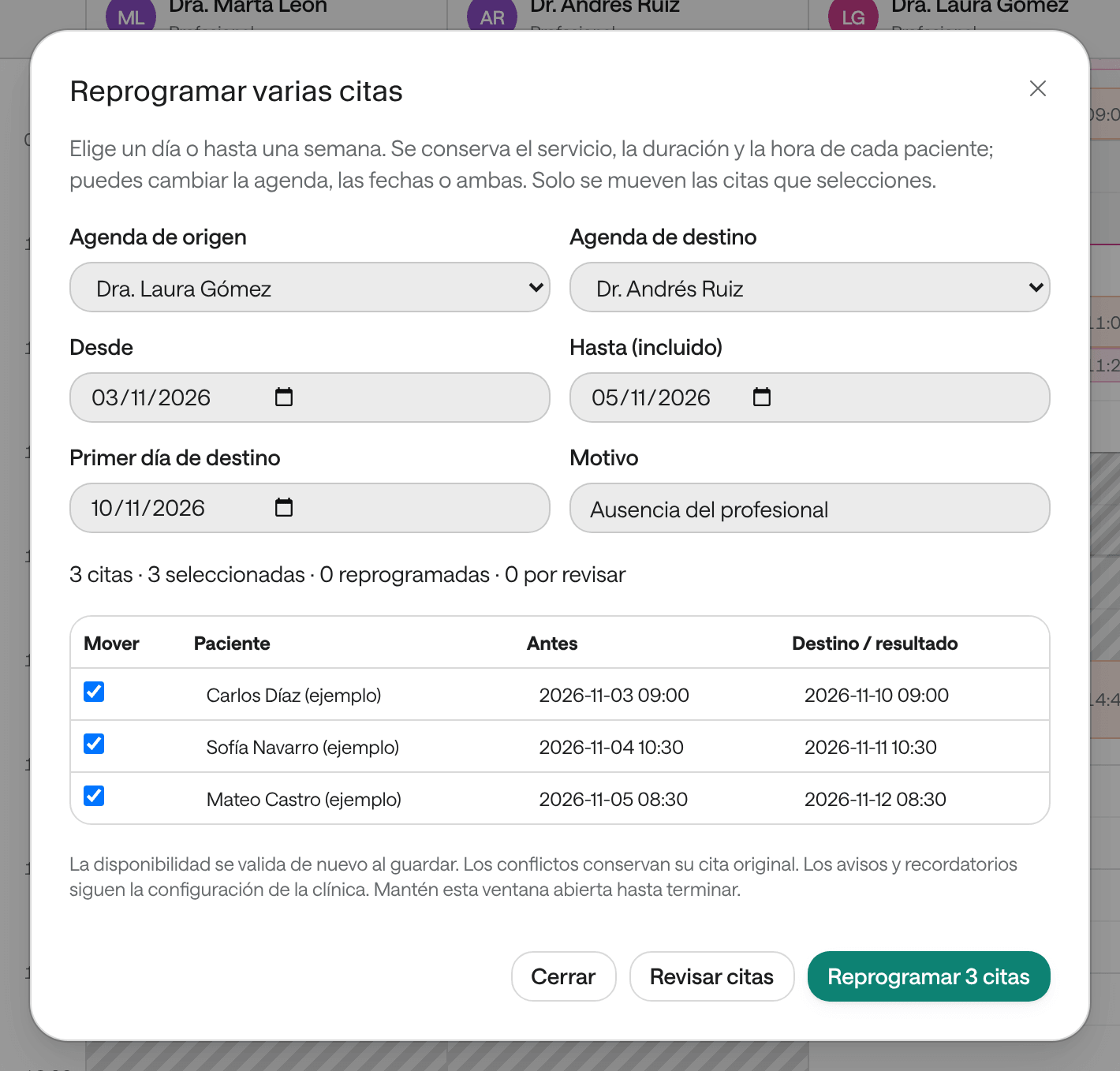
Reprogramar varias citas (reschedule several appointments) opens.
-
Choose the Agenda de origen (source agenda) and the Agenda de destino (target agenda). They can be the same if only the dates change.
-
Choose the dates: Desde (from), Hasta (incluido) (to, inclusive; up to a week) and Primer día de destino (first target day).
-
Write the Motivo (reason). It’s required.
-
Click Revisar citas (review appointments). Agenda looks for a slot for each appointment, with the same service, duration and time, and flags the ones with a conflict.
-
In the Mover (move) column, leave ticked the ones you want to move.
-
Click Reprogramar and the number of appointments. Keep the window open until it finishes.
When it’s done, each row says its outcome. The ones that couldn’t be moved keep their previous time: reschedule them one by one. Notices and reminders follow your organization’s settings.
Common problems
You don’t see the Reprogramar button. The appointment is Atendida or Cancelada, or your role is Consulta.
It says «Ese horario ya no está disponible. Elige otro horario» (that time is no longer available). Someone else booked that slot in the meantime. Pick another one from the list.
It says «La disponibilidad o el registro cambió. Actualiza y vuelve a intentarlo». Someone changed the appointment while you were rescheduling it. Close the window, open the appointment again and reschedule it again.
It says «Sin cupo a la misma hora o conflicto con otra cita del grupo» (no slot at the same time, or a conflict with another appointment in the group). When rescheduling several, that appointment doesn’t fit at the same time in the target. Leave it unticked and reschedule it separately.
The time you need is full. You can move it as an overbooking: in Reprogramar cita, under ¿La hora que necesitas está llena? Agrega un sobrecupo, type the time and click Agregar sobrecupo.