The Agenda screen is where you spend the day: you see the appointments of each professional, room or piece of equipment, and from there you book or open an appointment. This page shows you how to get around it.
Before you start
- Every Agenda role sees the agenda: Consulta, Recepción, Profesional and Administración.
- To book from it you need Recepción, Profesional or Administración.
The parts of the screen
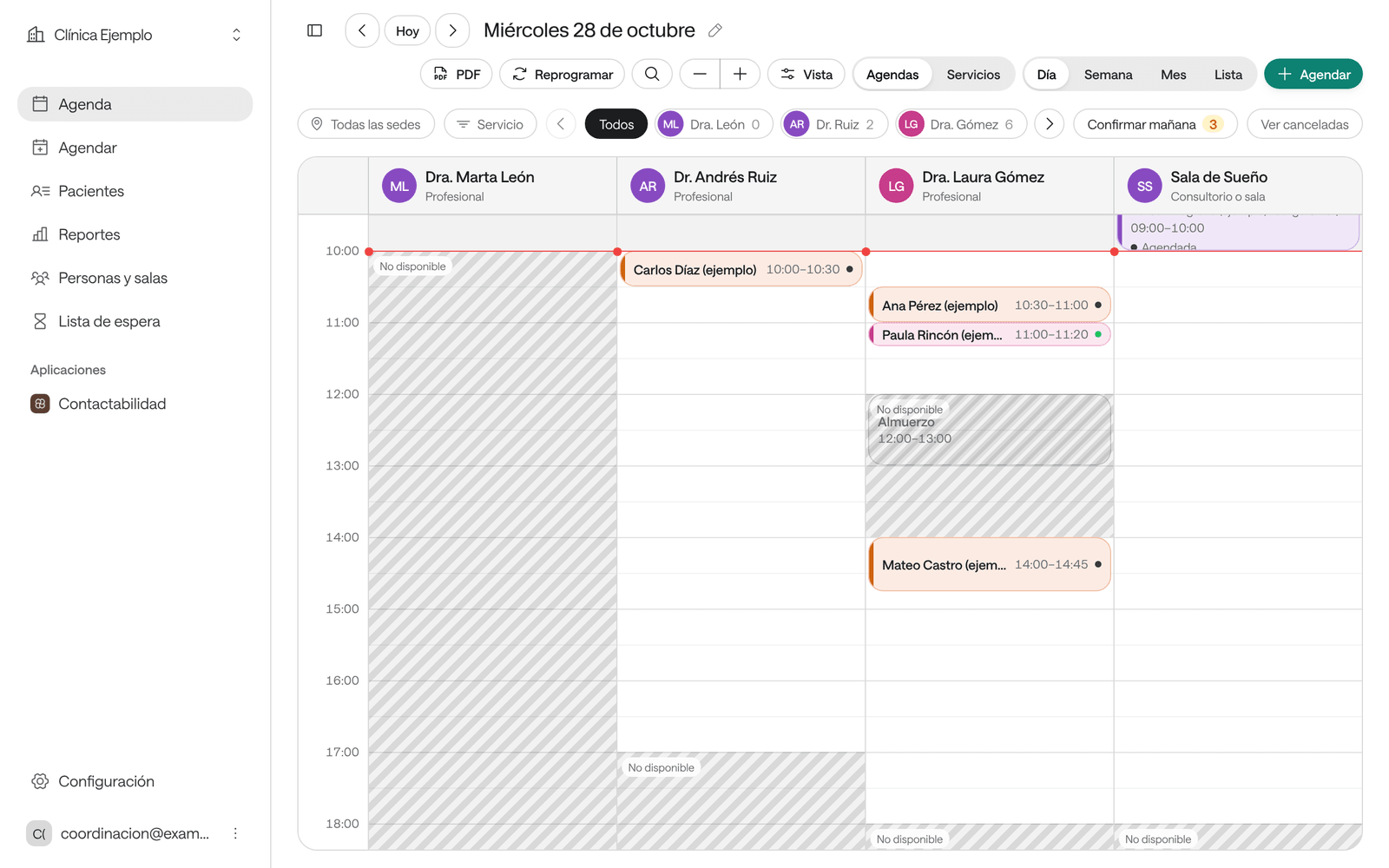
- The side menu, on the left: at the top, your institution’s name, with Cambiar de organización (switch organization) if you work in more than one. Then Agenda, Agendar (book), Pacientes (patients), Reportes (reports), Personas y salas (people and rooms) and Lista de espera (waiting list) (Reportes and Lista de espera appear if your institution uses those functions); if you’re a professional, also Mi agenda (my agenda). Under Aplicaciones (applications), Contactabilidad opens Raíz in a new tab. At the bottom are Arbi (if you have it), Configuración (settings, only with Administración) and your account button, with your initials and your email.
- The toolbar, at the top: Hoy (today) and the arrows to change the day, the date, PDF, Reprogramar (to move several appointments), the magnifying glass to search, the zoom (− and +), Vista (view), Agendas and Servicios (in Día and Lista), and Día, Semana, Mes and Lista (day, week, month, list). On the right, Agendar.
- The filters, below: the site, the service, Todos (all) and a button for each agenda, Confirmar mañana (confirm tomorrow, when tomorrow has appointments to confirm) and Ver canceladas (show cancelled).
- The board: the appointments. In Día there’s one column per agenda.
Click an appointment to open its panel on the right. Click a free space to book there (see Book an appointment).
Change the day
-
Use Hoy to go back to today, and the arrows beside it to go to the previous or next day, week or month.
-
To jump to a date far away, click the date shown at the top (or the pencil beside it). Ir a una fecha (go to a date) opens.
-
Pick the day on the calendar or type it in Fecha, and click Ir a esta fecha.
When you come back to Agenda from another page, it opens on the day, view and filters you left it on.
Change the view
Choose at the top right how to see the agenda:
| View | What it shows |
|---|---|
| Día | One column per agenda, with the hours on the left. It’s the view for working the day. |
| Semana | The days of the week side by side. |
| Mes | The whole month. Click a day to open it in Día. |
| Lista | The appointments in time order, one below the other. |
In Día and Lista you can group appointments by Agendas (by professional, room or equipment) or by Servicios (and each appointment says who provides it). The G key does the same.
Filter what you see
- Site: if your organization has two or more sites, pick one or Todas las sedes (all sites).
- Servicio: shows only one or several services. The F key opens it too.
- The agenda buttons: click a professional’s name to see only their agenda, and Todos (all) to see everyone again. The number beside each name is their appointments in the period you’re viewing.
- Ver canceladas: also shows cancelled appointments. A cancelled appointment frees its time, so it’s normally hidden.
- Confirmar mañana (confirm tomorrow): appears when tomorrow has unconfirmed appointments. See Confirm tomorrow’s appointments.
Adjust the view to suit you
Click Vista (or press V) to open Ajustes de la agenda (agenda settings). What you change there only changes how you see the agenda, in this browser.
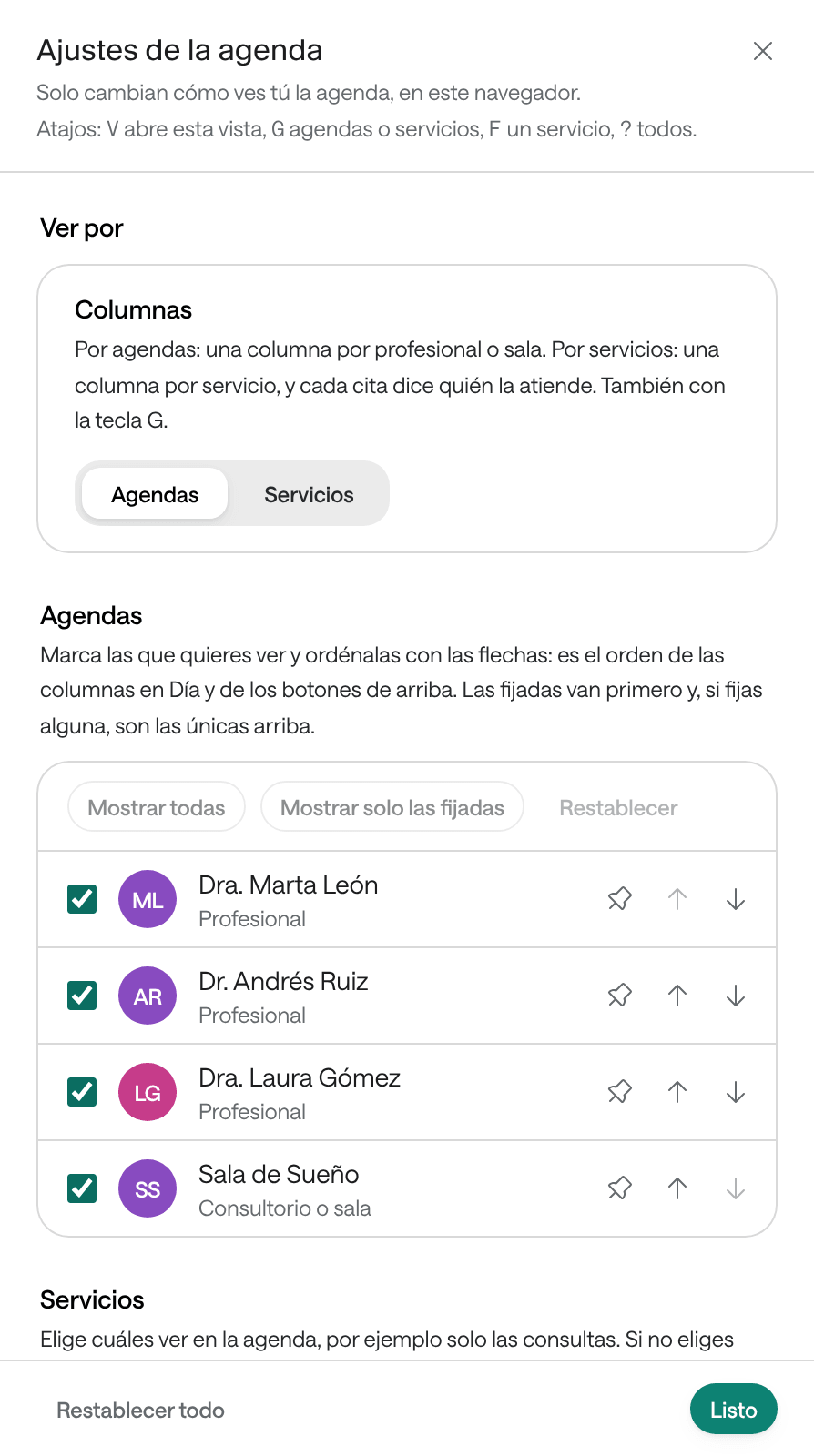
- Agendas: tick the ones you want to see and reorder them with the arrows. Pinned ones go first. Mostrar todas (show all) and Restablecer (reset) undo your changes.
- Servicios: choose which ones to see, for example only consultations. If you choose none, all are shown.
- Cada cita muestra (each appointment shows): the service, the document, the payer and the phone. The patient’s name always shows.
- Zoom, Escala de tiempo (minutos), Empezar en la hora actual, Horas visibles and Semana: how tall the hours are, how often there’s a line, whether to hide hours that have passed, which hours to show and which days of the week.
- Vista al abrir: the view the agenda opens with.
Search for a patient, a service or a page
From any page, press Ctrl+K (⌘K on a Mac) or click Buscar… at the top. On the agenda, click the magnifying glass or press /.
Type a name, a document number or a phone number. Results are grouped under Pacientes (patients), Agendar (services to book), Profesionales y salas (professionals and rooms) and Páginas (pages). Use the arrows to move and Enter to open. If nobody matches, you can create a Nuevo paciente (new patient) from there.
What the colors mean
- Each appointment’s color bar is its service’s color.
- The dot and the label show its status: for example Llegó in green, No asistió in red and Por confirmar in amber.
- Urgente, in red, marks a priority appointment. Sobrecupo, in amber, an appointment added beyond capacity.
- Striped hours labelled No disponible (unavailable) are outside that agenda’s hours: there are no slots there. In Mes, a day without hours says No disponible.
- The soft grey, without stripes, is time that has already passed.
- Blocks are striped cards with their reason or the word Bloqueo (block). They aren’t drawn when you view by Servicios.
- Cancelled appointments, if you show them, are a thin strip at the edge of the column: they no longer take up the time.
Keyboard shortcuts
Press ? on any page to see the list. These work on the agenda:
| Key | What it does |
|---|---|
| ← → | Previous and next day, week or month |
| T | Go to today |
| D, S, M, L | Day, week, month or list view |
| N | Book an appointment |
| G | Group by agendas or by services (Día and Lista) |
| F | Show a single service |
| V | View settings |
| / or Ctrl+K | Search |
| Esc | Close a panel or a window |
| Ctrl+Enter | Save a note or a window’s form |
When booking, the keys 1 to 9 pick that slot in Primeros disponibles (first available) and Ctrl+Enter books the chosen slot.
Your account and preferences
Click your account button at the bottom of the menu (your initials and your email):
- Tu acceso (your access): your role and, if you’re a professional, your agenda, with a line about what you can do. If you don’t see a button, start here.
- Equipo y permisos (team and permissions): only with Administración (see Who can do what).
- Administrar tu cuenta (manage your account): opens your Arbol account in a new tab, for your profile, password and sessions.
- Tema (theme): Claro (light), Oscuro (dark) or Sistema (your device’s).
- Zona horaria (time zone): the time in which you see appointments. It’s usually your site’s.
- Atajos de teclado (keyboard shortcuts): also with the ? key.
- Volver a Arbol (back to Arbol): opens Raíz, the contactability application.
- Cerrar sesión (sign out): Agenda says «Cerraste tu sesión.» (you signed out).
Good to know
- Appointments aren’t dragged. To move one, open it and use Reprogramar (see Reschedule an appointment).
- Click a free space to book at that time. The time you click snaps to the Escala de tiempo (time scale) in Vista.
- Every appointment, tab and filter has its own link. Copy the browser’s address to show someone on your team exactly what you see; they need their own access.
- If you reload while booking, Agenda remembers the chosen slot and the ticked checks for 30 minutes, never the patient’s details. If you typed a new patient’s details and are about to leave, the browser asks first.
- Agenda remembers your last view: the day, view and filters you left it on.
On a phone
On a phone the agenda takes the whole screen: the menu opens with the three-line button, the toolbar uses two rows and the round + button, bottom right, opens Agendar. The PDF button only appears on larger screens.
Common problems
It says «Ocultaste todas las agendas» (you hid all agendas). Open Vista and tick the agendas you want to see, or click Mostrar todas.
It says «Se muestran 20 de 24 agendas» (showing 20 of 24 agendas). Día fits a limited number of columns. Pick an agenda in the buttons at the top or pin yours in Ajustes de la agenda.
It says «Hay demasiadas citas para mostrarlas todas» (too many appointments to show them all). Switch to the Día view or pick a professional.
You don’t see the Agendar button. Your role is Consulta, which is view only. Ask someone with Administración to change your role.
You don’t see what someone else just changed. The agenda updates by itself when someone books, moves or cancels an appointment. If you lost your internet connection, reload the page.