Every professional, room or piece of equipment that takes appointments needs its own agenda in Agenda. Create one when a new professional joins, or when you open a room or buy equipment that gets booked.
Before you start
- You need the Administración role.
- Rooms, offices and equipment only appear if your organization turned on Salas y equipos in Configuración › Institución y funciones.
- Tests and procedures aren’t agendas: they’re created as services and assigned to the person, room or equipment that provides them (see Create and set up services).
Steps
-
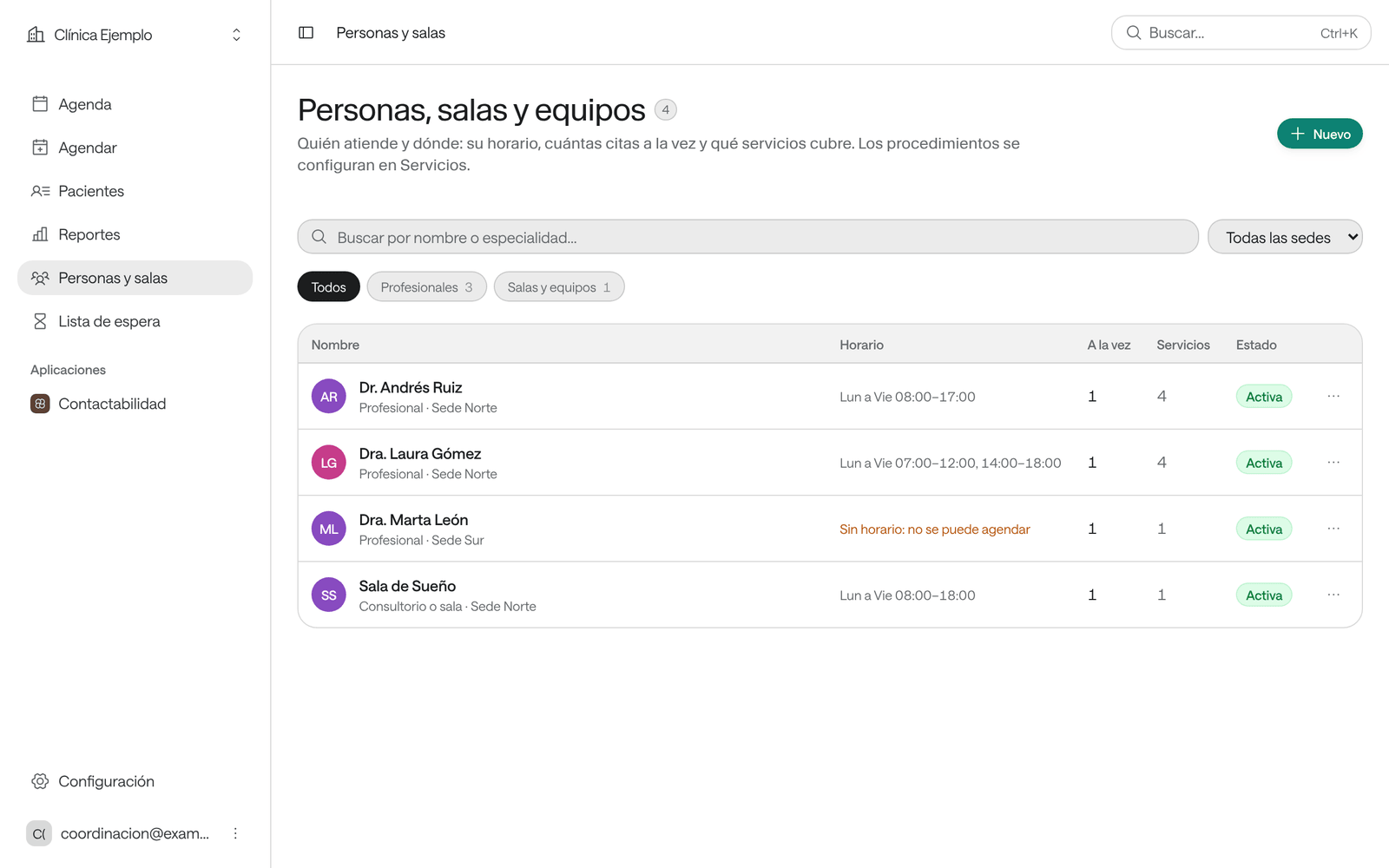
In the menu, click Personas y salas (people and rooms).
-
Click Nuevo (new). If your organization uses rooms and equipment, choose Profesional or Sala, equipo o laboratorio (room, equipment or laboratory).
-
If you like, pick a template in Empezar con una plantilla (start from a template), such as Consulta or Laboratorio o toma de muestras. They’re suggested values you can change.
-
Type the Nombre de la persona, sala o equipo (name of the person, room or equipment), for example «Dra. Laura Gómez (ejemplo)».
-
Check the Tipo de agenda (agenda type) and type the Especialidad (specialty), or the Descripción for a room or piece of equipment.
-
If your organization has sites, pick the Sede where it works. If it works at all of them, leave Todas las sedes.
-
In Citas a la vez (appointments at once), type how many patients it sees at the same time. A doctor usually sees 1; a laboratory with 3 chairs, 3.
-
Pick a color for its agenda and click Guardar (save).
What you see when you’re done
The new agenda’s page opens, with the Horario (hours), Servicios (services), Citas (appointments) and Perfil (profile) sections. At the top it says Sin horario: todavía no se puede agendar (no hours: can’t be booked yet): the most important part is still missing.
- In Horario, give it its days and hours (see Set up hours, special days and absences).
- In Servicios, click Agregar servicios (add services) and pick the ones it provides (see Create and set up services).
Once it has hours and services, it shows in Agendar and its slots can be booked. If the professional will sign in to Agenda, invite them with the Profesional role and assign them this agenda in Es la agenda de… (see Who can do what).
Change an agenda’s profile
On the agenda’s page, open Perfil: there you change the name, specialty, site, color, Consultorio habitual (usual office) and how many appointments it can take at once. The usual office only says where they work; it doesn’t reserve a room or reduce slots.
Archive an agenda
Archive the agenda of a professional who no longer works there or of a room that closed. Its hours and appointments are kept.
-
On the agenda’s page, click ⋯ and choose Archivar agenda (archive agenda).
-
Agenda tells you how many appointments it has ahead and which services use it. Archiving doesn’t cancel those appointments: review them and let the patients know.
-
Click Archivar.
An archived agenda no longer offers slots and leaves the list; you see it with Ver archivadas (show archived). To bring it back, open it and choose ⋯ › Reactivar agenda (reactivate agenda).
Delete an agenda
Delete an agenda that was created by mistake, is a duplicate or will never work again. Unlike archiving, here you decide what happens to its upcoming appointments and to the people on the waiting list. Its past appointments stay in the history. If it only needs to stop offering slots for a while, archive it or record an absence.
-
On the agenda’s page, click ⋯ and choose Eliminar agenda… (delete agenda).
-
Eliminar la agenda «…» opens. Agenda checks what it has: how many upcoming appointments and how many people waiting. If it’s the only agenda that provides a service, it tells you: once deleted, that service is no longer offered. If another agenda should provide it, add it there first.
-
If it has upcoming appointments, choose in Qué hacer con sus citas (what to do with its appointments):
- Pasarlas a otra agenda (move them to another agenda): pick the agenda that receives them in Pasarlas a. Each appointment keeps its time, if that agenda works that day at that time and has room. The ones that don’t fit appear in a list: tick Cancelar las que no caben (cancel the ones that don’t fit) or sort them out first; otherwise the agenda isn’t deleted.
- Cancelarlas (cancel them): pick the Motivo de la cancelación (cancellation reason): El profesional ya no atiende aquí (the professional no longer works here), La sala o el equipo ya no se usa (the room or equipment is no longer used) or Agenda duplicada (duplicate agenda), or write another.
-
Leave Avisar a los pacientes (notify patients) on so each patient gets the change or cancellation notice, by email or WhatsApp, depending on what your institution has turned on.
-
Click Eliminar agenda.
Agenda processes the appointments in batches and shows the progress; if you close the window, the operation can be resumed. When it’s done it says, for example, «Se eliminó la agenda «Dra. Laura Gómez (ejemplo)». 12 citas pasaron a Dr. Andrés Ruiz (ejemplo).» (the agenda was deleted; 12 appointments moved to…).
Deleting to «clean up» an agenda with appointments
Deleting the agenda of a professional who’s leaving without reviewing their appointments: patients end up with cancellations they didn’t expect.
Move the appointments and notify
Choose Pasarlas a otra agenda, leave Avisar a los pacientes on and review the list of the ones that don’t fit before confirming.
Common problems
The agenda says «Sin horario: no se puede agendar». Give it hours in Horario.
The Servicios section says it doesn’t provide any service yet. Add services with Agregar servicios.
It says «Este nombre coincide con un servicio» (this name matches a service). A professional’s agenda represents a person. If it’s a test or procedure, create it under Servicios and assign it to the actual person, room or equipment.
You can’t change the Tipo de agenda. The agenda already has services. For another type, create a new agenda.
It says «Elige la agenda que recibe las citas.» (choose the agenda that receives the appointments). You chose Pasarlas a otra agenda without saying which. Pick it in Pasarlas a.
It says «Ninguna otra agenda atiende sus servicios» (no other agenda provides its services). There’s nowhere to move the appointments. Add those services to another agenda first, or choose Cancelarlas.
It says «Escribe el motivo de la cancelación.» (write the cancellation reason). Pick one of the reasons or write another.
It says «Espera a que termine la revisión.» (wait for the check to finish). Agenda is still counting the agenda’s appointments. Wait a few seconds and try again.
It says «Quedan citas por atender: vuelve a intentarlo.» (there are still appointments to handle: try again). Someone booked on that agenda while you were deleting it. Click Eliminar agenda again.