Do this when a patient changes phone number or payer, when the team must know something before seeing them, or when they bring a medical order or an authorization. It all stays in their record.
Before you start
- Every Agenda role sees the record, its notes and its files.
- To change anything you need the Recepción, Profesional or Administración role.
- Open their record: find the patient with Ctrl+K or in Pacientes (see Find or register a patient). From an appointment, click Ver ficha (view record).
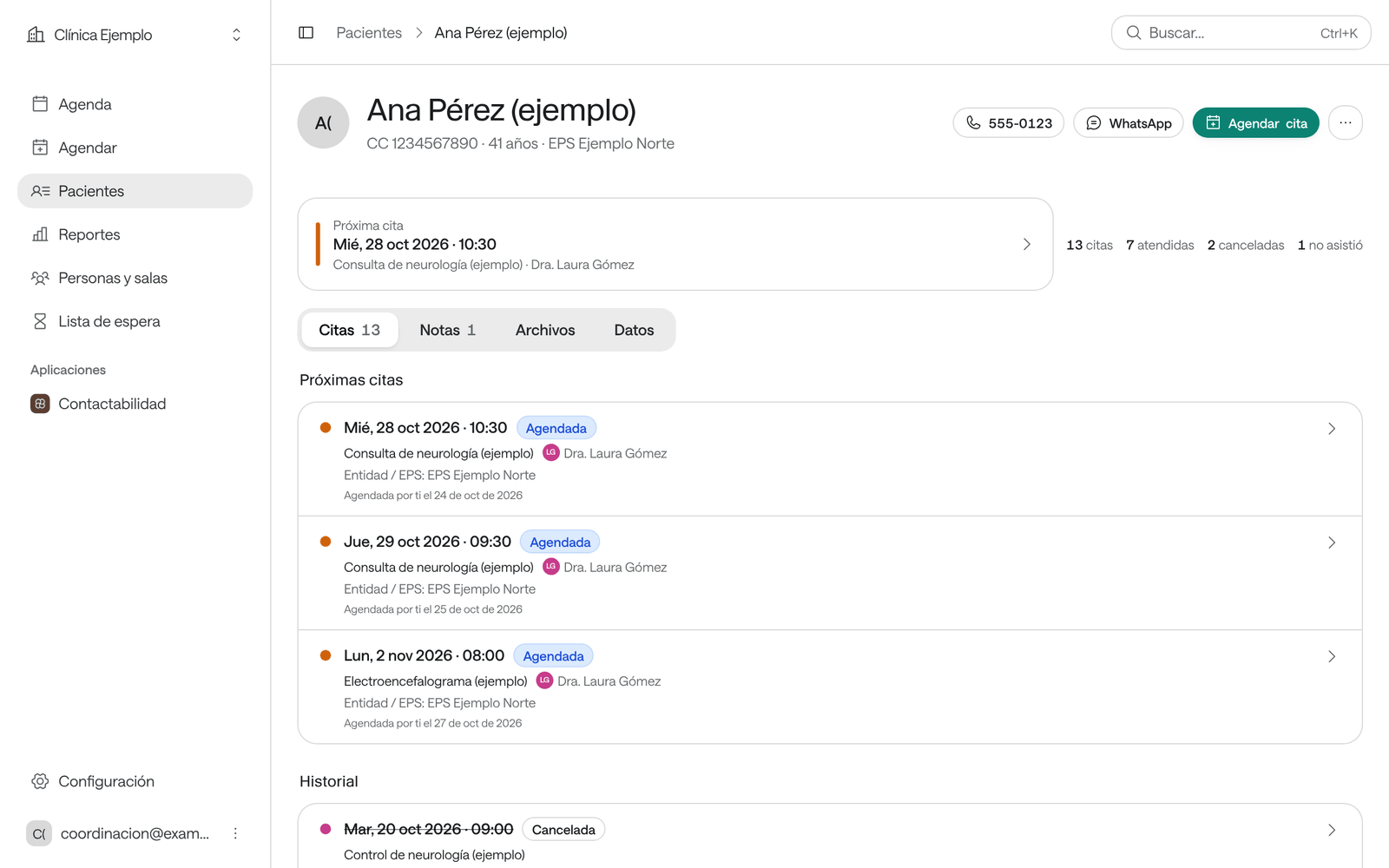
The record has four tabs:
- Citas (appointments): Próximas citas (upcoming) and Historial (history), with each one’s status, who booked it and whether it was rescheduled. Click one to open it.
- Notas (notes): what the team writes about the patient.
- Archivos (files): orders, authorizations, results and photos of the ID document. It only appears if your organization uses documents and authorizations.
- Datos (details): the patient’s details.
Correct their details
-
In the record, open the Datos tab and click Editar (edit).
-
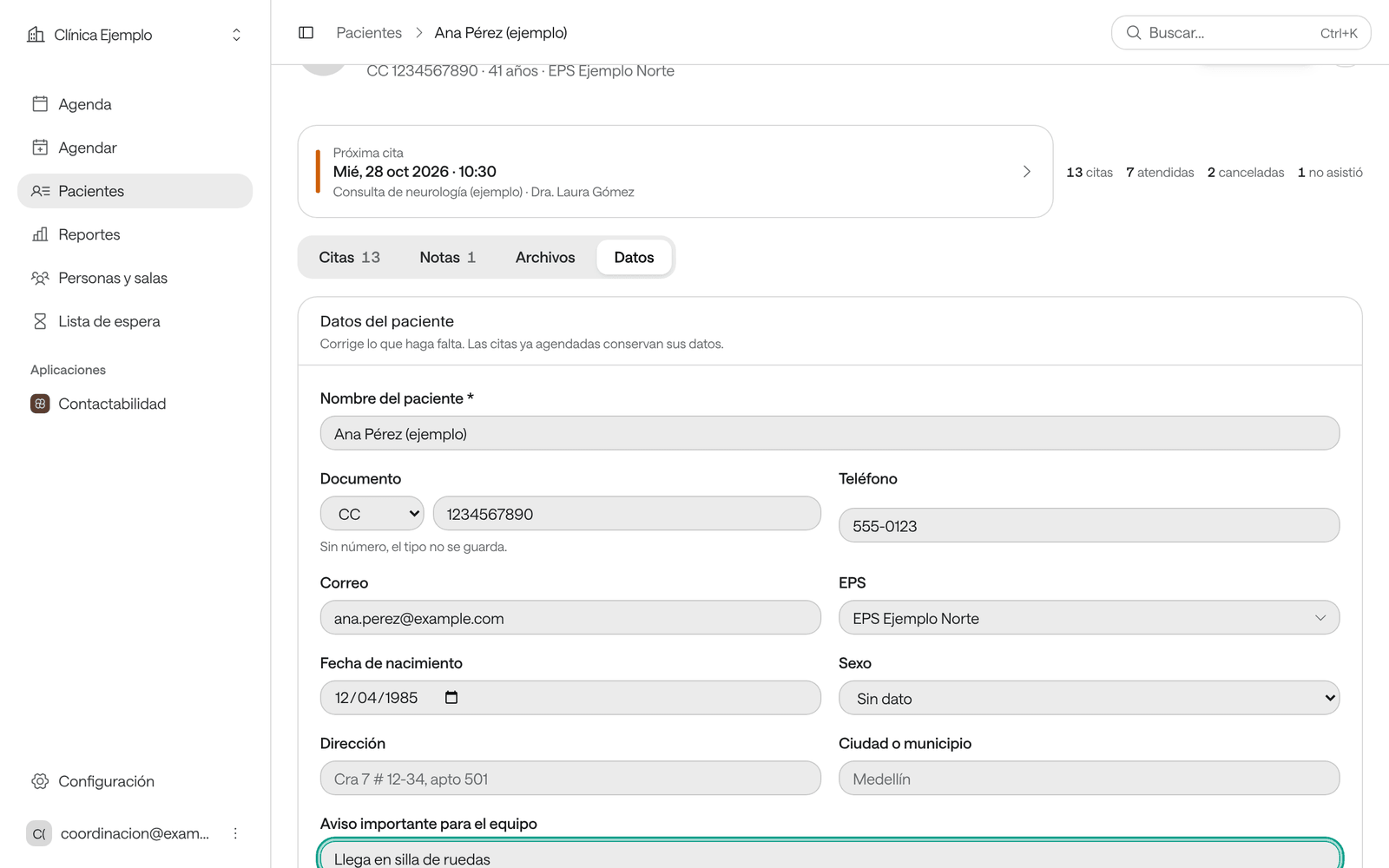
Correct what’s needed: the name, document, phone, email, payer, date of birth, Sexo (sex), Dirección (address) and Ciudad o municipio (city or municipality), and your organization’s own fields.
-
If the team must know something before seeing them, write it in Aviso importante para el equipo (important alert for the team), for example «Llega en silla de ruedas» (arrives in a wheelchair). Leave it empty if there’s nothing to flag.
-
Click Guardar cambios (save changes).
Agenda says Los datos se guardaron. (the details were saved). Appointments already booked keep the details they were booked with; to correct an appointment’s, see Open an appointment and edit its details.
The alert shows in amber on the record, on each of the patient’s appointments and when booking them a new one.
Write a note
-
In the record, open the Notas tab.
-
Type in Escribe una nota… (write a note). The phrases below, such as Llamó para confirmar (called to confirm) or Pendiente la autorización de la EPS (payer authorization pending), are added with one click.
-
Click Agregar nota (add note), or press Ctrl+Enter.
Notes are listed newest first, with who wrote each and when. Each person can delete only their own notes.
Upload a file
-
In the record, open the Archivos tab.
-
Choose what it is: Autorización (authorization), Orden médica (medical order), Resultado (result), Documento de identidad (ID document) or Otro (other).
-
Click Subir archivo (upload file), or drag the files onto the box. On a phone you can also use Tomar foto (take photo).
PDFs and images (JPG, PNG, WEBP or HEIC) of up to 10 MB are accepted. Photos are shrunk on your device before they upload. Files you attach to an appointment also show here, with Ver la cita (view the appointment). Each person can delete only the files they uploaded.
Download the patient’s history
To give the patient, or another institution, their appointment history in a standard format, click ⋯ (Más acciones del paciente, more patient actions) in the record and choose Exportar historia (FHIR) (export history). The file «Patient name (FHIR).json» downloads, with their details and appointments. Any Agenda role can download it. Store it and share it only through a secure channel: it contains the patient’s personal data.
Archive or restore a patient
Archive a duplicate record or someone who’s no longer seen. Nothing is lost: their appointments, notes and files are kept.
-
In the record, click ⋯ and choose Archivar paciente (archive patient).
-
Agenda asks whether you want to archive them. Click Archivar.
An archived patient no longer appears in the list or in search, and can’t be booked. To see them, in Pacientes click Archivados (archived). To bring them back, open their record, click ⋯ and choose Restaurar (restore); or in Archivados, click ⋯ on their row and choose Restaurar. Agenda says, for example, «Ana Pérez (ejemplo) vuelve a la lista de pacientes.» (is back in the patient list).
Common problems
It says «No se guardó: otra persona cambió este paciente, o ese documento ya es de otro paciente» (not saved: someone else changed this patient, or that document belongs to another patient). Someone else edited the record while you were, or the document you typed belongs to another patient. Check the details and save again.
It says «No se restauró: otro paciente activo tiene el documento…» (not restored: another active patient has the document…). There’s another active record with the same document. Archive or correct that record and try again.
You can’t delete a note or a file. Only whoever wrote or uploaded it can delete it.
It says «El archivo pesa más de 10 MB» (the file is larger than 10 MB). Upload a smaller file, or take a photo of the document.
You don’t see the Archivos tab. Your organization doesn’t use documents and authorizations. Someone with Administración can turn it on in Configuración › Institución y funciones.