Look a person up when you need to know what they’re missing, when they were last contacted or what was noted about them, and to record what you did.
Before you start
- You see the people in your scope: those in your program, site or institution. Administration sees the whole population.
- To record anything in a person’s record you need a role that allows Actualizar información y gestiones (update information and follow-ups). Your administrator can see in Equipo (team) what each role allows.
Steps
-
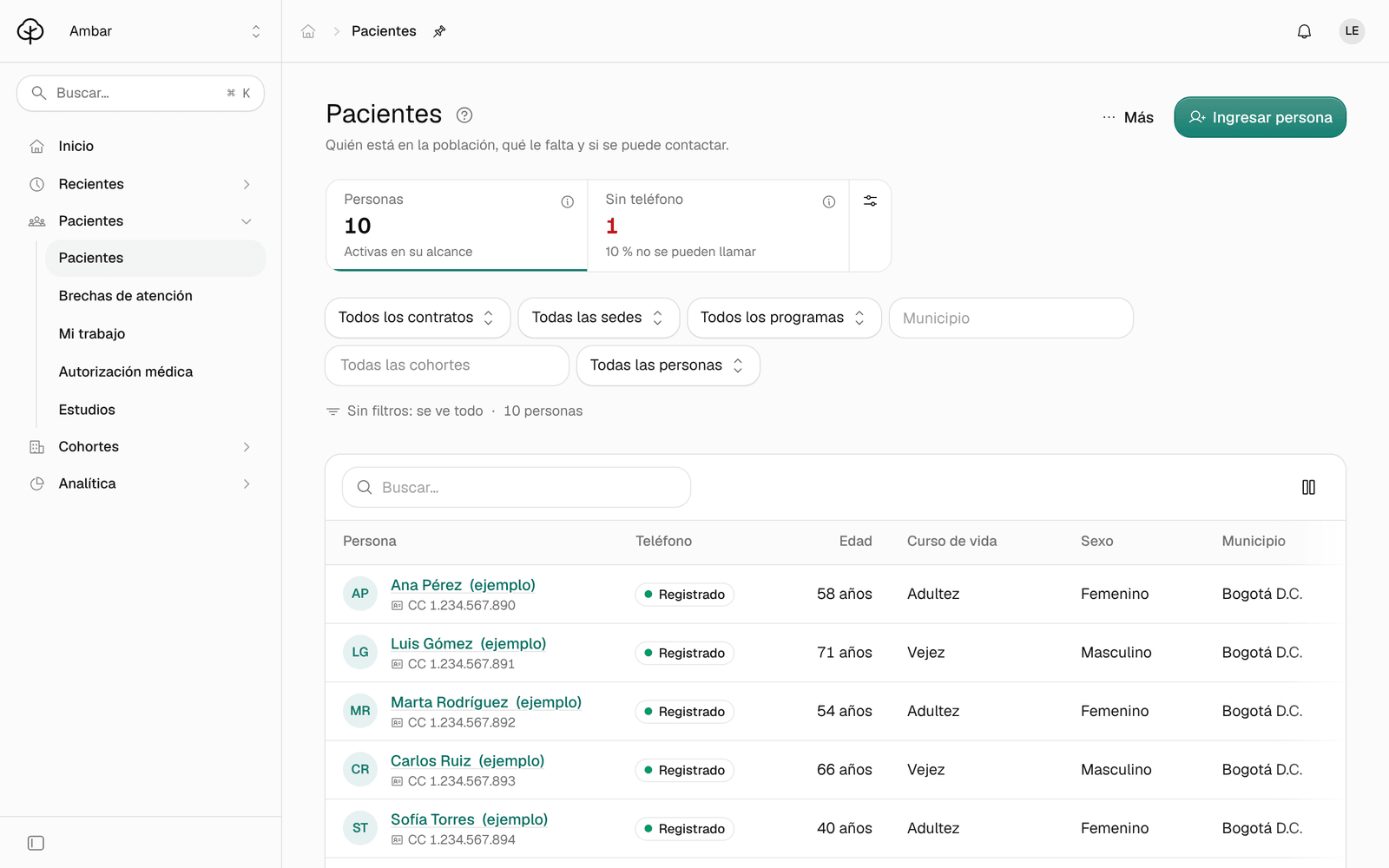
In the menu, click Pacientes (patients). At the top you see the population’s figures: Personas (people), Sin teléfono (no phone) and, once Ámbar has evaluated what they’re missing, Con pendientes (with pending care). Curso de vida (life stage) and Sexo registrado (recorded sex) are optional: show them with the figures’ settings button. Click a figure to filter the list.
-
Narrow the list with the filters: Todos los contratos (all contracts), Todas las sedes (all sites), Todos los programas (all programs), Municipio (municipality), Todas las cohortes (all cohorts) and Todas las personas (all people), which chooses which people to show. Below them, tags say what’s filtered; each tag’s × removes it.
-
To search by name, type in Buscar… (search). The search looks at the people already loaded: if the person you want isn’t there, click Cargar más personas (load more people).
If you’re in administration, you can also use Buscar por documento (search by ID document): choose País del registro (country of registration) and the document type, type the Número de documento (document number) and click Abrir ficha (open record).
-
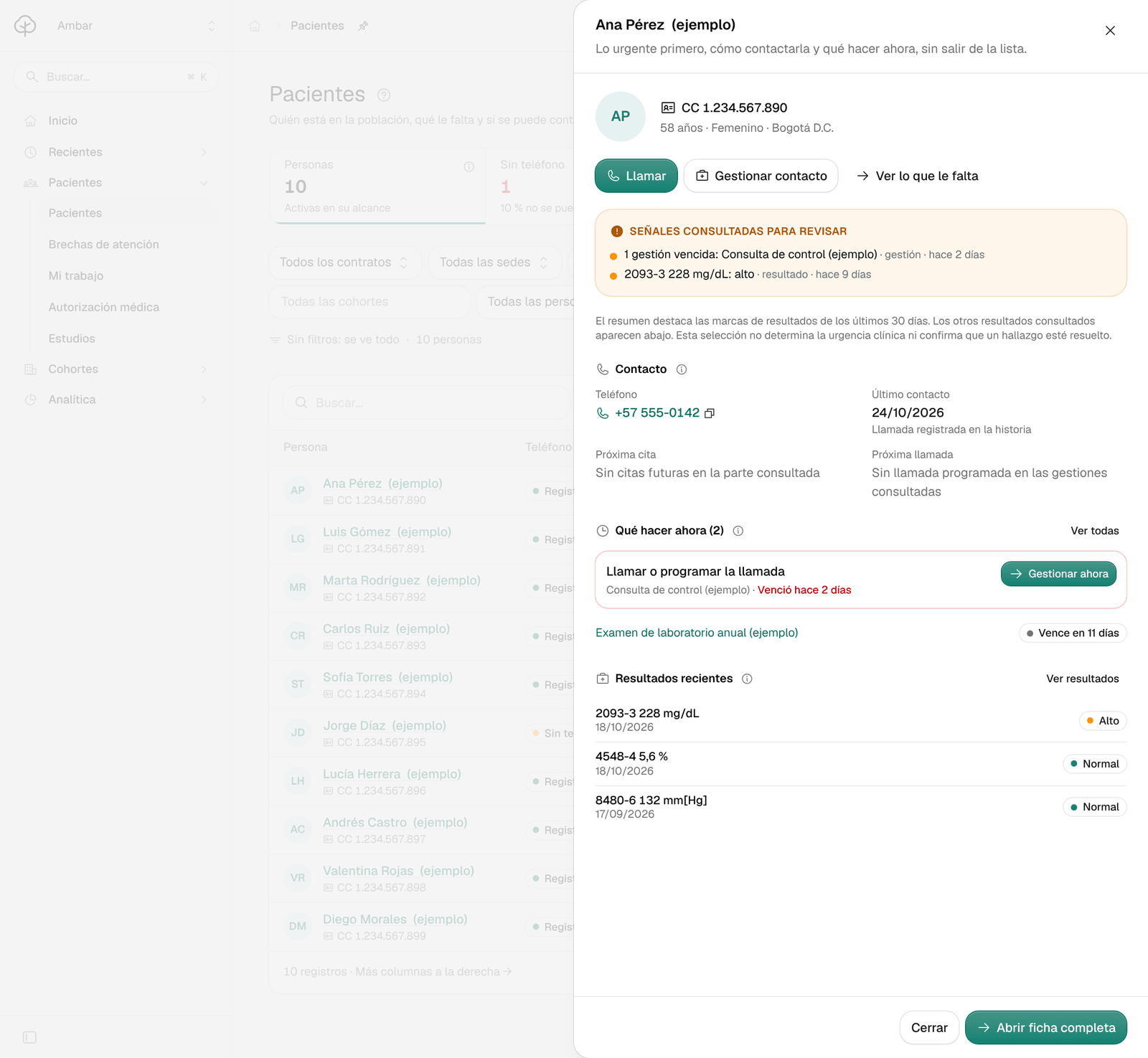
Click a person. Their summary opens without leaving the list: Contacto (contact), Qué hacer ahora (what to do now), Alertas de los detectores (detector alerts) and Resultados recientes (recent results).
-
Click Abrir ficha completa (open full record). The record has five tabs:
Tab What it holds Resumen (summary) Today’s work with this person: clinical alerts, documents received, what’s left to do with its date and its follow-up, the next contact, the next appointment and the latest results. Datos y contratos (details and contracts) Identification, contact details, contracts with their participation, and documented clinical information with its review. Historial (history) One list by day with calls, appointments, notes, results, documents, emails and records. Open a row to see its content without leaving the page. Exámenes (tests) The latest value of each test, marked against the reviewed ranges, and its trend. Cohortes (cohorts) The care groups the person belongs to. 
Log a call you already made
-
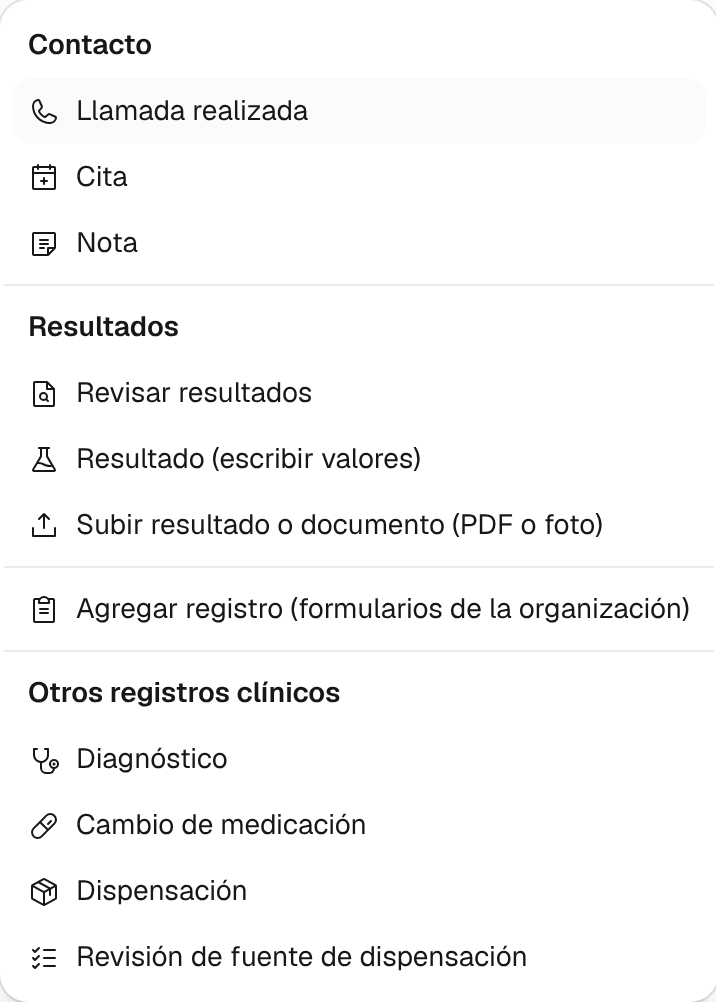
In the record, click Registrar (record) and, under Contacto (contact), choose Llamada realizada (call made).
-
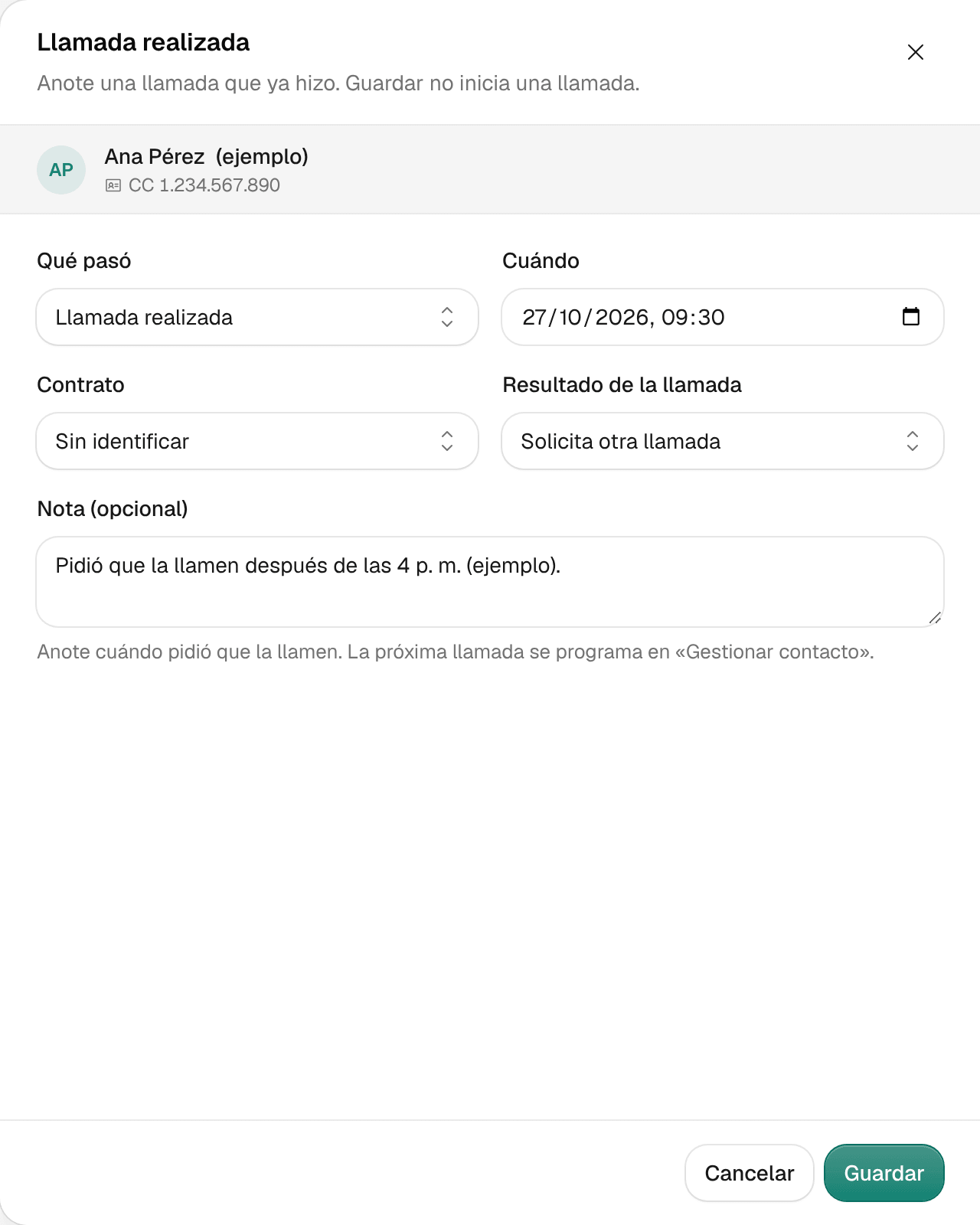
Qué pasó (what happened) stays on Llamada realizada. Check Cuándo (when) and choose the call’s Contrato (contract).
-
In Resultado de la llamada (call outcome), choose how it ended: Habló con la persona (spoke with the person), No contestó (no answer), Solicita otra llamada (asked for another call) or Número incorrecto (wrong number).
-
If you want, write a Nota (opcional) (note). Example (fictional): «Pidió que la llamen después de las 4 p. m.» (asked to be called after 4 p.m.).
-
Click Guardar (save). The call is added to the person’s Historial.
Saving doesn’t place a call: it only records the one you already made. If you chose Número incorrecto and you have the right number, click Actualizar teléfono (update phone) before the next call. With clinical access that button doesn’t appear: ask whoever administers care to change it.
From Registrar you can also log a Cita (appointment) or a Nota (note) and, depending on your profile, results, documents (PDF or photo), your organization’s forms (Agregar registro, add record) and other clinical records.
If the person isn’t in Ámbar
If your role allows it, click Ingresar persona (add person) in Pacientes and fill in Registrar paciente (register patient). The identity record is created first; linking the person to a cohort or a contract is a separate step.
Common problems
- The person doesn’t appear. They may be outside your scope, or the list hasn’t loaded them yet: click Cargar más personas. If you’re in administration, use Buscar por documento.
- It says «No tiene acceso a esta población» (you don’t have access to this population). Your session can’t look up patients with those filters. Remove the filters or ask your administrator to review your access.
- It says «Persona fuera de la población activa» (person outside the active population). The person left the population; their record keeps their details and history.
- I don’t see the Registrar button. Your role doesn’t allow recording, or the person is no longer active.
- The person is under «Sin teléfono». With no phone on record, no call or message goes out. Add their phone in the record.