Use Brechas de atención (care gaps) to decide who to attend to first. A gap appears when an approved technical note requires something a person doesn’t have yet, and the list puts the most urgent first: clinical priority, days overdue and how many care items are overdue.
Before you start
- You see the people in the follow-ups within your scope.
- Opening a person’s follow-up from here takes you to Gestiones (follow-ups; see Work through follow-ups).
Steps
-
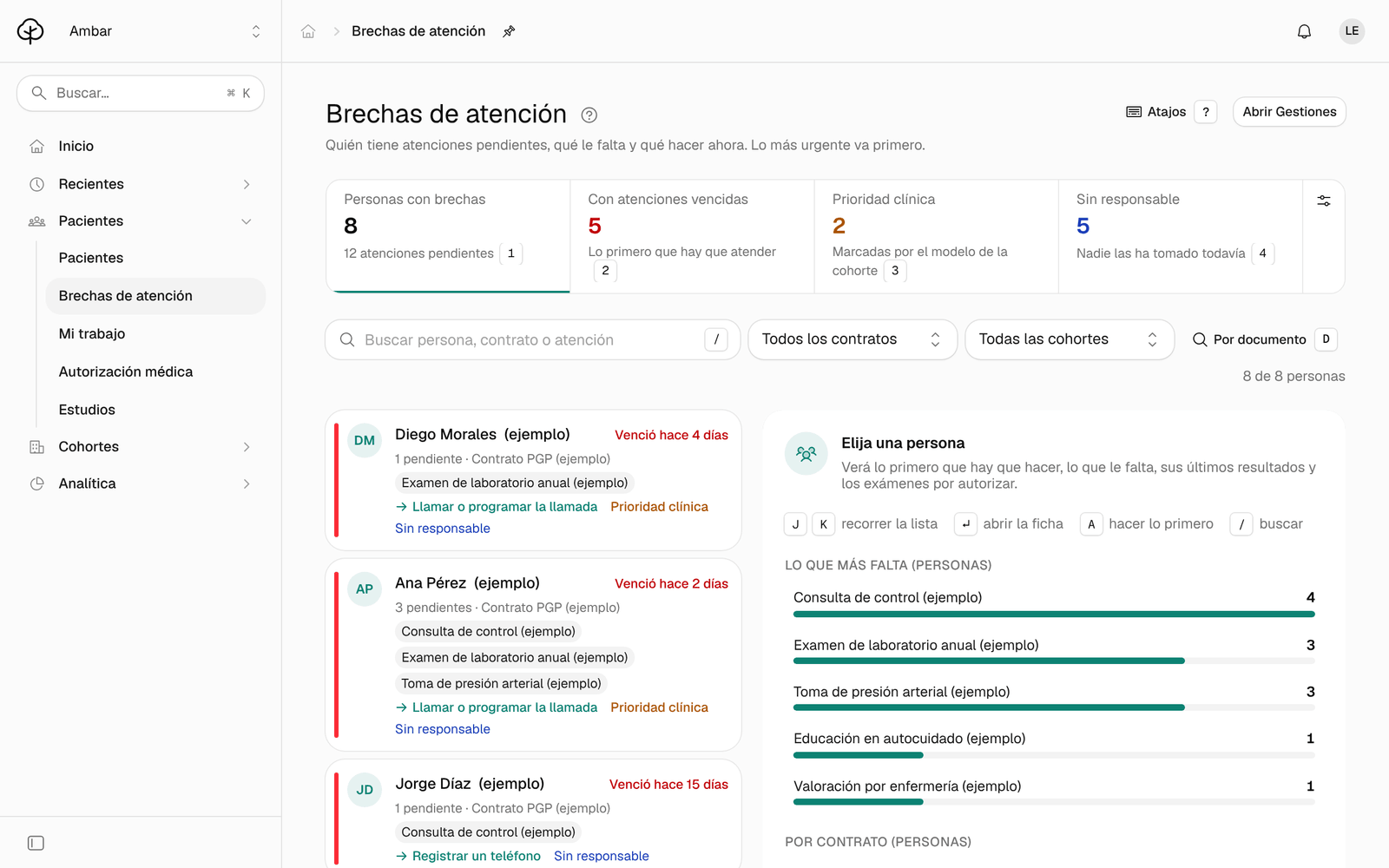
In the menu, click Brechas de atención. At the top there are four figures: Personas con brechas (people with gaps), Con atenciones vencidas (with overdue care), Prioridad clínica (clinical priority) and Sin responsable (no owner).
-
Click Con atenciones vencidas to see only the people with something overdue, which is what to handle first.
-
To narrow it down, type in Buscar persona, contrato o atención (search person, contract or care item), or choose a contract or a cohort in the filters. To find a person by their ID document, click Por documento (by document).
-
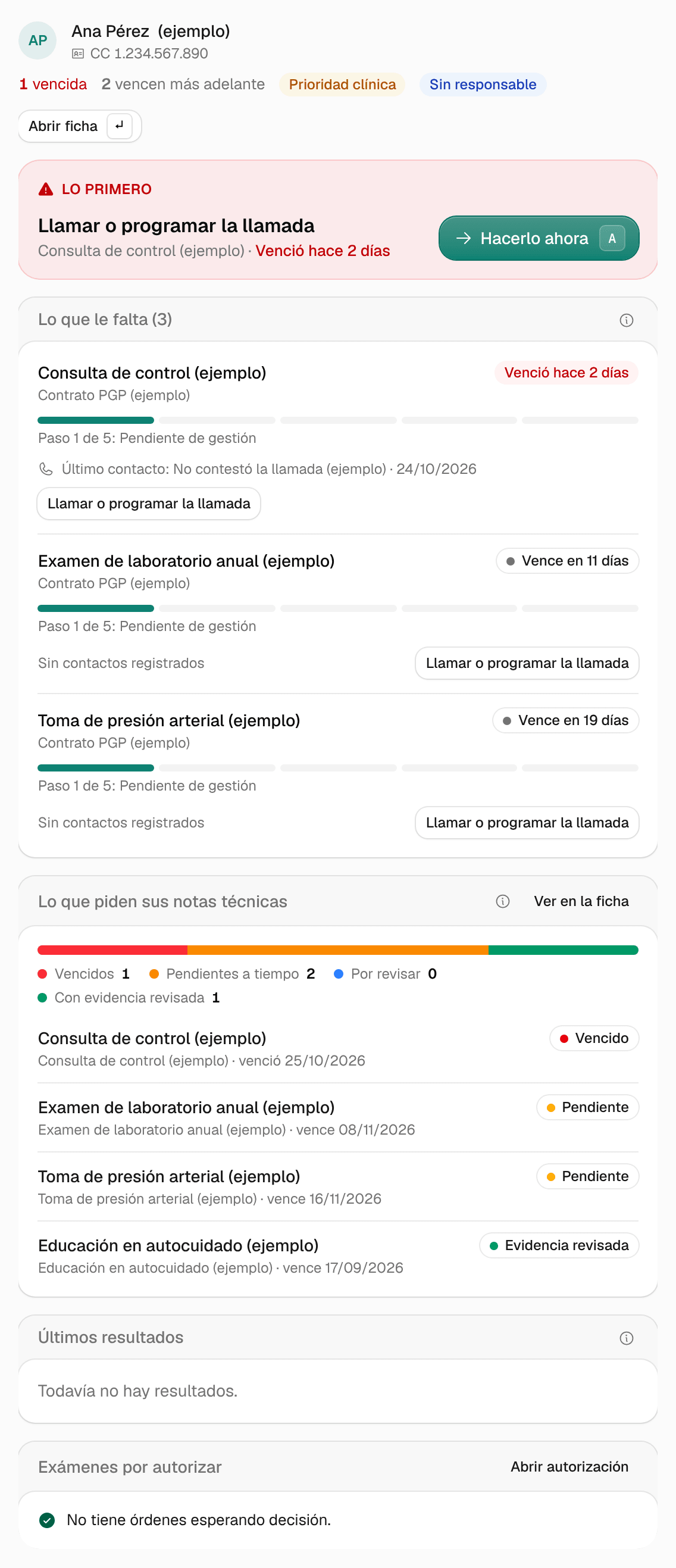
Click a person. Their panel opens:
- Lo primero (first thing): the most urgent care item and what comes next, with Hacerlo ahora (do it now) or, if a call is already scheduled or in progress, Ver la gestión (see the follow-up).
- Lo que le falta (what they’re missing): each pending care item with its date and its progress: awaiting follow-up, contacted, guided, referred, and appointment or access confirmed.
- Lo que piden sus notas técnicas (what their technical notes require): each requirement and how it’s going in its period.
- Últimos resultados (latest results): the person’s most recent results.
- Exámenes por autorizar (tests to authorize): the proposals waiting for the treating physician or, if there are none, «No tiene órdenes esperando decisión.» (no orders awaiting a decision).
-
Click Hacerlo ahora. It usually takes you to the person’s follow-up in Gestiones; if their phone number is missing, it takes you to their record to add it.
With the keyboard: J and K (or the arrow keys) move to the next or previous person, Enter opens their record, A does the selected person’s first thing and D searches by document.
How to read each requirement
Under Lo que piden sus notas técnicas, each requirement has a status:
| Status | What it means |
|---|---|
| Vencido (overdue) | Past its date and still without evidence. |
| Pendiente (pending) | Open and still on time. |
| Requiere revisión (needs review) | Data arrived that someone on the team must review. |
| Evidencia revisada (evidence reviewed) | The requirement has accepted evidence. |
| Sin evaluar (not evaluated) or Por verificar (to be verified) | Ámbar lacks the information to know. It doesn’t mean the requirement wasn’t met. |
A call or an unreviewed report doesn’t complete a requirement, and the list doesn’t certify all of the person’s care.
See the coverage of a whole cohort
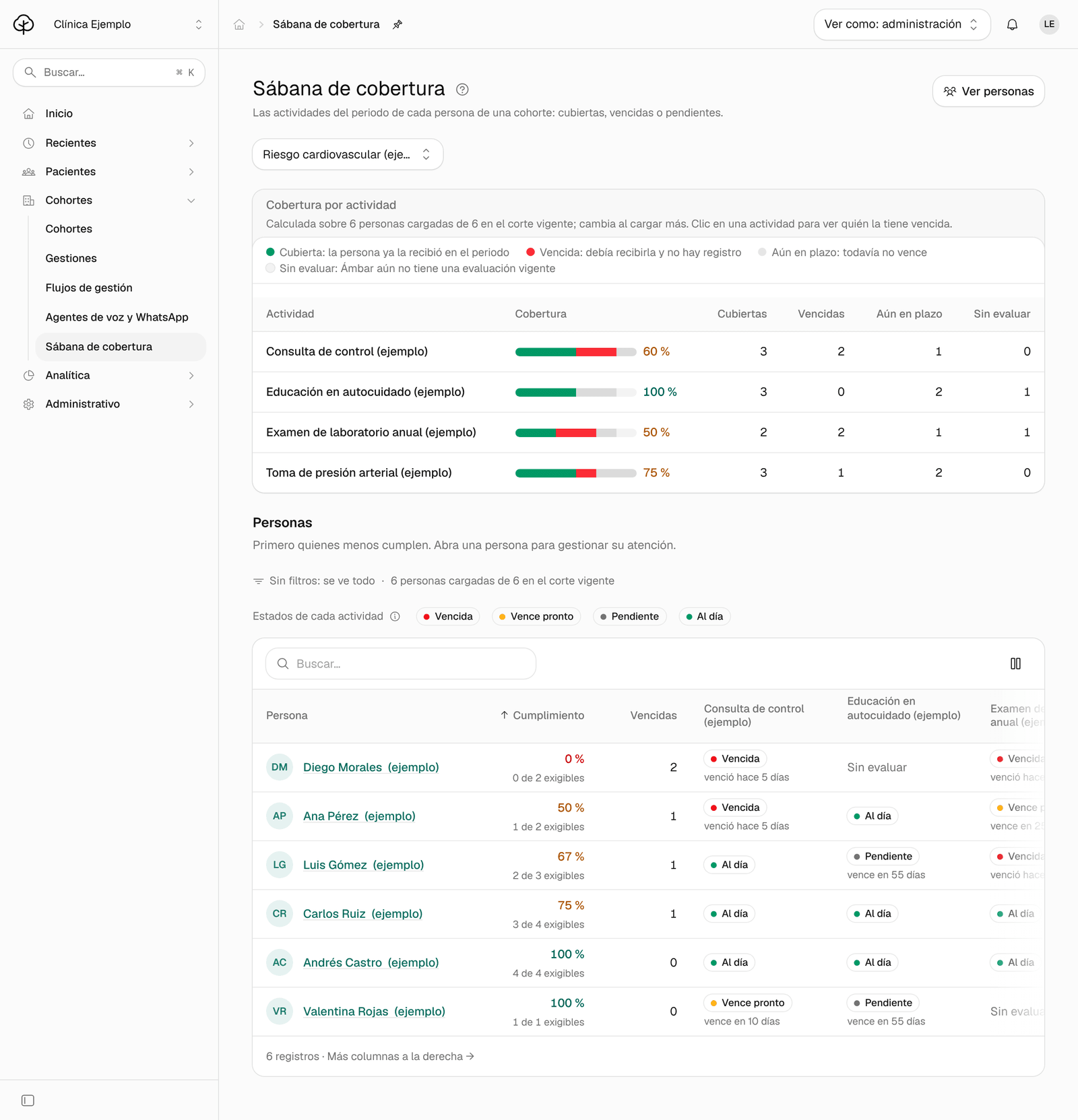
If your organization uses cohorts, Sábana de cobertura (coverage sheet) shows the period’s activities for each person in a cohort.
-
In the menu, click Sábana de cobertura (coverage sheet). It opens on the first active cohort; choose another at the top if you need it.
-
Under Cobertura por actividad (coverage by activity) you see, for each activity, how many people have it Cubiertas (covered), Vencidas (overdue), Aún en plazo (still on time) or Sin evaluar (not evaluated: Ámbar has no current evaluation yet). Click an activity to see below only the people who have it overdue.
-
Below there’s one row per person, those meeting the least first, with one column per activity. Click a person to open their record.
Common problems
- It says «Sin brechas abiertas» (no open gaps). Nobody has open pending care in the follow-ups you can see.
- It says «La persona elegida no aparece en esta lista» (the selected person isn’t in this list). They have no open pending care in your follow-ups. Click Abrir su ficha (open their record) to see all their requirements.
- The search doesn’t find someone. The search looks at the people already loaded. Use Por documento to search everyone you can see.
- A person has a «Sin evaluar» requirement. A piece of data needed to evaluate it is missing, for example a result that hasn’t arrived yet. The Arbol team sets up which data comes in from your systems.