Every Arbol application uses one account: your email and one password. This page covers everything you see when you sign in, from the invitation email to signing out at the end of your shift, and what to do when something doesn’t work.
You're invited
You get an email from Arbol.You create your password
One, for every application.You choose your organization
Only if you work in several.You sign in every day
With your email and password.
Before you start
- Someone at your organization gives you access. Arbol has no open sign-up: your organization’s owner, or whoever administers the application you’ll use, invites you.
- Always use the email you were invited with. Your access is tied to that email.
- Type your password only on Arbol’s sign-in page. It lives at auth.getarbol.com, which you see in your browser’s address bar. Arbol’s applications never ask for your password on any other page.
The first time: accept your invitation
The invitation email
You get an email from Arbol whose subject starts “Tu invitación a” (your invitation to), followed by your organization’s name and the application’s. It says you’ve been invited to join your organization’s team and has an Aceptar invitación (accept invitation) button.
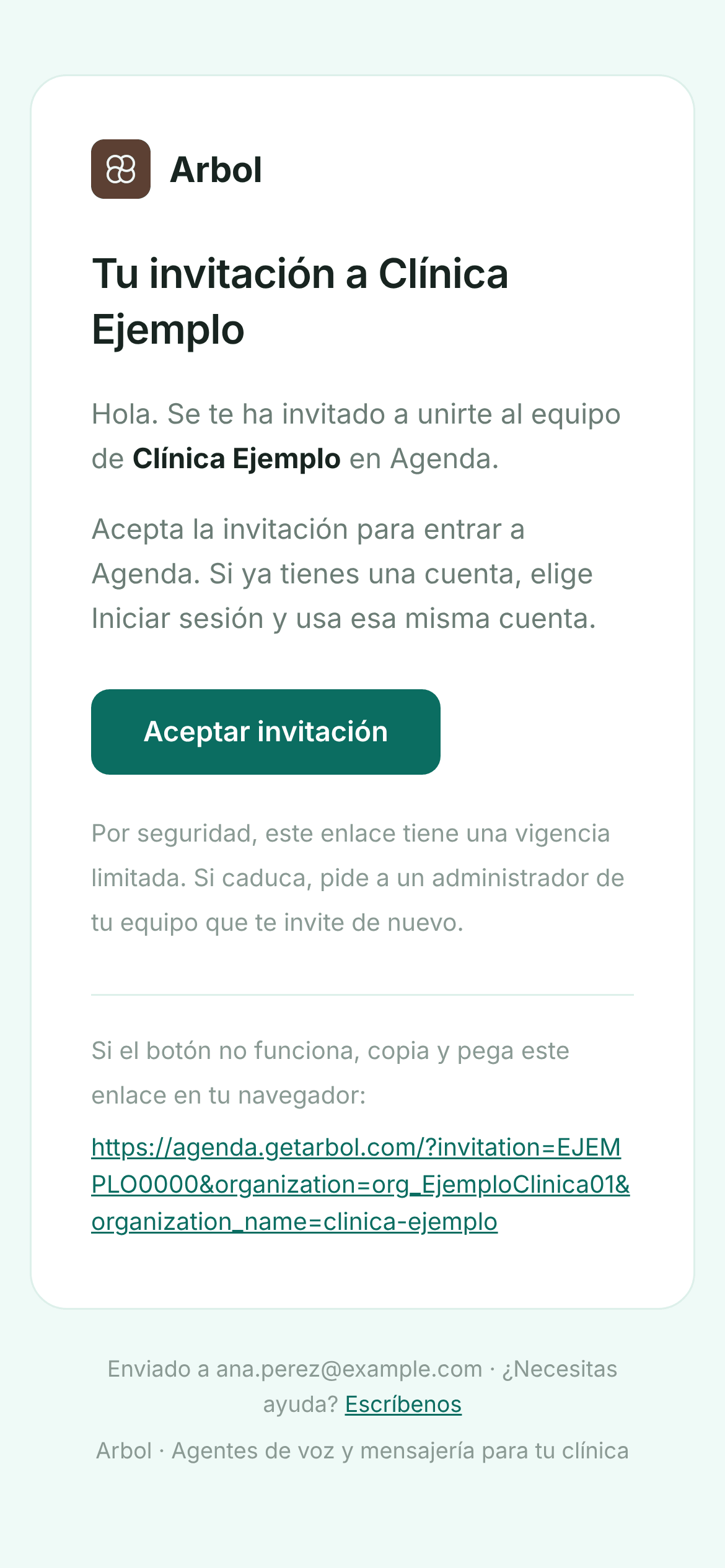
- The invitation lasts 7 days. After that the link stops working and you need a new invitation. Whoever invited you can see in Account when it expires (“Expires on …”).
- If the button doesn’t work, the full link is underneath: copy it and paste it into your browser.
- If you can’t find it, check your spam folder. Arbol’s sign-in emails are in Spanish.
Create your password
-
In the email, click Aceptar invitación. The application you were invited to opens and, right away, Arbol’s sign-in page, with your organization’s logo and colors.
-
Your email is already filled in. Type the password you’ll use in every Arbol application. As you type, the page shows which rules it already meets.
-
Click Continue (Continuar if the page is in Spanish).
-
You land in the application you were invited to, with your organization already chosen.
You may then get an email “Tu cuenta está creada” (your account is created) and another “Confirma tu correo en Arbol” (confirm your email). If you get the second one, open it and click Confirmar correo.
The password rules
Your password must:
- Have at least 10 characters.
- Mix at least 3 of these 4 types: lowercase letters (a-z), uppercase letters (A-Z), numbers (0-9) and special characters, such as
! @ # $ %. - Not be a common password, one of those on the lists of most-used passwords.
- Not contain your name or the first part of your email.
- When you change it, not repeat any of your last 5 passwords.
A phrase of several words only you know, with an uppercase letter and a number, meets the rules and is easy to remember. Don’t reuse a password from another site, and don’t write it down where others can see it.
Sign in every day
-
Open the application’s address, such as agenda.getarbol.com. They’re all in The applications and their addresses. You can also start from www.getarbol.com/en/sign-in.
-
If you aren’t signed in, Arbol’s sign-in page opens. Type your email and click Continue.
-
Type your password and click Continue.
-
If you belong to several organizations, choose the one you’ll work in.
When you move to another Arbol application through the menu, you usually aren’t asked for your password again.
How long your session lasts
- At most 24 hours. After that, opening or reloading an application asks for your password again. It may ask sooner if you go many hours without using Arbol.
- Closing the tab doesn’t end your session. If you only close the tab, the next person to open Arbol in that browser can get in with your account without typing a password. That’s why, on a shared computer, you should always sign out.
If you forgot your password
-
On the sign-in page, type your email and click Continue.
-
Click Forgot password? (¿Olvidó su contraseña? in Spanish).
-
Check that your email is right and click Continue.
-
Open the “Restablece tu contraseña” (reset your password) email Arbol sends you and click Crear contraseña nueva (create new password).
-
Type your new password, following the same rules, and confirm it.
-
Go back to the application and sign in with your new password.
The email’s link works once and expires after 5 days. If you didn’t ask for the change, ignore the email: your current password keeps working.
Change your password
Your password is the same in every Arbol application, and you change it in Account.
-
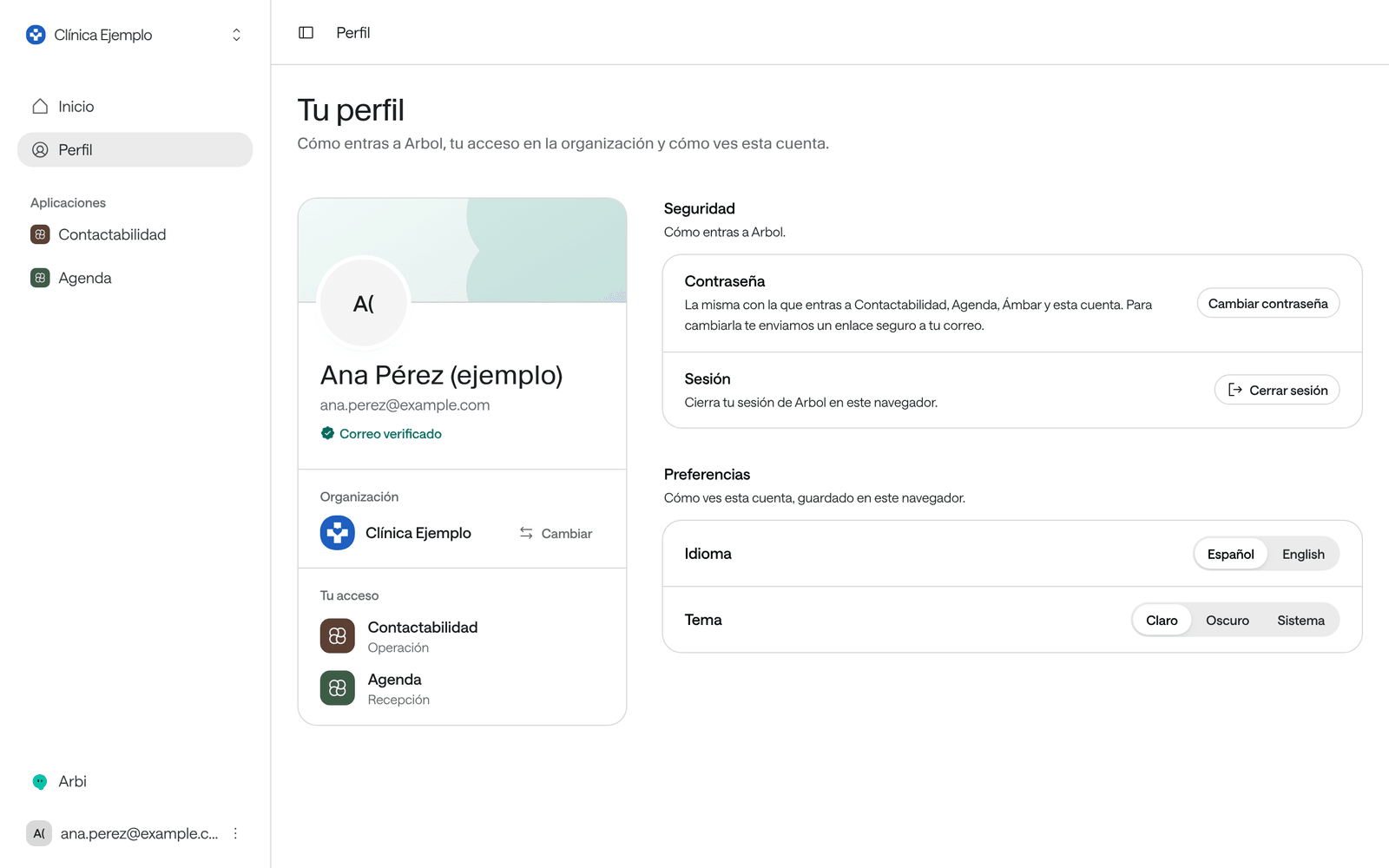
Open your profile: in Account, click Profile in the menu. From Raíz, Agenda or Ámbar, open your user menu at the foot of the side menu and choose Manage your account (in Agenda and Ámbar, Administrar tu cuenta).
-
Under Security, next to Password, click Change password.
-
Open the “Restablece tu contraseña” email and follow its link to create your new password.
Account tells you “Check your email”. Your current password keeps working until you change it. If the email doesn’t arrive, check your spam folder; after a minute, Resend link appears.
Choose and switch organizations
If you work in several organizations, for example at two clinics, the sign-in page shows your organizations when you sign in so you can pick one. Everything you see in the applications belongs to the organization you chose.
Agenda and Account remember the last organization you used in that browser and take you there. To switch:
-
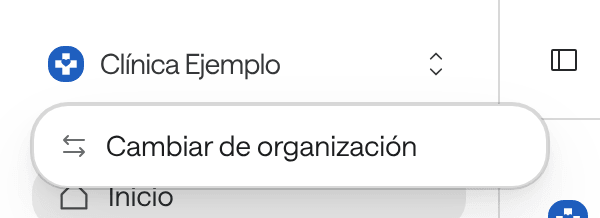
At the top of the side menu, click your organization’s name.
-
Choose Change organization. In Raíz it’s called Switch organization; in Agenda, whose screens are in Spanish, Cambiar de organización; in Ámbar, Cambiar organización.
-
Choose the other organization in the list.
| Application | What happens when you switch |
|---|---|
| Raíz | Shows your organizations without asking for your password. |
| Agenda | Doesn’t ask for your password. The previous organization’s agenda drafts and filters are deleted from that browser. |
| Account | Doesn’t ask for your password. You can also do it from Profile: next to your organization’s name, click Switch. |
| Ámbar | Signs you out: you type your email and password again and choose the organization. |
Sign out
-
At the foot of the side menu, click your name or your email.
-
Choose Sign out. In Agenda it’s Cerrar sesión; in Ámbar, Salir.
Raíz takes you to the sign-in page; Account shows “You signed out”, and Agenda “Cerraste tu sesión”. In Account you can also sign out from Profile, under Session. When you sign out, Agenda deletes your drafts and filters from that browser, and Account forgets your organization.
On a shared computer
- Sign out at the end of your shift, then close every Arbol tab. Signing out of one application ends your Arbol session in that browser, but a tab of another application left open can keep working for a while.
- If your institution allows it, use a private (incognito) window and close it when you’re done: the browser forgets your session.
- Don’t let the browser save your password.
- Lock the screen whenever you step away, even for a moment.
More habits for looking after your patients’ data are in Safe use and patients’ data.
Security emails you may get
Arbol writes to you when something in your account needs your attention. They all come from Arbol, in Spanish:
| Subject | Why you get it | What to do |
|---|---|---|
| “Restablece tu contraseña” (reset your password) | Someone asked to change your password, from the sign-in page or from your profile. | If it was you, click Crear contraseña nueva. If not, ignore it: your current password keeps working. |
| “Bloqueamos un intento de acceso a tu cuenta” (we blocked an attempt to access your account) | There were several failed attempts to sign in with your email from a device Arbol doesn’t recognize, and it blocked access from that device. | If it was you, click Desbloquear mi acceso (unblock my access). If not, do nothing and change your password as a precaution. |
| “Cambia tu contraseña de Arbol” (change your Arbol password) | Your password appeared in a public data breach of another service. The email makes clear your Arbol account wasn’t compromised. | Click Cambiar contraseña and also change it anywhere else you use the same one. |
Common problems
“Your account isn't in an organization yet”
Raíz shows it when you sign in with an email no organization has invited: “To get in, someone at your company has to invite you to their organization.”
What to do:
- If you were invited, open the link in the invitation email.
- If you were invited with another email, click Use another email and sign in with that one.
- Once you’ve been invited, click I’ve been invited, try again.
“You don't have access to any application yet”
Account shows it when you’re signed in but don’t hold any role on Arbol yet. If you only hold a role in Account, it says instead “You don’t use any application at” and your organization’s name, with the support email.
What to do: ask whoever administers Arbol at your organization, or use Email support or Message us on WhatsApp. Once you’re given access, under Already given access? click Sign in again.
“We couldn't sign you in”
You signed in with an account that doesn’t belong to the organization being opened, or something failed on the way back from the sign-in page. Account says “Try again with an account that belongs to your organization.”; Agenda, “No pudimos completar el acceso. Vuelve a intentarlo con una cuenta autorizada.”; Raíz, “Something went wrong on the way back from signing in. Try again, or sign in with another email.”
What to do: click Sign in (in Agenda, Iniciar sesión) or Try again, and sign in with the email you were invited with. In Raíz, Use another email ends the previous session so you can sign in with another account.
“You don't have access to this organization” or “Esta organización no está habilitada en Ambar”
You chose an organization where you don’t have a role in that application. Raíz says “Your role here doesn’t include any part of the dashboard.”; Ámbar, “Su usuario no tiene un rol de Ambar en esta organización, o la organización está suspendida.” (your user has no Ámbar role in this organization, or the organization is suspended).
What to do: check which account you signed in with: Raíz shows it underneath, in “Signed in as”. Then use Switch organization (in Ámbar, Cambiar organización) to choose another one, or ask whoever administers Arbol at your organization for a role.
“Your role doesn't allow this page” or “You do not have access to this section”
Your role doesn’t include that part of the application.
What to do: open another section from the menu, or ask whoever administers Arbol at your organization for access. See what each role allows in Roles and permissions.
“Your session expired”
It’s been a long time since you signed in. Account and Raíz say “Your session expired. Sign in again.” (Account, with the Sign in again button); Agenda, “Tu sesión venció. Vuelve a iniciar sesión.”; Raíz may also say “Your session took too long to renew. Try again; if it keeps happening, reload this tab.”. In Ámbar, the Volver a comprobar la sesión (check the session again) window opens.
What to do: reload the page and sign in again. In Ámbar, click Volver a consultar (check again): what you were preparing is kept in that tab. Salir y descartar borradores (sign out and discard drafts) ends your session and discards it.
The invitation link no longer works
The invitation expired (it lasts 7 days), was revoked, or you already used it.
What to do: if you already created your password, sign in from the application’s address with your email and password. If not, ask whoever invited you for a new invitation.
The invitation or password email doesn't arrive
The email may be in your spam folder, or the address was mistyped.
What to do:
- Check your spam folder and search for “Arbol”.
- Check with whoever invited you that they typed your email correctly.
- For the password, wait a few minutes before asking for another link. If you ask for several in a row, Account says “You asked for several links in a row. Wait a few minutes and try again.”
- If it still doesn’t arrive, ask your institution’s IT team to check whether its email is filtering it.
The page won't accept my new password
It doesn’t meet one of the rules; the page marks which one is missing.
What to do: check the password rules: at least 10 characters, 3 of the 4 character types, not a common one, without your name or email and, if you’re changing it, not one of your last 5.
I mistyped my password several times and can't get in
After several failed attempts, Arbol blocks access from that device and sends you the “Bloqueamos un intento de acceso a tu cuenta” email.
What to do: open that email and click Desbloquear mi acceso. If you don’t remember your password, use Forgot password?.
I used to sign in with a passkey and now I'm asked for a password
Today you get into Arbol with your email and password.
What to do: on the sign-in page, type your email, click Continue and then Forgot password? to create a password. If the browser offers a passkey or asks for a PIN, cancel it and type your email.
My role changed and I don't see it
Your role loads when you sign in.
What to do: sign out and back in.
“Service unavailable” or “No pudimos abrir Ambar”
The sign-in page didn’t respond. Raíz says “Signing in is unavailable right now.”; Ámbar, “Revise su conexión a internet e intente de nuevo.” (check your internet connection and try again).
What to do: check your connection and click Try again (in Ámbar, Intentar de nuevo). If it keeps happening, write to Arbol’s team: see Get help.