Each Arbol application has its own address, and they all use the same account. Bookmark the ones you use.
The addresses
| Application | Address | What you do there |
|---|---|---|
| Raíz (Contactabilidad) | raiz.getarbol.com | Agents, conversations with patients, contacts, reports. |
| Agenda | agenda.getarbol.com | The day’s schedule, booking appointments, patients, the waiting list. |
| Ámbar | ambar.getarbol.com | Governance, in early access. |
| Account | account.getarbol.com | Your profile and your organization’s administration. |
This documentation lives at docs.getarbol.com.
Move between applications
When you move from one application to another through their menus, the new one opens with your organization already chosen, and you usually aren’t asked to sign in again. You only see the applications you hold a role in.
-
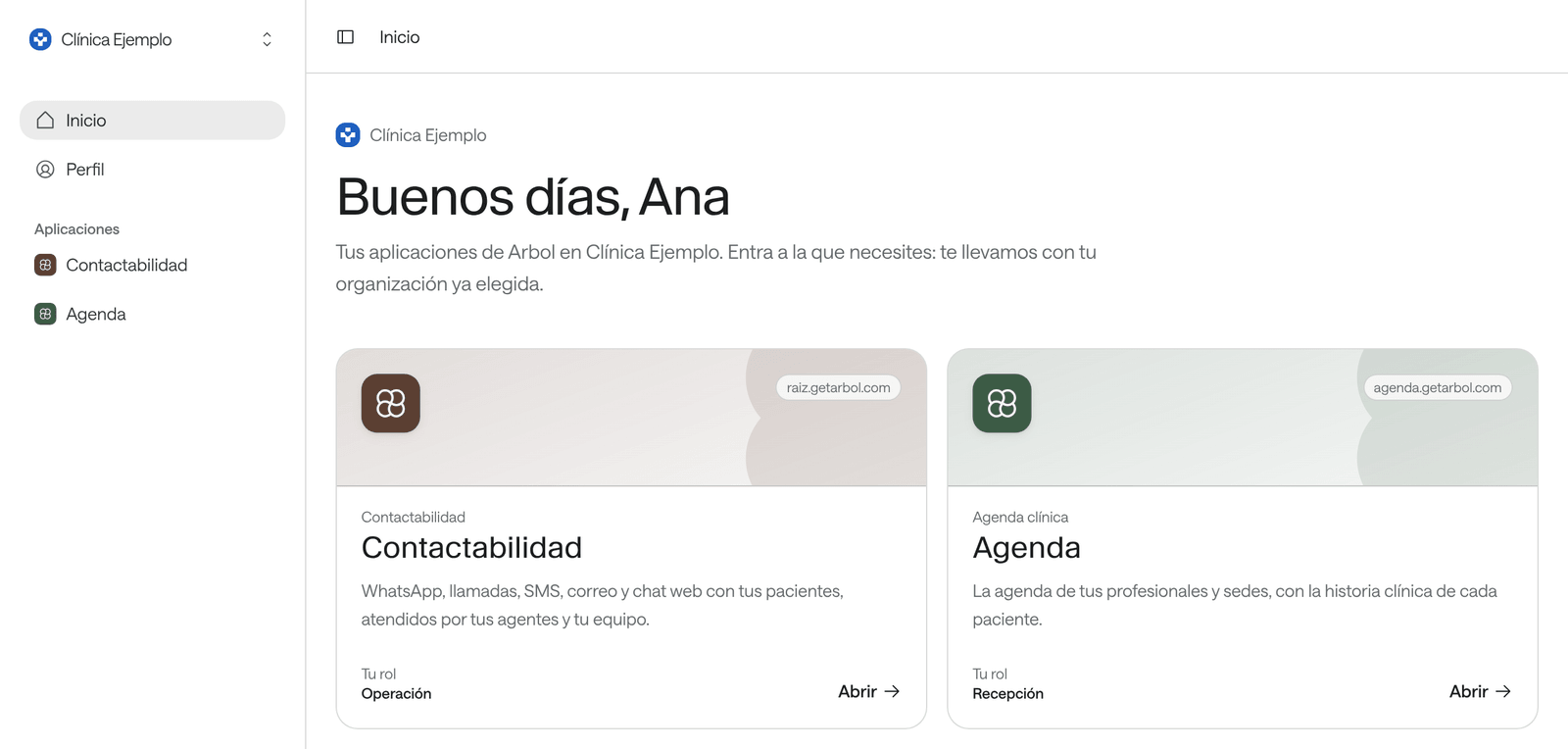
From Account: on Home, click Open on the application’s card (if you use only one, the button says, for example, Open Agenda). They’re also in the Applications group of the side menu, which opens them in a new tab.
-
From Raíz: in the side menu, the Applications group opens Agenda or Ámbar in a new tab. To go to your profile in Account, open your user menu at the foot of the side menu and choose Manage your account. In Settings, Billing opens billing in Account.
-
From Agenda: in your user menu, Administrar tu cuenta (“Manage your account”) opens your profile in Account, and Volver a Arbol (“Back to Arbol”) opens Raíz.
-
From Ámbar: in your user menu, Administrar tu cuenta opens your profile in Account.
When you reach Account from another application, Back to followed by that application’s name appears at the top right, to return to the page you were on.
On a small screen
On a small screen, such as a phone’s, the side menu is hidden. Open it with the menu button at the top left.