Use Arbi on WhatsApp when you’re away from the computer: ask it for a figure, a document or a change from your phone. It’s the same Arbi as on the web, with your notes and your permissions. Before it serves you, it checks who you are with your Arbol account.
Arbi answers in the language you write in, but its WhatsApp messages and buttons are in Spanish. This page gives each Spanish label with its meaning.
Before you start
- You need your Arbol account and a role that includes Arbi in your organization.
- You need Arbi’s WhatsApp number. Ask your contact at Arbol for it. If you get WhatsApp notices about conversations Raíz hands to your team, they come from that same number.
- Use your own WhatsApp. The link is personal: whoever writes from that WhatsApp uses Arbi as you.
Link your WhatsApp (first time only)
You write to it
Arbi answers with a button to sign in.You sign in
With your Arbol account, on its page.You send the code
The «Vincular» message that’s already typed.Done
You can now ask it things on WhatsApp.
-
Send any message to Arbi’s number, such as “Hola”.
-
Arbi answers with a welcome that asks you to sign in once with your Arbol account. Tap Iniciar sesión (sign in). The link works for 2 hours.
-
Sign in with your Arbol account, as you do in the apps.
-
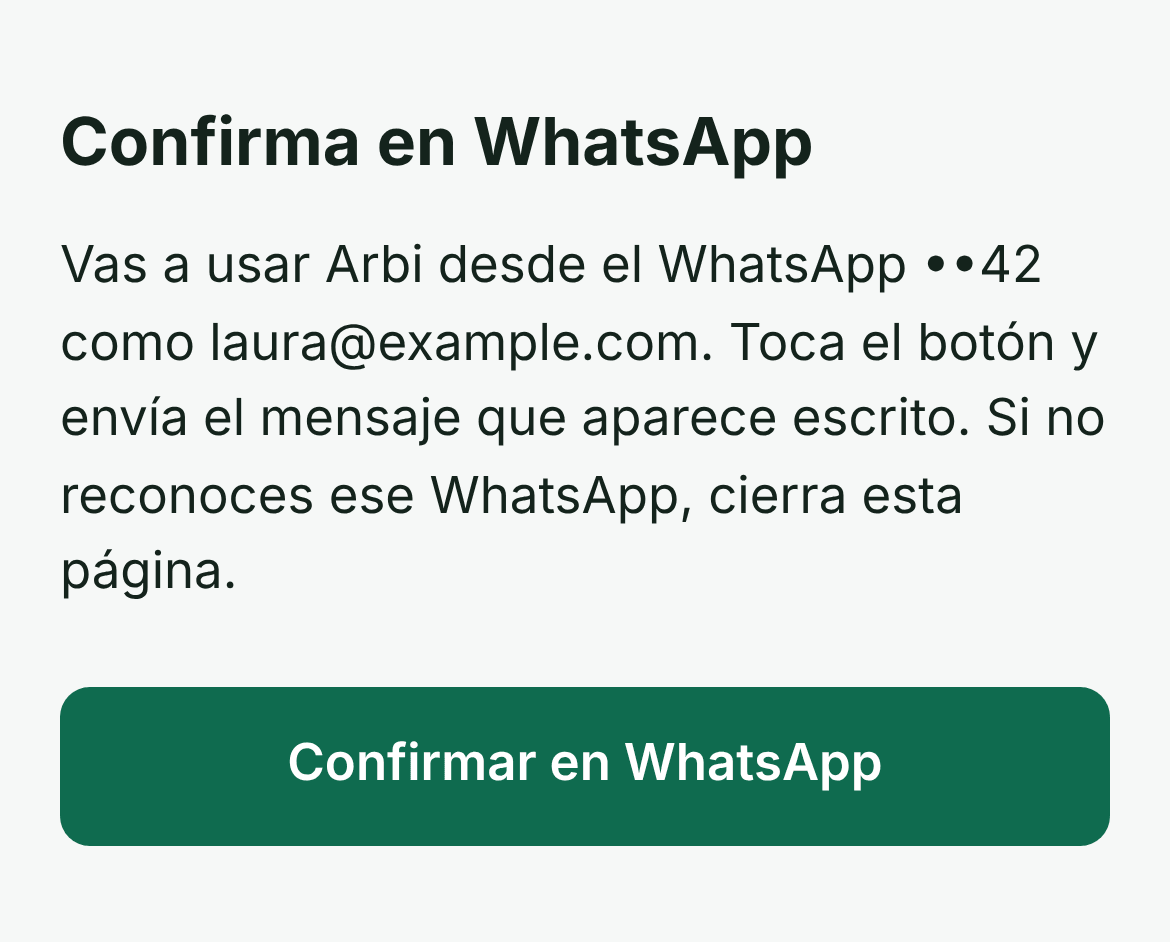
The Confirma en WhatsApp (confirm on WhatsApp) page tells you which WhatsApp you’ll use Arbi from (its last two digits) and with which account. If you don’t recognize that WhatsApp, close the page. If everything is right, tap Confirmar en WhatsApp.
-
WhatsApp opens with a message already typed: «Vincular» (link) and a code. Send it as is.
-
Arbi confirms, for example: «Listo, Laura. Ya puedes pedirme cosas por aquí, en Clínica Ejemplo.» (Done, Laura. You can ask me things here now.) If you belong to several organizations, it asks you to choose one.
How it checks who you are
- It only serves linked numbers. To a number that hasn’t signed in, Arbi only answers with the button to sign in. A reaction, such as a 👍, asks it for nothing.
- It checks your access with every message. Before answering, Arbi checks with your Arbol account that you’re still in the organization and that your role includes Arbi. If not, it tells you so and doesn’t answer with data.
- If the WhatsApp account behind that number changes, for example because the number passed to someone else, Arbi asks you to sign in again.
- Nobody can link you on your behalf. An administrator typing your number into a form doesn’t link your WhatsApp: only you do, by signing in.
- It never asks for your password in the chat. You sign in on Arbol’s page, not on WhatsApp.
Choose the organization
If you belong to several organizations, Arbi asks «¿En qué organización trabajamos?» (which organization are we working in?). With up to three, you see them as buttons; with more, tap Ver organizaciones (see organizations) and pick from the list. If you only have one, it asks «¿Trabajamos en…?» (shall we work in…?) with Sí and No; if one is already active, «¿A qué organización cambiamos?» (which organization shall we switch to?).
- To switch, write cambiar organización (change organization) or the other organization’s name.
- If you name another of your organizations in a message, Arbi asks whether to switch, with Sí, cambiar (yes, switch) and No, seguir aquí (no, stay here). You can also answer «sí» or «no».
- Each organization has its own conversation. When you come back to one, you pick up where you left off. Pending approvals don’t move from one organization to another.
What you can do on WhatsApp
- The same as on the web: ask, search your apps and your documents, ask for a PDF or a change. See What you can ask.
- Write or send voice notes. Arbi listens to them and answers in writing. It can’t read photos or files you send it yet.
- Get documents. If you ask for a document from your library or a PDF it prepared for you, it sends it as a file in the chat.
- Reply quoting a message. If you reply to a specific message, Arbi answers about that one.
- Continue on the web. If an answer is very long, Arbi sends the first part and a link to continue on the web.
- Ask about a notice. If you get a Raíz notice on this WhatsApp, such as a conversation handed to your team, Arbi keeps it in mind and you can ask about it right there.
If Arbi takes longer than about 20 seconds, it reacts to your message with ⏳: it’s still working.
Approve from WhatsApp
Whatever creates, changes or sends something reaches you as a message with buttons, with all the data that will be used, the organization and the time until which it’s available.
| If Arbi proposes | You tap |
|---|---|
| One action | Aprobar (approve) or Cancelar (cancel). You can also answer «sí» or «no». |
| Several actions | Aprobar las 3 (approve the 3), for example, Una por una (one by one) or Rechazar todas (deny all). |
| A call | Iniciar llamada (start call) or Cancelar, on the Confirmar llamada (confirm call) card. See Calls to patients. |
| A campaign draft | Crear borrador (create draft) or Cancelar, on the Preparar campaña (prepare campaign) card. The draft calls nobody. |
| A PDF | First a preview with all its content arrives, then Crear y enviar (create and send) or Cancelar. |
Keep in mind:
- The card expires at the time it shows. If you tap it later, Arbi answers «Eso ya no está vigente» (that’s no longer valid) and asks you to request it again.
- If you write something else while a card waits, that action is cancelled. Ask for it again whenever you want.
- Some things are approved on the web: anything that deletes, more than 10 actions together, anything that doesn’t fit whole in a message and long PDFs. Arbi tells you so («Esto se aprueba en la web, en Arbi.») with the Revisar en la web (review on the web) button.
What you can write to it
Besides your questions, Arbi understands these messages, with or without a / in front:
| Write | To |
|---|---|
| ayuda | See this list. |
| cambiar organización | Choose which organization you work in. |
| nuevo tema | Start a new conversation. |
| reset | Start over: a new conversation and your account read again. Your earlier chats and documents stay saved. |
| login | See which account and which organization you’re in. |
| logout | Unlink this WhatsApp from your account. |
| hablar con una persona | Get the Arbol team’s contact. |
Unlink your WhatsApp
-
Write logout to Arbi.
-
Tap Desvincular (unlink). Arbi confirms it unlinked this WhatsApp from your Arbol account.
To use Arbi on WhatsApp again, sign in again. If you change your number or your phone, unlink the old one if you still have it.
What about email?
Arbi doesn’t answer by email yet. For now you use it in the apps and on WhatsApp.
Troubleshooting
I wrote to Arbi and it only sends me the Iniciar sesión button
Your WhatsApp isn’t linked yet, or the link was lost, for example because the WhatsApp account behind the number changed.
What to do: follow the steps in Link your WhatsApp. While the link is still valid, Arbi sends you the same one again.
The page says «Este enlace ya no sirve» (this link no longer works)
The link expired after 2 hours or was already used.
What to do: go back to WhatsApp and write to Arbi to get a new one. Arbi sends up to 3 new links a day to the same number.
Arbi says «Ese código no coincide con el de la página» (the code doesn't match the page)
The «Vincular» message doesn’t have the code the page showed.
What to do: go back to the page and tap Confirmar en WhatsApp so the message is typed for you, and send it unchanged.
Arbi says my role doesn't include Arbi
Your role in that organization doesn’t include Arbi, even though you belong to it.
What to do: ask whoever manages Arbol in your organization to enable it. Your chats and documents in your other organizations don’t change.
I sent it a photo or a PDF and it didn't read it
For now, on WhatsApp Arbi reads text and voice notes, not photos or files.
What to do: write what you need, or save the file from the web with Attach a file and ask it about it.
I tapped Aprobar and it says «Eso ya no está vigente»
The card expired, or you wrote another message after it and the action was cancelled.
What to do: ask again and approve the new card before writing anything else.