Arbi looks things up in your apps without asking, but it stops before it creates, changes, deletes or sends anything. It shows you a card with exactly what it will do and waits for your decision. Read this page before approving your first change.
Before you start
- To approve a change you need the same permission you’d need to make it yourself in the app. If you don’t have it, the app refuses it even if you approve it.
- The card says which organization it will run in. You can only approve it from that organization.
From request to result
You ask
“Create the contact Ana Pérez (example)”.Arbi prepares
It looks up what it needs and builds the change.It shows you the card
With what will run, and waits.You approve and it runs
Exactly once. Arbi confirms the result.
The approval card
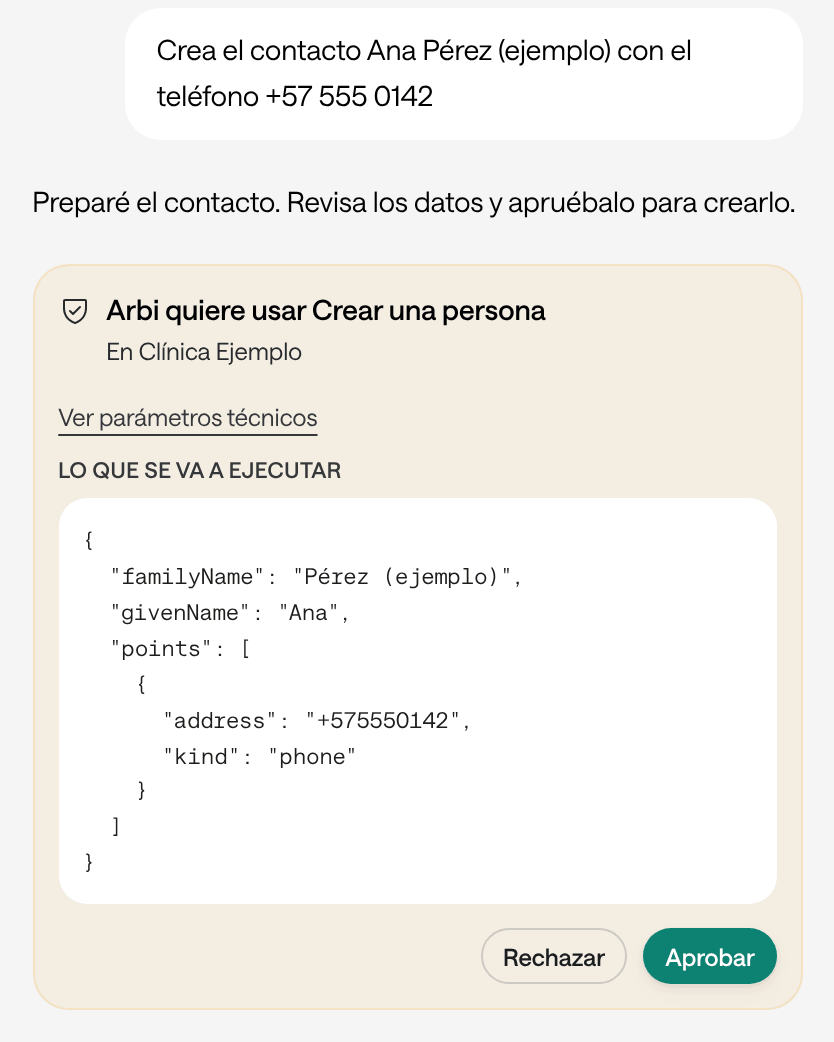
| Part | What it tells you |
|---|---|
| The title | What Arbi wants to do, such as Arbi wants to use Create a contact. Some actions have their own title: Arbi wants to save a note for the whole organization, Arbi wants to delete a note and Arbi wants to generate and save a PDF. |
| In and the organization | Where it will run. |
| View technical parameters | What will run: the exact data, such as names, dates, phone numbers or texts. What you approve is exactly that. |
| Review document | For a PDF, instead of the parameters: the file name, who will see it and all of its content. |
| Deny and Approve | Your decision. |
In Agenda, the card is in Spanish: Aprobar (approve), Rechazar (deny) and Ver parámetros técnicos (view technical parameters).
Steps
-
Read the title and the organization.
-
Check the data under View technical parameters, which starts open, or open Review document for a PDF: the name, the date, the phone number, the text.
-
If it’s exactly what you want, click Approve. If not, click Deny and tell Arbi what to change. It will prepare a new card.
-
The card says Approved. Running… and, when it’s done, Arbi confirms the result in the conversation.
What happens next
- What you approve runs exactly once. Even if you click twice or have the conversation open in two windows. In the other window you’ll see “This action was already decided in another window.”
- What you deny doesn’t run. The card shows Denied, and Arbi doesn’t propose it again unless you ask.
- The approval covers only what the card shows. If anything changes, Arbi prepares another card.
- While a card waits, you can’t keep writing in that conversation. Below the box you’ll see “Approve or deny the pending action to continue.” If Arbi proposed several things at once, decide each one.
- The card waits for you. If you reload the page or close the tab, you’ll find it in the same conversation, in History.
- If the app didn’t confirm the result, Arbi tells you the change may have gone through. Check in the app before asking again: Arbi doesn’t repeat it on its own.
What Arbi does without asking
- Looking things up: reading, searching and counting in your apps and your documents.
- Saving a personal note you asked it to save.
Everything else waits for your approval, deleting included.
On WhatsApp
The card arrives as a message with buttons, such as Aprobar (approve) and Cancelar (cancel), and says until what time it’s available. What doesn’t fit whole in one message, and anything that deletes, is approved on the web. See Use Arbi on WhatsApp.
In Ámbar
In Ámbar, Arbi asks you to approve, with Aprobar (approve) or Rechazar (deny), whatever touches a person, an appointment, a follow-up or a contract. The card says Arbi quiere ejecutar (Arbi wants to run) and shows the data.
Some things it does without a card and then tells you what it did: what you ask it to remember, its Tareas de Arbi (Arbi’s tasks), marking your notices as read, and saving drafts of workflows, agents or technical notes. A draft changes nothing until a person approves it in Ámbar.
Troubleshooting
I can't type: it says “Approve or deny the pending action to continue”
A card is waiting for your decision in this conversation.
What to do: scroll up in the conversation, find the amber card and click Approve or Deny. To ask something else without deciding, open a New conversation.
I approved, but the app says I don't have permission
Arbi acts with your permissions. If your role doesn’t let you make that change in the app, you can’t make it through Arbi either.
What to do: ask someone with that permission to make the change, or ask whoever manages Arbol in your organization for the permission.
Arbi says it doesn't know whether the change went through
The app didn’t confirm the result in time. The change may have been applied.
What to do: check in the app, or ask Arbi to look it up. Don’t ask it to repeat it until you know it didn’t happen.