Do this when someone starts using an Arbol application at your organization: a new receptionist in Agenda, a coordinator who will handle conversations in Raíz, someone in accounting who needs to see the invoices.
Before you start
- You need to administer the application you’re inviting them to: hold its Administration role, or be the organization’s Owner. To invite someone to Account, you need Account’s Administration role.
- Have the person’s email and decide their role. If you’re unsure, see what each one allows in Roles and permissions.
Steps
-
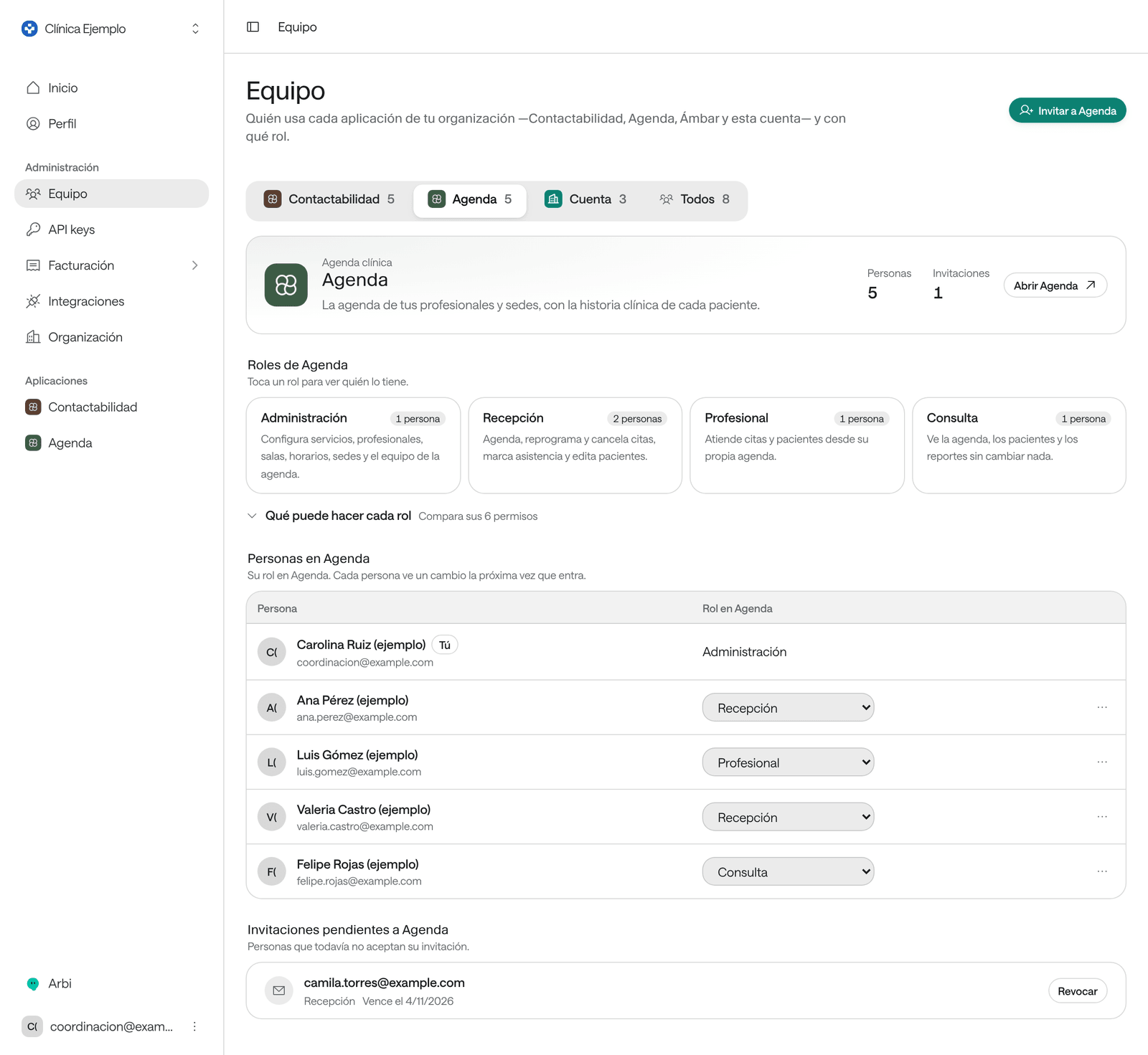
In the menu, under Administration, click Team.
-
At the top, choose the application’s tab: Contactabilidad (Raíz), Agenda, Ámbar or Account. Only the applications your organization has appear.
-
Click Invite to followed by the application’s name, such as Invite to Agenda.
On the Everyone tab the button is called Invite. If you administer more than one application, the first thing you choose is the Product.
-
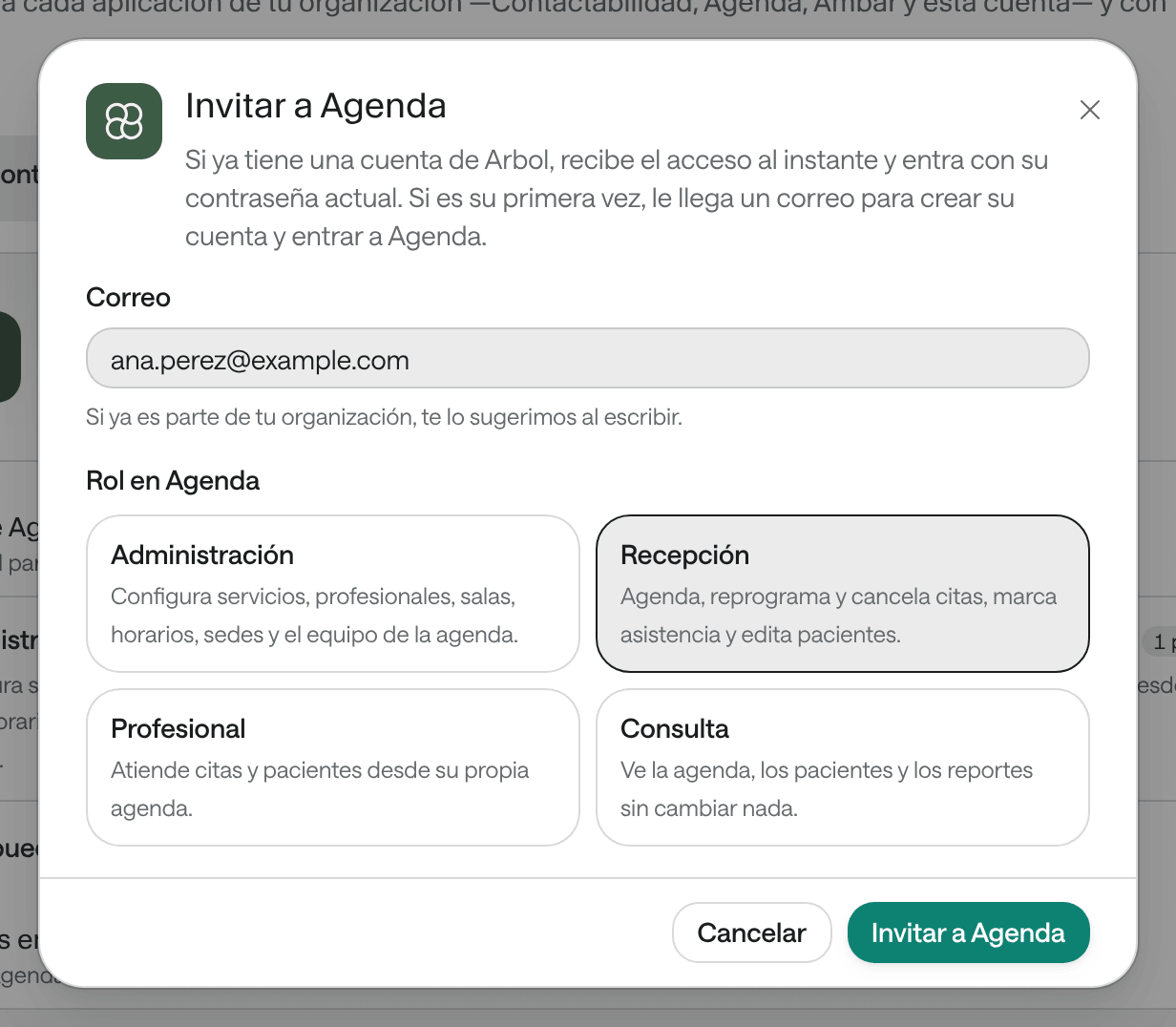
In Email, type the person’s email. If they’re already in your organization, we suggest them as you type, and the window says, for example, “Ana Pérez (ejemplo) is already in your organization: they get access to Agenda right away.”
-
Under Role in followed by the application’s name, choose a role. Each one says what it’s for.
-
Click Invite to followed by the application’s name.
What you see when you’re done
It depends on whether the person already has an Arbol account:
- It’s their first time on Arbol. You see a message such as “We emailed ana.perez@clinica-ejemplo.com an invitation from Agenda with the Front desk role: its link opens Agenda.” The person gets an email to create their account and enter the application. Until they accept, they’re listed under Pending invitations to and the application’s name (on the Everyone tab, Pending invitations), with the date it expires.
- They already have an Arbol account, for example because they use another application or belong to another organization. They get access right away and no invitation is sent. The message says they now have the role and can sign in with their existing account and password, next to a Sign-in link: copy it and share it with them.
- They already used that application. Before you invite them, the window warns you that continuing changes their role.
What the person goes through when they get the invitation is in Sign in to Arbol.
Revoke an invitation
If you got the email or the role wrong, or the person won’t be joining after all:
-
In Team, open the application’s tab or the Everyone tab.
-
Under Pending invitations to and the application’s name (on Everyone, Pending invitations), find the email and click Revoke.
You see the message “You revoked the invitation to” followed by the email. The link in that email stops working. If the invitation has already expired, it shows “Expired on” and the date: revoke it and invite the person again.
Common problems
- I don’t see the button to invite. You don’t administer that application. If you administer none, the page says so: “You can see the team but not change its access: that’s for each application’s administrators.”
- “Enter a valid email.” Check that the email is complete, like name@domain.com.
- “That person already has a pending invitation to this application.” Each person can have only one pending invitation per application. Revoke the earlier one if you want to send another.
- “You can’t assign that role.” You can only give roles in the applications you administer. The Owner role isn’t offered because Arbol assigns it.
- The person didn’t get the email. Ask them to check their spam folder and to confirm the address. If it was misspelled, revoke the invitation and invite them again with the right email.
- The person signed in but doesn’t see the application. Ask them to sign out and back in: an access change shows the next time they sign in.