Do this when someone changes jobs, needs to see more or less than they do, or leaves the organization.
Before you start
- You need to administer the application: hold its Administration role, or be the organization’s Owner. For Account, Account’s Administration role.
- You can’t change your own access: your row is marked You. Ask another administrator of the application.
- People marked Protected hold access that Arbol assigns, such as the organization’s ownership. Only Arbol can change it.
Find the person
In the menu, under Administration, click Team. The page has a tab per application and an Everyone tab.
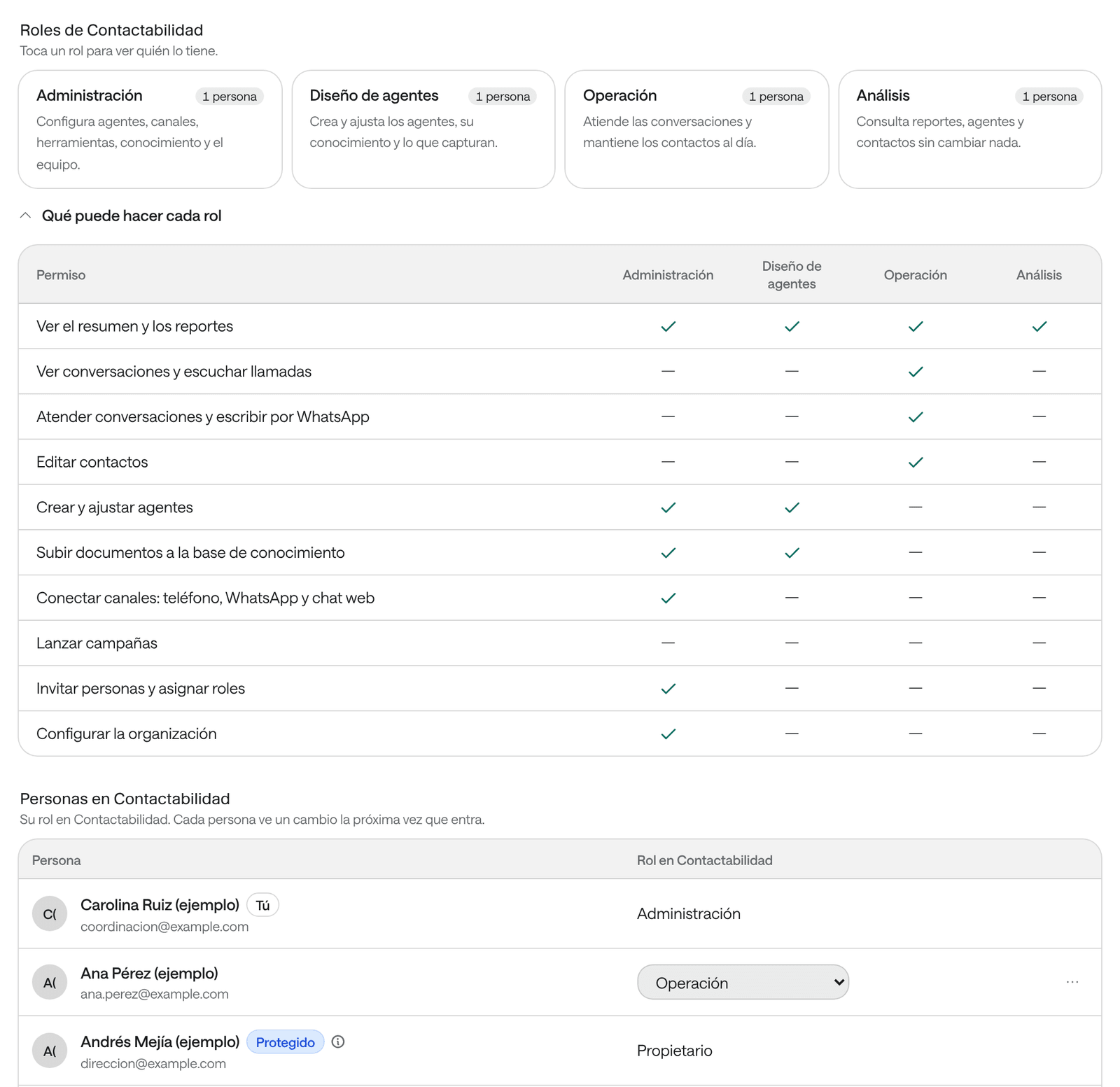
- On an application’s tab, its roles section, such as Agenda’s roles, shows each role with how many people hold it. Click a role to see only those people, and Show everyone to go back.
- What each role can do compares the application’s roles, permission by permission.
- People in followed by the application’s name lists each person with their role. With more than eight people, Search people… appears.
- The Everyone tab shows each person with their role in every application.
Change someone’s role
-
In Team, open the application’s tab.
-
In the person’s row, under Role in followed by the application’s name, choose the new role from the list.
The change is saved as soon as you choose it. You see a message such as “Ana Pérez (ejemplo) now has the Front desk role in Agenda.” The person sees it the next time they sign in. Their access to the other applications doesn’t change.
Remove their access to one application
-
In Team, open the application’s tab.
-
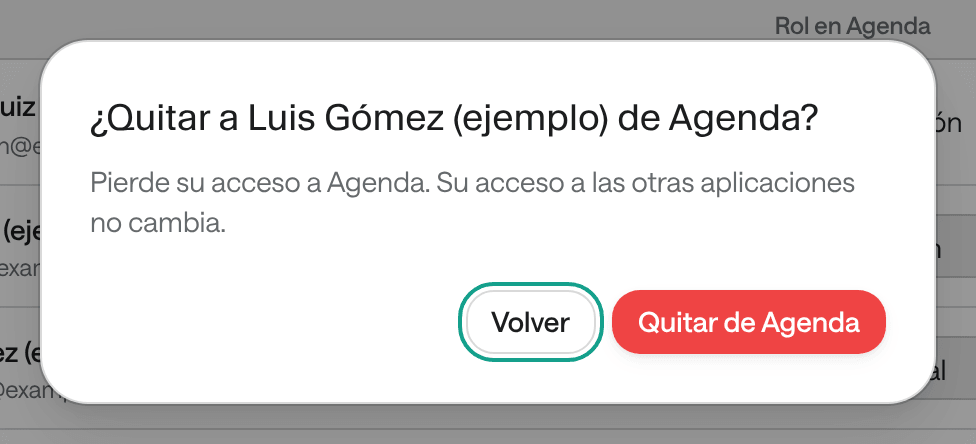
In the person’s row, open the ⋯ menu and choose Remove from followed by the application’s name.
-
Confirm with Remove from followed by the application’s name.
You see a message such as “Luis Gómez (ejemplo) no longer has access to Agenda.” The person loses their access to that application, and their access to the others doesn’t change. If it was the only application they used, they leave your organization.
You can also do it on the Everyone tab: in the application’s column, choose No access.
Remove all their access
When someone leaves the organization:
-
In Team, open the Everyone tab.
-
In the person’s row, open the ⋯ menu and choose Remove access.
-
Confirm with Remove access.
You see a message such as “You removed Luis Gómez (ejemplo)’s access.” The person loses their access to every application you administer. If no other role is left, they leave your organization. If they hold roles in applications you don’t administer, ask those applications’ administrators to remove them too.
Common problems
- There’s no list to change the role. You don’t administer that application, the row is yours, or the person is marked Protected.
- “The product must keep at least one administrator. Give that role to someone else first.” Every application needs someone with Administration. Give that role to someone else, then change this person’s.
- “You can’t change your own access. Ask another administrator of the product.” Nobody changes their own access.
- “This person holds access that only Arbol can change.” Write to your Arbol team.
- “The change may have gone through: check before repeating it.” or “We do not know whether the change was applied.” Refresh the page and check the person’s role before trying again.